1. สูงกว่าview
The FIFINE K669PRO2 is a USB condenser microphone designed for various applications including podcasting, gaming, streaming, voice-overs, and online meetings. It features RGB lighting, a tap-to-mute function, a gain control knob, and a cardioid pickup pattern for clear audio capture. This manual provides instructions for setting up, operating, and maintaining your microphone.
2. เนื้อหาบรรจุภัณฑ์
กรุณาตรวจสอบเนื้อหาในแพ็คเกจเพื่อให้แน่ใจว่ามีสินค้าครบทั้งหมด:
- FIFINE K669PRO2 USB Condenser Microphone with Pop Filter
- USB-C to USB-A Cable (6.5ft / 2m)
- ขาตั้งขาตั้งกล้อง
- คู่มือการใช้งาน

Figure 2.1: Package Contents. Includes the microphone with pop filter, USB cable, tripod stand, and user manual.
3. คู่มือการติดตั้ง
Follow these steps to set up your FIFINE K669PRO2 microphone:
3.1 การประกอบทางกายภาพ
- ติดตั้งขาตั้งกล้อง: Screw the microphone onto the included tripod stand. Ensure it is firmly attached and stable on your desk.
- Install the Pop Filter: Attach the pop filter to the microphone's shock mount. This helps reduce plosive sounds for clearer audio.

Figure 3.1: Plug and Play setup. The microphone connects directly to your computer via the provided USB cable.
3.2 การเชื่อมต่อกับอุปกรณ์ของคุณ
- เชื่อมต่อสาย USB: Plug the USB-C end of the cable into the microphone and the USB-A end into an available USB port on your computer (PC/Mac) or gaming console (PS4/PS5).
- การจดจำระบบ: Your operating system should automatically detect and install the necessary drivers. The microphone is plug-and-play, requiring no additional software installation.
- เลือกเป็นอุปกรณ์อินพุต:
- หน้าต่าง: นำทางไปที่ การตั้งค่าเสียง > ป้อนข้อมูล and select "FIFINE K669PRO2" as your input device.
- MacOS: นำทางไปที่ การตั้งค่าระบบ > เสียง > ป้อนข้อมูล and select "FIFINE K669PRO2".
- พีเอส4/พีเอส5: นำทางไปที่ การตั้งค่า > อุปกรณ์ > อุปกรณ์เสียง and select "FIFINE K669PRO2" as your input device.
4. คู่มือการใช้งาน
4.1. ควบคุมกำไร
The microphone features a gain control knob on the front. Rotate the knob to adjust the microphone's input sensitivity. Turn clockwise to increase gain and counter-clockwise to decrease it. Adjust the gain to achieve optimal audio levels without distortion.

Figure 4.1: Front panel controls, including the gain knob for volume adjustment.
4.2 ฟังก์ชั่นปิดเสียง
Tap the mute button on the front of the microphone to instantly mute or unmute your audio. The LED indicator will change color to show the mute status (e.g., green for active, red for muted), providing a visual reminder.
Figure 4.2: Front panel controls, highlighting the tap-to-mute button.
4.3 การควบคุมแสง RGB
The microphone features customizable RGB lighting. Use the RGB control key on the back of the microphone to cycle through different lighting modes and colors. There are three lighting modes and over nine color options available.

Figure 4.3: RGB lighting in action, showcasing dynamic solid-color, dynamic multi-color, and static solid color modes.

รูปที่ 4.4: ด้านหลัง view of the microphone, indicating the RGB control button.
4.4 รูปแบบการรับเสียงแบบคาร์ดิออยด์
The K669PRO2 utilizes a cardioid polar pattern. This means the microphone primarily picks up sound from the front, reducing unwanted noise from the sides and rear. Position the microphone directly towards the sound source (e.g., your mouth) for optimal voice capture.
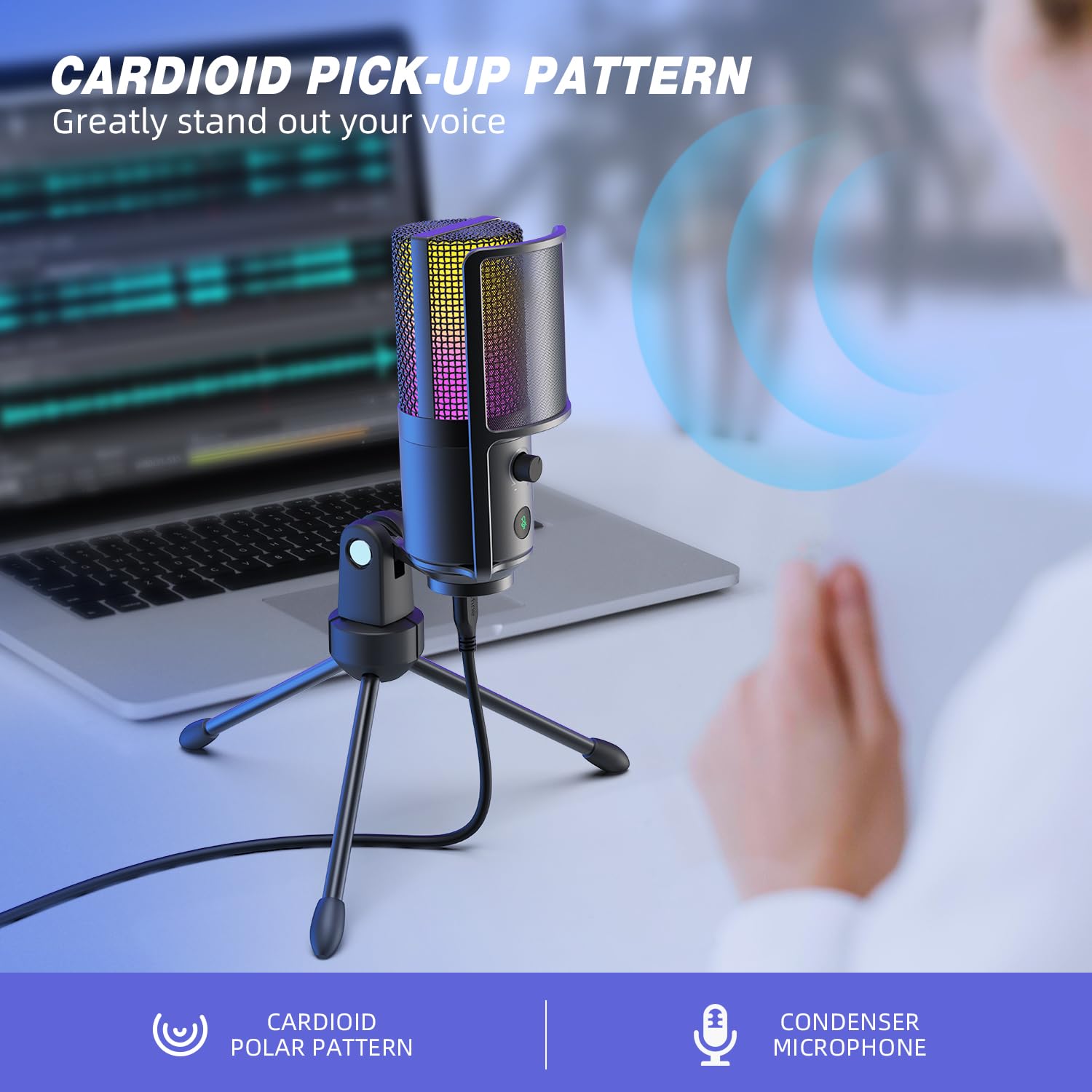
Figure 4.5: Cardioid pickup pattern illustration, demonstrating focused sound capture.
5. การบำรุงรักษา
- การทำความสะอาด: Use a soft, dry cloth to clean the microphone's exterior. Avoid using liquid cleaners or solvents, as they may damage the device.
- พื้นที่จัดเก็บ: เมื่อไม่ใช้งาน ควรเก็บไมโครโฟนไว้ในที่แห้งและปราศจากฝุ่น
- การจัดการ: โปรดใช้งานไมโครโฟนอย่างระมัดระวัง หลีกเลี่ยงการทำตกหรือการกระแทกอย่างแรง เพราะอาจส่งผลต่อประสิทธิภาพการทำงานได้
6 การแก้ไขปัญหา
| ปัญหา | สาเหตุที่เป็นไปได้ | สารละลาย |
|---|---|---|
| ไม่มีเสียงออกจากไมโครโฟน |
|
|
| Low volume or weak audio. |
|
|
| เสียงผิดเพี้ยนหรือไม่ชัดเจน |
|
|
| ไฟ RGB ไม่ทำงาน |
|
|
7. ข้อมูลจำเพาะ
| แบบอย่าง | เค669โปร2 |
| รูปแบบขั้ว | ทิศทางเดียว (Cardioid) |
| เทคโนโลยีการเชื่อมต่อ | ยูเอสบี |
| ประเภทขั้วต่อ | USB-C (on mic), USB-A (on cable) |
| อุปกรณ์ที่รองรับ | PC, Mac, PS4, PS5 |
| วัสดุ | โลหะ |
| การตอบสนองความถี่ | 20 เฮิรตซ์ - 20 กิโลเฮิรตซ์ |
| อัตราส่วนสัญญาณต่อเสียงรบกวน | 70 เดซิเบล |
| แหล่งพลังงาน | สายไฟไฟฟ้า (ขับเคลื่อนด้วย USB) |
| น้ำหนักสินค้า | 508 กรัม |
| ส่วนประกอบที่รวมอยู่ | Microphone, USB Cable, Tripod Stand, Pop Filter |
8. การรับประกันและการสนับสนุน
สำหรับข้อมูลการรับประกัน การสนับสนุนทางเทคนิค หรือข้อสงสัยด้านบริการลูกค้า โปรดดูที่เว็บไซต์อย่างเป็นทางการของ FIFINE webหรือติดต่อฝ่ายบริการลูกค้าโดยตรง รายละเอียดต่างๆ มักจะพบได้บนบรรจุภัณฑ์ของผลิตภัณฑ์หรือช่องทางออนไลน์อย่างเป็นทางการของผู้ผลิต
You can visit the FIFINE store for more information: FIFINE Official Store


