1. บทนำ
This manual provides detailed instructions for the setup, operation, maintenance, and troubleshooting of your FMOUSE Slim White Wireless Bluetooth Mouse M113. Please read this manual thoroughly before using the product to ensure optimal performance and longevity.

Image 1: FMOUSE M113 Slim White Wireless Bluetooth Mouse
2. เนื้อหาบรรจุภัณฑ์
เมื่อเปิดกล่องพัสดุ โปรดตรวจสอบว่ามีสิ่งของต่อไปนี้ครบถ้วนหรือไม่:
- เมาส์ไร้สาย FMOUSE M113 จำนวน 1 ตัว
- 1 x USB Charging Cable (Type-C, 80cm/31.5in)
- 1 x USB Receiver (2.4GHz)
- 1 x คู่มือการใช้งาน

Image 2: Package contents of the FMOUSE M113 mouse
3. การตั้งค่า
3.1 การชาร์จเมาส์
Before initial use, fully charge the mouse using the provided Type-C USB cable. The charging port is located at the front of the mouse.
- การชาร์จ: The scroll wheel light will display red.
- การชาร์จเสร็จสมบูรณ์: The scroll wheel light will turn off.
- แบตเตอรี่ต่ำ: The scroll wheel light will flash red.

Image 3: Type-C charging port and battery indicators
3.2 Connecting the Mouse (Dual Mode)
The FMOUSE M113 supports two connection modes: 2.4GHz Wireless (via USB receiver) and Bluetooth 5.1. You can switch between modes using the selector switch on the bottom of the mouse.

Image 4: Dual connection options for the mouse
3.2.1 2.4GHz Wireless Connection (USB Receiver)
- ค้นหาตัวรับสัญญาณ USB ที่เก็บไว้ในช่องแม่เหล็กด้านล่างของเมาส์
- เสียบตัวรับสัญญาณ USB เข้ากับพอร์ต USB ที่พร้อมใช้งานบนคอมพิวเตอร์ของคุณ
- Slide the switch on the bottom of the mouse to the 2.4จี position (indicated by a USB icon).
- เมาส์ควรเชื่อมต่อกับอุปกรณ์ของคุณโดยอัตโนมัติ
3.2.2 การเชื่อมต่อบลูทูธ 5.1
- Slide the switch on the bottom of the mouse to the บลูทูธ ตำแหน่ง (ระบุด้วยไอคอนบลูทูธ)
- The scroll wheel light will flash, indicating it is in pairing mode.
- On your device (e.g., MacBook, iPad, Laptop), navigate to the Bluetooth settings.
- ค้นหา available devices and select "FMOUSE M113" (or similar) to pair.
- Once paired, the scroll wheel light will stop flashing and remain solid.
วิดีโอ 1: จบview of FMOUSE M113 features and connectivity
4. การใช้งานเมาส์
4.1 ฟังก์ชั่นพื้นฐาน
- คลิกซ้าย: การเลือกและการเปิดใช้งานหลัก
- คลิกขวา: เข้าถึงเมนูบริบท
- ล้อเลื่อน: Scrolls content vertically.
4.2 การปรับ DPI
The mouse features 4 adjustable DPI levels (800/1200/1600/2400) to customize cursor sensitivity. Press the ปุ่ม DPI (located near the scroll wheel) to cycle through the settings. The scroll wheel light color indicates the current DPI level.
- 800 จุดต่อนิ้ว: (Specific color may vary, refer to image)
- 1200 จุดต่อนิ้ว: (Specific color may vary, refer to image)
- 1600 จุดต่อนิ้ว: (Specific color may vary, refer to image)
- 2400 จุดต่อนิ้ว: (Specific color may vary, refer to image)
To turn the scroll wheel light on or off, long-press the DPI button for 2 seconds.

Image 5: 4 Adjustable DPI levels and corresponding light indicators
4.3 Desktop Return Button
The mouse includes a dedicated Desktop Return button. Pressing this button will instantly minimize all open windows and return you to your computer's desktop. This feature is useful for quick privacy or task switching.

Image 6: Function of the Desktop Return button
4.4 Mute/Volume Control Button
การ ปุ่มปิดเสียง provides quick audio control:
- กดครั้งเดียว: Mutes or unmutes your computer's audio.
- Long Press (2 seconds) and Scroll: After a long press, you can adjust the computer's volume by scrolling the wheel up or down.

Image 7: Mute and volume adjustment functions
4.5 คุณสมบัติการคลิกแบบเงียบ
The FMOUSE M113 is designed with silent click buttons, reducing noise during use. This makes it suitable for quiet environments such as libraries, offices, or late-night work.
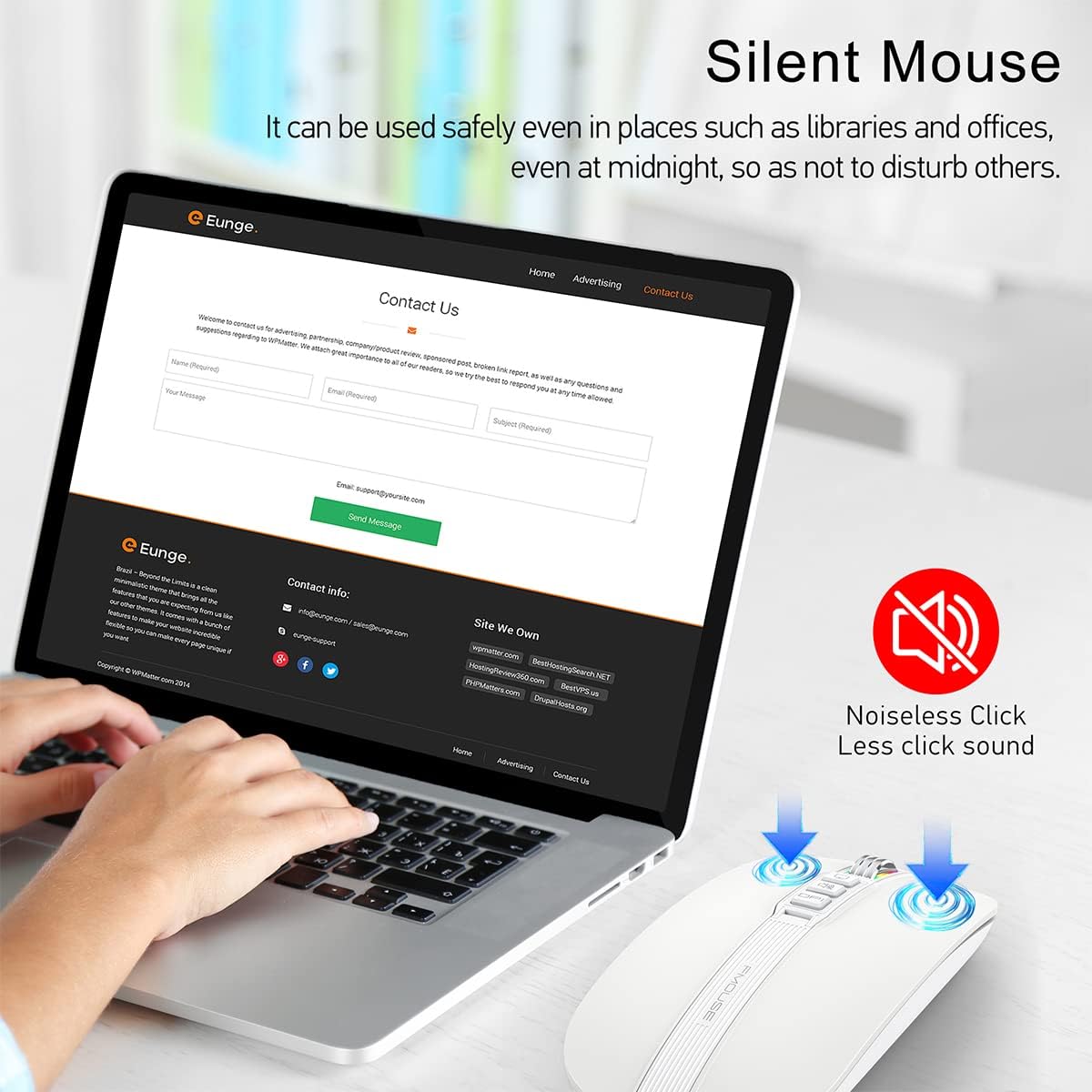
Image 8: Silent click feature of the mouse
5. การบำรุงรักษา
5.1 การทำความสะอาด
- Disconnect the mouse from your device before cleaning.
- ใช้ผ้าแห้งนุ่มและไม่เป็นขุยเช็ดพื้นผิวของเมาส์
- สำหรับสิ่งสกปรกที่ฝังแน่น ง. เบา ๆampen the cloth with water or a mild electronic cleaner. Avoid excessive moisture.
- ห้ามใช้สารเคมีรุนแรง น้ำยาทำความสะอาดที่มีฤทธิ์กัดกร่อน หรือตัวทำละลาย
5.2 การดูแลแบตเตอรี่
- ชาร์จเมาส์เป็นประจำเพื่อรักษาสุขภาพแบตเตอรี่
- หลีกเลี่ยงการปล่อยแบตเตอรี่จนหมดบ่อยครั้ง
- Do not expose the mouse to extreme temperatures, as this can affect battery life.
5.3 พื้นที่จัดเก็บ
- เมื่อไม่ได้ใช้งานเป็นเวลานาน ควรเก็บเมาส์ไว้ในที่แห้งและเย็น
- Ensure the mouse is turned off to conserve battery life.
- The USB receiver can be stored in its magnetic slot on the bottom of the mouse to prevent loss.
6 การแก้ไขปัญหา
6.1 ปัญหาการเชื่อมต่อ
- Mouse not connecting via 2.4GHz USB receiver:
- Ensure the USB receiver is securely plugged into a working USB port.
- Verify the switch on the bottom of the mouse is set to the 2.4G position.
- Try plugging the receiver into a different USB port. - เมาส์ไม่เชื่อมต่อผ่านบลูทูธ:
- Ensure the switch on the bottom of the mouse is set to the Bluetooth position.
- Check that Bluetooth is enabled on your device.
- Remove any previous pairings of the mouse from your device's Bluetooth settings and attempt to pair again.
- Ensure the mouse is sufficiently charged.
6.2 DPI Light Behavior
- DPI light not changing color: Press the DPI button to cycle through settings. If it still doesn't change, ensure the mouse is powered on and charged.
- DPI light is off: Long-press the DPI button for 2 seconds to toggle the light on/off.
6.3 ปัญหาการชาร์จไฟ
- เมาส์ไม่ชาร์จ:
- Ensure the Type-C charging cable is securely connected to both the mouse and a power source.
- ลองใช้พอร์ต USB หรืออะแดปเตอร์ไฟอื่น
- Check if the charging cable is damaged. - Scroll wheel light flashing red: This indicates a low battery. Connect the mouse to a power source for charging.
6.4 Cursor Movement
- Erratic or no cursor movement:
- Ensure the mouse is properly connected (2.4GHz or Bluetooth).
- Check the battery level and charge if necessary.
- ทำความสะอาดเซนเซอร์ออปติคอลบริเวณใต้เมาส์
- Ensure the mouse is used on a suitable surface (not highly reflective or transparent).
7. ข้อมูลจำเพาะ
| คุณสมบัติ | ข้อมูลจำเพาะ |
|---|---|
| ขนาดสินค้า | 4.45 x 2.24 x 0.98 นิ้ว (113 x 57 x 25 มม.) |
| น้ำหนักสินค้า | 2.4 ออนซ์ (68 กรัม) |
| เทคโนโลยีการเชื่อมต่อ | Bluetooth 5.1, 2.4GHz Wireless (USB) |
| เทคโนโลยีตรวจจับการเคลื่อนไหว | ออฟติคอล |
| ระดับ DPI | 800 / 1200 / 1600 / 2400 |
| ประเภทแบตเตอรี่ | แบตเตอรี่ลิเธียมไอออน 1 ก้อน (รวมอยู่ด้วย) |
| พอร์ตชาร์จ | ประเภทซี |
| คุณสมบัติพิเศษ | One-click DPI adjustment, One-click access to desktop, One-click muting, Three shortcut keys |

Image 9: Dimensions of the FMOUSE M113 mouse
8. การรับประกันและการสนับสนุน
8.1 ข้อมูลการรับประกัน
FMOUSE products are designed and manufactured to the highest quality standards. For specific warranty details, please refer to the warranty card included in your product packaging or visit the official FMOUSE webไซต์ โปรดเก็บใบเสร็จรับเงินไว้เป็นหลักฐานการซื้อสำหรับการเรียกร้องการรับประกัน
8.2 การสนับสนุนลูกค้า
If you encounter any issues or have questions regarding your FMOUSE M113 mouse that are not covered in this manual, please contact FMOUSE customer support through the following channels:
- เป็นทางการ Webเว็บไซต์: Visit the FMOUSE Store on Amazon
- อีเมล: โปรดดูที่บรรจุภัณฑ์ของผลิตภัณฑ์หรือเอกสารอย่างเป็นทางการ webเว็บไซต์สำหรับติดต่ออีเมล์


