การแนะนำ
This manual provides detailed instructions for the setup, operation, and maintenance of your PUSOKEI Rechargeable Bluetooth Keyboard and Mouse Combo. Please read this manual thoroughly before using the product to ensure optimal performance and longevity.

Image: The compact keyboard and mouse combo neatly stored in a bag alongside a tablet and smartphone, demonstrating its portability.
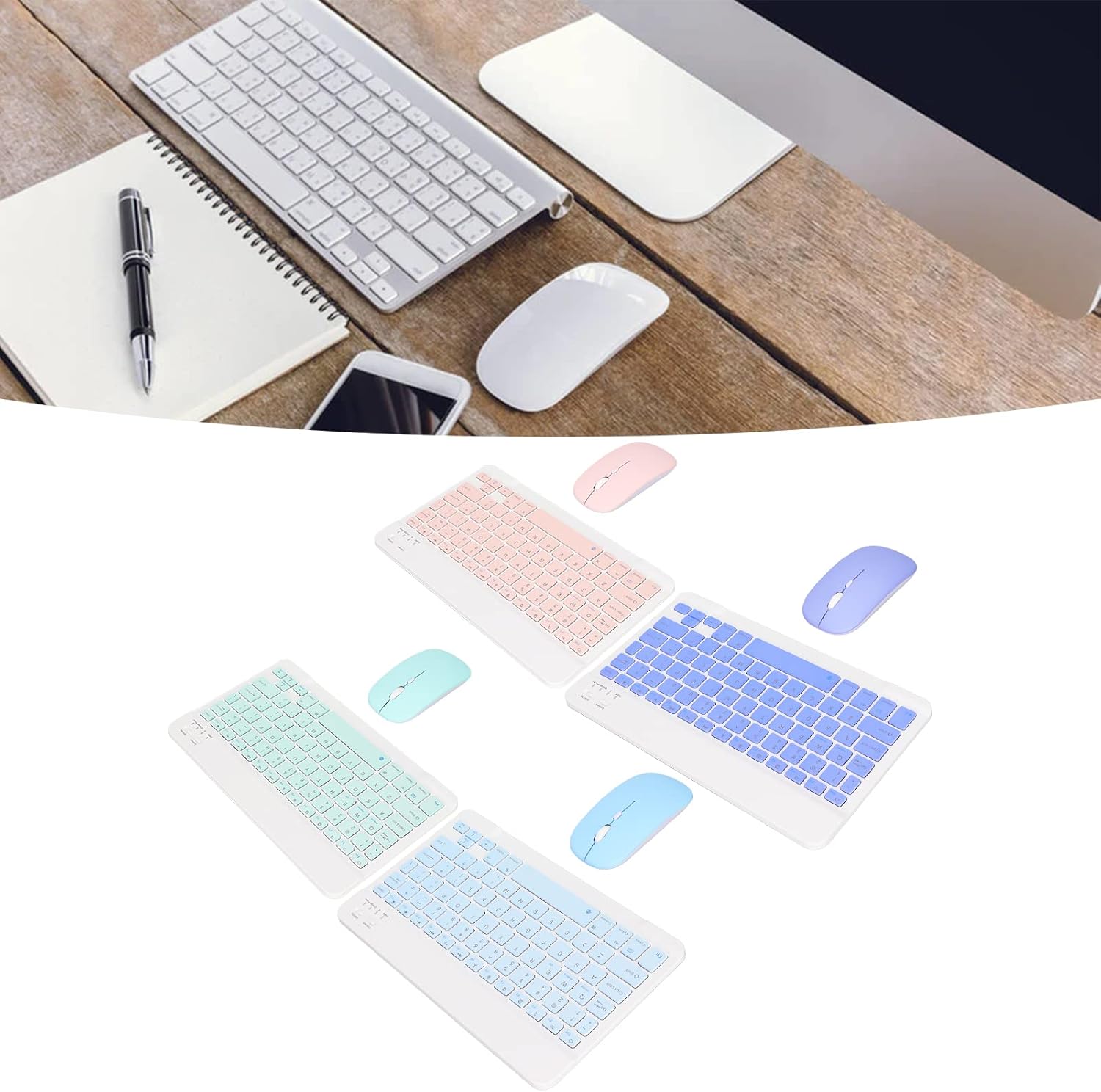
Image: A display of the PUSOKEI keyboard and mouse combo available in various color options.

Image: The PUSOKEI Rechargeable Bluetooth Keyboard and Mouse Combo, featuring a white keyboard with pink keys, a pink ultra-slim mouse, and a USB charging cable.
คำแนะนำการตั้งค่า
1. การชาร์จอุปกรณ์
Both the keyboard and mouse feature built-in rechargeable batteries. Before first use, ensure both devices are fully charged.
- Connect the provided USB charging cable to the charging port on the keyboard and mouse.
- ต่อปลายอีกด้านของสาย USB เข้ากับแหล่งจ่ายไฟ USB มาตรฐาน (เช่น พอร์ต USB ของคอมพิวเตอร์ อะแดปเตอร์ติดผนัง USB)
- ไฟแสดงสถานะการชาร์จจะสว่างขึ้นในระหว่างการชาร์จ และดับลงเมื่อชาร์จเต็ม

Image: Close-up of the keyboard's charging port and a battery icon indicating charging status.

ภาพ: รายละเอียด view of the micro USB charging port on the device.
2. การจับคู่บลูทู ธ
The keyboard and mouse connect wirelessly via Bluetooth. Follow these steps to pair them with your device:
- เปิดเครื่อง: Locate the ON/OFF switch on both the keyboard and the mouse and slide it to the "ON" position.
- Activate Pairing Mode (Keyboard): Press the "Connect" button on the keyboard. The Bluetooth indicator light will start blinking, indicating it is in pairing mode.
- Activate Pairing Mode (Mouse): The mouse typically enters pairing mode automatically when powered on. If not, check for a small button on the underside or a specific key combination.
- เปิดใช้งานบลูทูธบนอุปกรณ์ของคุณ: On your computer, tablet, or smartphone, go to the Bluetooth settings.
- ค้นหา อุปกรณ์: Your device will scan for available Bluetooth devices. Look for "Bluetooth Keyboard" and "Bluetooth Mouse" (or similar names).
- เชื่อมต่อ: Select each device from the list to pair. You may be prompted to enter a code displayed on your screen for the keyboard.

Image: Close-up of the keyboard's 'Connect' button and 'OFF/ON' switch, essential for initiating Bluetooth pairing.

Image: The keyboard shown alongside a smartphone and a tablet, illustrating its wide compatibility with mobile and tablet devices.

Image: An illustration showing the keyboard connected to a smartphone, laptop, and tablet, highlighting its multi-device compatibility.
คำแนะนำการใช้งาน
ฟังก์ชั่นคีย์บอร์ด
- การสลับระบบปฏิบัติการ: The keyboard supports multiple operating systems. Use the following key combinations to switch modes for optimal functionality:
- Fn + ถาม: สำหรับอุปกรณ์แอนดรอยด์
- Fn + W: สำหรับอุปกรณ์วินโดวส์
- Fn + อี: For iOS/Mac devices
- ปุ่มฟังก์ชัน: The top row of keys (F1-F12) can be used as standard function keys or media control keys. Press the Fn key simultaneously with the desired function key to activate its secondary function (e.g., volume control, playback).
- ประสบการณ์การพิมพ์: The keyboard features a scissor-foot structure for comfortable and responsive typing.

ภาพ: ภาพระยะใกล้ view of a single keyboard key, revealing the underlying scissor-foot mechanism designed for comfortable and precise typing.

ภาพ: ภาพระยะใกล้ view of the keyboard's keys, highlighting the clear keycap legends and layout.
ฟังก์ชั่นเมาส์
- การปรับ DPI: The mouse offers three adjustable DPI settings (800-1200-1600) to control cursor sensitivity. Press the DPI button (usually located near the scroll wheel) to cycle through the settings.
- การออกแบบตามหลักสรีรศาสตร์: The ultra-thin and quiet mouse is designed for comfortable use during daily office tasks and gaming.

Image: The keyboard and mouse positioned on a desk with a laptop, illustrating the mouse's adjustable DPI settings for various tasks.
การซ่อมบำรุง
- การทำความสะอาด: ใช้ผ้านุ่มและแห้งเช็ดทำความสะอาดพื้นผิวของแป้นพิมพ์และเมาส์ สำหรับคราบสกปรกฝังแน่น ให้เช็ดเบาๆamp สามารถใช้ผ้าชุบน้ำสบู่ชนิดอ่อนๆ เช็ดได้ โดยให้แน่ใจว่าไม่มีของเหลวเข้าไปในอุปกรณ์
- การดูแลแบตเตอรี่ To prolong battery life, avoid fully discharging the devices frequently. Recharge them when the battery indicator is low. If storing for an extended period, charge them to about 50% and recharge every few months.
- พื้นที่จัดเก็บ: เก็บอุปกรณ์ไว้ในที่แห้งและเย็น หลีกเลี่ยงแสงแดดโดยตรงและอุณหภูมิที่สูงหรือต่ำเกินไป
การแก้ไขปัญหา
ปัญหาทั่วไปและแนวทางแก้ไข
- อุปกรณ์ไม่จับคู่:
- Ensure both the keyboard and mouse are fully charged and powered on.
- Make sure Bluetooth is enabled on your host device (computer, tablet, phone).
- กดปุ่ม "เชื่อมต่อ" บนแป้นพิมพ์เพื่อเข้าสู่โหมดจับคู่
- Remove any previously paired instances of the keyboard/mouse from your device's Bluetooth settings and attempt to pair again.
- Ensure the devices are within the 10-meter operating range.
- Keys or mouse unresponsive:
- ตรวจสอบระดับแบตเตอรี่และชาร์จใหม่หากจำเป็น
- Ensure the devices are still connected via Bluetooth. Re-pair if the connection is lost.
- รีสตาร์ทอุปกรณ์โฮสต์ของคุณ
- Incorrect characters typed (keyboard):
- Verify that the keyboard is set to the correct operating system mode (Fn+Q for Android, Fn+W for Windows, Fn+E for iOS/Mac).
ข้อมูลจำเพาะ
| คุณสมบัติ | รายละเอียด |
|---|---|
| ยี่ห้อ | ปูโซเคอิ |
| เทคโนโลยีการเชื่อมต่อ | บลูทูธ, USB (สำหรับชาร์จ) |
| คุณสมบัติพิเศษ | ชาร์จไฟได้ |
| อุปกรณ์ที่รองรับ | Laptop, Personal Computer, Mobile Phones, Tablets (iOS, Android, Windows) |
| การตั้งค่า DPI ของเมาส์ | ปรับได้ 800-1200-1600 |
| โครงสร้างปุ่มแป้นพิมพ์ | Scissor-foot |
| ระยะการทำงาน | สูงสุด 10 เมตร |
| น้ำหนักสินค้า | 10.5 ออนซ์ (ประมาณ) |
| ขนาดแพ็คเกจ | 9.84 x 7.09 x 1.97 นิ้ว (โดยประมาณ) |
การรับประกันและการสนับสนุน
For warranty information or technical support, please refer to the documentation included with your purchase or contact PUSOKEI customer service through the retailer where the product was purchased.


