1. บทนำ
The ACT AC7049 Dual Monitor Docking Station transforms your laptop into a complete workstation. This versatile 11-in-1 docking station allows you to connect up to two Full HD displays (max. 2048 x 1152 resolution) to your laptop via HDMI, using a single USB-C/A cable. It expands your laptop's connectivity with a Gigabit LAN port, microphone and headphone jacks, and six additional USB ports. Featuring DisplayLink® technology, it ensures advanced screen display on both MacOS and Windows computers.
2. คุณสมบัติหลัก
- รองรับจอภาพคู่: Connect up to two external displays with HDMI ports, supporting resolutions up to 2048x1152@60Hz.
- เข้ากันได้สากล: Works with laptops featuring a USB-C or USB-A 3.2 Gen1 (USB 3.0) port, compatible with MacOS and Windows thanks to DisplayLink technology.
- การเชื่อมต่อที่กว้างขวาง: Includes 2x HDMI, 1x Gigabit Ethernet, 3x USB-A 3.2 Gen 1 (one with fast charging), 4x USB-A 2.0, and 3.5mm audio jacks for microphone and headphones.
- การจัดวางแบบยืดหยุ่น: Designed for both vertical and horizontal placement to optimize desk space and port accessibility.
- พอร์ตชาร์จ USB: Dedicated USB port for charging smartphones and tablets.
3. เนื้อหาบรรจุภัณฑ์
กรุณาตรวจสอบแพ็คเกจสำหรับรายการต่อไปนี้:
- ACT AC7049 Docking Station
- USB-C/A 3.2 Gen1 Connection Cable (USB-A to USB-C)
- อะแดปเตอร์แปลงไฟ
- ขาตั้งแนวตั้ง
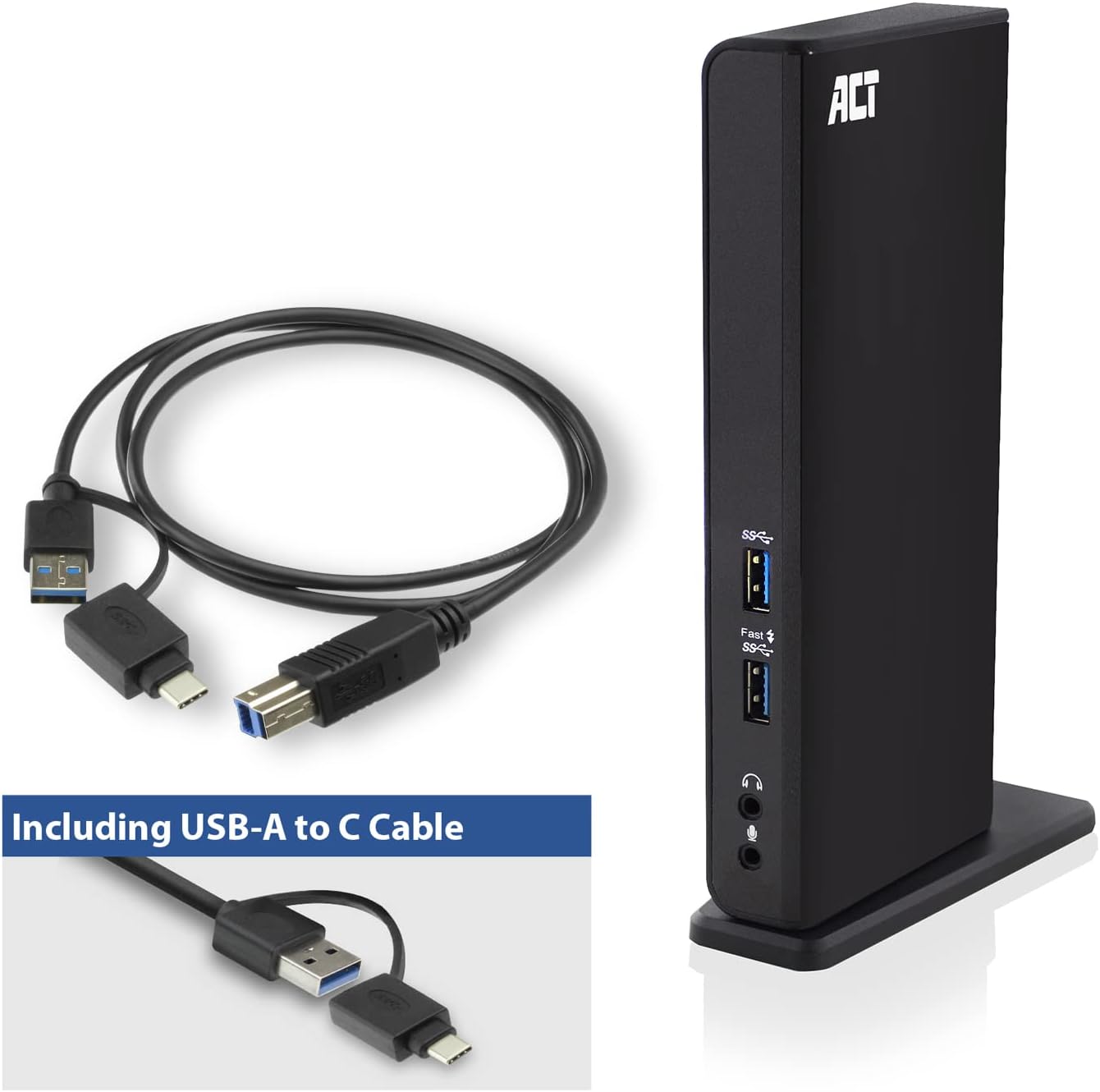
Image: The ACT AC7049 Docking Station shown with its included USB-A to USB-C connection cable and power adapter, highlighting the components provided in the package.
4. คู่มือการติดตั้ง
4.1. การเชื่อมต่ออะแดปเตอร์ไฟฟ้า
- Connect the power adapter to the DC 5V input port on the back of the AC7049 docking station.
- Plug the power adapter into a wall outlet. The docking station will power on.
4.2. Connecting to Your Laptop
- Use the provided USB-C/A 3.2 Gen1 connection cable. Connect the USB-B end to the corresponding port on the docking station.
- Connect the other end (USB-A or USB-C, depending on your laptop's port) to an available USB 3.2 Gen1 (USB 3.0) or USB-C port on your laptop.
4.3. Driver Installation (DisplayLink)
The AC7049 utilizes DisplayLink technology for extended monitor functionality. Drivers are typically installed automatically on most operating systems. If not, please follow these steps:
- เยี่ยมชม DisplayLink อย่างเป็นทางการ webงาน (www.displaylink.com/downloads) to download the latest drivers for your operating system (Windows or MacOS).
- Install the downloaded driver package and follow the on-screen instructions.
- รีสตาร์ทคอมพิวเตอร์ของคุณหากได้รับแจ้ง

Image: The official DisplayLink 'Plug and Display' logo, indicating the technology used for multi-monitor support.
5. คู่มือการใช้งาน
5.1. การเชื่อมต่อจอแสดงผลภายนอก
- Connect your HDMI monitors to the two HDMI ports on the back of the docking station.
- Once connected, your operating system should detect the new displays. You can configure display settings (extend, mirror, primary display) through your computer's display settings.

Image: A visual representation of the docking station enabling both 'Mirror your content' and 'Extend your content' display modes across a laptop and two external monitors.
5.2. การเชื่อมต่ออุปกรณ์ต่อพ่วง USB
- พอร์ต USB ด้านหน้า: Two USB-A 3.2 Gen1 ports (one with fast charging capability) are located on the front for easy access to frequently used devices like USB drives, smartphones, or tablets.
- Rear USB Ports: Four USB-A 2.0 ports are located on the back for connecting peripherals such as keyboards, mice, printers, or other less frequently connected devices.
5.3. การเชื่อมต่อเครือข่าย
Connect an Ethernet cable from your router or network switch to the Gigabit Ethernet port on the docking station. Your laptop will automatically gain wired network access.
5.4. การเชื่อมต่อเสียง
Connect your headphones and/or microphone to the dedicated 3.5mm audio jacks on the front of the docking station.

Image: An isometric diagram showcasing the comprehensive connectivity of the ACT AC7049, demonstrating how a laptop, two monitors, a keyboard, mouse, network cable, headphones, and a smartphone can all be connected simultaneously.
6. ตัวเลือกการจัดวาง
The ACT AC7049 docking station offers flexible placement options to suit your workspace:
- การจัดวางในแนวตั้ง: Use the included stand to position the docking station vertically. This saves desk space and provides easy access to all ports.
- ตำแหน่งแนวนอน: The docking station can also be placed horizontally if preferred.

Image: The ACT AC7049 Docking Station positioned vertically on its stand, highlighting its compact design and accessible ports.
7. การบำรุงรักษา
To ensure optimal performance and longevity of your ACT AC7049 Docking Station, follow these maintenance guidelines:
- การทำความสะอาด: ใช้ผ้านุ่มและแห้งเช็ดทำความสะอาดภายนอกแท่นวาง หลีกเลี่ยงการใช้น้ำยาทำความสะอาดหรือสเปรย์ เพราะอาจทำให้อุปกรณ์เสียหายได้
- การระบายอากาศ : ควรวางแท่นวางในบริเวณที่มีอากาศถ่ายเทสะดวกเพื่อป้องกันความร้อนสูงเกินไป อย่าปิดกั้นช่องระบายอากาศใดๆ
- พื้นที่จัดเก็บ: เมื่อไม่ได้ใช้งานเป็นเวลานาน ควรเก็บแท่นวางไว้ในที่แห้งและเย็น หลีกเลี่ยงแสงแดดโดยตรงและอุณหภูมิที่สูงหรือต่ำเกินไป
- การจัดการสายเคเบิล: ควรจัดระเบียบสายเคเบิลให้เรียบร้อยและอย่าให้สายเคเบิลบิดงอหรือโค้งงอมากเกินไป เพื่อป้องกันความเสียหายต่อสายเคเบิลและพอร์ต
8 การแก้ไขปัญหา
If you encounter issues with your ACT AC7049 Docking Station, please refer to the following common troubleshooting steps:
- ไม่มีการแสดงผล:
- Ensure the docking station is powered on and correctly connected to your laptop.
- Verify that the HDMI cables are securely connected to both the docking station and the monitors.
- Check your laptop's display settings to ensure the external monitors are detected and configured correctly (e.g., extended or mirrored).
- Reinstall or update the DisplayLink drivers from www.displaylink.com/downloads.
- ลองเชื่อมต่อจอภาพทีละจอเพื่อแยกปัญหา
- อุปกรณ์ USB ไม่ทำงาน:
- Ensure the docking station is properly connected to your laptop and powered.
- Try connecting the USB device directly to your laptop to confirm it is functional.
- Connect the USB device to a different USB port on the docking station.
- รีสตาร์ทแล็ปท็อปของคุณ
- ไม่มีการเชื่อมต่อเครือข่าย:
- ตรวจสอบให้แน่ใจว่าสายอีเธอร์เน็ตเชื่อมต่อกับแท่นวางและเราเตอร์/สวิตช์ของคุณอย่างแน่นหนาแล้ว
- Check your laptop's network settings to ensure the wired connection is enabled.
- ถ้าเป็นไปได้ ให้ลองทดสอบสายอีเธอร์เน็ตกับอุปกรณ์อื่นดู
- เสียงไม่ทำงาน:
- Ensure headphones/microphone are fully plugged into the correct 3.5mm jacks.
- Check your laptop's sound settings to ensure the docking station's audio output/input is selected as the default device.
9. ข้อมูลจำเพาะ
| คุณสมบัติ | ข้อมูลจำเพาะ |
|---|---|
| หมายเลขรุ่น | เอซี7049 |
| ยี่ห้อ | กระทำ |
| สี | สีดำ |
| เทคโนโลยีการเชื่อมต่อ | USB-A, USB-C |
| เอาท์พุตวิดีโอ | 2 x HDMI (Max. 2048 x 1152 @ 60Hz) |
| พอร์ต USB | 3 x USB-A 3.2 Gen 1 (5Gbps, 1x Fast Charging), 4 x USB-A 2.0 (480Mbps) |
| พอร์ตเครือข่าย | 1 x กิกะบิตอีเทอร์เน็ต (RJ45) |
| พอร์ตเสียง | 1 x 3.5mm Headphone Jack, 1 x 3.5mm Microphone Jack |
| อุปกรณ์ที่รองรับ | Laptop, Computer (with USB 3.2 Gen1 / USB 3.0 or USB-C port) |
| การรองรับระบบปฏิบัติการ | Windows, MacOS (via DisplayLink) |
| ขนาด (กว้าง x ยาว x สูง) | 10.9 x 6 x 18.1 ซม. (โดยประมาณ) |
| น้ำหนักสินค้า | 317 กรัม |
10. การรับประกันและการสนับสนุน
ACT products are designed for reliability and adhere to international standards and EU legislation. The ACT AC7049 Docking Station comes with a manufacturer's warranty, typically ranging from 2 to 5 years. For specific warranty details and support, please refer to the official ACT webเว็บไซต์หรือติดต่อร้านค้าปลีกของคุณ
For technical support or further inquiries, please visit the official ACT connectivity webเว็บไซต์: www.act-connectivity.com


