1. บทนำ
This manual provides comprehensive instructions for the setup, operation, and maintenance of your Epson EcoTank L8180 Multifunction A3+ Photo Printer. Please read this manual thoroughly to ensure proper use and to maximize the performance and longevity of your device. Keep this manual for future reference.
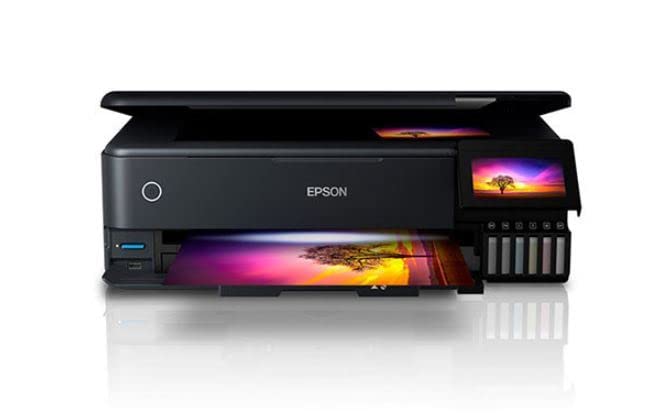
Figure 1: Epson EcoTank L8180 Printer. This image shows the front view of the Epson EcoTank L8180 printer, highlighting its compact design and front-loading paper tray.
2. เนื้อหาบรรจุภัณฑ์
ตรวจสอบว่ามีรายการทั้งหมดรวมอยู่ในแพ็คเกจ:
- เครื่องพิมพ์ Epson EcoTank L8180
- สายไฟ
- Initial Ink Bottle Set (Cyan, Magenta, Yellow, Black, Light Cyan, Light Magenta)
- คู่มือการติดตั้ง
- Software CD-ROM (for Windows/macOS)
- สาย USB
3. การตั้งค่า
3.1 การแกะและการจัดวาง
- Remove the printer from its box and remove all protective materials, tapes, and films.
- วางเครื่องพิมพ์บนพื้นผิวเรียบและมั่นคง โดยเว้นพื้นที่รอบๆ ให้เพียงพอสำหรับการระบายอากาศและการใช้งาน
3.2 การเติมหมึกพิมพ์
The EcoTank L8180 uses a cartridge-free ink tank system. Follow these steps to fill the ink tanks:
- เปิดฝาครอบชุดตลับหมึก
- Uncap the ink bottle for the corresponding color. Each bottle has a unique key to prevent incorrect filling.
- Insert the ink bottle into the filling port. The ink will automatically start flowing into the tank. Do not squeeze the bottle.
- เมื่อแทงค์หมึกเต็มแล้ว การไหลของหมึกจะหยุดลง ถอดขวดหมึกออกแล้วปิดฝาให้สนิท
- Repeat for all six ink colors (Cyan, Magenta, Yellow, Black, Light Cyan, Light Magenta).
- ปิดฝาครอบชุดตลับหมึก
3.3 การเชื่อมต่อแหล่งจ่ายไฟและการตั้งค่าเริ่มต้น
- เชื่อมต่อสายไฟเข้ากับเครื่องพิมพ์ แล้วจึงเสียบสายไฟเข้ากับเต้ารับไฟฟ้า
- กดปุ่มเปิดปิดเพื่อเปิดเครื่องพิมพ์
- Follow the on-screen instructions on the 10.9cm color touchscreen to select your language, date, and time.
- The printer will then initiate the ink charging process. This may take several minutes. Do not turn off the printer during this process.
- Once ink charging is complete, the printer is ready for software installation.

Figure 2: Printer Touchscreen Interface. This image displays a close-up of the printer's 10.9cm color touchscreen, showing a user interacting with the interface.
3.4 การติดตั้งซอฟต์แวร์และการเชื่อมต่อ
Install the printer software on your computer or mobile device to enable full functionality.
- For Computer (Windows/macOS): Insert the provided Software CD-ROM or download the latest drivers and utilities from the official Epson support webไซต์ ทำตามคำแนะนำบนหน้าจอเพื่อการติดตั้ง
- ตัวเลือกการเชื่อมต่อ:
- การเชื่อมต่อ USB: เชื่อมต่อเครื่องพิมพ์กับคอมพิวเตอร์ของคุณโดยใช้สาย USB
- การเชื่อมต่อ Wi-Fi: On the printer's touchscreen, navigate to the Wi-Fi setup menu and follow the instructions to connect to your wireless network.
- การเชื่อมต่ออีเทอร์เน็ต: เชื่อมต่อสายอีเธอร์เน็ตจากเครื่องพิมพ์ไปยังเราเตอร์หรือฮับเครือข่ายของคุณ
- สำหรับอุปกรณ์พกพา: Download the Epson Smart Panel app from your device's app store. Follow the in-app instructions to connect your mobile device to the printer via Wi-Fi.

Figure 3: Wireless Printing from Mobile. This image illustrates the Epson EcoTank L8180 printer receiving a print job wirelessly from a smartphone, demonstrating its Wi-Fi connectivity.
4. คู่มือการใช้งาน
4.1 กำลังโหลดกระดาษ
The printer supports various paper types and sizes, up to A3+.
- เปิดที่รองรับกระดาษและดึงถาดรับกระดาษออกมา
- ปรับตัวกั้นขอบให้ตรงกับความกว้างของกระดาษของคุณ
- Load paper into the rear paper feed or front paper cassette, depending on the paper type and size. Ensure the print side is facing the correct direction.
- For photo paper, use the dedicated photo paper tray.
4.2 การพิมพ์เอกสารและรูปภาพ
- เปิดเอกสารหรือรูปภาพที่คุณต้องการพิมพ์บนคอมพิวเตอร์หรืออุปกรณ์มือถือของคุณ
- เลือก พิมพ์ จากเมนูของแอปพลิเคชัน
- Choose the Epson L8180 as your printer.
- Adjust print settings such as paper size (e.g., A3+, A4), media type (e.g., Glossy Photo Paper), print quality, and color options.
- คลิก พิมพ์.
4.3 การสแกนเอกสาร
The L8180 features a flatbed scanner for scanning documents and photos.
- ยกฝาสแกนเนอร์
- วางเอกสารหรือรูปภาพคว่ำหน้าลงบนกระจกสแกนเนอร์ โดยจัดให้ตรงกับเครื่องหมายที่มุม
- ปิดฝาเครื่องสแกนอย่างเบามือ
- From your computer, open the Epson Scan software or use the scan function on the printer's control panel.
- Select scan settings (e.g., resolution, color mode, destination folder) and initiate the scan.
4.4 การคัดลอกเอกสาร
Use the printer's control panel to make copies.
- วางเอกสารบนกระจกสแกนเนอร์ตามที่อธิบายไว้ในหัวข้อ 4.3
- บนหน้าจอสัมผัสของเครื่องพิมพ์ ให้เลือก สำเนา ตัวเลือก.
- ปรับการตั้งค่าต่างๆ เช่น จำนวนสำเนา ขนาดกระดาษ และคุณภาพ
- กดปุ่ม เริ่ม ปุ่มเพื่อเริ่มการคัดลอก
4.5 Direct Printing (Memory Card/USB)
The L8180 allows direct printing from memory cards and USB drives.
- Insert a memory card into the card slot or a USB flash drive into the USB port.
- บนหน้าจอสัมผัสของเครื่องพิมพ์ ให้เลือก การ์ดหน่วยความจำ or ยูเอสบี ตัวเลือก.
- Browse and select the photos or documents you wish to print.
- Adjust print settings and press พิมพ์.
4.6 CD/DVD Printing
The printer supports direct printing onto printable CDs/DVDs.
- Open the CD/DVD tray cover on the printer.
- Place a printable CD or DVD onto the CD/DVD tray, ensuring it is correctly seated.
- Insert the CD/DVD tray into the printer's dedicated slot.
- Use the Epson Print CD software on your computer to design and print onto the disc.

Figure 4: CD/DVD Printing Function. This image shows a printable CD being loaded into the Epson EcoTank L8180 printer's dedicated tray for direct disc printing.
5. การบำรุงรักษา
5.1 การเติมหมึก
When an ink tank level is low, refill it using genuine Epson ink bottles. Refer to Section 3.2 for detailed ink filling instructions.
สำคัญ: Use only genuine Epson Claria ET Premium Ink to ensure optimal print quality and prevent damage to the printer.
5.2 การทำความสะอาดหัวพิมพ์
หากคุณภาพการพิมพ์ลดลง (เช่น เส้นขาดหาย ภาพพิมพ์ซีดจาง) ให้ทำความสะอาดหัวพิมพ์
- On the printer's touchscreen, navigate to การซ่อมบำรุง or การตั้งค่า.
- เลือก การทำความสะอาดหัวพิมพ์.
- ทำตามคำแนะนำบนหน้าจอ กระบวนการนี้ใช้หมึกปริมาณเล็กน้อย
- After cleaning, print a nozzle check pattern to verify improvement. If print quality is still poor, repeat the cleaning process up to three times.
5.3 การตรวจสอบหัวฉีด
Perform a nozzle check to diagnose print quality issues before cleaning.
- On the printer's touchscreen, navigate to การซ่อมบำรุง or การตั้งค่า.
- เลือก การตรวจสอบหัวฉีด.
- The printer will print a pattern. Examine the pattern for any gaps or missing segments.
5.4 Printer Cleaning
ทำความสะอาดภายนอกเครื่องพิมพ์เป็นประจำด้วยผ้านุ่มๆampใช้ผ้าที่ไม่เป็นขุยเช็ด ห้ามใช้สารทำความสะอาดที่มีฤทธิ์กัดกร่อนหรือตัวทำละลาย
6 การแก้ไขปัญหา
6.1 ปัญหาทั่วไปและแนวทางแก้ไข
- เครื่องพิมพ์ไม่ตอบสนอง:
- Ensure the printer is powered on and connected securely (USB, Wi-Fi, Ethernet).
- Check for error messages on the printer's touchscreen.
- รีสตาร์ทเครื่องพิมพ์และคอมพิวเตอร์/เราเตอร์ของคุณ
- ตรวจสอบให้แน่ใจว่าได้เลือกเครื่องพิมพ์ที่ถูกต้องในหน้าต่างการพิมพ์ของแอปพลิเคชันแล้ว
- คุณภาพการพิมพ์ไม่ดี:
- Perform a nozzle check (Section 5.3) and print head cleaning (Section 5.2).
- ตรวจสอบให้แน่ใจว่าหมึกในแทงค์เต็มเพียงพอ
- Use genuine Epson ink and appropriate paper types for your print job.
- ตรวจสอบการตั้งค่าการพิมพ์ในโปรแกรมของคุณเพื่อให้แน่ใจว่าตรงกับประเภทกระดาษและคุณภาพที่ต้องการ
- กระดาษติด:
- Turn off the printer and carefully remove any jammed paper from the paper trays or inside the printer.
- ตรวจสอบให้แน่ใจว่าใส่กระดาษอย่างถูกต้องและกระดาษไม่ยับหรือเป็นรอยurlบก.
- Do not overload the paper trays.
- ปัญหาการเชื่อมต่อ Wi-Fi:
- ตรวจสอบให้แน่ใจว่าเครื่องพิมพ์อยู่ในระยะสัญญาณของเราเตอร์ไร้สายของคุณ
- ตรวจสอบว่ารหัสผ่าน Wi-Fi ที่ป้อนถูกต้อง
- รีสตาร์ทเราเตอร์ไร้สายและเครื่องพิมพ์ของคุณ
- Check for any network interference.
6.2 รหัสข้อผิดพลาด
If an error code appears on the printer's screen, refer to the on-screen instructions or the Epson support website for specific solutions related to that code.
7. ข้อมูลจำเพาะ
| คุณสมบัติ | รายละเอียด |
|---|---|
| ชื่อรุ่น | L8180 |
| ขนาดสินค้า (ลึก x กว้าง x สูง) | 37.9 x 52.3 x 16.9 เซนติเมตร |
| น้ำหนักสินค้า | 14.6 กก. |
| ขนาดสื่อสูงสุด | เอ3+ |
| เทคโนโลยีการพิมพ์ | Ink Tank (6-colour Epson Claria ET Premium Ink) |
| Ink Colours | Cyan, Magenta, Yellow, Black, Light Cyan, Light Magenta |
| ความละเอียดการพิมพ์สูงสุด (สี/ขาวดำ) | 5760 x 1440 จุดต่อนิ้ว |
| Maximum Print Speed (Color/B&W) | 32 หน้าต่อนาที |
| ประเภทสแกนเนอร์ | รถบรรทุกพื้นเรียบ |
| Maximum Copy Speed (Black and White) | 32 หน้าต่อนาที |
| การพิมพ์สองหน้า | อัตโนมัติ |
| ความจุแผ่นอินพุตสูงสุด | 120 แผ่น |
| วิธีการควบคุม | Touch (10.9cm color touchscreen) |
| เทคโนโลยีการเชื่อมต่อ | Wi-Fi, อีเทอร์เน็ต, USB |
| อุปกรณ์ที่รองรับ | Laptops, PC, Tablets |
| ความเข้ากันได้ของระบบปฏิบัติการ | Windows XP และเวอร์ชันที่ใหม่กว่า, macOS |
| วัดtage | 17 วัตต์ชั่วโมง |
| คุณสมบัติพิเศษ | A3+ Borderless Photo Printing, Direct printing via memory card slot, USB port, Ethernet, CD/DVD printing |

Figure 5: Printer Dimensions. This image provides a diagram showing the physical dimensions (width, depth, height) of the Epson EcoTank L8180 printer in millimeters.
8. การรับประกันและการสนับสนุน
8.1 ข้อมูลการรับประกัน
เครื่องพิมพ์ Epson EcoTank L8180 มาพร้อมกับ... การรับประกันแบบจำกัด. For specific terms and conditions, including warranty duration and coverage details, please refer to the warranty card included with your product or visit the official Epson support webเว็บไซต์.
8.2 การสนับสนุนลูกค้า
For technical assistance, troubleshooting, or service inquiries, please contact Epson customer support:
- การสนับสนุนทางออนไลน์: เยี่ยมชมเว็บไซต์ฝ่ายสนับสนุนอย่างเป็นทางการของ Epson website for FAQs, drivers, manuals, and contact information.
- การสนับสนุนทางโทรศัพท์: Refer to your product documentation or the Epson webเว็บไซต์สำหรับค้นหาหมายเลขติดต่อฝ่ายสนับสนุนในพื้นที่
When contacting support, please have your printer model (L8180) and serial number ready.


