การแนะนำ
This manual provides essential information for setting up, operating, maintaining, and troubleshooting your Samsung Galaxy Book Pro 360 15.6-inch touchscreen laptop. This device combines the power of a laptop with the versatility of a tablet, featuring a 360-degree hinge and S Pen compatibility. Please read this manual thoroughly to ensure proper use and to maximize your product's lifespan.

Image: The Samsung Galaxy Book Pro 360 showcasing its convertible design and the included S Pen.
การตั้งค่า
1. การเปิดเครื่องและการชาร์จครั้งแรก
Connect the provided USB-C power adapter to the laptop's Thunderbolt 4 or USB-C port and then to a power outlet. The battery icon on the screen will indicate charging status. Press the power button located on the side of the laptop to turn it on.
2. การติดตั้ง Windows 11
Follow the on-screen prompts to complete the initial Windows 11 setup. This includes selecting your region, language, accepting terms, and creating a user account.
3. การเชื่อมต่อเครือข่าย
During the Windows setup, you will be prompted to connect to a Wi-Fi network. Select your network from the list and enter the password. The device supports Wi-Fi 6E for fast wireless connectivity.
4. การตั้งค่าเครื่องอ่านลายนิ้วมือ
For enhanced security, set up the fingerprint reader. Navigate to การตั้งค่า > บัญชี > ตัวเลือกการเข้าสู่ระบบ > การจดจำลายนิ้วมือ (Windows Hello) และปฏิบัติตามคำแนะนำเพื่อลงทะเบียนลายนิ้วมือของคุณ
5. S Pen Pairing and Usage
The S Pen is typically pre-paired. To use it, simply remove it from its storage slot (if applicable) or ensure it is charged. The S Pen allows for precise input on the touchscreen, including writing, drawing, and navigating the interface.
การดำเนินงาน
1. โหมดปรับเปลี่ยนได้
The Galaxy Book Pro 360 features a 360-degree hinge, allowing it to be used in various modes:
- โหมดแล็ปท็อป: การกำหนดค่าแล็ปท็อปมาตรฐานสำหรับการพิมพ์และการทำงาน
- โหมดแท็บเล็ต: Fold the screen back completely to use as a tablet.
- โหมดเต็นท์: Position the device like a tent for media consumption or presentations.
- โหมดสแตนด์บาย: Flip the keyboard face down to use the screen as a display.
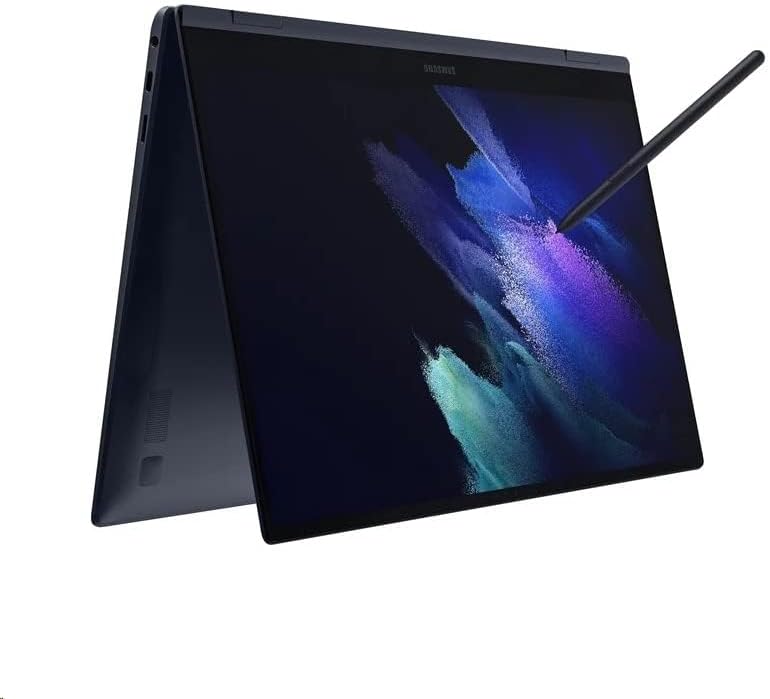
Image: The Samsung Galaxy Book Pro 360 configured in tablet mode, demonstrating its flexibility.
2. Touchscreen and S Pen Interaction
The 15.6-inch FHD AMOLED touchscreen supports multi-touch gestures. Use the S Pen for precise input, note-taking, drawing, and navigating the interface. Air Command features can be accessed by hovering the S Pen over the screen and pressing its button.
3. คีย์บอร์ดและแทร็กแพด
The full-sized keyboard includes a backlight, adjustable via function keys (e.g., F9). The large trackpad supports multi-touch gestures for navigation. For external input, connect a mouse to a USB port.
4. การใช้งานพอร์ต
- สายฟ้า 4: High-speed data transfer, video output, and charging.
- ยูเอสบี-C: Data transfer, video output, and charging.
- ยูเอสบี-เอ: Connect standard USB devices like external drives or peripherals.
- ช่องต่อ HDMI: เชื่อมต่อกับจอแสดงผลภายนอกหรือโปรเจ็กเตอร์
- เครื่องอ่านการ์ด Micro SD: ขยายพื้นที่เก็บข้อมูลหรือถ่ายโอน fileจากการ์ดหน่วยความจำ
- Mic/Headphone Combo Jack: เชื่อมต่อหูฟังหรือไมโครโฟนภายนอก
5. เสียงและ Webลูกเบี้ยว
Experience enhanced audio with Dolby Atmos speakers. The integrated HD webcam is suitable for video calls and conferences.
การซ่อมบำรุง
1. การทำความสะอาด
ใช้ผ้านุ่มไม่เป็นขุยเช็ดเล็กน้อยampened with water or a screen cleaner to wipe the display. For the body and keyboard, use a dry or slightly damp ผ้า หลีกเลี่ยงสารเคมีรุนแรงหรือวัสดุที่มีฤทธิ์กัดกร่อน
2. การดูแลแบตเตอรี่
To prolong battery life, avoid fully discharging the battery frequently. Store the laptop in a cool, dry place. If storing for an extended period, charge the battery to around 50-70%.
3. การอัปเดตซอฟต์แวร์
Regularly check for and install Windows updates and Samsung software updates to ensure optimal performance, security, and compatibility. Go to การตั้งค่า > Windows Update.
4. การจัดการการจัดเก็บข้อมูล
รีเป็นระยะๆview และลบสิ่งที่ไม่จำเป็นออก files to maintain sufficient free space on the 1TB SSD. Utilize cloud storage or external drives for large files.
การแก้ไขปัญหา
1. แล็ปท็อปไม่สามารถเปิดเครื่องได้
- ตรวจสอบให้แน่ใจว่าอะแดปเตอร์ไฟฟ้าเชื่อมต่อกับแล็ปท็อปและเต้ารับไฟฟ้าที่ใช้งานได้แน่นหนา
- ตรวจสอบว่าเต้ารับไฟฟ้าใช้งานได้หรือไม่โดยเสียบอุปกรณ์อื่นเข้าไป
- หากแบตเตอรี่หมดเกลี้ยง อาจต้องใช้เวลาชาร์จสักสองสามนาทีก่อนจะเปิดแล็ปท็อปได้
2. ปัญหาการแสดงผล
- หากหน้าจอว่างเปล่า ให้ลองปรับความสว่างโดยใช้ปุ่มฟังก์ชัน
- Ensure no external display is connected and set as the primary output.
- รีสตาร์ทแล็ปท็อป
3. ปัญหาการเชื่อมต่อ Wi-Fi
- ตรวจสอบว่า Wi-Fi ได้เปิดใช้งานอยู่ในการตั้งค่า Windows
- รีสตาร์ทเราเตอร์และโมเด็มของคุณ
- ลืมเครือข่ายและเชื่อมต่อใหม่โดยกรอกรหัสผ่านอีกครั้ง
- อัปเดตไดร์เวอร์ Wi-Fi ผ่านตัวจัดการอุปกรณ์
4. ปากกา S Pen ไม่ตอบสนอง
- Ensure the S Pen is properly seated in its storage slot (if applicable) to charge.
- Check if the S Pen settings are correctly configured in Windows.
- รีสตาร์ทแล็ปท็อป
ข้อมูลจำเพาะ
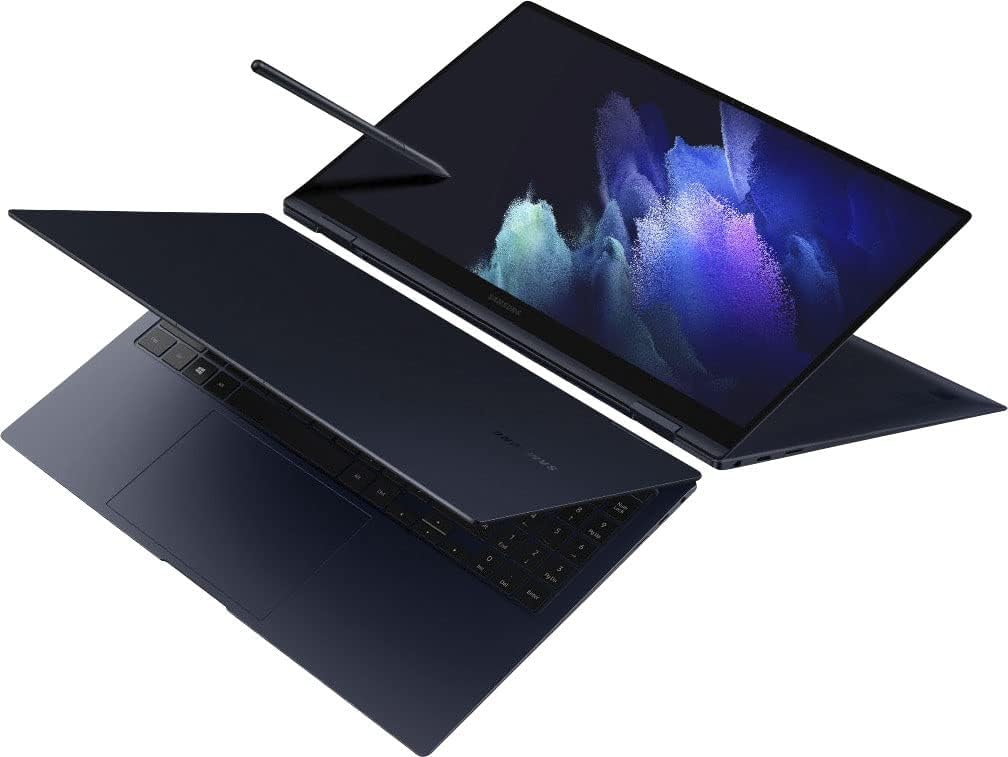
ภาพ: จากบนลงล่าง view of the Samsung Galaxy Book Pro 360 in traditional laptop mode.
| คุณสมบัติ | รายละเอียด |
|---|---|
| หมายเลขรุ่น | NP950QDB-KB3US |
| แสดง | 15.6-inch FHD (1920 x 1080) AMOLED Touchscreen |
| โปรเซสเซอร์ | Intel Core i7-1165G7 (2.8 GHz, up to 4.7 GHz) |
| กราฟฟิก | กราฟิก Intel Iris Xe (รวม) |
| แรม | แรม 16GB DDR4 |
| พื้นที่จัดเก็บ | 1TB SSD ความจุ |
| ระบบปฏิบัติการ | วินโดวส์ 11 โฮม |
| พอร์ต | 1 x Thunderbolt 4, 1 x USB-C, 1 x USB-A, 1 x HDMI, 1 x Micro SD Card Reader, 1 x Mic/Headphone Combo |
| การเชื่อมต่อแบบไร้สาย | Wi-Fi 6E, บลูทูธ 5.1 |
| เสียง | ลำโพง Dolby Atmos |
| Webลูกเบี้ยว | HD Webลูกเบี้ยว |
| คุณสมบัติพิเศษ | Backlit Keyboard, Fingerprint Reader, S Pen Support |
| สี | Mystic Navy |
| ขนาด (กxยxส) | 19.29 x 11.42 x 2.64 นิ้ว |
| น้ำหนัก | 4.1 ปอนด์ |
| อายุการใช้งานแบตเตอรี่ (เฉลี่ย) | นานถึง 20 ชั่วโมง |
ข้อมูลการรับประกัน
Your Samsung Galaxy Book Pro 360 is covered by a limited manufacturer's warranty. Specific warranty terms, conditions, and duration may vary by region and point of purchase. Please refer to the warranty card included with your product packaging or visit the official Samsung support webเว็บไซต์เพื่อดูข้อมูลโดยละเอียด
สนับสนุน
หากต้องการความช่วยเหลือเพิ่มเติม การสนับสนุนด้านเทคนิค หรือการสอบถามบริการ โปรดไปที่ฝ่ายสนับสนุนอย่างเป็นทางการของ Samsung website or contact Samsung customer service in your region. You can find contact details and extensive FAQs on the Samsung webเว็บไซต์.
ฝ่ายสนับสนุนซัมซุง Webเว็บไซต์: www.samsung.com/us/support/


