1. บทนำ
This manual provides comprehensive instructions for the setup, operation, and maintenance of your Tera 9200-Wired Omnidirectional Desktop Barcode Scanner. This device is designed for efficient and hands-free scanning of 1D, 2D, and QR barcodes in various environments such as retail stores, warehouses, and offices.
2. สินค้าหมดview
The Tera 9200-Wired scanner is a high-performance, plug-and-play device engineered for reliability and ease of use. Its omnidirectional scanning capability allows for quick and accurate barcode reading from various angles.
2.1 คุณสมบัติหลัก
- ปลั๊กแอนด์เพลย์: No driver or software installation required. Simply connect the USB cable to your computer, POS system, or cash register.
- Hands-Free Scanning: Designed as a desktop platform scanner, it allows for convenient, hands-free operation, improving efficiency for both cashiers and customers.
- การออกแบบที่มั่นคง: Equipped with four small non-slip pads on the bottom and an internal iron slab, ensuring stability during operation.
- ความเข้ากันได้กว้าง: Compatible with various operating systems including Windows XP, Windows 7, Windows 8, Windows 10, Android, and Linux. Works with PCs, laptops, iPads, and smartphones.
- Multi-Language Keyboard Support: Supports keyboard layouts for US, UK, German, French, Italian, Spanish, Japanese, and more.
- Powerful Decoding Ability: Capable of reading a wide range of 1D and 2D barcodes, including those that are reflective, smudged, damaged, or fuzzy.
2.2 เนื้อหาบรรจุภัณฑ์
- Tera 9200-Wired Desktop Barcode Scanner
- USB 2.0 Data Cable (integrated)
- คู่มือการใช้งาน (เอกสารนี้)
2.3 แผนผังผลิตภัณฑ์

รูปที่ 2.3.1 : ด้านหน้า view of the Tera 9200-Wired Desktop Barcode Scanner, showing its compact, black and white design with the scanning window.
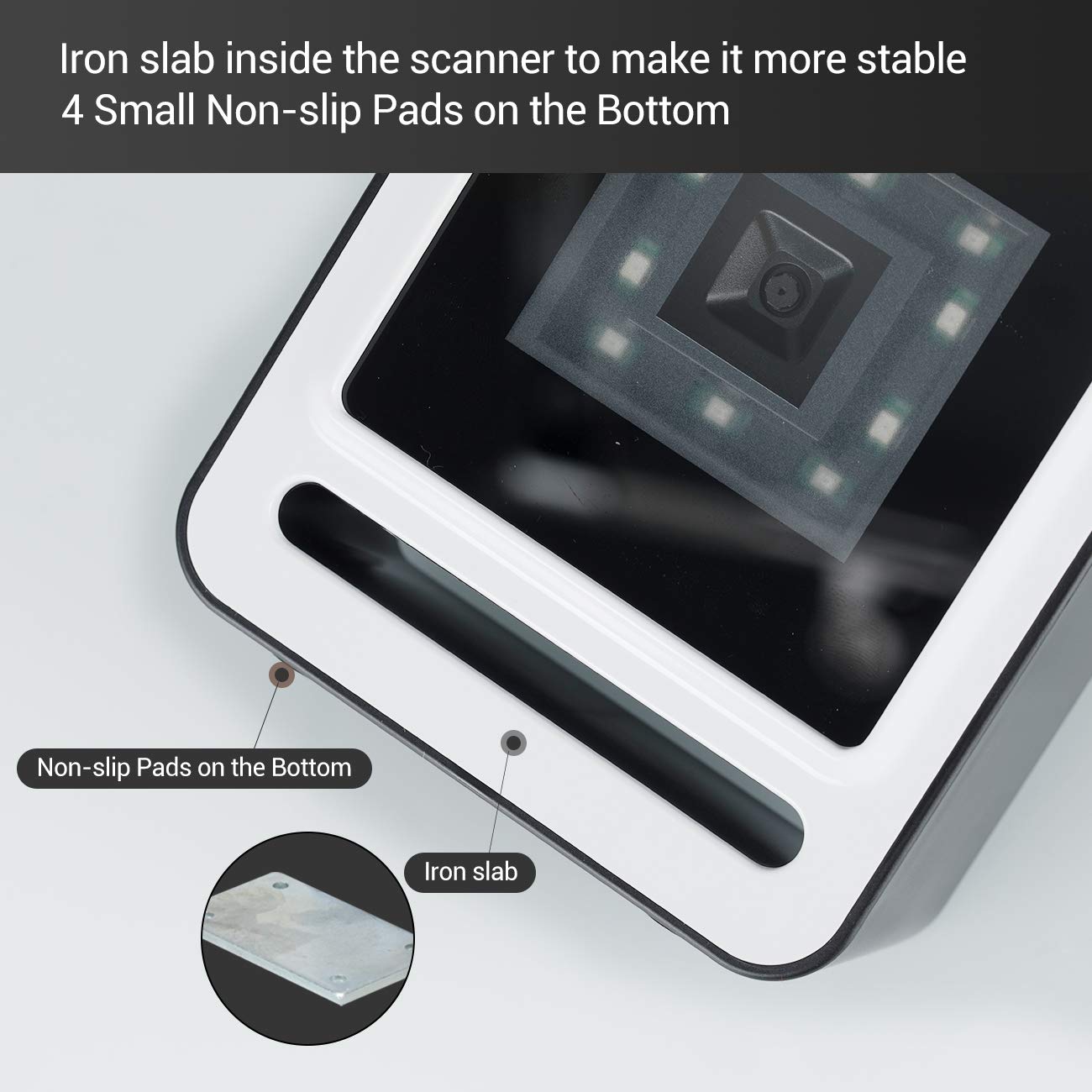
รูปที่ 2.3.2: ระยะใกล้ view of the scanner's base, highlighting the four non-slip pads and the internal iron slab designed for enhanced stability.
3. การตั้งค่า
The Tera 9200-Wired barcode scanner is designed for quick and easy setup, requiring no special drivers or software installation.
- แกะเครื่องสแกนเนอร์: นำเครื่องสแกนออกจากบรรจุภัณฑ์อย่างระมัดระวัง
- เชื่อมต่อสาย USB: Insert the integrated USB 2.0 data cable into an available USB port on your computer, POS system, or cash register.
- การจดจำระบบ: The operating system will automatically detect and configure the scanner. This process typically takes a few seconds.
- พร้อมใช้งาน: Once recognized, the scanner is ready for immediate use.

Figure 3.1: The scanner connected via USB to a laptop, demonstrating its plug-and-play functionality and compatibility with Windows, Android, and Linux systems, as well as PCs, laptops, iPads, and phones.
4. คู่มือการใช้งาน
The Tera 9200-Wired scanner offers hands-free operation for efficient barcode reading.
4.1 การสแกนพื้นฐาน
- จัดวางตำแหน่งของสิ่งของ: Place the barcode of the item directly in front of the scanner's window.
- การสแกนอัตโนมัติ: The scanner will automatically detect the barcode and emit a successful scan indication (e.g., a beep or light change).
- การส่งผ่านข้อมูล: The scanned data will be transmitted to your connected device (computer, POS system) as if typed via a keyboard.

Figure 4.1: A smartphone displaying a QR code being scanned by the Tera 9200-Wired scanner, illustrating its hands-free capability for digital barcodes.
4.2 ประเภทบาร์โค้ดที่รองรับ
The scanner supports a wide array of 1D and 2D barcode symbologies:
- 1D Decode Capability: Codabar, Code 11, Code93, MSI, Code 128, UCC/EAN-128, Code 39, EAN-8, EAN-13, UPC-A, ISBN, Industrial 25, Interleaved 25, Standard 25, 2/5 Matrix.
- 2D Decode Capability: QR Code, PDF417, Data Matrix, Aztec code, Maxi Code.

Figure 4.2: Visual representation of the scanner's advanced decoding capabilities, showing its ability to read challenging barcodes such as reflective, smudged, damaged, and fuzzy ones.
4.3 Advanced Settings (via Configuration Codes)
The scanner can be configured for various settings by scanning specific configuration barcodes (not provided in this manual, refer to a separate programming guide if available from manufacturer). These settings may include:
- ภาษาของแป้นพิมพ์: Adjust the output keyboard language to match your system (e.g., US, UK, German, French, Italian, Spanish, Japanese).
- พอร์ต COM เสมือน: Enable virtual COM port mode for specific software applications.
- คำนำหน้า/คำต่อท้าย: Add custom characters before or after scanned data.
- ซ่อนตัวอักษร: Configure the scanner to hide certain characters from the output.
- การตั้งค่าระดับเสียง: Adjust the volume of the scan confirmation beep.

Figure 4.3: The scanner illustrating its support for multiple keyboard languages, including English, Spanish, German, Japanese, French, and Italian, allowing for versatile international use.
5. การบำรุงรักษา
การบำรุงรักษาอย่างถูกต้องจะช่วยให้เครื่องสแกนบาร์โค้ดของคุณมีอายุการใช้งานยาวนานและมีประสิทธิภาพเหมาะสมที่สุด
- การทำความสะอาดหน้าต่างการสแกน: ทำความสะอาดช่องสแกนเป็นประจำด้วยผ้าเนื้อนุ่มที่ไม่เป็นขุย สำหรับคราบสกปรกที่ลบยาก ให้ใช้ผ้าชุบน้ำหมาดๆ เช็ดเบาๆampชุบผ้าด้วยน้ำหรือน้ำยาทำความสะอาดอ่อนๆ ที่ไม่ทำให้เกิดรอยขีดข่วน ห้ามใช้สารเคมีรุนแรงหรือวัสดุที่มีฤทธิ์กัดกร่อน
- การทำความสะอาดทั่วไป: Wipe the exterior of the scanner with a dry or slightly damp ผ้าสำหรับเช็ดฝุ่นละอองและสิ่งสกปรก
- หลีกเลี่ยงเงื่อนไขที่รุนแรง: Do not expose the scanner to extreme temperatures, humidity, or direct sunlight for prolonged periods.
- จัดการด้วยความระมัดระวัง: ควรหลีกเลี่ยงการทำเครื่องสแกนตก หรือการกระแทกอย่างรุนแรง
6 การแก้ไขปัญหา
If you encounter issues with your Tera 9200-Wired scanner, refer to the following common problems and solutions:
| ปัญหา | สาเหตุที่เป็นไปได้ | สารละลาย |
|---|---|---|
| เครื่องสแกนเนอร์ไม่สามารถเปิดเครื่องได้ | สาย USB ไม่ได้เชื่อมต่ออย่างถูกต้องหรือพอร์ต USB ชำรุด | Ensure the USB cable is securely plugged into both the scanner and the computer. Try a different USB port. |
| เครื่องสแกนไม่สามารถอ่านบาร์โค้ดได้ | Barcode is damaged, smudged, or poorly printed. Scanner window is dirty. Incorrect barcode symbology enabled. | Try scanning a different, known-good barcode. Clean the scanning window. Ensure the barcode type is supported and enabled (if configurable). |
| ข้อมูลที่สแกนไม่ถูกต้องหรือไม่สมบูรณ์ | Keyboard language mismatch. Data format settings incorrect. | Verify your computer's keyboard language matches the scanner's setting. Check for any prefix/suffix settings. |
| เครื่องสแกนส่งเสียงดัง แต่ไม่มีการส่งข้อมูลใดๆ | Application not in focus or not accepting input. | Ensure the cursor is in the correct input field of your application (e.g., notepad, word processor, POS software). |
7. ข้อมูลจำเพาะ
| คุณสมบัติ | รายละเอียด |
|---|---|
| ยี่ห้อ | เทระ |
| แบบอย่าง | 9200 สาย |
| พิมพ์ | 1D 2D QR Omnidirectional Desktop Barcode Scanner |
| การเชื่อมต่อ | สาย USB 2.0 |
| ความสามารถในการถอดรหัส (1 มิติ) | Codabar, Code 11, Code93, MSI, Code 128, UCC/EAN-128, Code 39, EAN-8, EAN-13, UPC-A, ISBN, Industrial 25, Interleaved 25, Standard 25, 2/5 Matrix |
| ความสามารถในการถอดรหัส (2 มิติ) | QR Code, PDF417, Data Matrix, Aztec code, Maxi Code |
| ความเข้ากันได้ | Windows XP/7/8/10, Android, Linux (PC, Laptops, iPad, Phone) |
| ภาษาของแป้นพิมพ์ | US, UK, German, French, Italian, Spanish, Japanese, etc. |
| ขนาดแพ็คเกจ | 18.21 x 12.29 x 8.61 ซม. |
| น้ำหนักสินค้า | 449 กรัม |
| แบตเตอรี่ที่จำเป็น | เลขที่ |
8. การรับประกันและการสนับสนุน
For warranty information and technical support, please refer to the documentation provided with your purchase or contact Tera customer service directly. Keep your purchase receipt as proof of purchase for warranty claims.
For the most up-to-date support resources, visit the official Tera webเว็บไซต์.


