1. บทนำ
Logitech Brio 300 เป็นจอภาพ Full HD webcam designed to enhance your video meeting experience. It features 1080p resolution for natural image quality, RightLight 2 auto light correction to adapt to various lighting conditions, and a noise-reducing microphone for clear audio. The integrated privacy shutter provides instant control over your camera's visibility. This webcam is certified for popular video conferencing platforms such as Zoom, Microsoft Teams, and Google Meet, ensuring seamless integration and hassle-free meetings.
2. อะไรอยู่ในกล่อง
- โลจิเทค บริโอ 300 Webcam (Off-White)
- Integrated USB-C Cable (5 ft / 1.5 m)
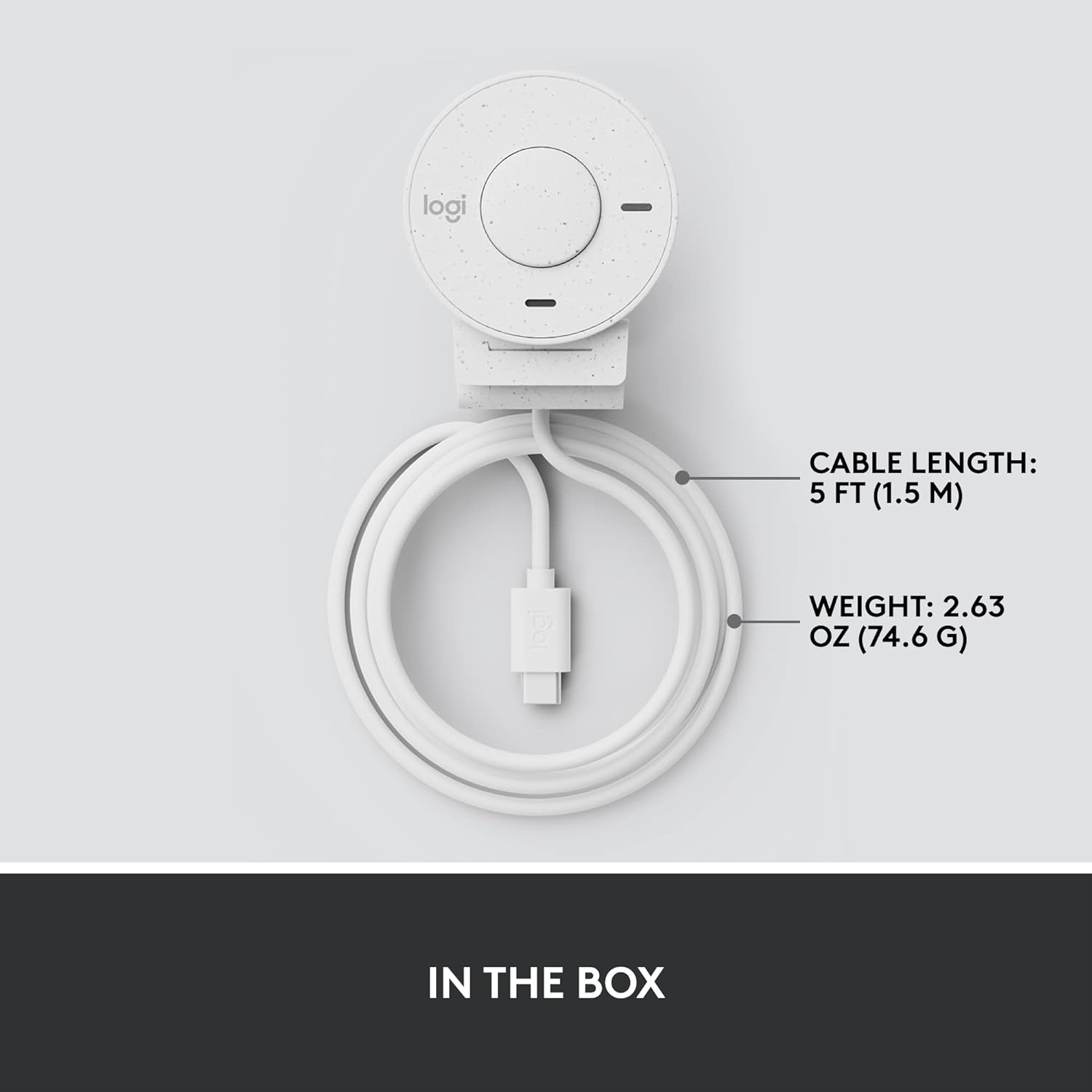
รูปที่ 2.1: Logitech Brio 300 webcam with its integrated USB-C cable, showing the compact design and cable length.
3. การตั้งค่า
3.1 การวาง
Position the Logitech Brio 300 webcam on your monitor or laptop screen. The integrated mounting clip is designed to securely fit various screen thicknesses without scratching, thanks to its rubberized pads.

รูปที่ 3.1: Logitech Brio 300 webcam, showing its design and how it sits on a monitor.
3.2. การเชื่อมต่อ
Connect the integrated USB-C cable from the webcam directly to an available USB-C port on your computer. The webcam is plug-and-play, meaning it should be automatically recognized by your operating system (Windows, macOS, Chrome OS).
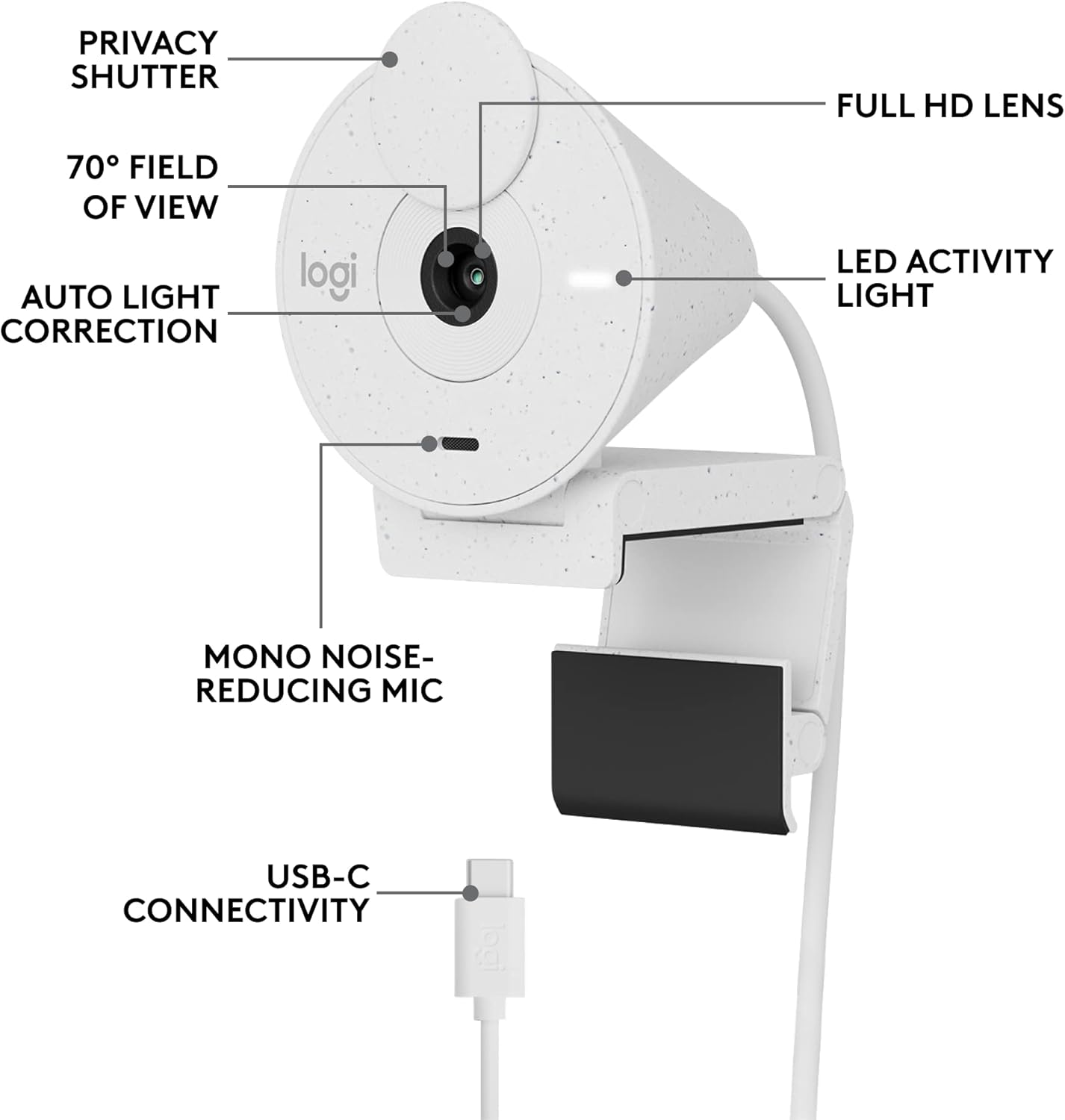
รูปที่ 3.2: รายละเอียด view of the Logitech Brio 300, highlighting its USB-C connectivity and other key components.
3.3. การติดตั้งซอฟต์แวร์ (เป็นทางเลือกแต่แนะนำ)
For advanced customization and optimal performance, download and install the free Logi Tune application from the official Logitech website. Logi Tune allows you to adjust color, image quality, and other settings for your webลูกเบี้ยว.
เยี่ยม โลจิเทค โลจิเทค จูน เพื่อดาวน์โหลดซอฟต์แวร์
4. การดำเนินงาน Webลูกเบี้ยว
4.1. ชัตเตอร์ความเป็นส่วนตัว
The Brio 300 features an integrated privacy shutter. To cover the lens and ensure privacy, simply spin the circular cover over the lens. Spin it back to uncover the lens when you are ready to use the camera.
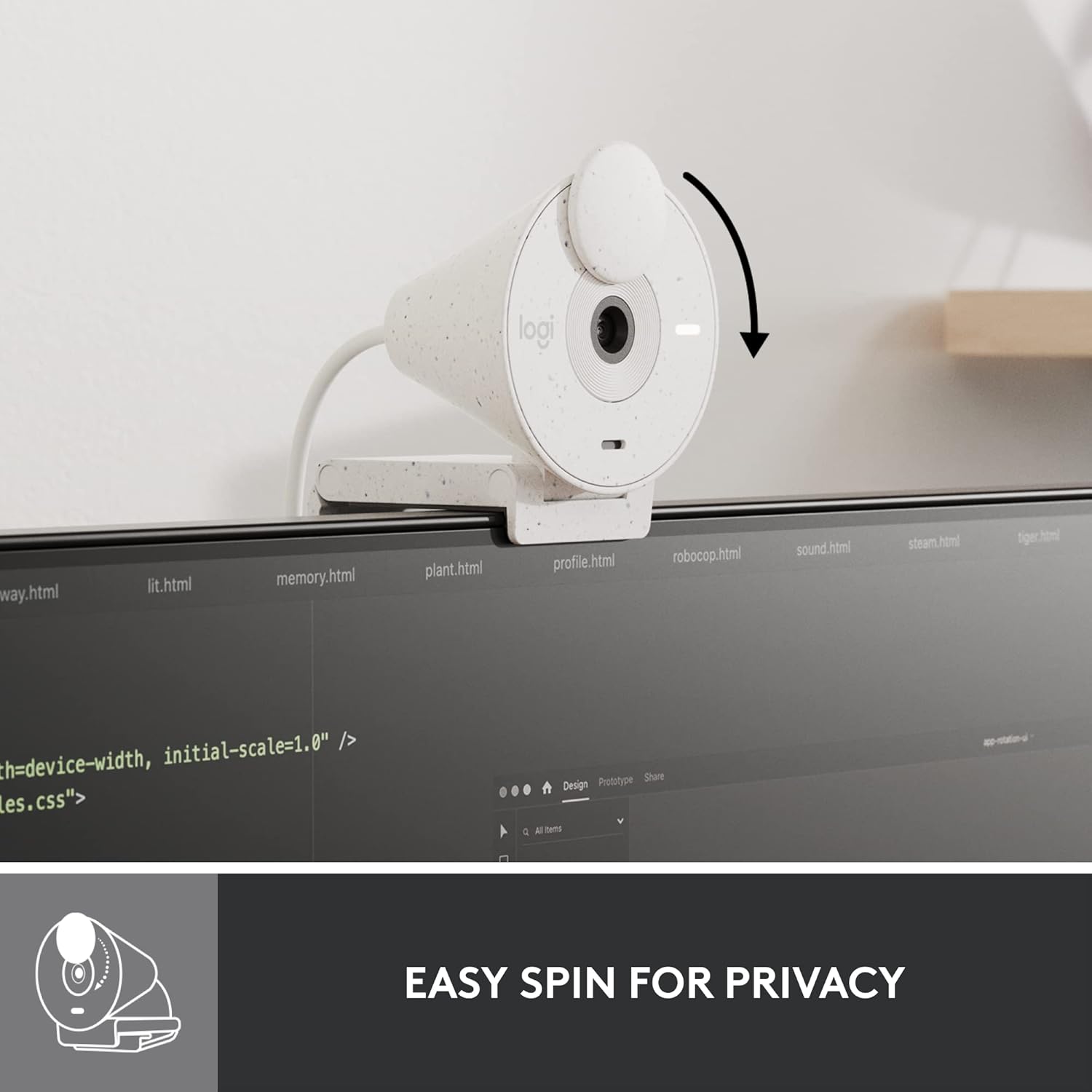
Figure 4.1: Demonstrating the easy-to-use spin privacy shutter on the Brio 300.
4.2. Auto Light Correction (RightLight 2)
การ webcam is equipped with RightLight 2 technology, which automatically adjusts to poor lighting conditions. This ensures you appear clear and well-lit, even in dim environments.

Figure 4.2: Visual representation of the Brio 300's auto light correction feature improving image quality in low light.
4.3. ไมโครโฟนลดเสียงรบกวน
The integrated mono microphone features noise reduction, suppressing background sounds to ensure your voice is heard clearly during calls.
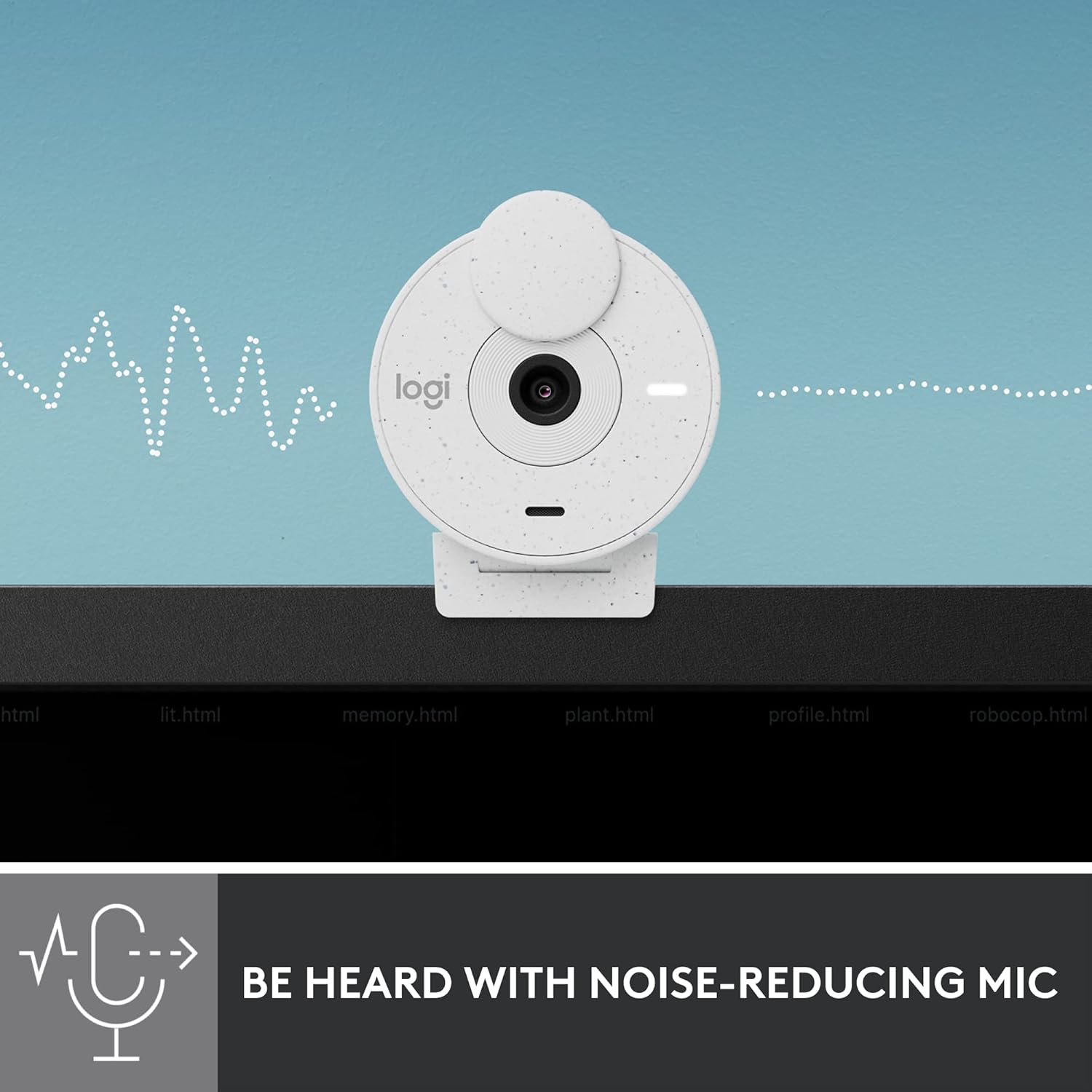
Figure 4.3: Illustration of the Brio 300's noise-reducing microphone capturing clear audio.
4.4. ความเข้ากันได้
The Brio 300 is certified for Zoom, Microsoft Teams, and Google Meet, ensuring broad compatibility with most video conferencing platforms.

Figure 4.4: The Brio 300 is certified for major meeting platforms, including Zoom, Microsoft Teams, and Google Meet.
5. การบำรุงรักษา
เพื่อให้มั่นใจถึงอายุการใช้งานที่ยาวนานและประสิทธิภาพที่ดีที่สุดของ Logitech Brio 300 ของคุณ webแคม ปฏิบัติตามคำแนะนำการบำรุงรักษาง่ายๆ เหล่านี้:
- การทำความสะอาดเลนส์: Gently wipe the camera lens with a soft, lint-free cloth. For stubborn smudges, slightly dampen the cloth with a lens cleaning solution. Avoid abrasive materials or harsh chemicals.
- ทำความสะอาดร่างกาย: ใช้ผ้าแห้งนุ่มๆ เช็ดทำความสะอาดตัวเครื่อง webห้ามใช้น้ำยาทำความสะอาดโดยตรงกับตัวเครื่อง
- พื้นที่จัดเก็บ: When not in use, especially during travel, ensure the privacy shutter is closed to protect the lens. Store the webเก็บกล้องไว้ในที่สะอาดและแห้ง ห่างจากอุณหภูมิที่สูงหรือต่ำเกินไป
6 การแก้ไขปัญหา
If you encounter issues with your Logitech Brio 300, try the following troubleshooting steps:
- ไม่มีวิดีโอ/เสียง:
- ตรวจสอบให้แน่ใจว่าสาย USB-C เชื่อมต่อกับทั้งสองด้านอย่างแน่นหนา webแคมและคอมพิวเตอร์ของคุณ
- ตรวจสอบว่าม่านบังตาเปิดอยู่หรือไม่
- ตรวจสอบว่า webcam is selected as the primary video and audio device in your video conferencing application settings (e.g., Zoom, Microsoft Teams, Google Meet).
- ลองเชื่อมต่อดู webcam to a different USB-C port or a different computer to rule out port or system issues.
- คุณภาพวิดีโอไม่ดี:
- Ensure adequate lighting in your environment. While RightLight 2 helps, sufficient ambient light is crucial for optimal image quality.
- ทำความสะอาดเลนส์กล้องตามวิธีที่อธิบายไว้ในส่วนการบำรุงรักษา
- อัพเดตของคุณ webcam drivers and the Logi Tune software to the latest version.
- Check your internet connection speed, as a slow connection can affect video streaming quality.
- คุณภาพเสียงไม่ดี:
- ตรวจสอบให้แน่ใจว่าไมโครโฟนไม่ได้ถูกกีดขวาง
- ลดเสียงรบกวนพื้นหลังในสภาพแวดล้อมของคุณ
- Adjust microphone levels in your computer's sound settings or Logi Tune.
7. ข้อมูลจำเพาะ
| คุณสมบัติ | รายละเอียด |
|---|---|
| ความละเอียดหน้าจอสูงสุด | เอฟเอชดี (1080p) |
| ความละเอียดในการจับภาพวิดีโอ | 1080p |
| เทคโนโลยีโฟโต้เซนเซอร์ | ซีมอส |
| เทคโนโลยีการเชื่อมต่อ | ยูเอสบี-ซี |
| คุณสมบัติพิเศษ | Low Light Correction (RightLight 2) |
| ไมโครโฟน | Mono, Noise Reduction |
| คุณสมบัติความเป็นส่วนตัว | ม่านบังตาแบบรวมเพื่อความเป็นส่วนตัว |
| น้ำหนักสินค้า | 3.99 ออนซ์ |
| ขนาดสินค้า | 4.6 x 3.5 x 2.7 นิ้ว |
| วัสดุ | Minimum 48% Post-Consumer Recycled Plastic |
8. การรับประกันและการสนับสนุน
โลจิเทค บริโอ 300 webcam comes with a limited hardware warranty. For detailed warranty information, technical support, and frequently asked questions, please visit the official Logitech support website or refer to the full user manual available in PDF format.
คู่มือผู้ใช้อย่างเป็นทางการ (PDF): ดาวน์โหลดที่นี่
For software support and customization, download the Logi Tune application.


