1. สินค้าหมดview
The ORICO Thunderbolt 3 15-in-1 Docking Station is a versatile hub designed to expand the connectivity of your USB-C enabled laptop, including MacBooks and Windows devices. It offers a wide array of ports for high-speed data transfer, multiple display outputs, fast charging, and network connectivity, streamlining your workspace into a single, powerful solution.
This docking station features a robust aluminum alloy construction for efficient heat dissipation, ensuring stable performance during intensive use.

Image: The ORICO Thunderbolt 3 Docking Station connected to a MacBook, extending the display to two external monitors, showcasing its multi-display capability and compact design.
2. คุณสมบัติหลัก
- การเชื่อมต่อ 15-in-1: Includes 2x Thunderbolt 3 ports, 2x USB 3.1 Gen 2 Type-C (10Gbps), 1x USB 3.1 Gen 2 Type-A (10Gbps), 2x USB 3.1 Gen 1 Type-A (5Gbps), 2x USB 2.0 Type-A (480Mbps), DP 1.4, RJ45 Gigabit Ethernet, SD/TF card reader, 3.5mm audio input/output, and S/PDIF OUT.
- Ultra-High Speed Transmission: Up to 40Gbps via Thunderbolt 3 interfaces. USB-C and USB-A ports support up to 10Gbps.
- 4K UHD Video Configuration: Supports single 5K@60Hz display or dual 4K@60Hz displays via Thunderbolt 3. Daisy-chain up to 3 Thunderbolt 3 devices.
- Super Power Delivery: Provides up to 60W PD fast charging for your laptop. A secondary Thunderbolt 3 port delivers 15W for downstream devices.
- ความเข้ากันได้กว้าง: Plug-and-play, no drivers required for laptops with Thunderbolt 3/4 ports, compatible with macOS and Windows.
- การกระจายความร้อนที่มีประสิทธิภาพ: Constructed with aluminum alloy for fast heat dissipation.
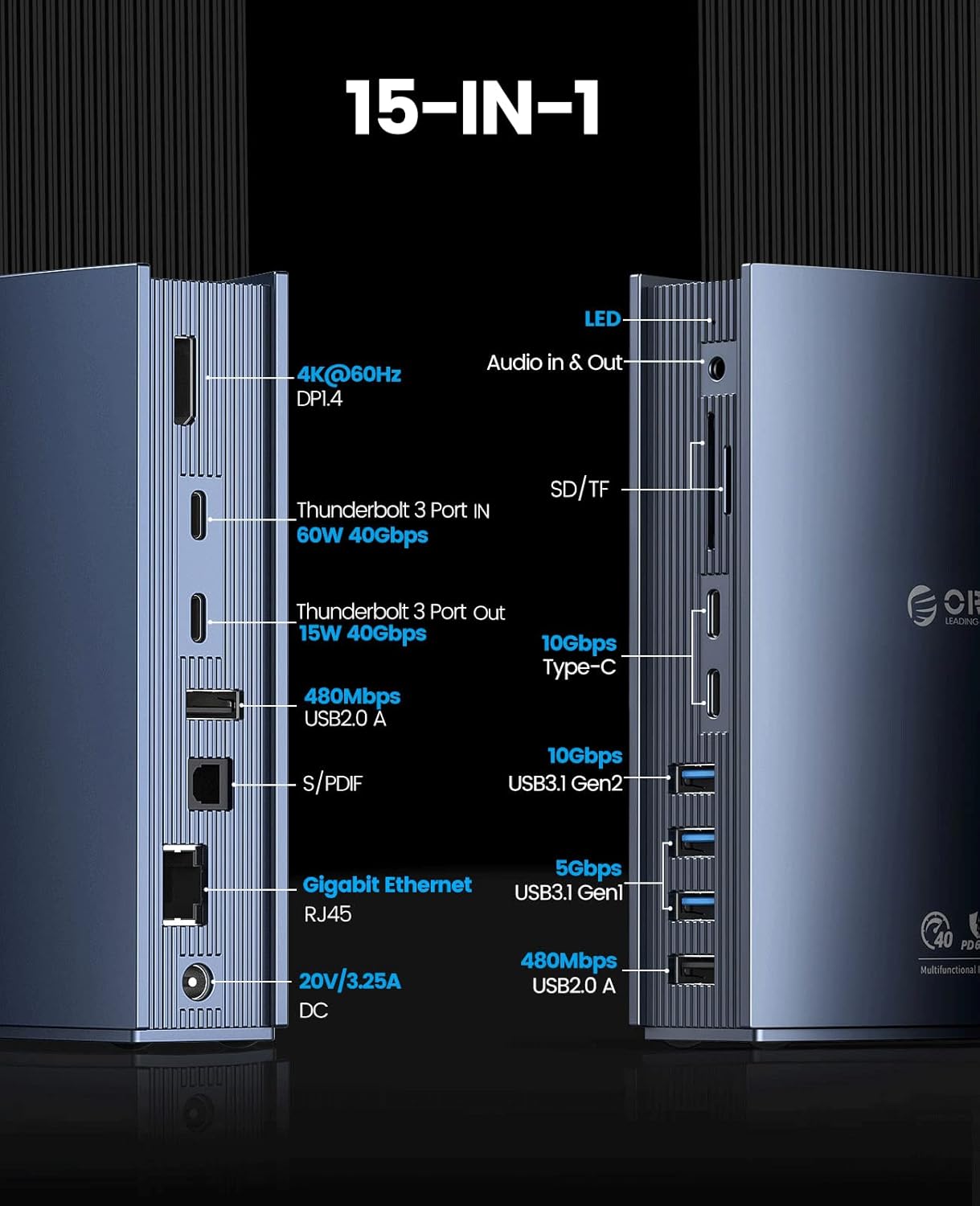
ภาพ: รายละเอียด view of the left side of the docking station, highlighting the DP 1.4 (4K@60Hz), Thunderbolt 3 (60W 40Gbps), Thunderbolt 3 (15W 40Gbps), USB 2.0 (480Mbps), S/PDIF, Gigabit Ethernet RJ45, and DC 20V/3.25A power input ports.

ภาพ: รายละเอียด view of the right side of the docking station, highlighting the LED indicator, Audio In & Out, SD/TF card slots, 2x 10Gbps Type-C ports, 2x 5Gbps USB 3.1 Gen 1 ports, and 2x 480Mbps USB 2.0 ports.
3. คำแนะนำในการตั้งค่า
ทำตามขั้นตอนต่อไปนี้เพื่อตั้งค่าแท่นวาง ORICO Thunderbolt 3 ของคุณ:
- เชื่อมต่อพลังงาน: Connect the provided DC power adapter (20V/3.25A) to the DC 60W input port on the docking station and then plug it into a power outlet.
- เชื่อมต่อกับแล็ปท็อป: Use the included Thunderbolt 3 cable to connect one of the Thunderbolt 3 ports on the docking station to a Thunderbolt 3/4 port on your laptop. Ensure your laptop supports Thunderbolt 3/4 for full functionality.
- เชื่อมต่อจอแสดงผลภายนอก:
- For a single 4K@60Hz display, connect your monitor to the DP 1.4 port.
- For dual 4K@60Hz displays or a single 5K@60Hz display, connect one monitor to the DP 1.4 port and another to the secondary Thunderbolt 3 port using an appropriate adapter (e.g., Thunderbolt 3 to DisplayPort).
- The docking station supports daisy-chaining up to 3 Thunderbolt 3 devices.

Image: A laptop connected to the ORICO docking station, which is then connected to a large external monitor displaying content at 4K@60Hz, illustrating the high-resolution display capability.
- เชื่อมต่ออุปกรณ์ USB: Plug your USB peripherals (e.g., keyboard, mouse, external hard drives) into the available USB-A (10Gbps, 5Gbps, 480Mbps) or USB-C (10Gbps) ports.
- เชื่อมต่ออีเทอร์เน็ต: For a stable wired network connection, connect an Ethernet cable from your router/modem to the RJ45 Gigabit Ethernet port on the docking station.
- ใส่การ์ด SD/TF: Insert your SD or TF memory cards into the corresponding slots for data access.
- เชื่อมต่ออุปกรณ์เสียง: Use the 3.5mm AUX port for headphones or speakers, or the S/PDIF OUT for optical audio output.
The docking station is plug-and-play and typically does not require additional drivers for basic functionality on compatible operating systems.
4. การใช้งานแท่นวางอุปกรณ์
4.1 โหมดการแสดงผล
แท่นวางอุปกรณ์รองรับการกำหนดค่าจอแสดงผลหลากหลายรูปแบบ:
- โหมดขยาย: Your laptop screen and connected monitors display different content, expanding your workspace.
- โหมดมิเรอร์: Your laptop screen and connected monitors display the same content.
Adjust display settings through your operating system's display preferences (e.g., System Preferences > Displays on macOS, Display settings on Windows).
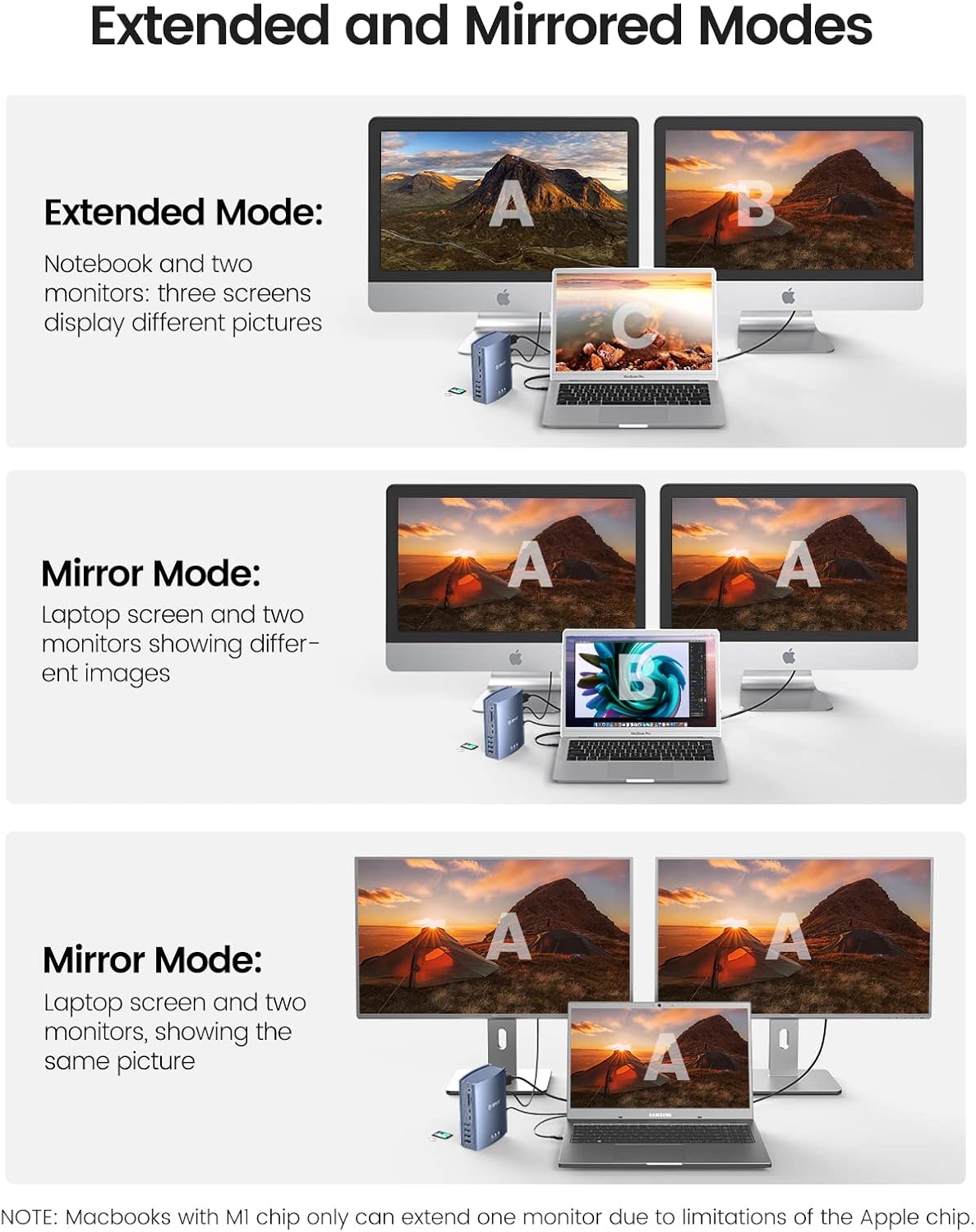
Image: Visual representation of Extended Mode, where the laptop and two monitors show different content, and Mirror Mode, where all screens display the same content, demonstrating the docking station's multi-display capabilities.
4.2 การถ่ายโอนข้อมูล
Utilize the high-speed ports for efficient data transfer:
- สายฟ้า 3: Up to 40Gbps for connecting high-performance storage devices or daisy-chaining other Thunderbolt peripherals.
- USB 3.1 Gen 2 (Type-C/A): Up to 10Gbps for fast external SSDs and other compatible devices.
- USB 3.1 Gen 1 (Type-A): Up to 5Gbps for standard USB devices.
- ช่องเสียบการ์ด SD/TF: For quick access to photos and videos from memory cards.
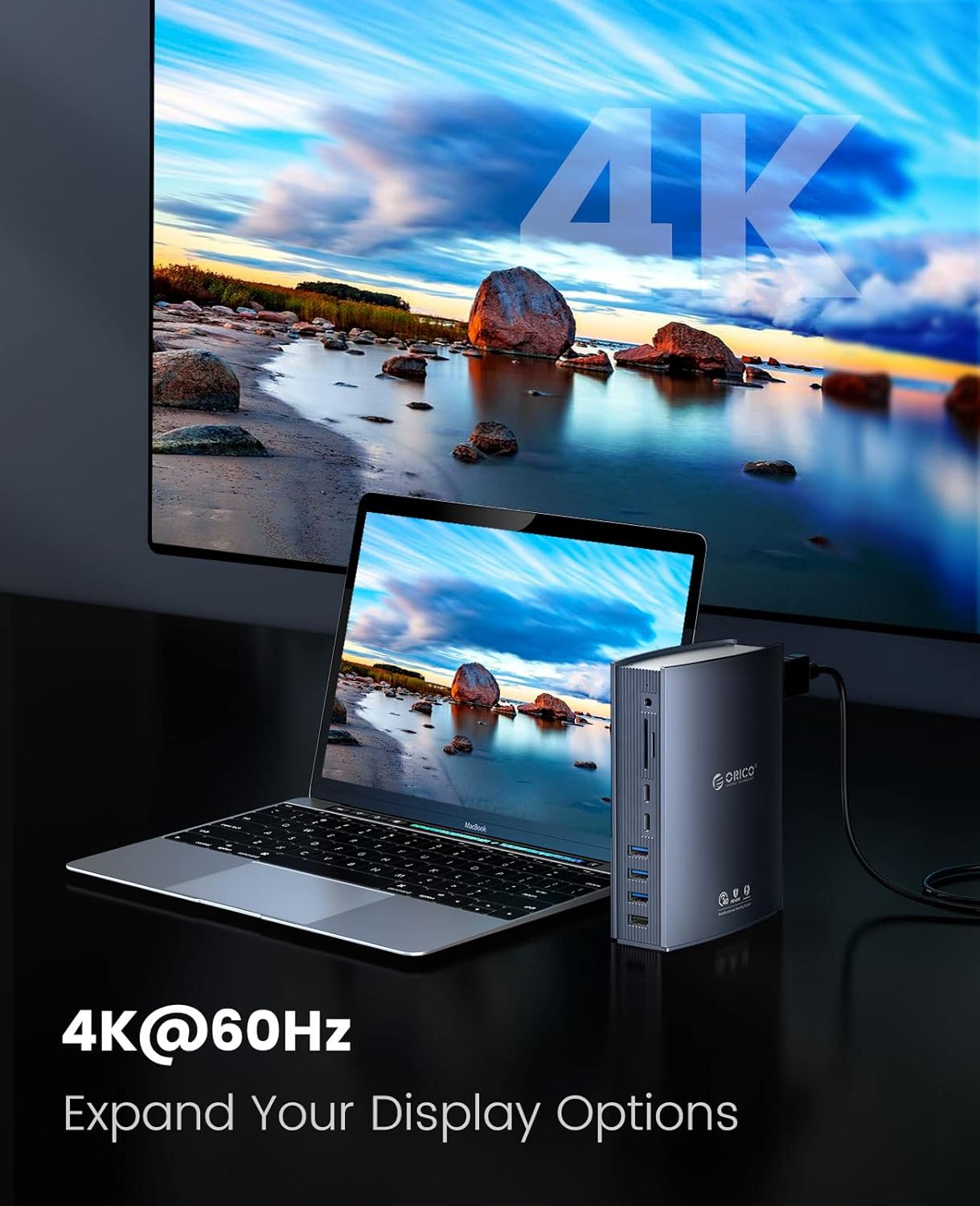
Image: An infographic illustrating the 40Gbps transfer speed achievable with Thunderbolt 3, highlighting its efficiency for large file การโอนย้าย
4.3 ความสามารถในการชาร์จ
The docking station provides power to your laptop and connected devices:
- การชาร์จแล็ปท็อป: The primary Thunderbolt 3 port delivers up to 60W Power Delivery (PD) to charge your connected laptop.
- การชาร์จขั้นปลาย: The secondary Thunderbolt 3 port provides 15W of power for other Thunderbolt devices.

Image: A visual representation of the three power delivery options: 60W from the primary Thunderbolt 3 port, 15W from the secondary Thunderbolt 3 port, and 60W from the DC power input, ensuring ample power for devices.
5. การบำรุงรักษา
เพื่อให้มั่นใจได้ว่าแท่นวาง ORICO Thunderbolt 3 ของคุณจะมีอายุการใช้งานยาวนานและทำงานได้อย่างมีประสิทธิภาพสูงสุด โปรดปฏิบัติตามคำแนะนำในการบำรุงรักษาเหล่านี้:
- การทำความสะอาด: ใช้ผ้าแห้งเนื้อนุ่มเช็ดทำความสะอาดภายนอกแท่นวาง หลีกเลี่ยงการใช้น้ำยาทำความสะอาดหรือสเปรย์ เพราะอาจทำให้ตัวเครื่องเสียหายได้
- การระบายอากาศ : Ensure the docking station is placed in a well-ventilated area to allow for proper heat dissipation. Do not block the ventilation grooves.
- พื้นที่จัดเก็บ: เมื่อไม่ได้ใช้งานเป็นเวลานาน ควรเก็บแท่นวางไว้ในที่แห้งและเย็น หลีกเลี่ยงแสงแดดโดยตรงและอุณหภูมิที่สูงหรือต่ำเกินไป
- การจัดการสายเคเบิล: Avoid bending or crimping cables excessively, especially the Thunderbolt 3 cable, to prevent damage.
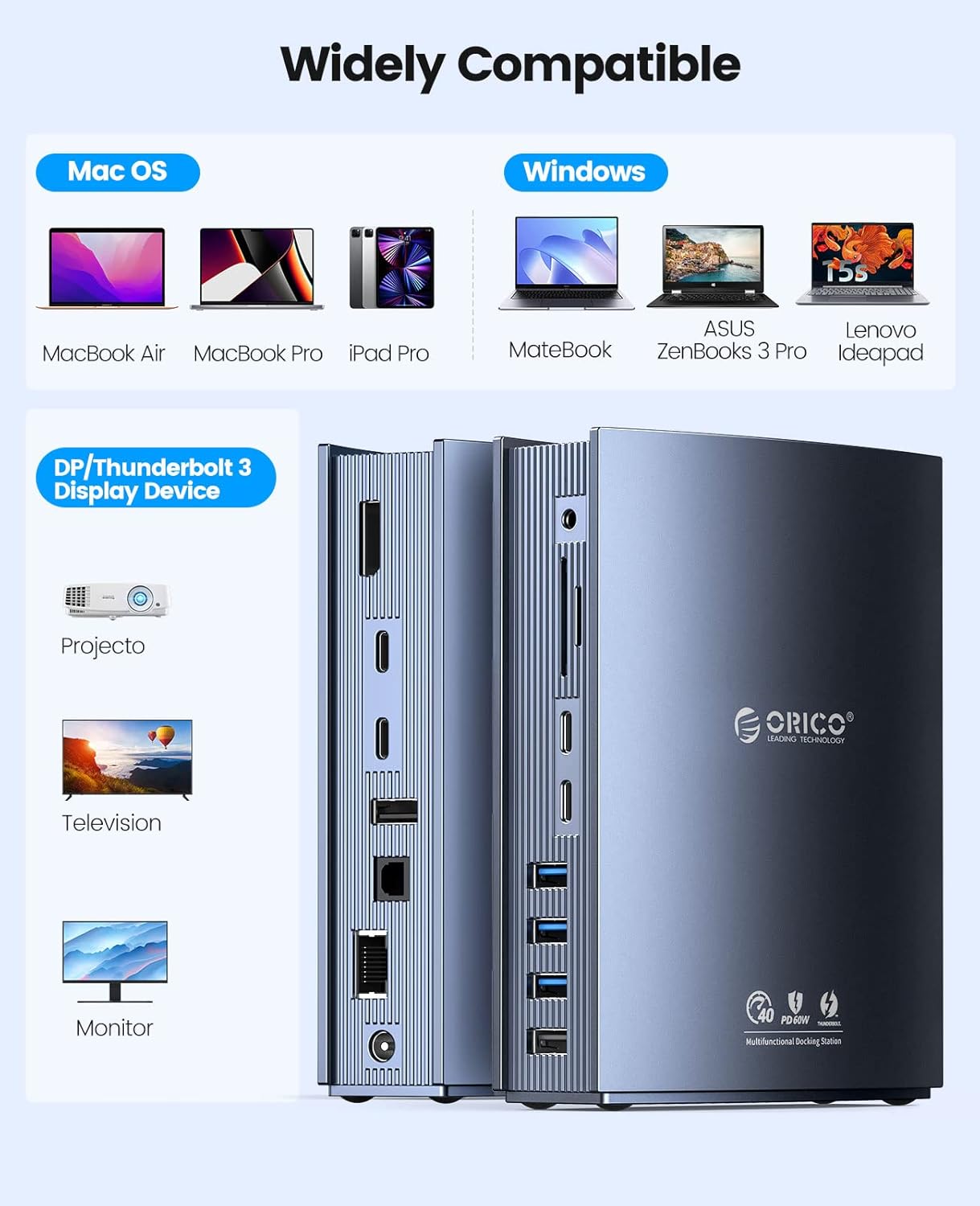
Image: A close-up of the ORICO docking station, emphasizing its aluminum alloy construction designed for fast heat dissipation, crucial for maintaining performance.
6 การแก้ไขปัญหา
หากคุณพบปัญหาเกี่ยวกับแท่นวาง โปรดดูปัญหาทั่วไปและวิธีแก้ไขต่อไปนี้:
- ไม่มีพลังงาน/ไม่รู้จักอุปกรณ์:
- ตรวจสอบให้แน่ใจว่าได้เสียบอะแดปเตอร์แปลงไฟเข้ากับแท่นวางและเต้ารับไฟฟ้าที่ใช้งานได้สนิทแล้ว
- Verify that the Thunderbolt 3 cable is firmly connected to both the docking station and your laptop.
- Confirm your laptop's USB-C port supports Thunderbolt 3/4. Not all USB-C ports are Thunderbolt compatible.
- ไม่มีการแสดงผลบนจอภาพภายนอก:
- Check all display cable connections (DP, Thunderbolt 3 to display adapter).
- ตรวจสอบให้แน่ใจว่าจอภาพภายนอกเปิดใช้งานอยู่และตั้งค่าแหล่งสัญญาณเข้าถูกต้องแล้ว
- อัปเดตไดรเวอร์การ์ดจอของแล็ปท็อปของคุณ
- Note for Apple M1/M2/M3 MacBooks: Due to Apple chip limitations, these MacBooks typically support only one external display in extended mode.
- ความเร็วในการถ่ายโอนข้อมูลช้า:
- Ensure you are using the correct ports for high-speed devices (Thunderbolt 3 for 40Gbps, USB 3.1 Gen 2 for 10Gbps).
- The actual transfer rate depends on the connected device and cable quality. Use high-quality cables.
- Avoid connecting multiple high-bandwidth devices to the same port or bus simultaneously if possible.
- อีเธอร์เน็ตไม่ทำงาน:
- ตรวจสอบการเชื่อมต่อสายเคเบิลอีเทอร์เน็ตกับทั้งสถานีเชื่อมต่อและเราเตอร์/โมเด็มของคุณ
- ตรวจสอบการตั้งค่าเครือข่ายบนแล็ปท็อปของคุณ
- ปัญหาเกี่ยวกับเสียง:
- Ensure your audio device is correctly plugged into the 3.5mm AUX or S/PDIF port.
- Check your laptop's audio output settings to ensure the docking station's audio output is selected.
7. ข้อมูลจำเพาะ
| ยี่ห้อ | โอริโก้ |
| สี | สีดำ |
| ฮาร์ดแวร์อินเตอร์เฟซ | Ethernet, DisplayPort, Thunderbolt, USB 2.0, USB Type-C, Lighting |
| อุปกรณ์ที่รองรับ | MacBook Pro (and other Thunderbolt 3/4 laptops) |
| พอร์ต USB รวม | 8 |
| ขนาดสินค้า | 10.7L x 14.8H centimeters |
| จำนวนพอร์ต | 15 |
| น้ำหนักสินค้า | 900 กรัม |
| กำลังขับ | 60 Watts (PD) |
| อินพุต Voltage | 20 โวลต์ |
8. การรับประกันและการสนับสนุน
ORICO products are designed for reliability and performance. This product comes with a standard manufacturer's warranty. For detailed warranty information, product support, or technical assistance, please visit the official ORICO webหรือติดต่อฝ่ายบริการลูกค้าโดยตรง
โปรดเก็บหลักฐานการซื้อของคุณไว้เพื่อเรียกร้องการรับประกัน


