1. บทนำ
The Works USB-C 3.0 OTG Adapter provides On-The-Go (OTG) functionality, allowing your USB-C enabled device, such as the Xiaomi Poco X3 GT, to connect with various USB peripherals. This adapter facilitates the use of external devices like keyboards, mice, flash drives, and more, enhancing the versatility of your smartphone or tablet.
This manual outlines the proper setup, operation, maintenance, and troubleshooting for your Works USB-C 3.0 OTG Adapter.

Image 1.1: The Works USB-C 3.0 OTG Adapter. This image displays the compact black adapter with a USB-C male connector on one end and a USB-A female port on the other, connected by a short cable.
2. การตั้งค่า
Setting up your Works USB-C 3.0 OTG Adapter is a straightforward plug-and-play process.
- ตรวจสอบความเข้ากันได้ของอุปกรณ์: Ensure your smartphone, tablet, or other host device has a USB-C port and supports USB On-The-Go (OTG) functionality. Most modern Android devices with USB-C ports support OTG.
- เชื่อมต่ออะแดปเตอร์: Insert the USB-C male connector of the Works OTG Adapter into the USB-C port of your host device.
- เชื่อมต่ออุปกรณ์ต่อพ่วง: Plug your desired USB peripheral (e.g., keyboard, mouse, flash drive) into the USB-A female port of the OTG adapter.
- การจดจำอัตโนมัติ: Your host device should automatically detect the connected peripheral. No additional drivers or software installation are typically required.

Image 2.1: Compatible Devices Diagram. This image illustrates the USB-C OTG adapter connecting a smartphone or tablet to various peripherals such as a card reader, thumb drive, mouse, USB hub, game controller, and keyboard, highlighting its broad compatibility.
3. การดำเนินการ
Once connected, the Works USB-C 3.0 OTG Adapter allows your host device to interact with various USB peripherals as if they were connected to a computer.
- Keyboards and Mice: Connect a USB keyboard or mouse for easier text input and navigation on your device.
- Flash Drives and External Storage: เข้าถึง files directly from USB flash drives or external hard drives. The adapter supports USB 3.0 Super Speed data transfer, offering speeds up to 5Gbps, which is 10 times faster than USB 2.0. This allows for quick transfer of large files, HD movies, and music.
- Game Controllers: Enhance your gaming experience by connecting compatible USB game controllers to your device.
- ฮับ USB: Expand connectivity by plugging in a USB hub to connect multiple peripherals simultaneously.
- การพิจารณาเรื่องอำนาจ: The OTG adapter provides connectivity for USB peripherals. It does not provide power to your host device. While it can supply power to connected USB peripherals, this will draw power from your host device's battery.
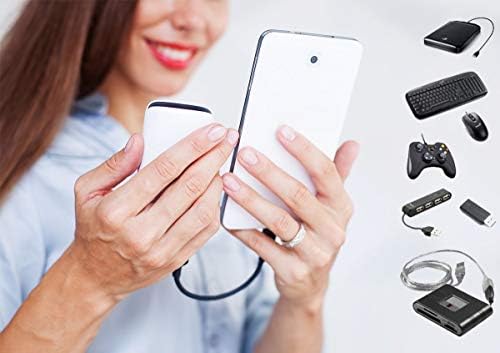
Image 3.1: User Interaction with OTG Adapter. This image shows a person holding a smartphone connected to a portable speaker, with various USB peripherals like a keyboard, mouse, game controller, USB hub, and flash drive depicted on the side, illustrating the adapter's multi-use functionality.

Image 3.2: OTG Connectivity Diagram. This diagram illustrates how a smartphone or tablet can connect to various USB devices such as a keyboard, mouse, flash drive, camera, USB headset, printer, USB cable, microphone, game handle, and USB fan, all facilitated by an OTG adapter.
4. การบำรุงรักษา
To ensure the longevity and optimal performance of your Works USB-C 3.0 OTG Adapter, follow these simple maintenance guidelines:
- การทำความสะอาด: Use a soft, dry cloth to gently wipe the adapter. Avoid using liquid cleaners or abrasive materials, as these can damage the device.
- พื้นที่จัดเก็บ: เก็บอะแดปเตอร์ไว้ในที่แห้งและเย็น หลีกเลี่ยงแสงแดดโดยตรงและอุณหภูมิที่สูงหรือต่ำเกินไป
- การจัดการ: The adapter features a durable ABS plastic body and a tangle-free design. Avoid excessive bending or pulling on the cable to prevent internal damage.
- การป้องกัน: Keep the connectors free from dust and debris. Consider using protective caps if available when not in use.
5 การแก้ไขปัญหา
If you encounter issues with your Works USB-C 3.0 OTG Adapter, refer to the following common troubleshooting steps:
- ไม่รู้จักอะแดปเตอร์:
- Ensure the adapter is fully inserted into your host device's USB-C port.
- Verify that your host device (e.g., Xiaomi Poco X3 GT) supports USB OTG functionality.
- ลองรีสตาร์ทอุปกรณ์โฮสต์ของคุณ
- อุปกรณ์ต่อพ่วงไม่ทำงาน:
- Ensure the peripheral is fully inserted into the adapter's USB-A port.
- Test the peripheral directly with a computer to confirm it is functional.
- Some high-power peripherals (e.g., certain external hard drives) may require external power and might not function solely through the OTG adapter.
- If using a USB hub, try connecting the peripheral directly to the OTG adapter first.
- ความเร็วในการถ่ายโอนข้อมูลช้า:
- Ensure both the peripheral (e.g., flash drive) and the host device's USB-C port support USB 3.0 for optimal speeds. If either is USB 2.0, speeds will be limited to USB 2.0 rates.
- หลีกเลี่ยงการโอนย้ายขนาดเล็กจำนวนมาก files พร้อมกัน; เดี่ยวขนาดใหญ่ files often transfer more efficiently.
6. ข้อมูลจำเพาะ
| ชื่อสินค้า | Works USB-C 3.0 OTG Adapter |
| แบบอย่าง | USB-C 3.0 OTG Adapter |
| ประเภทขั้วต่อ | USB Type-C Male to USB Type-A Female |
| มาตรฐาน USB | ยูเอสบี 3.0 |
| ความเร็วในการถ่ายโอนข้อมูล | Up to 5Gbps (Super Speed) |
| วัสดุ | พลาสติก ABS ทนทาน |
| สี | สีดำ |
| น้ำหนักสินค้า | 0.5 ออนซ์ |
| อุปกรณ์ที่รองรับ | USB-C devices with OTG support (e.g., Xiaomi Poco X3 GT), Keyboards, Mice, Flash Drives, Game Controllers, USB Hubs, etc. |
7. การรับประกันและการสนับสนุน
Your Works USB-C 3.0 OTG Adapter comes with a รับประกัน 12 เดือน ตั้งแต่วันที่ซื้อสินค้า
For any questions, technical assistance, or warranty claims, please contact our customer service. We are available 24/7 to resolve your issues within 24 hours.
Please refer to your purchase documentation for specific contact details or visit the official Works product support page.


