1. บทนำ
The Logitech Signature M650 for Business is a versatile wireless mouse designed to enhance productivity and comfort. It offers dual connectivity options, a SmartWheel for adaptive scrolling, and SilentTouch technology for quiet operation. Available in two sizes, it caters to various hand sizes for optimal ergonomic support.
คุณสมบัติหลัก:
- การเชื่อมต่อแบบคู่: Connect via Logi Bolt USB receiver for secure connections or directly via Bluetooth Low Energy.
- การเลื่อนด้วย SmartWheel: Automatically switches between line-by-line precision and free-spin mode.
- เทคโนโลยี SilentTouch: Reduces click noise by 90% for a quieter work environment.
- การออกแบบตามหลักสรีรศาสตร์: Contoured shape and soft thumb area for comfort, available in two sizes (M650 and M650 L).
- ปุ่มที่ปรับแต่งได้: Side buttons can be customized for various functions.
- อายุการใช้งานแบตเตอรี่ยาวนาน: Up to 24 months on a single AA battery.
- ความเข้ากันได้กับหลายแพลตฟอร์ม: ใช้งานได้อย่างราบรื่นกับ Windows, macOS, Linux, Chrome OS, iPadOS และ Android

Image: Logitech Signature M650 for Business Wireless Mouse and its packaging, showcasing ตัวผลิตภัณฑ์และกล่องบรรจุภัณฑ์
2. การตั้งค่า
2.1. อะไรอยู่ในกล่อง
ก่อนที่คุณจะเริ่มต้น โปรดตรวจสอบให้แน่ใจว่ามีส่วนประกอบทั้งหมดครบถ้วน:
- เมาส์ไร้สาย Logitech Signature M650
- ตัวรับสัญญาณ USB Logi Bolt
- แบตเตอรี่ AA 1 ก้อน (ติดตั้งไว้แล้ว)

Image: The Logitech M650 mouse, a Logi Bolt USB receiver, and a 1-meter USB cable, representing the items included in the product packaging.
2.2. การติดตั้งแบตเตอรี่
The mouse comes with one AA battery pre-installed. If you need to replace it:
- เปิดฝาช่องใส่แบตเตอรี่ที่อยู่ด้านล่างของเมาส์
- ใส่แบตเตอรี่ AA ใหม่ โดยตรวจสอบให้แน่ใจว่าขั้วถูกต้อง (+/-)
- ปิดฝาช่องใส่แบตเตอรี่ให้แน่น
2.3. การเชื่อมต่อเมาส์ของคุณ
The Signature M650 offers two connection methods: Logi Bolt USB Receiver or Bluetooth Low Energy.
Option 1: Logi Bolt USB Receiver (Recommended for Secure Connections)
- Locate the Logi Bolt USB receiver, typically found inside the mouse's battery compartment or packaged separately.
- เสียบตัวรับสัญญาณ USB Logi Bolt เข้ากับพอร์ต USB ที่ว่างอยู่บนคอมพิวเตอร์ของคุณ
- เปิดเมาส์โดยใช้สวิตช์เปิด/ปิดที่ด้านล่าง เมาส์จะเชื่อมต่อโดยอัตโนมัติ

Image: The Logi Bolt USB receiver securely plugged into a laptop's USB port, demonstrating its compact size and integration.
Option 2: Bluetooth Low Energy
- เปิดเมาส์โดยใช้สวิตช์เปิด/ปิดที่ด้านล่าง
- Press and hold the connect button on the underside of the mouse until the LED indicator starts blinking rapidly, indicating pairing mode.
- เปิดการตั้งค่าบลูทูธบนคอมพิวเตอร์หรืออุปกรณ์ของคุณ
- Select "Logitech M650" from the list of available devices and follow the on-screen prompts to complete pairing.

Image: The Logitech M650 mouse positioned on a mousepad, with visual cues for both Bluetooth and Logi Bolt connectivity options.
3. การใช้งานเมาส์ของคุณ
3.1. SmartWheel Scrolling
The SmartWheel automatically adapts to your scrolling needs:
- โหมดความแม่นยำ: For detailed, line-by-line scrolling, gently scroll the wheel.
- โหมดหมุนฟรี: For rapid, long document or web page navigation, give the wheel a quick flick. It will spin freely.
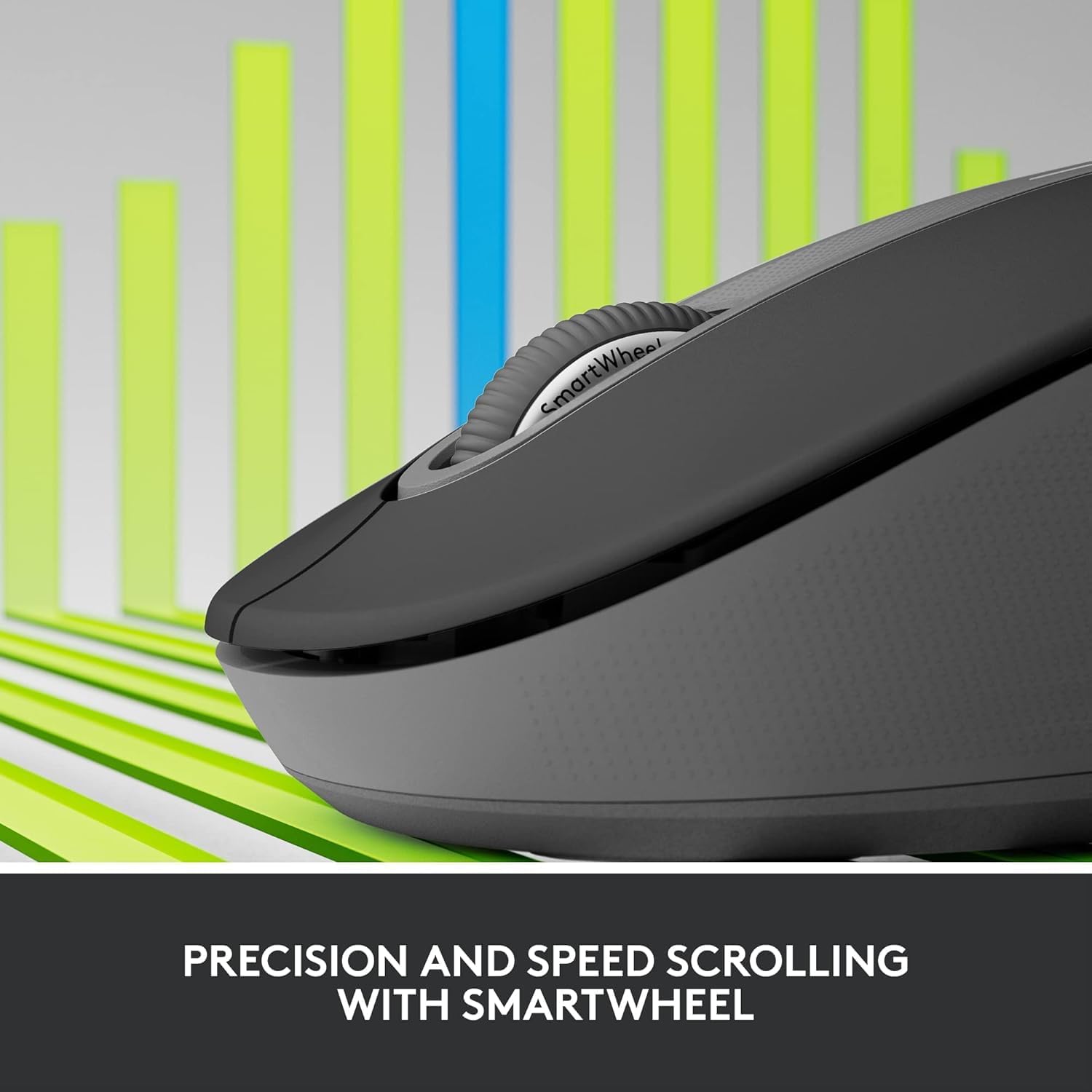
Image: A detailed close-up of the Logitech M650 mouse's SmartWheel, emphasizing its design for both precision and speed scrolling.
3.2. Customizable Side Buttons
The Signature M650 features two customizable side buttons. By default, these buttons may perform forward/back navigation in web browsers. To customize their functions, download and install the Logitech Options+ software from the official Logitech webเว็บไซต์.
3.3. SilentTouch Technology
Experience a quieter workspace with SilentTouch technology, which significantly reduces the sound of clicks without compromising the tactile feel.
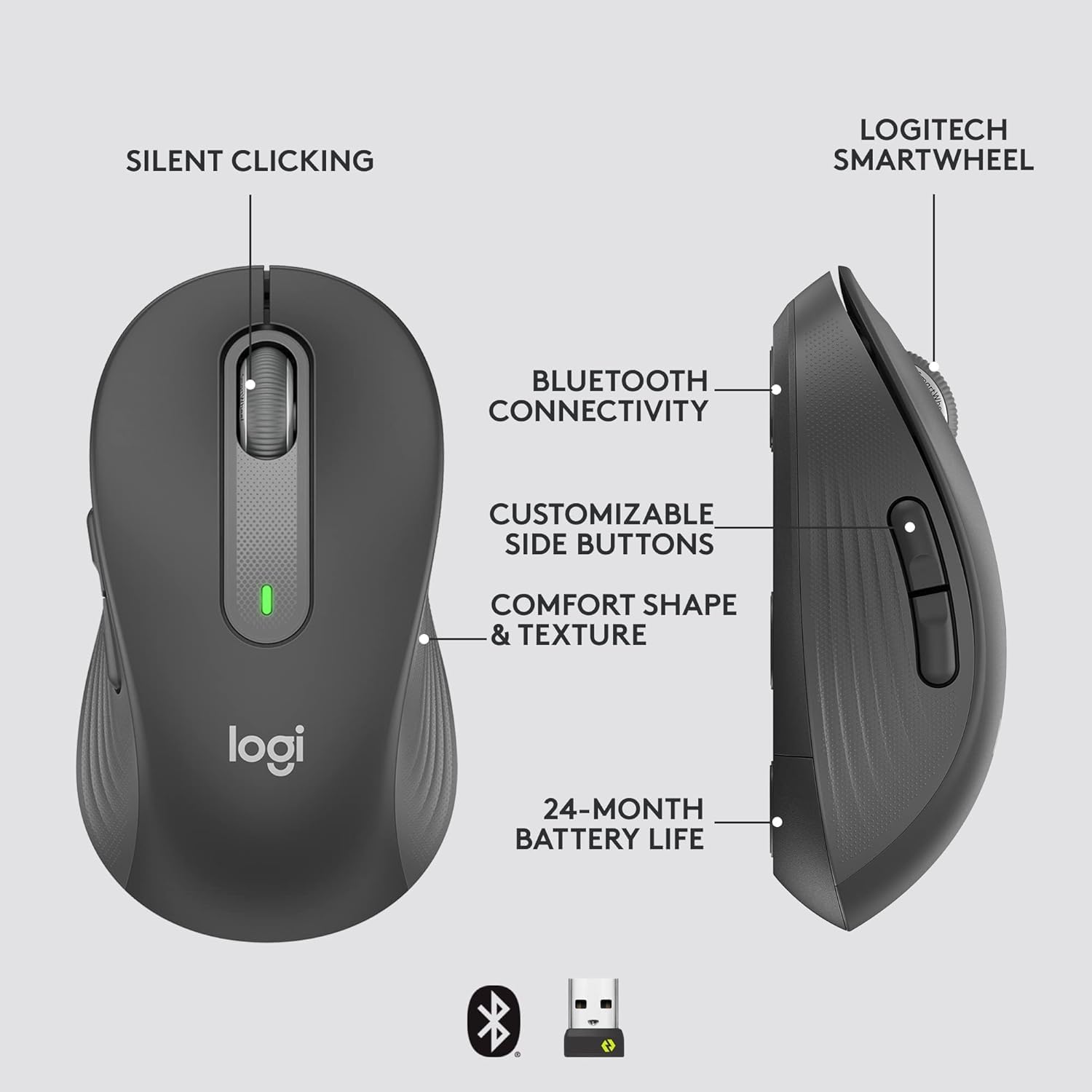
Image: An annotated diagram of the Logitech M650 mouse, highlighting key features such as Silent Clicking, Bluetooth Connectivity, Customizable Side Buttons, Comfort Shape & Texture, 24-Month Battery Life, and the Logitech SmartWheel.
4. การบำรุงรักษา
4.1. การเปลี่ยนแบตเตอรี่
The mouse uses one AA battery. When the battery is low, the LED indicator on the mouse may flash. Replace the battery as described in Section 2.2.
4.2. การทำความสะอาด
ในการทำความสะอาดเมาส์ ให้ใช้ผ้าเนื้อนุ่มที่ไม่เป็นขุย สำหรับคราบสกปรกฝังแน่น ให้ใช้ผ้าชุบน้ำหมาดๆ เช็ดเบาๆampชุบผ้าด้วยน้ำ หลีกเลี่ยงการใช้สารเคมีรุนแรงหรือวัสดุที่มีฤทธิ์กัดกร่อน
5 การแก้ไขปัญหา
5.1. เมาส์ไม่ตอบสนอง
- ตรวจสอบแบตเตอรี่: ตรวจสอบให้แน่ใจว่าติดตั้งแบตเตอรี่อย่างถูกต้องและมีประจุเพียงพอ เปลี่ยนแบตเตอรี่หากจำเป็น
- เปิดเครื่อง: Verify the mouse is turned on using the power switch.
- สร้างการเชื่อมต่อใหม่:
- Logi Bolt: Try plugging the receiver into a different USB port. Ensure no obstructions are between the mouse and receiver.
- บลูทูธ: Go to your device's Bluetooth settings, remove the mouse, and re-pair it.
- การรบกวน: Move the mouse closer to the receiver or device. Avoid using the mouse near other wireless devices that might cause interference.
5.2. การเคลื่อนที่ของเคอร์เซอร์ผิดปกติ
- เซ็นเซอร์ทำความสะอาด: Ensure the optical sensor on the underside of the mouse is clean and free of debris.
- พื้นผิว: ควรใช้เมาส์บนพื้นผิวที่สะอาด ไม่สะท้อนแสง และเรียบเสมอกัน แนะนำให้ใช้แผ่นรองเมาส์
6. ข้อมูลจำเพาะทางเทคนิค
| คุณสมบัติ | ข้อมูลจำเพาะ |
|---|---|
| หมายเลขรุ่น | 910-006272 |
| การเชื่อมต่อ | ตัวรับสัญญาณ USB Logi Bolt, บลูทูธพลังงานต่ำ |
| เทคโนโลยีเซ็นเซอร์ | ออฟติคอล |
| ประเภทแบตเตอรี่ | แบตเตอรี่ 1 x AA (รวมอยู่ในชุด) |
| อายุการใช้งานแบตเตอรี่ | นานถึง 24 เดือน |
| Dimensions (M650) | 4.22 x 2.43 x 1.49 นิ้ว (10.7 x 6.17 x 3.78 ซม.) |
| น้ำหนัก | 3.57 ออนซ์ (101.2 กรัม) |
| สี | กราไฟท์ |
| ความเข้ากันได้ของระบบปฏิบัติการ | Windows, macOS, Linux, Chrome OS, iPadOS, หุ่นยนต์ |

Image: A visual comparison of the Logitech M650 and M650 L mouse sizes, indicating their respective lengths of 10.5cm and 11.5cm.
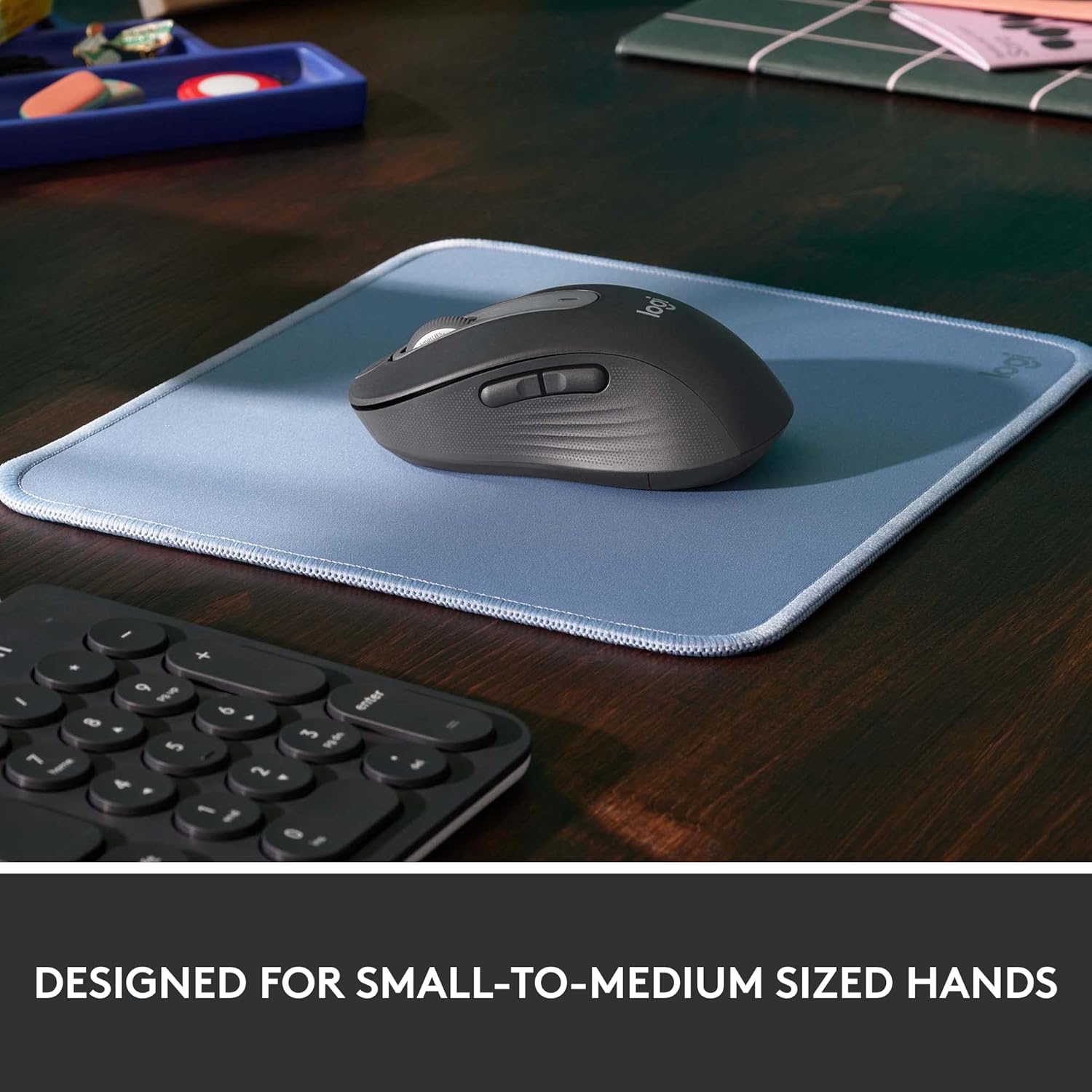
Image: The Logitech M650 mouse resting on a light blue mousepad, illustrating its ergonomic shape designed to fit comfortably in small to medium-sized hands.
7. การรับประกันและการสนับสนุน
Logitech products are manufactured to the highest quality standards. For detailed warranty information, please refer to the warranty card included with your product or visit the official Logitech support webเว็บไซต์.
For technical assistance, troubleshooting, or to download the latest software and drivers, please visit the Logitech Support page:


