1. บทนำ
Thank you for choosing the Dragonwar Dragon Shock 4 Wireless Controller. This manual provides detailed instructions to help you set up, operate, and maintain your controller for optimal performance across PlayStation 4, PC, and mobile devices. Please read this manual thoroughly before use.
2. เนื้อหาบรรจุภัณฑ์
ตรวจสอบให้แน่ใจว่ามีรายการทั้งหมดอยู่ในบรรจุภัณฑ์:
- Dragonwar Dragon Shock 4 Wireless Controller
- สายชาร์จ USB
- คู่มือการใช้งาน
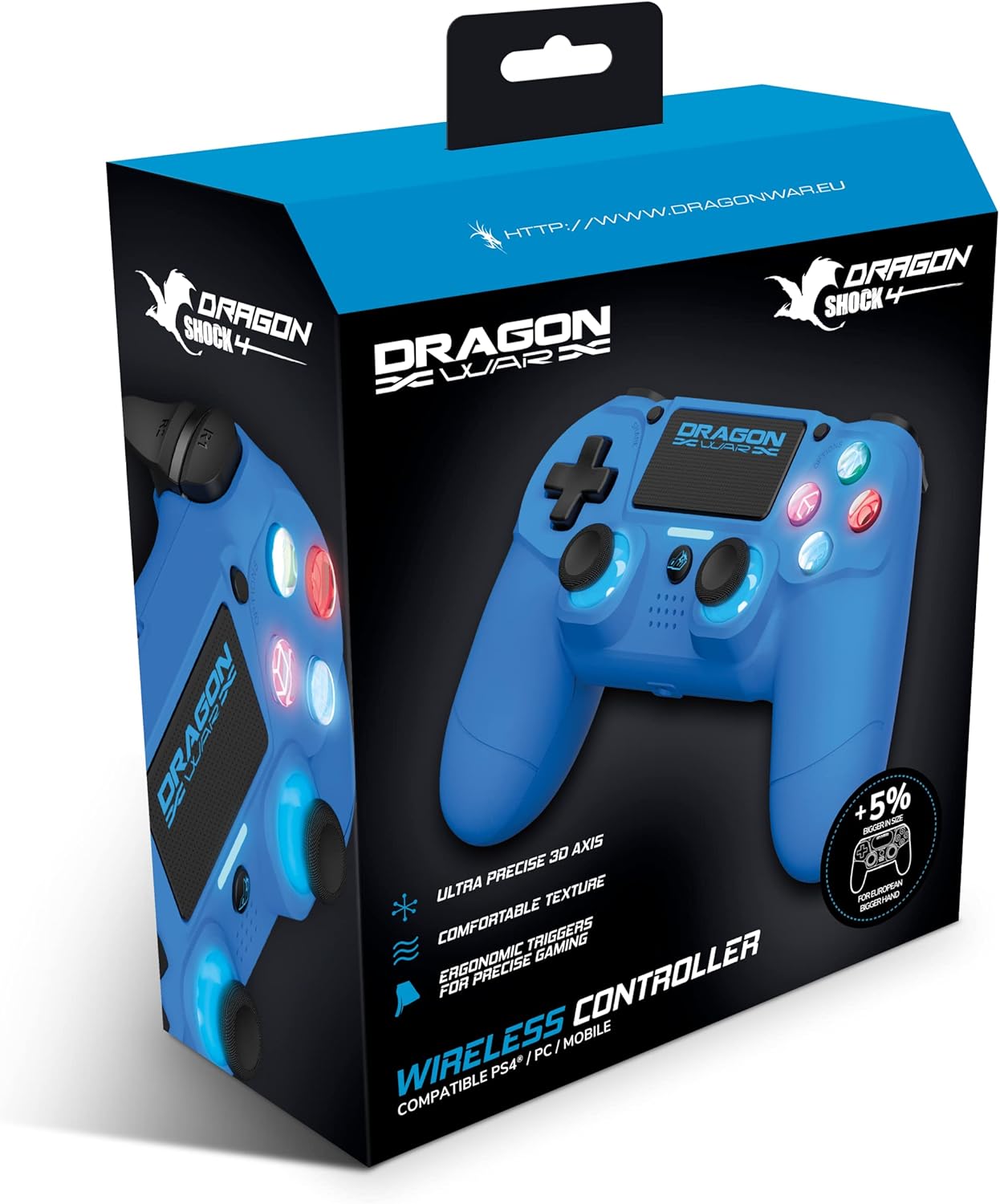
Image: The Dragonwar Dragon Shock 4 Wireless Controller packaging, showing the blue controller inside a blue and black box with product features listed.
3. ผู้ควบคุมview
Familiarize yourself with the various buttons and features of your Dragon Shock 4 controller:

Image: A detailed diagram of the Dragonwar Dragon Shock 4 Wireless Controller, highlighting and numbering its various buttons and components for easy identification.
- Left Joystick / L3 Button: Used for movement and as a clickable button.
- ปุ่มโฮม: Powers on/off the controller and accesses system menus.
- 3.5mm Jack Play & Chat: For connecting a headset for audio and voice chat.
- Right Joystick / R3 Button: Used for camera control, aiming, and as a clickable button.
- Button (Cross): ปุ่มการดำเนินการ
- Button (Circle): ปุ่มการดำเนินการ
- Button (Triangle): ปุ่มการดำเนินการ
- Button (Square): ปุ่มการดำเนินการ
- ปุ่มตัวเลือก: เข้าถึงตัวเลือกในเกมหรือตัวเลือกของระบบ
- ทัชแพด: พื้นผิวสำหรับป้อนข้อมูลแบบมัลติทัช
- ปุ่มแบ่งปัน: สำหรับการแชร์เนื้อหาเกมเพลย์
- Up Button (D-Pad): การป้อนข้อมูลแบบทิศทาง
- Right Button (D-Pad): การป้อนข้อมูลแบบทิศทาง
- Left Button (D-Pad): การป้อนข้อมูลแบบทิศทาง
- Down Button (D-Pad): การป้อนข้อมูลแบบทิศทาง
- R1 Button: ปุ่มไหล่ขวา
- R2 Button: ปุ่มไกปืนด้านขวา
- L1 Button: ปุ่มไหล่ซ้าย
- L2 Button: ปุ่มไกปืนด้านซ้าย
- พอร์ตชาร์จ: USB port for charging the controller.
4. การตั้งค่า
4.1 การชาร์จเริ่มต้น
Before first use, fully charge the controller. Connect the supplied USB charging cable to the controller's charging port (20) and the other end to a powered USB port (e.g., PS4 console, PC, or USB wall adapter). The light bar will indicate charging status and turn off when fully charged.
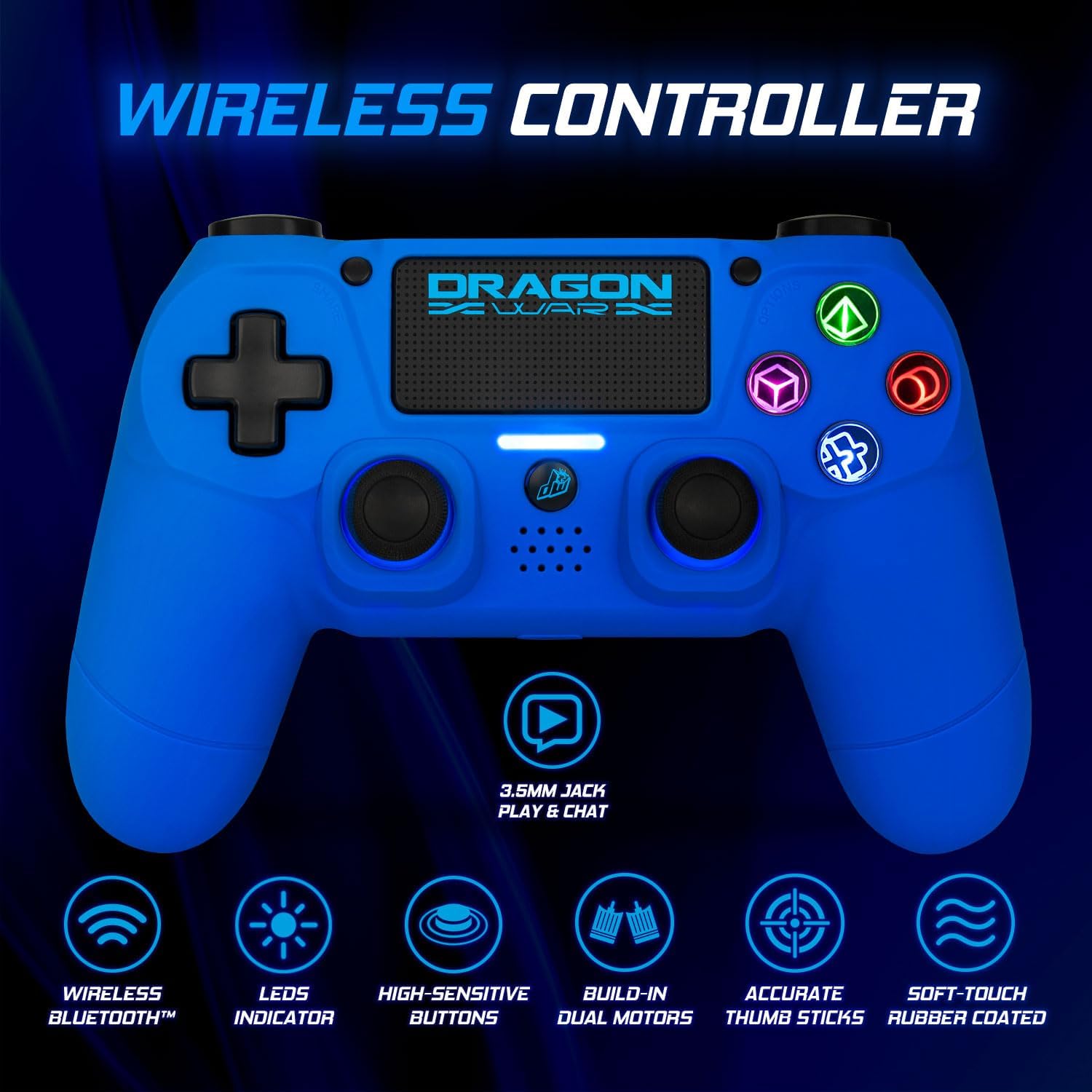
Image: The Dragonwar Dragon Shock 4 Wireless Controller displayed with text indicating "Long Battery Life" and a 500mAh battery, along with play time and charging time details.
4.2 การเชื่อมต่อกับ PlayStation 4
- โปรดตรวจสอบให้แน่ใจว่าเครื่อง PS4 ของคุณเปิดอยู่
- Connect the controller to the PS4 console using the USB charging cable.
- กดปุ่ม ปุ่มโฮม (2) on the controller.
- The controller will pair with the PS4. Once paired, you can disconnect the USB cable for wireless play.
- To pair additional controllers, repeat the process.
4.3 การเชื่อมต่อกับพีซี (Windows)
สามารถเชื่อมต่อตัวควบคุมกับพีซีได้ผ่านบลูทูธหรือสาย USB
4.3.1 การเชื่อมต่อบลูทูธ
- ตรวจสอบให้แน่ใจว่าพีซีของคุณเปิดใช้งานบลูทูธแล้ว
- บนพีซีของคุณ ไปที่ การตั้งค่า > อุปกรณ์ > บลูทูธและอุปกรณ์อื่นๆ.
- กดค้างไว้ ปุ่มแบ่งปัน (11) และ ปุ่มโฮม (2) on the controller simultaneously until the light bar starts flashing rapidly. This indicates pairing mode.
- On your PC, click "Add Bluetooth or other device" and select "Bluetooth".
- เลือกตัวควบคุมจากรายการอุปกรณ์ที่มีอยู่ (อาจปรากฏเป็น "ตัวควบคุมไร้สาย" หรือคล้ายกัน)
- ทำตามคำแนะนำบนหน้าจอเพื่อทำการจับคู่ให้เสร็จสมบูรณ์
4.3.2 การเชื่อมต่อแบบมีสาย
- เชื่อมต่อคอนโทรลเลอร์เข้ากับพีซีของคุณโดยใช้สายชาร์จ USB
- คอมพิวเตอร์ควรตรวจจับและติดตั้งไดรเวอร์ที่จำเป็นโดยอัตโนมัติ
4.4 การเชื่อมต่อกับอุปกรณ์พกพา
- ตรวจสอบให้แน่ใจว่าได้เปิดใช้งาน Bluetooth บนอุปกรณ์มือถือของคุณ
- กดค้างไว้ ปุ่มแบ่งปัน (11) และ ปุ่มโฮม (2) on the controller simultaneously until the light bar starts flashing rapidly.
- On your mobile device, go to Bluetooth settings and scan for new devices.
- เลือกตัวควบคุมจากรายการอุปกรณ์ที่มีอยู่
- ทำตามคำแนะนำบนหน้าจอเพื่อทำการจับคู่ให้เสร็จสมบูรณ์
5. คู่มือการใช้งาน
5.1 เปิด/ปิดเครื่อง
- การเปิดเครื่อง: กดปุ่ม ปุ่มโฮม (2). The controller will attempt to connect to the last paired device.
- วิธีปิดเครื่อง: ถือไว้ ปุ่มโฮม (2) for approximately 10 seconds until the light bar turns off. The controller will also power off automatically after a period of inactivity.
5.2 Using the Touch Pad
The touch pad (10) supports multi-touch input, allowing for various gestures depending on the game or application. Refer to specific game instructions for touch pad functionality.
5.3 การเชื่อมต่อชุดหูฟัง
Connect a standard 3.5mm headset to the 3.5mm Jack Play & Chat (3) for in-game audio and voice communication.

ภาพ: ภาพระยะใกล้ view of the 3.5mm stereo audio jack located on the Dragonwar Dragon Shock 4 Wireless Controller, indicating its function for play and chat.
5.4 ฟังก์ชั่นการสั่นสะเทือน
The controller features dual vibration motors for enhanced haptic feedback during gameplay. This function is automatically enabled when supported by the game.
5.5 Precision Analog Sticks
The controller is equipped with high-precision analog sticks (1, 4) designed for accurate movement and aiming.

Image: A close-up of the Dragonwar Dragon Shock 4 Wireless Controller's analog sticks, emphasizing their precision for improved gaming accuracy and speed.
6. การบำรุงรักษา
6.1 การทำความสะอาด
ในการทำความสะอาดคอนโทรลเลอร์ ให้ใช้ผ้านุ่มและแห้ง สำหรับสิ่งสกปรกฝังแน่น ให้เช็ดเบาๆampเช็ดทำความสะอาดด้วยผ้าชุบน้ำ อย่าใช้สารเคมีรุนแรง ตัวทำละลาย หรือน้ำยาทำความสะอาดที่มีฤทธิ์กัดกร่อน เพราะอาจทำให้พื้นผิวและส่วนประกอบภายในของตัวควบคุมเสียหายได้
6.2 พื้นที่จัดเก็บ
เก็บตัวควบคุมไว้ในที่แห้งและเย็น หลีกเลี่ยงแสงแดดโดยตรงและอุณหภูมิที่สูงหรือต่ำเกินไป หลีกเลี่ยงการวางของหนักทับตัวควบคุมเพื่อป้องกันความเสียหายต่อปุ่มหรือจอยสติ๊ก
7 การแก้ไขปัญหา
- ตัวควบคุมไม่เปิด: ตรวจสอบให้แน่ใจว่าคอนโทรลเลอร์ชาร์จแบตเตอรี่เต็มแล้ว เชื่อมต่อกับแหล่งจ่ายไฟโดยใช้สาย USB
- ตัวควบคุมไม่เชื่อมต่อ/จับคู่:
- For PS4: Try connecting with the USB cable first to re-establish the connection.
- For PC/Mobile: Ensure Bluetooth is enabled on your device and the controller is in pairing mode (flashing light bar). Remove previous pairings from your device's Bluetooth list and try again.
- Reset the controller: Locate the small reset button on the back of the controller (often a small hole near the L2 button). Use a thin object (like a paperclip) to press and hold the button for 3-5 seconds. Then, attempt to pair again.
- ปุ่มหรือจอยสติ๊กไม่ตอบสนอง:
- ตรวจสอบให้แน่ใจว่าตัวควบคุมเชื่อมต่ออย่างถูกต้อง
- Restart the controller and the connected device (PS4, PC, mobile).
- Test the controller with another game or application to determine if the issue is specific to one program.
- ความล่าช้าของอินพุตหรือการตัดการเชื่อมต่อ:
- Ensure there are no obstructions or strong interference sources (e.g., Wi-Fi routers, other Bluetooth devices) between the controller and the connected device.
- ขยับเข้าไปใกล้กับอุปกรณ์ที่เชื่อมต่อมากขึ้น
- ตรวจสอบให้แน่ใจว่าตัวควบคุมมีประจุไฟเต็ม
8. ข้อมูลจำเพาะ
| ยี่ห้อ | ดราก้อนวอร์ |
| หมายเลขรุ่น | GSPS4-BU |
| สี | สีฟ้า |
| เทคโนโลยีการเชื่อมต่อ | บลูทูธ |
| อุปกรณ์ที่รองรับ | PlayStation 4, Windows, Mobile |
| ประเภทตัวควบคุม | แป้นเกม |
| แหล่งพลังงาน | ใช้แบตเตอรี่ (500mAh) |
| ขนาด (กว้าง x ยาว x สูง) | 17.5 x 20 x 8 ซม. |
| คุณสมบัติพิเศษ | Ergonomic Design, Wireless, Dual Vibration, 3.5mm Audio Jack, Touch Pad |
| จำนวนปุ่ม | 16 |
9. การรับประกันและการสนับสนุน
9.1 ข้อมูลการรับประกัน
This Dragonwar product comes with a การรับประกันจากผู้ผลิต 2 ปี นับจากวันที่ซื้อ การรับประกันนี้ครอบคลุมความบกพร่องของวัสดุและฝีมือการผลิตภายใต้การใช้งานปกติ ไม่ครอบคลุมความเสียหายที่เกิดจากการใช้งานผิดวิธี อุบัติเหตุ การดัดแปลงโดยไม่ได้รับอนุญาต หรือการสึกหรอตามปกติ โปรดเก็บหลักฐานการซื้อไว้เพื่อเรียกร้องการรับประกัน
9.2 การสนับสนุนลูกค้า
For technical assistance, troubleshooting, or warranty inquiries, please visit the official Dragonwar website or contact their customer support service. Contact details can typically be found on the product packaging or the official brand webเว็บไซต์.


