
การแนะนำ
This manual provides comprehensive instructions for the setup, operation, maintenance, and troubleshooting of your Avision AD340G Compact High Speed Duplex Document Scanner. Please read this manual thoroughly before using the scanner to ensure proper and safe operation.
ข้อมูลด้านความปลอดภัย
โปรดปฏิบัติตามข้อควรระวังด้านความปลอดภัยต่อไปนี้เพื่อป้องกันการบาดเจ็บและความเสียหายต่อเครื่องสแกน:
- ใช้เฉพาะอะแดปเตอร์แปลงไฟที่ให้มาพร้อมกับเครื่องสแกนเท่านั้น
- อย่าให้สแกนเนอร์โดนน้ำหรือความชื้นมากเกินไป
- วางเครื่องสแกนบนพื้นผิวที่มั่นคงและเรียบเสมอกัน
- ควรวางเครื่องสแกนให้ห่างจากแสงแดดโดยตรงและแหล่งความร้อน
- Unplug the scanner before cleaning or if it will not be used for an extended period.
เนื้อหาแพ็คเกจ
ตรวจสอบว่ามีรายการทั้งหมดอยู่ในแพ็คเกจ:
- Avision AD340G Document Scanner
- อะแดปเตอร์แปลงไฟ
- สาย USB
- คู่มือเริ่มต้นอย่างรวดเร็ว
- แผ่นซีดีซอฟต์แวร์ (หรือคำแนะนำในการดาวน์โหลด)
สินค้าเกินview
Familiarize yourself with the main components of the Avision AD340G scanner.
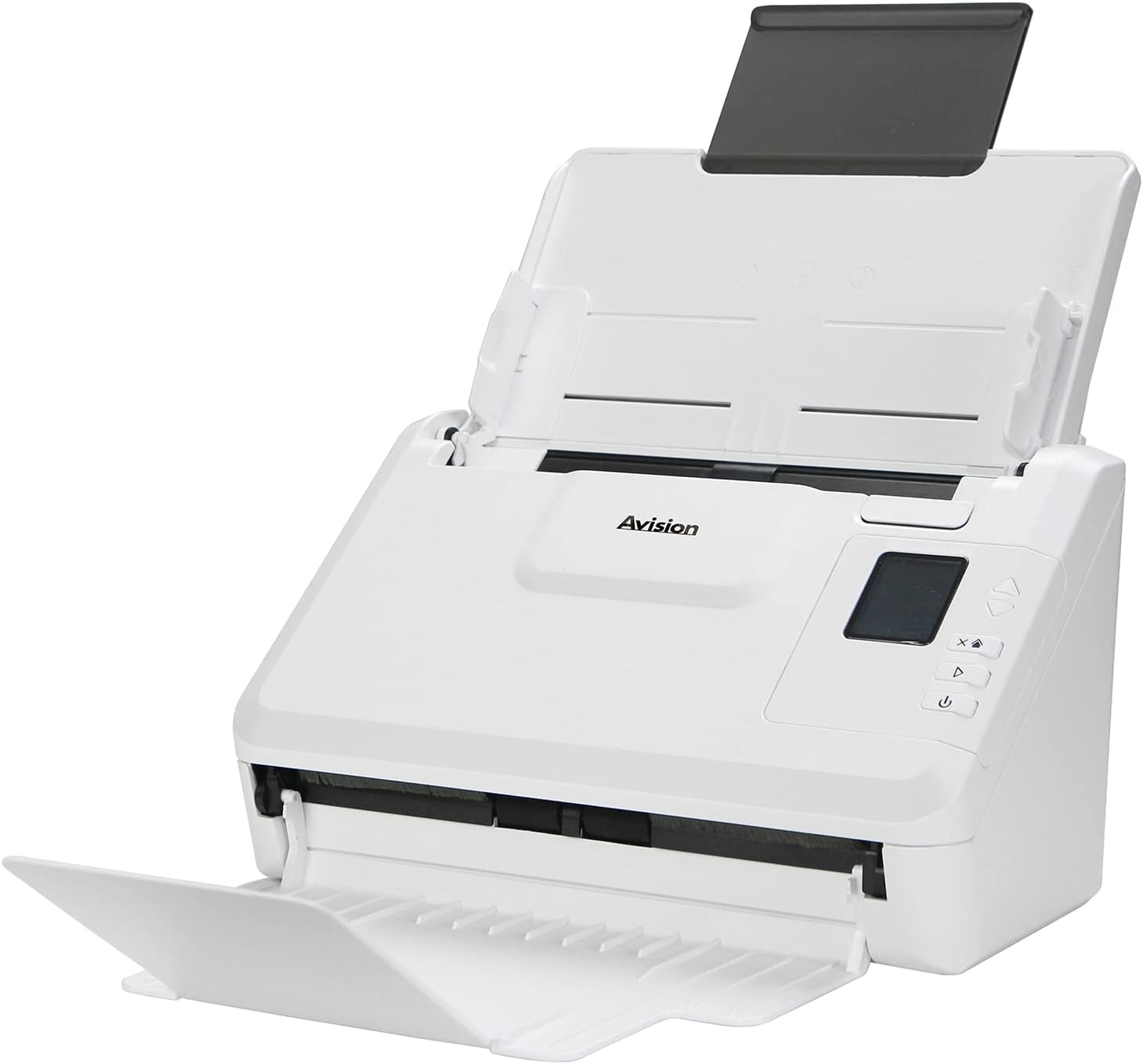
ภาพ: The Avision AD340G scanner shown with its input and output trays extended, ready for document feeding. This view highlights the compact design and accessible paper path.
- Document Feeder Tray: Where documents are loaded for scanning.
- ถาดจ่ายกระดาษ: Where scanned documents are ejected.
- แผงควบคุม: Buttons and display for scanner operation.
- พอร์ต USB: สำหรับการเชื่อมต่อกับคอมพิวเตอร์
- พอร์ตไฟ: สำหรับการเชื่อมต่ออะแดปเตอร์ไฟฟ้า
การตั้งค่า
1. การตั้งค่าทางกายภาพ
- แกะเครื่องสแกนเนอร์: ถอดเครื่องสแกนเนอร์และอุปกรณ์เสริมทั้งหมดออกจากบรรจุภัณฑ์อย่างระมัดระวัง
- วางเครื่องสแกน: Position the scanner on a flat, stable surface with adequate space for the input and output trays.
- เชื่อมต่อพลังงาน:
- Connect the power adapter to the scanner's power port.
- เสียบอะแดปเตอร์ไฟฟ้าเข้ากับเต้ารับไฟฟ้า
- เชื่อมต่อกับคอมพิวเตอร์:
- Connect one end of the USB cable to the scanner's USB port.
- เชื่อมต่อปลายอีกด้านหนึ่งของสาย USB เข้ากับพอร์ต USB ที่ว่างอยู่บนคอมพิวเตอร์ของคุณ
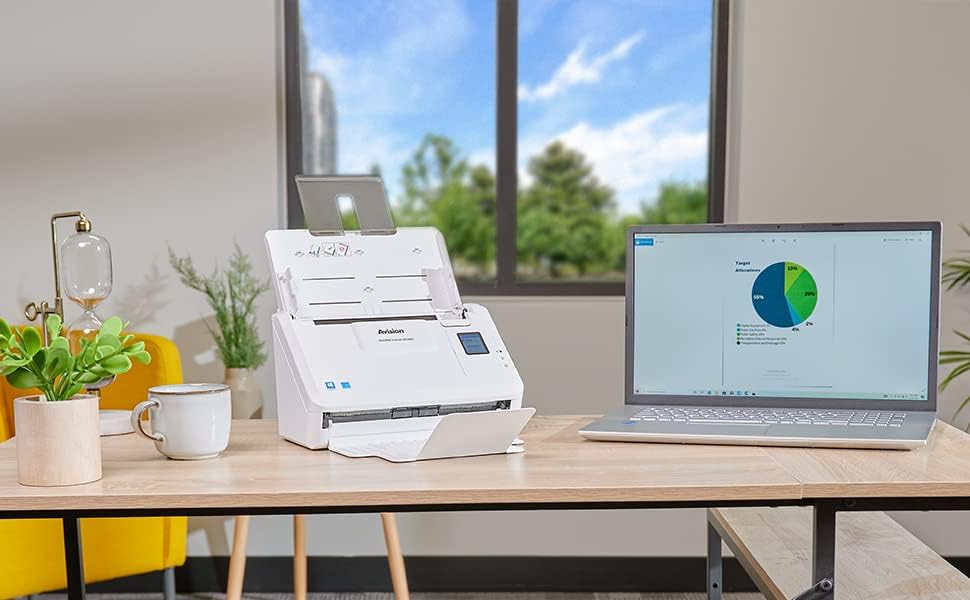
ภาพ: The Avision AD340G scanner set up on a desk next to a laptop, illustrating a typical connected environment. This shows the scanner's compact footprint when in use.
2. การติดตั้งซอฟต์แวร์
Install the necessary drivers and scanning software from the provided CD or by downloading them from the official Avision webเว็บไซต์.
- Insert the software CD into your computer's CD/DVD drive, or navigate to the Avision support website to download the latest drivers and utilities for the AD340G model.
- Follow the on-screen instructions to complete the installation. This typically includes installing the TWAIN/ISIS drivers and the Avision scanning utility software.
- รีสตาร์ทคอมพิวเตอร์ของคุณหากได้รับแจ้ง
การใช้งานเครื่องสแกนเนอร์
1. การโหลดเอกสาร
- Open the document feeder tray and extend the output tray.
- ปรับตัวกั้นกระดาษให้ตรงกับความกว้างของเอกสารของคุณ
- Place the documents face-down in the input tray, ensuring they are neatly stacked and aligned. The scanner supports up to 50 sheets.

ภาพ: A hand carefully placing a stack of documents into the input tray of the Avision AD340G scanner, demonstrating the correct loading procedure.
2. ขั้นตอนการสแกน
- เปิดสแกนเนอร์โดยกดปุ่มเปิด/ปิด
- Launch the Avision scanning software on your computer.
- เลือกโปรแกรมสแกนที่คุณต้องการfile (e.g., color, grayscale, black & white, resolution). The AD340G supports duplex scanning (both sides simultaneously).
- คลิกปุ่ม "สแกน" ในซอฟต์แวร์ หรือกดปุ่มสแกนบนแผงควบคุมของเครื่องสแกน
- The scanner will feed and process the documents. Once scanning is complete, the images will appear in the software.
- Review the scanned images, make any necessary adjustments (e.g., rotate, crop), and save them to your desired location and format (e.g., PDF, JPEG, TIFF).
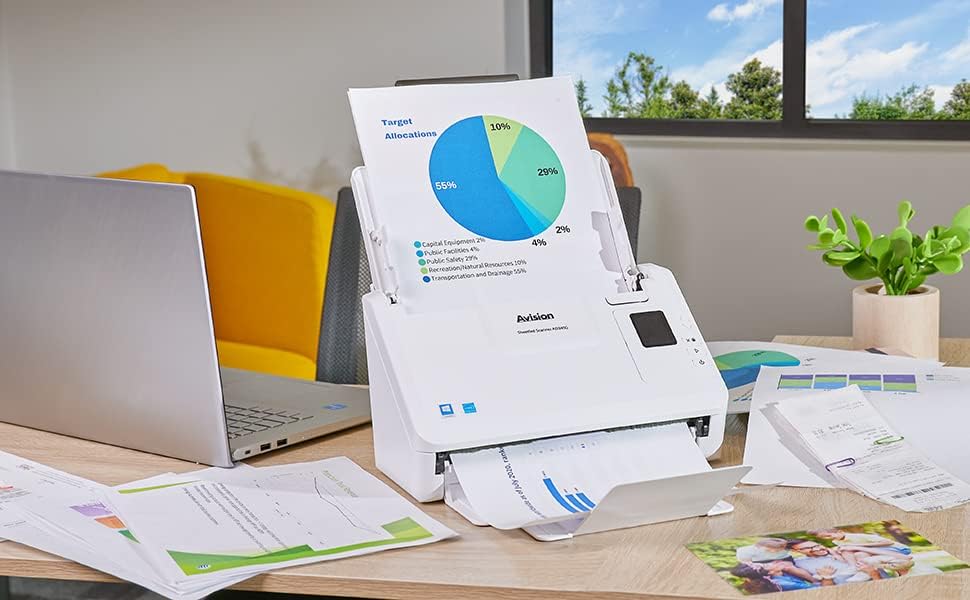
ภาพ: The Avision AD340G scanner in operation, feeding a document with a pie chart. This illustrates the scanner's ability to handle various document types efficiently.
การซ่อมบำรุง
การทำความสะอาดสแกนเนอร์
การทำความสะอาดเป็นประจำจะช่วยให้เครื่องสแกนเนอร์ทำงานได้อย่างเหมาะสมที่สุดและยืดอายุการใช้งานของเครื่องสแกนเนอร์ของคุณ
- ปิดเครื่องและถอดปลั๊ก: Always turn off the scanner and disconnect the power adapter and USB cable before cleaning.
- ภายนอกสะอาด: Wipe the exterior of the scanner with a soft, lint-free cloth lightly dampชุบด้วยน้ำหรือน้ำยาทำความสะอาดอ่อนๆ ที่ไม่กัดกร่อน
- Clean Interior (Rollers and Glass):
- Open the scanner cover to access the rollers and glass scanning surfaces.
- Gently wipe the feed rollers with a clean, lint-free cloth. If necessary, use a small amount of isopropyl alcohol on the cloth for stubborn residue.
- Clean the glass scanning strips with a soft cloth and glass cleaner (non-ammonia based).
- ปล่อยให้ส่วนประกอบทั้งหมดแห้งสนิทก่อนปิดฝาและต่อสายไฟอีกครั้ง
การแก้ไขปัญหา
| ปัญหา | สาเหตุที่เป็นไปได้ | สารละลาย |
|---|---|---|
| เครื่องสแกนเนอร์ไม่สามารถเปิดเครื่องได้ | สายไฟไม่ได้เชื่อมต่อ มีปัญหากับเต้ารับไฟฟ้า | ตรวจสอบให้แน่ใจว่าสายไฟเชื่อมต่อแน่นดีแล้ว ลองใช้เต้ารับไฟฟ้าอื่น |
| Documents jam frequently. | Misaligned paper guides; worn rollers; dirty rollers. | Adjust paper guides. Clean the feed rollers. If problem persists, rollers may need replacement. |
| ภาพที่สแกนมานั้นไม่ชัดหรือมีเส้นปรากฏอยู่ | Dirty scanning glass; incorrect resolution settings. | Clean the scanning glass. Adjust scanning resolution in the software. |
| คอมพิวเตอร์ตรวจไม่พบเครื่องสแกน | USB cable disconnected; driver not installed or corrupted. | Check USB cable connection. Reinstall scanner drivers. Try a different USB port. |
ข้อมูลจำเพาะ
Key technical specifications for the Avision AD340G Document Scanner:
- แบบอย่าง: AD340G
- ประเภทเครื่องสแกนเนอร์: ADF Duplex Document Scanner
- การเชื่อมต่อ: ยูเอสบี
- ปณิธาน: 600 dpi (ออปติคอล)
- ความเร็วในการสแกน: 40 ppm (pages per minute) / 80 ipm (images per minute)
- ความลึกของสี: 48 bits input / 24 bits output
- ความจุแผ่นมาตรฐาน: 50 แผ่น
- เทคโนโลยีเซนเซอร์ออปติคัล: CIS (เซ็นเซอร์รับภาพสัมผัส)
- ขนาดสินค้า : 11 x 6.1 x 6.5 นิ้ว
- น้ำหนักสินค้า: 8 ปอนด์
- ความต้องการขั้นต่ำของระบบ: วินโดวส์ XP/7/8/10
การรับประกันและการสนับสนุน
For warranty information, technical support, or service inquiries, please refer to the warranty card included with your product or visit the official Avision webโดยทั่วไปแล้ว ข้อมูลการติดต่อฝ่ายบริการลูกค้าจะอยู่ที่เว็บไซต์ของผู้ผลิต webเว็บไซต์.
Avision Official Webเว็บไซต์: www.avision.com


