1. บทนำ
Welcome to the user manual for your CiBest W13 Projector and 100-inch Portable Projector Screen. This guide provides detailed instructions for setting up, operating, maintaining, and troubleshooting your new home entertainment system. Please read this manual thoroughly before use to ensure optimal performance and safety.
The CiBest W13 Projector offers a superior viewing experience with its bright display and 1080P support, ideal for movies and presentations. Paired with the 100-inch portable screen, it creates a versatile setup for both indoor and outdoor use.
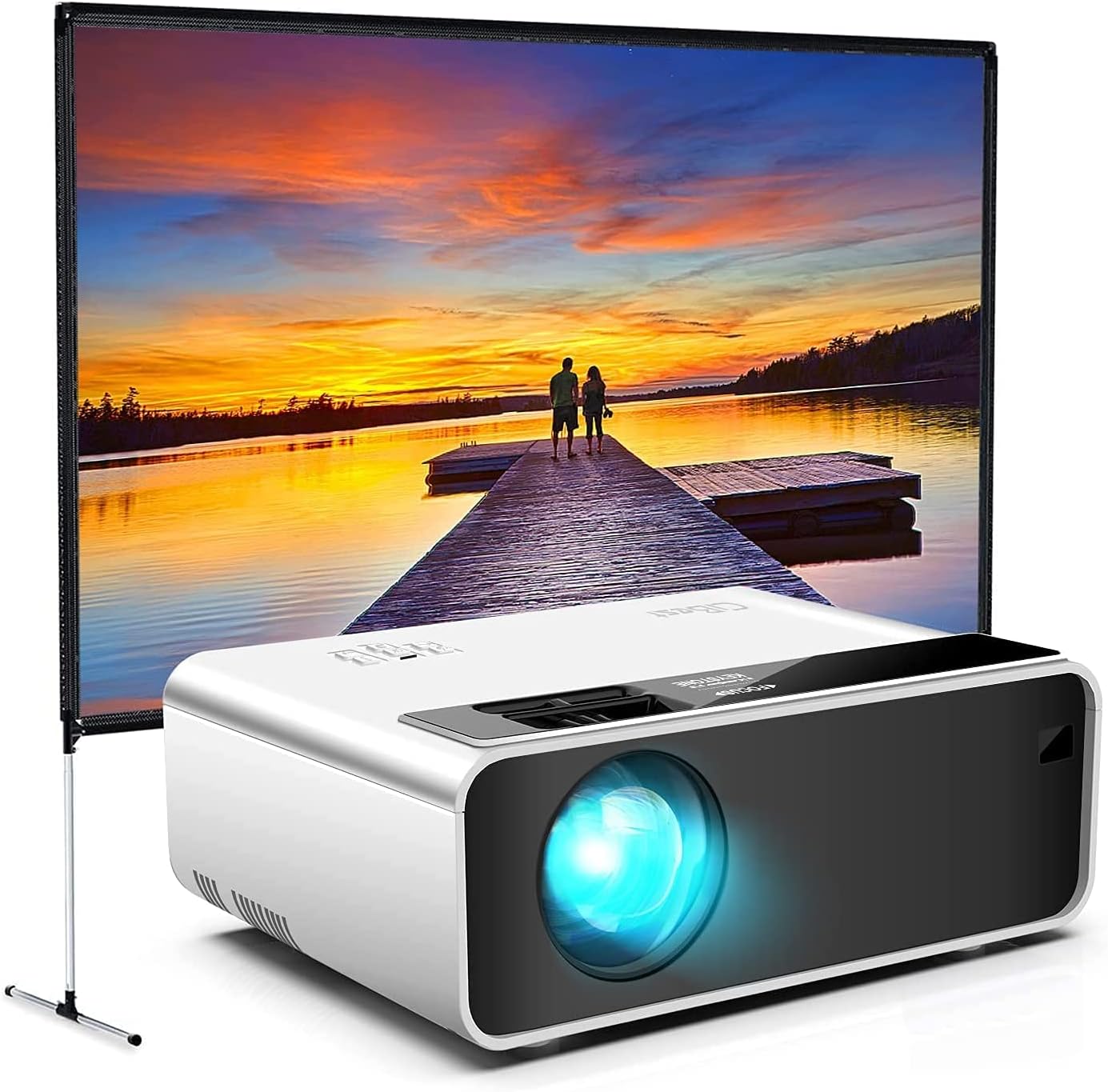
Image: The CiBest W13 Projector positioned in front of the 100-inch portable screen, displaying a vibrant sunset scene over a lake.
2. คำแนะนำด้านความปลอดภัยที่สำคัญ
To prevent fire or electric shock, do not expose this appliance to rain or moisture. Always follow basic safety precautions when using electrical appliances.
- อย่าปิดกั้นช่องระบายอากาศ
- อย่าวางโปรเจ็กเตอร์บนรถเข็น ขาตั้ง หรือโต๊ะที่ไม่มั่นคง
- ส่งต่อการบริการทั้งหมดไปยังบุคลากรบริการที่มีคุณสมบัติเหมาะสม
- หลีกเลี่ยงการสัมผัสเลนส์โปรเจ็กเตอร์โดยตรงกับดวงตาเมื่อลamp อยู่บนแล้ว
- Keep the projector and screen away from water or excessive humidity.
- ตรวจสอบให้แน่ใจว่าปริมาณแหล่งจ่ายไฟที่เหมาะสมtagอีตามที่กำหนด.
3. เนื้อหาบรรจุภัณฑ์
โปรดตรวจสอบเนื้อหาในแพ็คเกจเมื่อแกะกล่องเพื่อให้แน่ใจว่ามีส่วนประกอบครบทั้งหมด:
- CiBest W13 Projector
- 100-inch Portable Projector Screen
- Projector Screen Stand Components (Crossbar, Brackets, Ground Nails, Ropes, Elbows, Foot Rods)
- สาย HDMI
- สายไฟ
- รีโมทคอนโทรล (ไม่รวมแบตเตอรี่)
- คู่มือการใช้งาน

Image: The CiBest W13 Projector shown alongside an included HDMI cable, highlighting connectivity options.
4. คู่มือการติดตั้ง
4.1 Projector Setup
- การเชื่อมต่อไฟฟ้า: เชื่อมต่อสายไฟเข้ากับโปรเจ็กเตอร์ แล้วจึงเสียบเข้ากับเต้ารับไฟฟ้า
- การจัดวาง: Place the projector on a stable, flat surface at the desired distance from the screen.
- การปรับโฟกัส: Turn the focus ring on the projector lens until the image is clear and sharp.
- การแก้ไขคีย์สโตน: Adjust the keystone knob to correct any trapezoidal distortion of the image, ensuring a rectangular projection.
4.2 Screen Assembly
The 100-inch portable screen is designed for quick and easy setup, typically in less than 5 minutes.
- แกะส่วนประกอบ: Lay out all screen stand components: crossbar, brackets, ground nails, ropes, elbows, and foot rods.
- ประกอบโครง: Connect the crossbar and brackets to form the top and side supports for the screen.
- Attach Screen: Securely attach the 100-inch screen fabric to the assembled frame.
- Install Stand: Attach the foot rods and elbows to the bottom of the screen frame to create a stable stand. For outdoor use, utilize the ground nails and ropes for added stability.

ภาพ: ระเบิด view diagram illustrating the various components required for assembling the portable projector screen, including crossbar, brackets, ground nails, ropes, elbows, and foot rods.

Image: A visual representation of the 100-inch projector screen with its dimensions (86 inches wide, 50 inches high, 74 inches total height with stand), emphasizing its large projection area.
4.3 Placement and Viewกำลังทำ
The screen supports both front and rear projection, offering flexibility in setup. Position the projector to achieve the desired image size and clarity on the screen.

Image: Two projectors are shown, one in front and one behind the screen, demonstrating the capability for both front and rear projection setups.
The screen offers a wide 160° viewing angle, ensuring a clear picture from various positions.

Image: A diagram illustrating the 160-degree wide viewing cone of the projector screen, indicating optimal viewing angles for multiple viewERS
5. คู่มือการใช้งาน
5.1 เปิด/ปิดเครื่อง
กดปุ่มเปิด/ปิดบนโปรเจคเตอร์หรือรีโมทคอนโทรลเพื่อเปิดหรือปิดเครื่อง รอสักครู่เพื่อให้โปรเจคเตอร์อุ่นเครื่องหรือเย็นลง
5.2 การเชื่อมต่อแหล่งอินพุต
The CiBest W13 Projector supports various input sources:
- ช่องต่อ HDMI: Connect your laptop, game console, or streaming device via the HDMI port.
- ยูเอสบี: เสียบ USB เพื่อเล่นสื่อ fileโดยตรงเลย
- Smartphone/iPad: For iOS devices, a Lighting to HDMI adapter is required (not included). For Android devices, a Type C/MHL to HDMI adapter is required (not included).

Image: A visual guide demonstrating how to connect smartphones and iPads to the projector using appropriate HDMI adapters (not included).
5.3 เอาต์พุตเสียง
The projector has a built-in speaker. For enhanced audio, connect external speakers or a soundbar to the projector's audio output port (if available, or via HDMI audio passthrough).
5.4 การปรับแต่งภาพ
Use the projector's menu or remote control to adjust image settings such as brightness, contrast, color temperature, and aspect ratio to suit your viewการปรับปรุงสิ่งแวดล้อม
5.5 สถานการณ์การใช้งาน
The CiBest W13 Projector and portable screen are versatile for various uses:
- โฮมเธียเตอร์ : Enjoy movies and TV shows in a large format.
- การเล่นเกม: Connect your gaming console for an immersive experience.
- ความบันเทิงกลางแจ้ง: The portable screen and projector are ideal for backyard movies or campไอเอ็นจีทริป

Image: An outdoor scene depicting the projector and screen set up for a movie night, with people enjoying the projection from a pool and seating area.
6. การบำรุงรักษา
Regular maintenance ensures the longevity and optimal performance of your projector and screen.
- การทำความสะอาดเลนส์: ใช้ผ้าเนื้อนุ่ม ปราศจากขน ที่ออกแบบมาสำหรับเลนส์แว่นตาโดยเฉพาะ ห้ามใช้สารทำความสะอาดที่มีฤทธิ์กัดกร่อน
- การทำความสะอาดตัวเครื่องโปรเจคเตอร์: เช็ดทำความสะอาดภายนอกด้วยผ้าแห้งนุ่มๆ สำหรับคราบฝังแน่น ให้ใช้ผ้าชุบน้ำหมาดๆ เช็ดเบาๆamp ผ้าแล้วเช็ดให้แห้งสนิท
- การทำความสะอาดหน้าจอ: ค่อยๆ เช็ดพื้นผิวหน้าจอด้วยผ้าเนื้อนุ่มและแห้งamp cloth. Avoid harsh chemicals or abrasive materials that could damage the screen.
- พื้นที่จัดเก็บ: When not in use, store the projector and screen in a cool, dry place, away from direct sunlight and extreme temperatures. The screen and stand are designed to be easily packed away for convenient storage and transport.
7 การแก้ไขปัญหา
If you encounter issues with your CiBest W13 Projector or screen, refer to the table below for common problems and their solutions.
| ปัญหา | สารละลาย |
|---|---|
| ไม่มีภาพบนหน้าจอ | Ensure the projector is powered on. Check all cable connections (HDMI, USB). Select the correct input source on the projector. |
| ภาพเบลอหรือไม่ชัด | Adjust the focus ring on the projector lens. Ensure the projector is at the optimal distance from the screen. |
| Image is trapezoidal (not rectangular) | Adjust the keystone correction knob on the projector. Ensure the projector is placed perpendicular to the screen. |
| ไม่มีเสียงจากโปรเจ็กเตอร์ | Check the volume level on the projector and the input source. Ensure external speakers are properly connected if used. Verify audio settings on the input device. |
| รีโมตคอนโทรลไม่ทำงาน | Check and replace batteries. Ensure there are no obstructions between the remote and the projector's IR receiver. |
8. ข้อมูลจำเพาะทางเทคนิค
Below are the key technical specifications for the CiBest W13 Projector and 100" Portable Projector Screen:
| คุณสมบัติ | รายละเอียด |
|---|---|
| แบบอย่าง | W13 |
| ยี่ห้อ | ซีเบสท์ |
| Display Resolution (Max) | 1920x1080 (1080P) |
| เทคโนโลยีการเชื่อมต่อ | USB,HDMI |
| อัตราส่วนคอนทราสต์ | 2000:1 น. |
| ความสว่าง | 3000 Lumen (relative to other mini projectors) |
| ขนาดหน้าจอ | 100 นิ้ว (แนวทแยง) |
| อัตราส่วนภาพหน้าจอ | 16:9 น. |
| หน้าจอ Viewอิงแองเกิล | 160° |
| Screen Weight (approx.) | 5.9 ปอนด์ |
| สี | สีดำ |
| คุณสมบัติพิเศษ | พกพาได้ |
9. การรับประกันและการสนับสนุน
For information regarding warranty coverage, product registration, or technical support, please refer to the documentation included with your purchase or visit the official CiBest website. You can also find more information and contact details on the CiBest store page on Amazon:
Visit the Official CiBest Store on Amazon
Please have your product model (W13) and ASIN (B09LLS1PCD) ready when contacting support for faster assistance.


