1. บทนำ
This manual provides essential information for setting up, operating, and maintaining your Razer Huntsman V2 Optical Gaming Keyboard. Designed for high-performance gaming, this keyboard features advanced optical switches, a high polling rate, and durable construction to enhance your gaming experience.
2. เนื้อหาบรรจุภัณฑ์
- Razer Huntsman V2 Optical Gaming Keyboard
- ที่วางข้อมือตามหลักสรีรศาสตร์
- Important Product Information Guide (may vary with renewed products)
3. สินค้าหมดview
Familiarize yourself with the key components and features of your Razer Huntsman V2 keyboard.
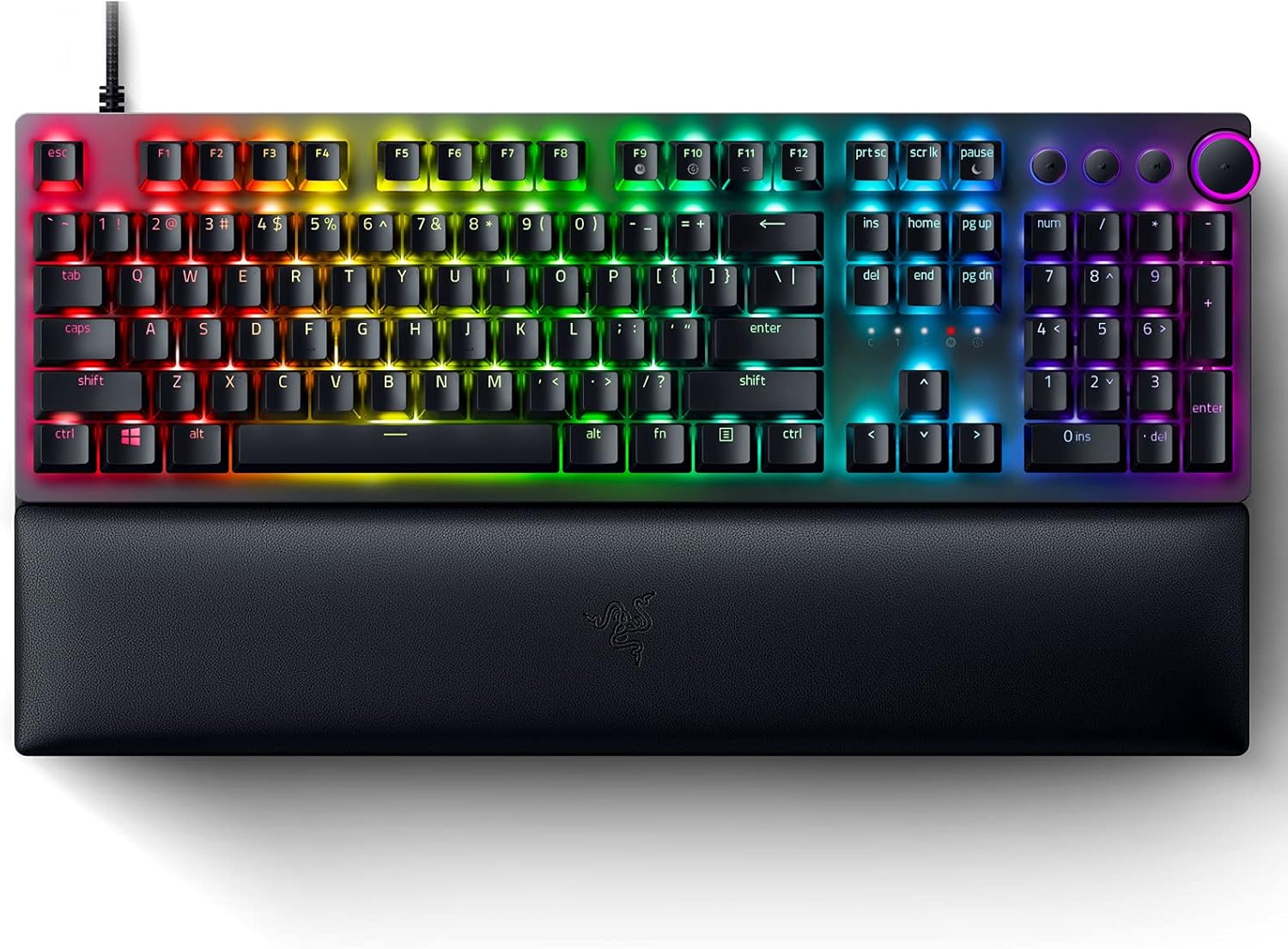
รูปที่ 3.1: Razer Huntsman V2 Optical Gaming Keyboard. This image displays the full-sized keyboard with its integrated RGB lighting and the detachable ergonomic wrist rest.
3.1 Razer Linear Optical Switches Gen-2
The Huntsman V2 features Razer's second-generation Linear Optical Switches, designed for rapid actuation and durability. These switches incorporate sound dampeners for a quieter typing experience and offer a smooth, consistent keypress. They are also highly responsive, supporting up to a true 8000Hz polling rate for minimal input latency.

รูปที่ 3.2: Razer Optical Switches. A detailed view of the optical switch mechanism, highlighting the speed and reliability of the design.
3.2 อัตราการสุ่มตัวอย่าง 8000Hz
Experience near-zero input latency with the keyboard's 8000Hz polling rate. This feature allows the keyboard to report key presses to your computer up to 8000 times per second, ensuring every command is registered almost instantaneously.

รูปที่ 3.3: True 8000Hz Polling Rate. This image visually represents the benefit of an 8000Hz polling rate for reduced latency.
3.3 Doubleshot PBT Keycaps
The keycaps are made from doubleshot PBT material, which is known for its durability and resistance to wear. The legends are molded into the keycap, preventing them from fading over time, and the textured finish provides a secure feel.

รูปที่ 3.4: Doubleshot PBT Keycaps. A close-up view demonstrating the robust and textured surface of the keycaps.
3.4 Multi-function Digital Dial and Media Keys
Located on the upper right side of the keyboard, the multi-function digital dial and four dedicated media keys provide convenient control over your entertainment. These can be configured to adjust volume, skip tracks, pause/play media, and more.

รูปที่ 3.5: Multi-function Digital Dial and Media Keys. This image highlights the dedicated controls for media management.
3.5 ที่รองข้อมือตามหลักสรีรศาสตร์
The included ergonomic wrist rest attaches magnetically to the keyboard, providing comfortable support for your wrists during extended use. It helps alleviate pressure and reduce fatigue.

รูปที่ 3.6: Ergonomic Wrist Rest. The keyboard is shown with its comfortable wrist rest, designed for extended gaming sessions.
3.6 Sound Dampโฟมอีนิง
The keyboard incorporates a layer of special foam inside its casing. This foam absorbs any pinging noises that might occur when keys are bottomed out, contributing to improved acoustics and a quieter typing experience.
4. การตั้งค่า
- เชื่อมต่อคีย์บอร์ด: Plug the USB cable from the Razer Huntsman V2 keyboard into an available USB port on your computer.
- ติดที่พักข้อมือ: Align the ergonomic wrist rest with the front edge of the keyboard. It will magnetically snap into place.
- ติดตั้งซอฟต์แวร์ Razer Synapse: For full functionality, including customization of RGB lighting, key assignments, and macros, download and install the Razer Synapse software from the official Razer webงาน (www.razer.com/synapse) ปฏิบัติตามคำแนะนำบนหน้าจอเพื่อการติดตั้ง
- การติดตั้งไดร์เวอร์: Your operating system will automatically install the necessary drivers upon connection. Allow a few moments for this process to complete.
5. คู่มือการใช้งาน
5.1 Basic Keyboard Functionality
The Razer Huntsman V2 functions as a standard keyboard immediately upon connection. All alphanumeric keys, function keys (F1-F12), and navigation keys operate as expected.
5.2 Using the Multi-function Digital Dial and Media Keys
- หน้าปัดดิจิตอล: By default, rotate the dial to adjust system volume. Pressing the dial typically mutes/unmutes audio.
- ปุ่มสื่อ: The dedicated media keys (Play/Pause, Previous Track, Next Track) control media playback in compatible applications.
- การปรับแต่ง: These controls can be reconfigured using Razer Synapse software to perform other functions, such as brightness adjustment or macro execution.
5.3 On-board Memory and Cloud Storage
The keyboard supports up to 5 on-board memory profiles, allowing you to save and activate custom settings without the need for software. Additionally, Razer Synapse enables cloud storage for a larger library of macros and settings, accessible from any computer with Synapse installed.
6. Customization with Razer Synapse
Razer Synapse is the unified configuration software that unlocks advanced features for your Huntsman V2 keyboard. With Synapse, you can:
- ปรับแต่งเอฟเฟกต์แสงและสี RGB
- รีแมปคีย์และกำหนดแมโคร
- สร้างและจัดการโปรหลายรายการfileสำหรับเกมหรือแอพพลิเคชั่นที่แตกต่างกัน
- Adjust the 8000Hz polling rate settings.
Ensure Razer Synapse is updated to the latest version for optimal performance and access to all features.
7. การบำรุงรักษา
7.1 การทำความสะอาดแป้นพิมพ์
- ถอดแป้นพิมพ์ออกจากคอมพิวเตอร์ของคุณก่อนทำความสะอาด
- ใช้ผ้านุ่มไม่เป็นขุยค่อยๆ งampชุบน้ำหรือน้ำยาทำความสะอาดอ่อนๆ เพื่อเช็ดปุ่มและตัวเครื่อง
- สำหรับฝุ่นละอองและเศษต่างๆ ระหว่างคีย์ ให้ใช้ลมอัด
- Avoid using harsh chemicals, abrasive cleaners, or solvents, as these can damage the keyboard's finish or components.
7.2 Cleaning the Wrist Rest
- Wipe the surface of the wrist rest with a soft, damp ผ้า.
- For stubborn stains, a small amount of mild soap can be used, followed by wiping with a clean, damp ผ้า.
- Allow the wrist rest to air dry completely before reattaching it to the keyboard.
8 การแก้ไขปัญหา
- แป้นพิมพ์ไม่ตอบสนอง:
- ตรวจสอบให้แน่ใจว่าสาย USB เชื่อมต่อกับคีย์บอร์ดและคอมพิวเตอร์อย่างแน่นหนา
- ลองเชื่อมต่อคีย์บอร์ดกับพอร์ต USB อื่น
- รีสตาร์ทเครื่องคอมพิวเตอร์ของคุณ
- Check if Razer Synapse is running and updated.
- ไฟ RGB ไม่ทำงาน/ไม่ถูกต้อง:
- Verify that Razer Synapse is installed and running.
- ตรวจสอบการตั้งค่าแสงภายใน Razer Synapse
- Ensure no other lighting software is conflicting with Synapse.
- กุญแจไม่ลงทะเบียน:
- Clean the affected key area with compressed air to remove any debris.
- Test the key in a different application or on another computer to rule out software issues.
- If using a renewed product, refer to the seller's return/exchange policy if a key is consistently unresponsive.
- Multi-function Dial or Media Keys Not Working:
- Ensure Razer Synapse is running and check the key assignments for these controls.
- Verify that no other software is overriding media key functions.
หากต้องการความช่วยเหลือเพิ่มเติม โปรดไปที่เว็บไซต์ฝ่ายสนับสนุนอย่างเป็นทางการของ Razer webเว็บไซต์หรือติดต่อฝ่ายบริการลูกค้าของพวกเขา
9. ข้อมูลจำเพาะ
| ยี่ห้อ | เรเซอร์ |
| แบบอย่าง | นายพราน V2 |
| ประเภทสวิตซ์ | Razer Linear Optical Switches Gen-2 |
| อัตราการสำรวจความคิดเห็น | สูงถึง 8000Hz |
| ปุ่มกด | ดับเบิลช็อต PBT |
| การเชื่อมต่อ | ยูเอสบี |
| คุณสมบัติพิเศษ | Ergonomic Wrist Rest, Multi-function Digital Dial, Dedicated Media Keys, Sound Dampening Foam, Hybrid On-board Memory |
| การแบ็คไลท์ | RGB (Razer Chroma RGB) |
| ขนาดสินค้า | 17.53 x 5.52 x 1.71 inches (Keyboard only) |
| น้ำหนักสินค้า | 2.88 ปอนด์ |
10. การรับประกันและการสนับสนุน
For information regarding warranty coverage, technical support, and frequently asked questions, please visit the official Razer Support webเว็บไซต์:
If your product was purchased as "renewed," please also refer to the specific warranty and return policies provided by the seller or platform from which it was acquired.


