1. บทนำ
The Kensington W2000 1080P Auto Focus Webcam is designed to provide high-quality video and clear audio for video conferencing and online communication. This manual provides instructions for setting up, operating, and maintaining your webcam, along with detailed specifications and troubleshooting tips.

Figure 1: Kensington W2000 1080P Auto Focus Webลูกเบี้ยว
2. เนื้อหาบรรจุภัณฑ์
ตรวจสอบว่ามีรายการทั้งหมดอยู่ในแพ็คเกจของคุณ:
- Kensington W2000 Webลูกเบี้ยว
- อะแดปเตอร์ USB-C ถึง USB-A
3. การตั้งค่า
3.1 การจัดวางทางกายภาพ
การ webcam features an adjustable clip that allows for secure mounting on various displays or placement on a flat surface. It also includes a universal tripod mount for alternative positioning.
- บนจอภาพ: เปิดคลิปและวาง webcam on top of your monitor, ensuring the front of the webcam faces you. Adjust the clip to securely grip the back of the monitor.
- บนพื้นผิวเรียบ: พับคลิปเพื่อสร้างฐานตั้งที่มั่นคง แล้ววางลง webแคมอยู่บนโต๊ะหรือชั้นวาง
- การติดตั้งขาตั้งกล้อง: แนบไฟล์ webcam to a standard tripod using the integrated tripod mount on the bottom of the clip.

รูปที่ 2: Webแคมที่ติดตั้งบนจอภาพ
3.2 การเชื่อมต่อ
The Kensington W2000 Webcam connects to your computer via a USB cable. It supports both USB-A and USB-C ports.
- เชื่อมต่อสาย USB จาก webcam directly to an available USB port on your computer.
- If your computer only has USB-C ports, use the provided USB-C to USB-A adapter.
- การ webcam is plug-and-play and should be automatically recognized by your operating system.
4. คู่มือการใช้งาน
4.1 การทำงานพื้นฐาน
เมื่อเชื่อมต่อแล้ว webcam is ready for use with most video conferencing applications (e.g., Zoom, Microsoft Teams, Google Meet). Select the Kensington W2000 as your video and audio input device within your application's settings.
ม่านบังตาเพื่อความเป็นส่วนตัว 4.2 ชิ้น
การ webcam includes an integrated lens cover for privacy. Slide the cover to the left to expose the lens for use, and slide it to the right to cover the lens when not in use.

Figure 3: Integrated Privacy Shutter
4.3 Manual Adjustment
การ webcam can be manually adjusted to achieve optimal camera angles:
- การปรับแนวตั้ง: เอียงไฟล์ webcam up or down by up to 37 degrees.
- การปรับแนวนอน: หมุน webcam horizontally by up to 360 degrees.

Figure 4: Manual Pan and Tilt
5. Software Control: Kensington Konnect
For advanced customization of your video settings, download and install the Kensington Konnect software. This software allows you to:
- Adjust focus settings.
- Utilize electronic pan, tilt, and 2x zoom (ePTZ) to optimize your video frame.
- Personalize video with various effects, mood, and lighting controls.
The Kensington Konnect software is compatible with popular platforms such as Microsoft Teams, Google Meet, and Zoom.
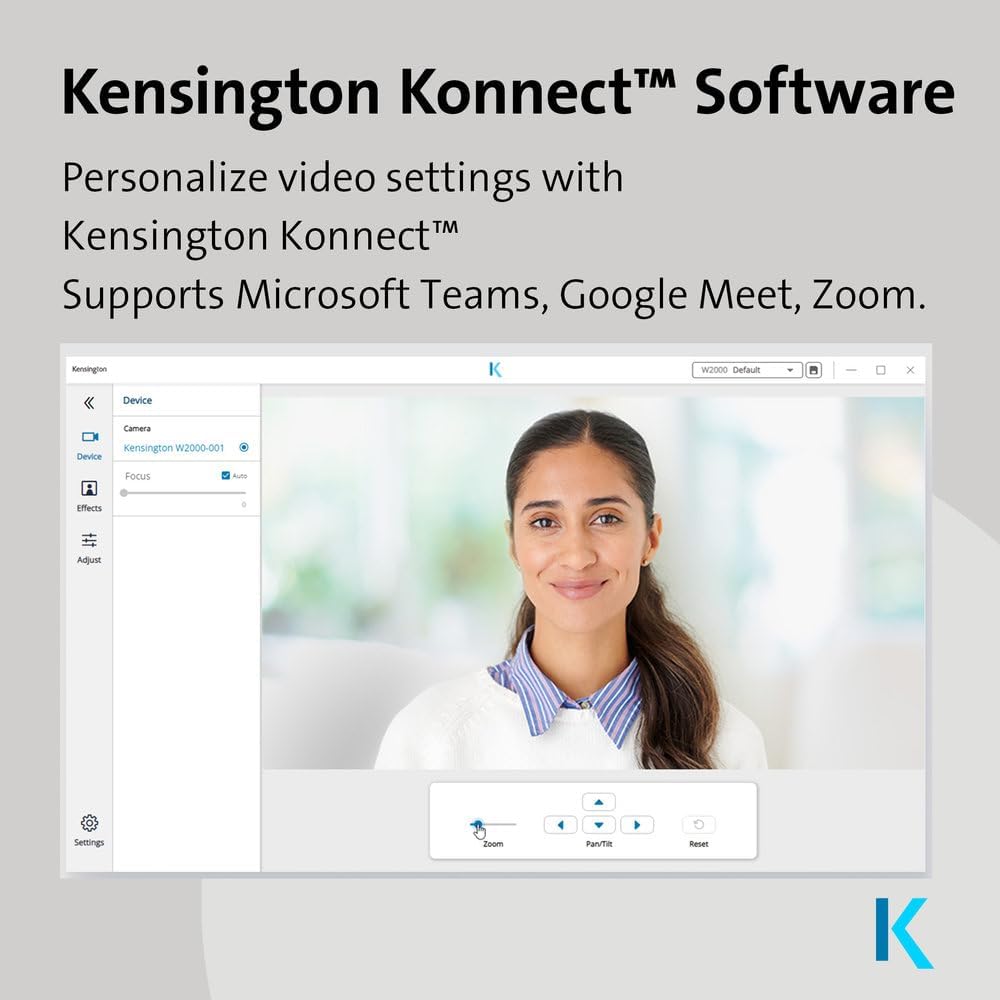
Figure 5: Kensington Konnect Software Interface
6. คุณสมบัติหลัก
- วิดีโอคุณภาพสูง: Delivers crisp 1080p video at 30 frames per second (1920x1080/30fps).
- Automatic Focus and Light Correction: Ensures clear and vibrant video quality, adapting to various lighting conditions.
- Privacy-Focused Field of View: A narrow 75-degree diagonal field of view is ideal for individual calls, minimizing background distractions.
- Integrated Lens Cover: Provides physical privacy control.
- Built-in Omni-directional Microphone: Features noise-reduction technology for clear audio capture.
- เข้ากันได้สากล: Works with both USB-A and USB-C devices.

Figure 6: 1080p Video and Auto Focus

Figure 7: Privacy-Focused 75° Field of View
7. ข้อมูลจำเพาะ
| คุณสมบัติ | ข้อมูลจำเพาะ |
|---|---|
| หมายเลขรุ่น | K81175WW |
| ขนาดสินค้า | 3.5 x 2.13 x 1.93 นิ้ว |
| น้ำหนักสินค้า | 10.6 ออนซ์ |
| ความละเอียดในการจับภาพวิดีโอ | 1080p (1920x1080) ที่ 30fps |
| เทคโนโลยีโฟโต้เซนเซอร์ | ซีมอส |
| ความยาวโฟกัสสูงสุด | 4 |
| รูรับแสงสูงสุด | 2.4 ฟ. |
| ทุ่งแห่ง View | เส้นทแยงมุม 75 องศา |
| ไมโครโฟน | Built-in Omni-directional with Noise Reduction |
| เทคโนโลยีการเชื่อมต่อ | USB-A, USB-C (via adapter) |
| รูปแบบการจับภาพวิดีโอ | เอ็มพี 4 |
| รูปแบบเสียงที่รองรับ | เอ็มพี 3 |
8. การบำรุงรักษา
เพื่อให้มั่นใจถึงประสิทธิภาพสูงสุดและอายุการใช้งานที่ยาวนานของคุณ webลูกเบี้ยว:
- การทำความสะอาดเลนส์: เช็ดเลนส์เบาๆ ด้วยผ้าเนื้อนุ่มที่ไม่เป็นขุย หลีกเลี่ยงการใช้สารเคมีรุนแรงหรือวัสดุที่มีฤทธิ์กัดกร่อน
- ทำความสะอาดร่างกาย: ใช้ผ้าแห้งนุ่มๆ เช็ดทำความสะอาด webภายนอกของกล้อง
- พื้นที่จัดเก็บ: เมื่อไม่ใช้งาน ให้เก็บ webcam in a clean, dry environment. Utilize the integrated privacy shutter to protect the lens.
9 การแก้ไขปัญหา
If you encounter issues with your Kensington W2000 Webcam, consider the following:
- ไม่มีวิดีโอ/เสียง:
- ตรวจสอบให้แน่ใจว่าสาย USB เชื่อมต่ออย่างแน่นหนากับทั้งสอง webแคมและคอมพิวเตอร์ของคุณ
- ตรวจสอบว่า webcam is selected as the primary video and audio device in your operating system's settings and within your video conferencing application.
- ตรวจสอบว่าม่านบังตาเปิดอยู่หรือไม่
- ลองเชื่อมต่อดู webcam to a different USB port or another computer to rule out port or system issues.
- คุณภาพวิดีโอไม่ดี:
- ให้แน่ใจว่ามีแสงสว่างเพียงพอในสภาพแวดล้อมของคุณ
- ทำความสะอาด webใช้ผ้าเนื้อนุ่มเช็ดเลนส์กล้อง
- If using the Kensington Konnect software, check and adjust video settings such as brightness, contrast, and focus.
- ปัญหาไมโครโฟน:
- ยืนยันการ webcam's microphone is selected as the input device in your system and application settings.
- โปรดตรวจสอบให้แน่ใจว่าไม่ได้ปิดเสียงไมโครโฟนในระบบหรือแอปพลิเคชันของคุณ
10. การรับประกันและการสนับสนุน
Kensington stands behind the W2000 Webcam with a รับประกัน 2 ปี. For technical support, driver downloads, or further assistance, please visit the official Kensington support webเว็บไซต์.


