1. สินค้าหมดview
The NZXT Kraken Z73 RGB White is an all-in-one (AIO) liquid cooler designed for high-performance CPU cooling. It features a 360mm radiator, three Aer RGB 2 fans, and a pump with a customizable 2.36-inch LCD display. This cooler allows users to monitor system information, display custom images, or animated GIFs through the NZXT CAM software interface, providing both efficient cooling and aesthetic personalization.
คุณสมบัติหลัก:
- Customizable LCD Display: A bright, 2.36-inch LCD screen on the pump allows for personalized display of 24-bit color images, GIFs, or system information.
- NZXT CAM Software Integration: Fine-tune settings, manage performance, and customize the appearance of your Kraken cooler with an intuitive software interface.
- ประสิทธิภาพการระบายความร้อนที่เหนือชั้น: Equipped with a chamfered intake and fluid dynamic bearings, the Aer RGB 2 fans deliver quiet operation, long-term reliability, and powerful cooling.
- การติดตั้งง่าย: The pump's fully programmable display can be rotated to align with your motherboard's orientation without affecting the logo or image direction.
- แสงไฟ RGB สดใส: Included Aer RGB 2 fans provide dramatic lighting effects to complement your system build.
2. อะไรอยู่ในกล่อง
ตรวจสอบว่าส่วนประกอบทั้งหมดมีอยู่ก่อนเริ่มการติดตั้ง
- NZXT Kraken Z73 RGB Liquid Cooler (Pump and Radiator Assembly)
- 3x Aer RGB 2 120mm Fans
- Mounting Hardware for Intel (LGA 1700, 1200, 115X, 2011, 2066) and AMD (AM5, AM4, TR4) Sockets
- Fan and RGB Controller
- USB Cable for CAM Software Connectivity
- Power Cables and Fan Splitter Cables
- ทาซิลิโคนระบายความร้อนไว้ล่วงหน้า (บนแผ่นระบายความร้อน)
3. การตั้งค่าและการติดตั้ง
Follow these general steps for installing your NZXT Kraken Z73 RGB liquid cooler. Refer to your motherboard and PC case manuals for specific mounting locations and clearances.
- เตรียมเมนบอร์ด: Install the appropriate backplate and standoffs for your CPU socket type (Intel or AMD).
- ติดตั้งหม้อน้ำและพัดลม: Attach the three Aer RGB 2 fans to the 360mm radiator using the provided screws. Ensure the fan orientation is correct for desired airflow (intake or exhaust). Mount the radiator assembly to an available fan mount in your PC case (typically top or front).
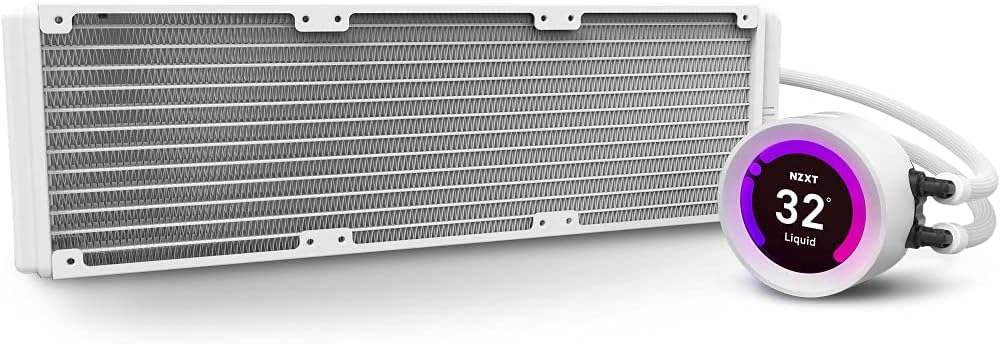
Image: The NZXT Kraken Z73 RGB White liquid cooler, showing the 360mm radiator and the pump with its LCD display.
- ติดตั้งปั๊ม/แผ่นเย็น: Carefully place the pump/cold plate assembly onto your CPU, aligning it with the standoffs. The Kraken Z series pump features a rotatable display, allowing you to adjust its orientation after installation to ensure the logo or image is upright.

Image: The Kraken Z series pump head, illustrating its digitally rotatable display for easier installation and aesthetic alignment.
- การยึดปั๊มให้แน่น: Use the provided thumb screws or nuts to secure the pump to the motherboard, ensuring even pressure.
- เชื่อมต่อสายเคเบิล: Connect the pump's power cable, USB cable, and fan cables to the appropriate headers on your motherboard and the included fan/RGB controller. Ensure all connections are secure.
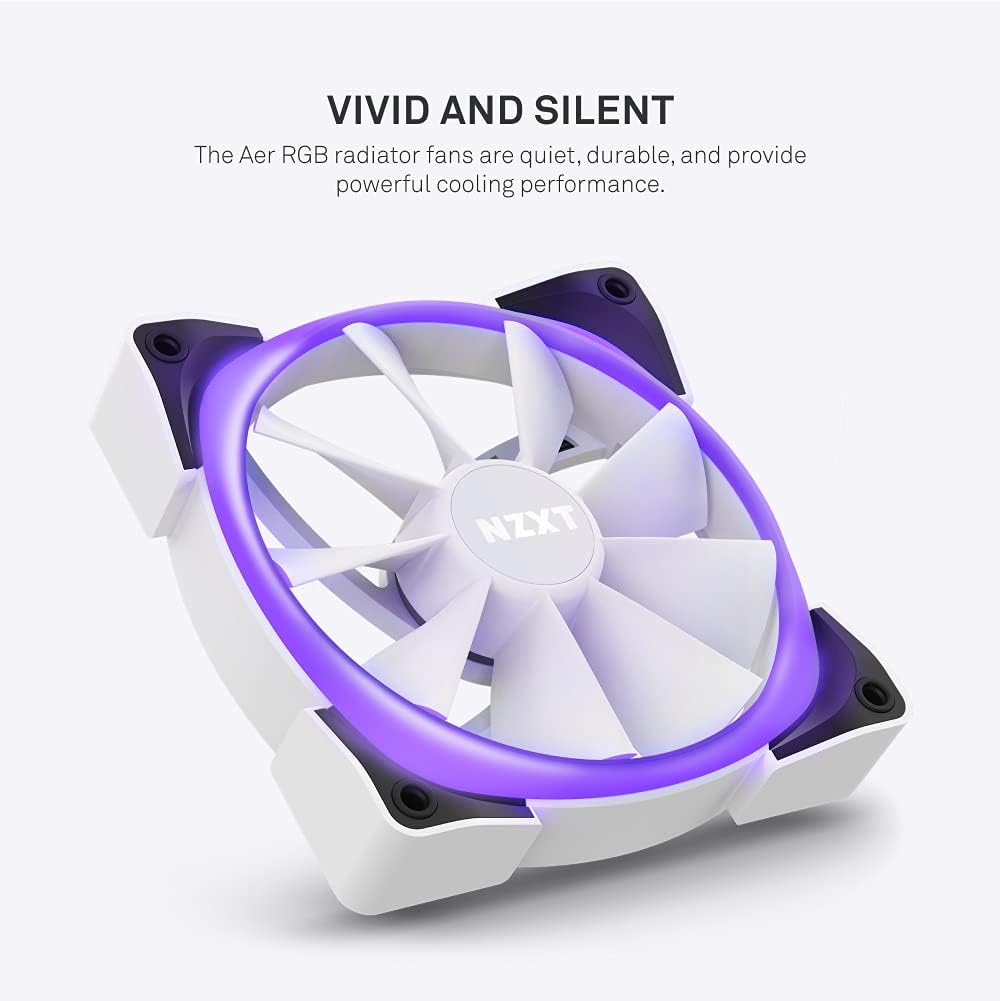
Image: An Aer RGB radiator fan, highlighting its quiet operation and powerful cooling performance with vivid lighting.
บันทึก: No official seller videos demonstrating installation were available. Please refer to the written instructions and diagrams for guidance.
4. Operating the Cooler and LCD Display
The NZXT Kraken Z73 RGB's full functionality is managed through the NZXT CAM software.
- Install NZXT CAM Software: Download and install the latest version of NZXT CAM from the official NZXT webงาน (www.nzxt.com/cam).
- Connect to CAM: Ensure the cooler's USB cable is connected to an internal USB 2.0 header on your motherboard. Launch the CAM software. The Kraken Z73 RGB should be automatically detected.
- ประสิทธิภาพการทำงานของจอภาพ: Use CAM to monitor CPU and liquid temperatures, pump speed, and fan speeds.
- ปรับแต่งจอแสดงผล LCD: Navigate to the 'Cooling' or 'Lighting' section within CAM to customize the LCD display. You can choose from various presets, upload custom images (JPG, PNG) or animated GIFs, and display real-time system information like CPU temperature, GPU temperature, or pump speed.

ภาพ: ภาพระยะใกล้ view of the NZXT Kraken Z73 RGB White's LCD display, showing the liquid temperature.
- Adjust Fan and Pump Curves: Create custom fan and pump profiles to optimize cooling performance and noise levels based on your preferences and system load.
- ควบคุมแสงไฟ RGB: Adjust the RGB lighting effects and colors of the Aer RGB 2 fans through the CAM software.
5. การบำรุงรักษา
การบำรุงรักษาอย่างสม่ำเสมอจะช่วยให้มั่นใจได้ถึงประสิทธิภาพสูงสุดและอายุการใช้งานที่ยาวนานของระบบระบายความร้อนด้วยของเหลวของคุณ
- การทำความสะอาดฝุ่น: ควรทำความสะอาดฝุ่นที่ครีบหม้อน้ำและใบพัดลมเป็นระยะๆ โดยใช้ลมเป่าอัดแรงดันสูง ตรวจสอบให้แน่ใจว่าพัดลมไม่หมุนขณะทำความสะอาดเพื่อป้องกันความเสียหาย
- ตรวจสอบการเชื่อมต่อ: Occasionally verify that all cables (power, USB, fan) are securely connected to prevent intermittent issues.
- ตรวจสอบท่อ: Check the liquid tubing for any signs of kinks, leaks, or damage.
- การอัปเดตซอฟต์แวร์: Keep your NZXT CAM software updated to benefit from performance improvements, new features, and bug fixes.
6 การแก้ไขปัญหา
If you encounter issues with your Kraken Z73 RGB, consider the following common troubleshooting steps:
- Cooler Not Detected by CAM: Ensure the USB cable from the pump is securely connected to an internal USB 2.0 header on your motherboard. Try a different USB header if available. Reinstall NZXT CAM software.
- อุณหภูมิ CPU สูง: Verify that the pump is properly seated and making good contact with the CPU. Check that the pump and fans are receiving power and spinning. Ensure thermal paste application was adequate. Check fan orientation for proper airflow.
- Fans Not Spinning/RGB Not Working: Check all fan and RGB cable connections to the fan/RGB controller and motherboard. Ensure the fan/RGB controller is receiving power. Verify settings in NZXT CAM software.
- เสียงที่ผิดปกติ: A slight gurgling sound upon initial startup is normal as air bubbles settle. If persistent, ensure the pump is mounted lower than the highest point of the radiator to prevent air from accumulating in the pump.
- ปัญหาจอ LCD: Ensure the USB connection is stable. Restart NZXT CAM. Update graphics drivers.
7. ข้อมูลจำเพาะ
| คุณสมบัติ | ข้อมูลจำเพาะ |
|---|---|
| ขนาดสินค้า | ยาว 18.66 นิ้ว x กว้าง 7.17 นิ้ว x สูง 5.75 นิ้ว |
| หมายเลขรุ่น | RL-KRZ73-RW |
| ยี่ห้อ | เอ็นซีเอ็กซ์ที |
| วิธีการทำความเย็น | น้ำ |
| อุปกรณ์ที่รองรับ | Radiator (CPU Sockets: Intel LGA 1700, 1200, 115X, 2011, 2066; AMD AM5, AM4, TR4) |
| ระดับเสียง | 33 เดซิเบล (สูงสุด) |
| วัสดุ | อะลูมิเนียม ทองแดง พลาสติก ยาง |
| Maximum Rotational Speed (Fans) | 2000 รอบต่อนาที |
| ความจุการไหลของอากาศ | 52.44 ลูกบาศก์ฟุตต่อนาที (CFM) |
| ประเภทตัวเชื่อมต่อกระแสไฟ | 4 พิน |
| เล่มที่tage | 5 โวลต์ |
| วัดtage | 3.6 วัตต์ |
| น้ำหนักสินค้า | 5.06 ปอนด์ |
| สี | สีขาว |
| ยูพีซี | 815671016669 |
8. การรับประกันและการสนับสนุน
NZXT products are designed and manufactured to the highest quality standards. For detailed warranty information, please refer to the official NZXT website or the warranty card included with your product. For technical support, troubleshooting assistance, or to contact customer service, visit the NZXT support page at support.nzxt.com.


