1. บทนำ
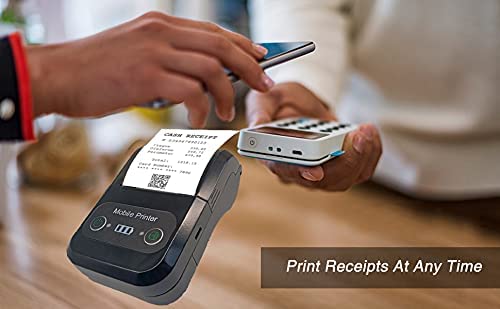
The Milestone MPT-II is a compact and portable 58mm thermal printer designed for various business applications, including retail, restaurants, and mobile logistics. It offers high-speed, clear printing and features Bluetooth connectivity for seamless integration with Android and iOS devices. Its lightweight design and long-lasting battery make it ideal for on-the-go printing needs.

2. คุณสมบัติหลัก
- การพิมพ์บลูทูธ: Supports Android and iOS devices for wireless printing.
- ความสามารถในการพกพา: Light and compact design allows for printing anywhere, anytime.
- ต้นทุนการดำเนินงานต่ำ: Direct thermal printing eliminates the need for ink ribbons or cartridges, requiring only thermal paper.
- อายุการใช้งานแบตเตอรี่ยาวนาน: Built-in 7.4V/2500mAh rechargeable lithium battery provides up to 4 hours of continuous printing.
- Versatile Interface: Equipped with both USB and Bluetooth connectivity.
- ESC/POS Compatible: Supports standard ESC/POS print commands for broad software compatibility.

3. การตั้งค่าเริ่มต้น
3.1 การแกะกล่องและเนื้อหา
Carefully unpack the printer and verify all components are present:
- 1 x Milestone MPT-II Thermal Printer
- สาย USB 1 เส้น
- อะแดปเตอร์ USB 1 ชิ้น
- 1 x ม้วนกระดาษ
- 1 x คู่มือผู้ใช้ (เอกสารนี้)
3.2 การชาร์จเครื่องพิมพ์
- Connect the USB cable to the printer's charging port.
- Plug the USB adaptor into a standard power outlet.
- The charging indicator light will illuminate. Charge the printer fully before first use (approximately 2.5-3 hours for continuous printing).
3.3 การโหลดกระดาษความร้อน
- Open the paper compartment cover by gently pushing the latch.
- Insert the thermal paper roll with the printing side facing outwards (as shown in Figure 2). Ensure the roll is seated correctly.
- ดึงกระดาษออกมาเล็กน้อยให้เลยคมมีดไป
- ปิดฝาช่องกระดาษให้แน่นจนกระทั่งล็อคเข้าที่
4. คู่มือการใช้งาน
4.1 การเปิด/ปิดเครื่อง
- การเปิดเครื่อง: กดปุ่มเปิด/ปิดค้างไว้จนกว่าไฟแสดงสถานะจะสว่างขึ้น
- วิธีปิดเครื่อง: กดปุ่มเปิด/ปิดค้างไว้จนกว่าไฟแสดงสถานะจะดับ
4.2 การเชื่อมต่อบลูทูธ
The MPT-II printer supports Bluetooth connectivity for mobile devices.
- โปรดตรวจสอบให้แน่ใจว่าเครื่องพิมพ์เปิดอยู่และอยู่ในระยะที่สามารถเชื่อมต่อกับอุปกรณ์มือถือของคุณได้
- On your mobile device (Android/iOS), go to Bluetooth settings and turn Bluetooth on.
- ค้นหา available devices. The printer will appear as "MPT-II".
- Select "MPT-II" to pair. If prompted for a password, enter 1234 or 0000.
- Once paired, the printer is ready for use with compatible applications.
4.3 การใช้งานร่วมกับแอปพลิเคชัน
For mobile printing, you will need a compatible application. Milestone recommends downloading RAWBT Printer App or MYXPrint App from the Google Play Store. For iOS, search for compatible thermal printer apps in the App Store.
- Open your chosen printing application.
- Navigate to the printer settings within the app.
- Select the "MPT-II" printer from the list of available Bluetooth devices.
- You can now send print commands from the application.

4.4 การเชื่อมต่อ USB (สำหรับพีซี)
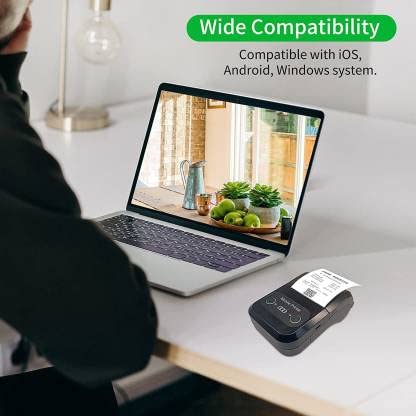
The printer can also be connected to a PC via USB. You may need to install a printer driver, which is typically available from the manufacturer's website or included on a CD with the product (if applicable).
5. การบำรุงรักษา
5.1 การทำความสะอาดเครื่องพิมพ์
To ensure optimal performance and print quality, regularly clean the printer:
- หัวพิมพ์: ใช้สำลีเช็ดเบาๆampเช็ดหัวพิมพ์ความร้อนด้วยไอโซโพรพิลแอลกอฮอล์เบาๆ ทิ้งไว้ให้แห้งสนิทก่อนใช้งาน
- เส้นทางกระดาษ: Use a soft, dry cloth or a small brush to remove any paper dust or debris from the paper path.
- ภายนอก: เช็ดภายนอกเครื่องพิมพ์ด้วยผ้านุ่มๆamp ผ้า. หลีกเลี่ยงการใช้สารเคมีที่รุนแรงหรือน้ำยาทำความสะอาดที่มีฤทธิ์กัดกร่อน
5.2 การดูแลแบตเตอรี่
- ชาร์จแบตเตอรี่ให้เต็มก่อนใช้งานครั้งแรก
- หลีกเลี่ยงการระบายแบตเตอรี่จนหมดบ่อยครั้ง
- If storing the printer for an extended period, charge it to about 50% and recharge every few months to prevent battery degradation.
6 การแก้ไขปัญหา
| ปัญหา | สาเหตุที่เป็นไปได้ | สารละลาย |
|---|---|---|
| เครื่องพิมพ์ไม่เปิดใช้งาน | แบตเตอรี่เหลือน้อยหรือหมด | Charge the printer using the provided USB cable and adaptor. |
| ไม่สามารถเชื่อมต่อผ่านบลูทูธได้ | Bluetooth is off on device; incorrect pairing password; printer not discoverable. | Ensure Bluetooth is enabled on your device. Re-attempt pairing with password 1234 or 0000. Restart both printer and device. |
| No print output or blank paper. | Paper loaded incorrectly; out of paper; print head dirty. | Check paper orientation (printing side out). Replace paper roll if empty. Clean the thermal print head (refer to Maintenance section). |
| คุณภาพการพิมพ์ไม่ดี (สีซีดจาง มีเส้น) | Print head dirty; low battery; poor quality thermal paper. | Clean the print head. Charge the printer fully. Use high-quality thermal paper. |
| Printer beeps continuously. | Paper alarm (out of paper or paper jam); low battery reminder. | Check and replace paper roll or clear jam. Charge the printer. |
7. ข้อมูลจำเพาะทางเทคนิค
| คุณสมบัติ | ข้อมูลจำเพาะ |
|---|---|
| วิธีการพิมพ์ | การพิมพ์แบบเส้นความร้อน |
| ความกว้างในการพิมพ์ | Paper width 58mm, effective width 58mm |
| พิมพ์ความหนาแน่น | 576 จุด/เส้น |
| ปณิธาน | 8 dots/mm, 203 DPI |
| ความเร็วในการพิมพ์ | 70mm/s (Max Print speed Monochrome: 50 ppm) |
| Printer Core Life | 50KM (25% print density or less than 100 million pulses) |
| Printable Content | English, numbers, symbols, characters, pictures, 1D/2D barcode, multi-languages |
| อินเตอร์เฟซการสื่อสารข้อมูล | USB / บลูทู ธ |
| แหล่งจ่ายไฟ | Machine charging 9V-1.5A |
| แบตเตอรี่ | Built-in rechargeable 2600mAh lithium-ion battery (7.4V/2500mAh) |
| เวลาการพิมพ์ต่อเนื่อง | 2.5-3 ชั่วโมง |
| ชุดคำสั่ง | รองรับ ESC / POS |
| การตัดกระดาษ | Manually tear |
| ความเข้ากันได้ของระบบปฏิบัติการ | แอนดรอยด์, ไอโอเอส, วินโดวส์ |
| ขนาดสินค้า | 15D x 12W x 6H เซนติเมตร |
| น้ำหนักสินค้า | 310 กรัม |
| ส่วนประกอบที่รวมอยู่ | 1 x Thermal Printer, 1 x USB Cable, 1 x USB Adaptor, 1 x Paper Roll, 1 x User Manual |
8. การรับประกันและการสนับสนุน
This product comes with a 10-day warranty as per the purchase terms. For any technical assistance, troubleshooting beyond this manual, or warranty claims, please contact your retailer or the manufacturer's customer support. Refer to your purchase documentation for specific contact details.
ผู้ผลิต: เหตุการณ์สำคัญ
ผู้นำเข้า: SB RETAILS, SECTOR 28, PRADHIKARAN, PUNE-44, +918888881631


