1. บทนำ
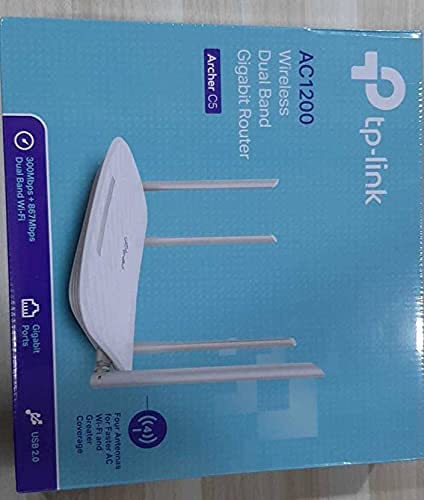
This manual provides comprehensive instructions for the installation, operation, and maintenance of your TP-Link Archer C5 AC1200 Dual-Band Gigabit Wireless Wi-Fi Router. The Archer C5 is designed to provide seamless Wi-Fi coverage with its dual-band capabilities, offering speeds up to 750Mbps on the 5GHz band and up to 300Mbps on the 2.4GHz band. It features four external antennas for stable wireless connections and full Gigabit ports for high-speed wired connections.
Please read this manual carefully before using the device to ensure proper setup and optimal performance.
2. เนื้อหาบรรจุภัณฑ์
ตรวจสอบว่าแพ็คเกจของคุณมีรายการต่อไปนี้:
- TP-Link Archer C5 Router
- Power Adapter (DC Adapter)
- สายอีเธอร์เน็ต (RJ45)
- Quick Installation Guide (may be a separate document)
3. สินค้าหมดview
3.1 แผงด้านหน้า

The front panel features LED indicators that provide information about the router's status, including power, internet connectivity, Wi-Fi status for both 2.4GHz and 5GHz bands, and LAN port activity.
3.2 แผงด้านหลัง

The rear panel includes all physical connection ports and buttons:
- กำลังไฟเข้า: เชื่อมต่อกับอะแดปเตอร์ไฟฟ้าที่ให้มา
- ปุ่มเปิด/ปิด: เปิดหรือปิดเราเตอร์
- พอร์ต USB: สำหรับเชื่อมต่ออุปกรณ์จัดเก็บข้อมูล USB เพื่อแชร์ fileทั่วทั้งเครือข่าย
- พอร์ต WAN (สีน้ำเงิน): Connects to your modem for internet access. This is a Gigabit port.
- พอร์ต LAN (สีเหลือง): พอร์ต Gigabit Ethernet สี่พอร์ตสำหรับเชื่อมต่ออุปกรณ์แบบมีสาย เช่น คอมพิวเตอร์ คอนโซลเกม หรือสมาร์ททีวี
- ปุ่มรีเซ็ต: ใช้เพื่อคืนค่าเราเตอร์เป็นการตั้งค่าเริ่มต้นจากโรงงาน
- ปุ่ม WPS/Wi-Fi: กดเพื่อเปิดใช้งาน WPS (Wi-Fi Protected Setup) เพื่อการเชื่อมต่อที่ง่ายดาย หรือ กดค้างเพื่อเปิด/ปิด Wi-Fi
4. คู่มือการติดตั้ง
Follow these steps to set up your TP-Link Archer C5 router:
- ปิดโมเด็มของคุณ: ถอดปลั๊กไฟออกจากโมเด็มที่มีอยู่ของคุณ
- เชื่อมต่อเราเตอร์:
- Connect one end of the provided Ethernet cable to the WAN port (blue) on your Archer C5 router.
- เชื่อมต่อปลายอีกด้านหนึ่งของสายเคเบิลอีเทอร์เน็ตเข้ากับพอร์ตอีเทอร์เน็ตของโมเด็ม
- เปิดอุปกรณ์:
- เชื่อมต่ออะแดปเตอร์ไฟฟ้าเข้ากับช่องจ่ายไฟของเราเตอร์และเสียบปลั๊กเข้ากับเต้ารับไฟฟ้า
- Power on your modem, then wait for it to fully boot up (usually indicated by stable LED lights).
- Power on the Archer C5 router. Wait for the LED indicators to stabilize, particularly the Internet LED.
- เชื่อมต่อกับเครือข่าย Wi-Fi ของเราเตอร์:
- ค้นหาชื่อเครือข่าย Wi-Fi (SSID) และรหัสผ่านที่พิมพ์อยู่บนฉลากด้านล่างของเราเตอร์ของคุณ
- บนคอมพิวเตอร์หรืออุปกรณ์มือถือของคุณ เลือกเครือข่าย Wi-Fi ของเราเตอร์ แล้วป้อนรหัสผ่านเพื่อเชื่อมต่อ
- เข้าถึง Web อินเทอร์เฟซการจัดการ:
- เปิด web เบราว์เซอร์ (เช่น Chrome, Firefox) และพิมพ์
http://tplinkwifi.netor192.168.0.1ลงในแถบที่อยู่ - เข้าสู่ระบบโดยใช้ชื่อผู้ใช้และรหัสผ่านเริ่มต้น (โดยปกติ)
adminfor both, or as specified on the router label). - Follow the Quick Setup wizard to configure your internet connection and personalize your Wi-Fi network name and password.
- เปิด web เบราว์เซอร์ (เช่น Chrome, Firefox) และพิมพ์
- Optional: Use the TP-Link Tether App: Download the TP-Link Tether app from your mobile device's app store for easy setup and management.
5. คู่มือการใช้งาน
Once your router is set up, you can manage its functions through the web อินเทอร์เฟซการจัดการหรือแอป TP-Link Tether
5.1 Wi-Fi ดูอัลแบนด์
The Archer C5 operates on two Wi-Fi bands:
- ย่านความถี่ 2.4 GHz: ให้การครอบคลุมที่กว้างขึ้นและทะลุทะลวงกำแพงได้ดีกว่า เหมาะสำหรับการใช้งานอินเทอร์เน็ตทั่วไปและอุปกรณ์รุ่นเก่า
- ย่านความถี่ 5 GHz: ให้ความเร็วที่สูงขึ้นและการรบกวนน้อยลง เหมาะสำหรับกิจกรรมที่ใช้แบนด์วิดท์สูง เช่น การเล่นเกมออนไลน์และการสตรีมวิดีโอ HD
You can configure separate SSIDs (network names) and passwords for each band or use a single SSID with Band Steering enabled (if available in your firmware) to allow the router to automatically assign devices to the best band.
5.2 การจัดการเครือข่าย
ผ่านทาง web อินเทอร์เฟซ คุณสามารถ:
- Change Wi-Fi settings (SSID, password, security type).
- Set up a Guest Network for visitors.
- Configure parental controls to manage internet access for children.
- Prioritize devices or applications using Quality of Service (QoS).
- จัดการอุปกรณ์ที่เชื่อมต่อ
- Access advanced settings like port forwarding, VPN server, and dynamic DNS.
6. การบำรุงรักษา
การบำรุงรักษาตามปกติจะช่วยให้เราเตอร์ของคุณมีอายุการใช้งานยาวนานและมีประสิทธิภาพเหมาะสมที่สุด
- อัพเดตเฟิร์มแวร์: ตรวจสอบเจ้าหน้าที่ TP-Link เป็นระยะ webเว็บไซต์สำหรับอัปเดตเฟิร์มแวร์ การอัปเดตเฟิร์มแวร์สามารถปรับปรุงประสิทธิภาพ เพิ่มคุณสมบัติใหม่ และแก้ไขช่องโหว่ด้านความปลอดภัยได้
- การจัดวางทางกายภาพ: Place the router in a central location, away from obstructions and devices that emit electromagnetic interference (e.g., microwaves, cordless phones). Elevating the router can also improve signal distribution.
- การทำความสะอาด: Keep the router clean and free from dust. Ensure ventilation holes are not blocked to prevent overheating.
- การรีบูต: If you experience slow speeds or connectivity issues, try rebooting the router by unplugging its power adapter for 10 seconds and then plugging it back in.
7 การแก้ไขปัญหา
This section addresses common issues you might encounter with your Archer C5 router.
7.1 ไม่มีการเข้าถึงอินเทอร์เน็ต
- ตรวจสอบการเชื่อมต่อสายเคเบิล: Ensure the Ethernet cable from your modem is securely connected to the router's blue WAN port.
- สถานะโมเด็ม: ตรวจสอบว่าโมเด็มของคุณทำงานถูกต้องและมีการเชื่อมต่ออินเทอร์เน็ตที่ใช้งานได้
- ไฟ LED ของเราเตอร์: Check the Internet LED on the router. If it's off or red, there might be an issue with your internet service provider (ISP) or modem connection.
- รีบูตอุปกรณ์: Power cycle your modem and then your router.
- Clone MAC Address: Some ISPs require MAC address cloning. Access the router's web interface and check WAN settings for this option.
7.2 Wi-Fi Signal Drops or is Weak
- ตำแหน่งการวางเราเตอร์: ย้ายเราเตอร์ไปไว้ในตำแหน่งที่อยู่ตรงกลาง ห่างจากสิ่งกีดขวางและแหล่งกำเนิดสัญญาณรบกวน
- ทิศทางของเสาอากาศ: Adjust the four external antennas for optimal signal reception.
- การรบกวนช่องสัญญาณ: ในเราเตอร์ web interface, try changing the Wi-Fi channel for both 2.4GHz and 5GHz bands to a less congested one.
- อัพเดตเฟิร์มแวร์: ตรวจสอบให้แน่ใจว่าเฟิร์มแวร์ของเราเตอร์ของคุณเป็นเวอร์ชันล่าสุด
7.3 Forgot Router Login Password
หากคุณลืมรหัสผ่านสำหรับ web management interface, you will need to reset the router to its factory default settings. Locate the Reset button on the rear panel, press and hold it for about 10 seconds until the LEDs flash, then release. The router will reboot with default settings (usually admin for username and password).
8. ข้อมูลจำเพาะ
| คุณสมบัติ | รายละเอียด |
|---|---|
| ยี่ห้อ | ทีพี ลิงค์ |
| ชื่อรุ่น | อาร์เชอร์ C5 |
| ไร้มาตรฐาน | IEEE 802.11ac/n/a 5 GHz, IEEE 802.11n/b/g 2.4 GHz |
| ความเร็วไวไฟ | AC1200 (867 Mbps บน 5 GHz, 300 Mbps บน 2.4 GHz) |
| ระดับย่านความถี่ | ดูอัลแบนด์ (2.4 GHz และ 5 GHz) |
| พอร์ตอีเทอร์เน็ต | พอร์ต WAN กิกะบิต 1 พอร์ต, พอร์ต LAN กิกะบิต 4 พอร์ต |
| พอร์ต USB | พอร์ต USB 1 2.0x |
| เสาอากาศ | เสาอากาศภายนอก 4x |
| โปรโตคอลความปลอดภัย | WPA2-PSK |
| ระบบปฏิบัติการ | RouterOS (as per product data, typically TP-Link custom firmware) |
| คุณสมบัติพิเศษ | การเข้าถึงระยะไกล |
| น้ำหนักสินค้า | 710 กรัม |
| ส่วนประกอบที่รวมอยู่ | Router, DC Adapter, RJ45 Ethernet Cable |
9. การรับประกันและการสนับสนุน
9.1 ข้อมูลการรับประกัน
The TP-Link Archer C5 router typically comes with a รับประกัน 1 ปี. Please refer to the warranty card included in your product packaging or visit the official TP-Link webเว็บไซต์สำหรับข้อกำหนดและเงื่อนไขการรับประกันโดยละเอียดที่เฉพาะเจาะจงกับภูมิภาคของคุณ
9.2 การสนับสนุนด้านเทคนิค
For technical assistance, firmware updates, or further information, please visit the official TP-Link support website. You can usually find FAQs, troubleshooting guides, and contact information for customer support there.
TP-Link อย่างเป็นทางการ Webเว็บไซต์: www.tp-link.com


