1. สินค้าหมดview
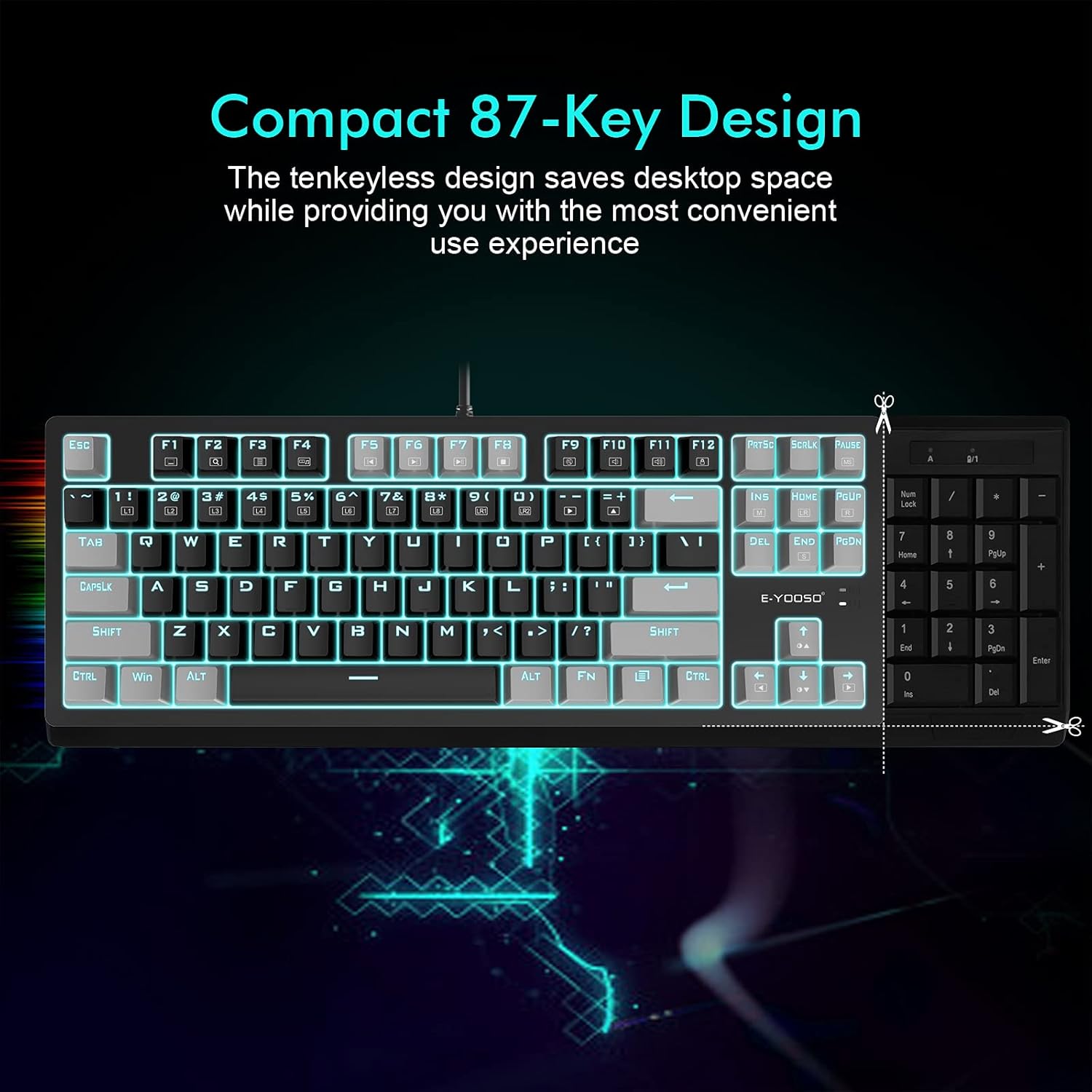
The E-YOOSO K620 is a compact 87-key Tenkeyless (TKL) wired mechanical gaming keyboard designed for various computing and gaming platforms. It features quiet Red Switches, customizable backlighting, and ergonomic design elements for enhanced user experience.

Image: E-YOOSO K620 TKL Wired Mechanical Gaming Keyboard with blue backlighting and RGB side lights.
2. เนื้อหาบรรจุภัณฑ์
- คีย์บอร์ดเชิงกล E-YOOSO K620
- Two orange keycaps (ESC and Space bar)
3. คำแนะนำในการตั้งค่า
The E-YOOSO K620 keyboard connects via a wired USB connection. No additional software or drivers are typically required for basic functionality.
- Locate an available USB port on your computer (PC, MAC) or gaming console (PS4/PS5).
- เสียบขั้วต่อ USB ของคีย์บอร์ดเข้ากับพอร์ต USB
- The keyboard should be automatically recognized by your system and ready for use.

Image: The E-YOOSO K620 keyboard connected to a computer setup, illustrating its compatibility with various devices.
4. คู่มือการใช้งาน
4.1. สวิตช์เชิงกล
The K620 keyboard is equipped with quiet Red Switches, known for their linear and smooth keystrokes. These switches have a durability of 50 million keystrokes, a distance to actuation of 2±0.6mm, and an actuation force of 45±15 cN. This provides a responsive and quiet typing experience suitable for both work and gaming environments.
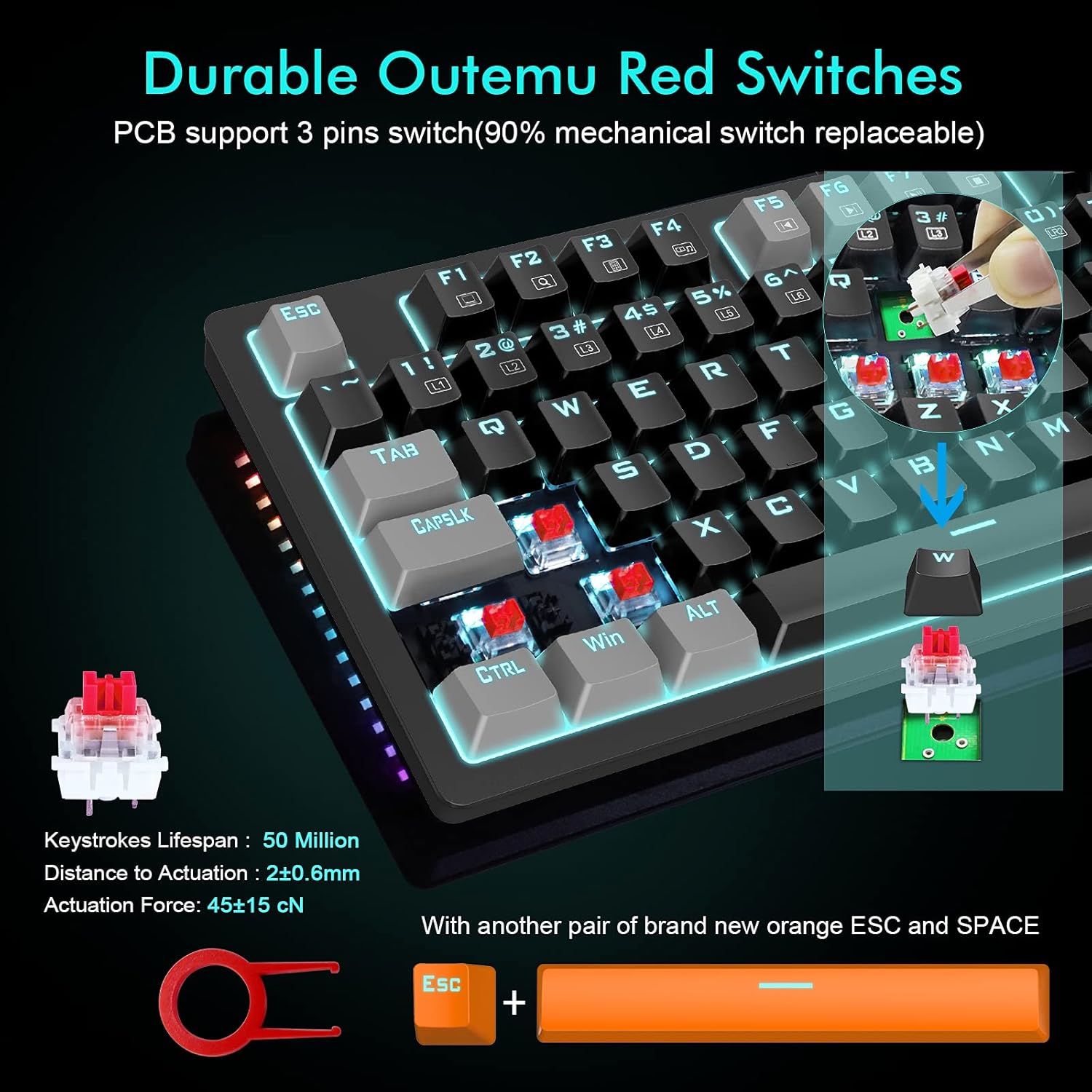
ภาพ: ระยะใกล้ view of the E-YOOSO K620 keyboard, highlighting the Outemu Red Switches and included keycap puller.
4.2. Backlight and Sidelight Control
The keyboard features 18 adjustable blue backlight modes and 4 RGB sidelight modes. Use the following key combinations to control the lighting effects:
- Fn + อิน: Cycle through 8 dynamic backlight modes.
- Fn + (1-8): Select from 8 built-in gaming backlight modes.
- Fn + (9,0): Access 2 customizable backlight modes.
- Fn + Pause: Cycle through 4 RGB side lighting modes.
- Fn + ลูกศรขึ้น/ลง: ปรับความสว่างของแบ็คไลท์
- Fn + ลูกศรซ้าย/ขวา: Adjust backlight speed.

Image: The E-YOOSO K620 keyboard showcasing its blue backlighting and vibrant RGB side lights.

Image: Visual guide for controlling lighting effects using Fn key combinations.
4.3. Multimedia Shortcuts
Utilize the Fn key in combination with the F1-F12 keys for quick access to multimedia functions:

Image: A visual representation of the multimedia function keys.
4.4. ป้องกันภาพซ้อน
The K620 features advanced anti-ghosting technology, allowing all 87 keys to register simultaneously. This ensures accurate and fast input, which is crucial for gaming and rapid typing.

Image: The E-YOOSO K620 keyboard in a typical gaming environment, emphasizing its full anti-ghosting capability.
5. Ergonomics and Design
The keyboard is designed with user comfort in mind, featuring foldable back kickstands and a stepped key layout. These elements help reduce finger fatigue during extended use.

ภาพ: ไซด์โปรfile of the E-YOOSO K620 keyboard, illustrating its ergonomic stepped key design.

Image: Diagram illustrating the ergonomic 8-degree tilt of the keyboard for comfortable typing.
5.1. Keycap Material
The keycaps are made from a 1:1 mix of high-quality PBT and ABS materials, utilizing a double-shot injection molding process. This ensures clear, uniform backlighting and prevents the legends from fading or wearing off over time.
ภาพ: รายละเอียด view of the E-YOOSO K620 keycaps, highlighting their double-shot injection and durable PBT/ABS construction.
6. ความเข้ากันได้
The E-YOOSO K620 Mechanical Gaming Keyboard is compatible with a wide range of operating systems and devices:
- วินโดว์ 10 / 8 / 7 / วิสต้า / XP
- Limited Mac OS
- PS5 / PS4
- Desktops, Chromebooks, PCs, Laptops, Computers
7. การบำรุงรักษา
To ensure the longevity and optimal performance of your E-YOOSO K620 keyboard, follow these maintenance guidelines:
- การทำความสะอาด: Regularly clean the keycaps and the spaces between them using a soft brush or compressed air to remove dust and debris. For stubborn dirt, gently wipe keycaps with a damp ผ้า.
- ความต้านทานการรั่วไหล: The keyboard features a splash-proof design, offering some protection against accidental spills. However, it is not fully waterproof. In case of a spill, immediately disconnect the keyboard and allow it to dry completely before reconnecting.
- พื้นที่จัดเก็บ: เก็บแป้นพิมพ์ไว้ในที่แห้งและเย็น หลีกเลี่ยงแสงแดดโดยตรงและอุณหภูมิที่สูงหรือต่ำเกินไป

Image: The E-YOOSO K620 keyboard demonstrating its splash-proof design with water droplets on its surface.
8 การแก้ไขปัญหา
If you encounter any issues with your E-YOOSO K620 keyboard, please refer to the following common troubleshooting steps:
- แป้นพิมพ์ไม่ตอบสนอง:
- Ensure the USB cable is securely plugged into both the keyboard and the computer/console.
- ลองเสียบคีย์บอร์ดเข้ากับพอร์ต USB อื่น
- Test the keyboard on another computer/console to determine if the issue is with the keyboard or the host device.
- Backlight/Sidelight Not Working or Incorrect:
- Refer to Section 4.2 for detailed instructions on controlling backlight and sidelight modes using the Fn key combinations.
- Ensure the brightness is not set to the lowest level (Fn + Down Arrow).
- กุญแจไม่ลงทะเบียน:
- ตรวจสอบว่ามีสิ่งกีดขวางทางกายภาพหรือเศษซากใดๆ อยู่ใต้ปุ่มคีย์แคปหรือไม่
- If a specific key is consistently not working, it may indicate a switch issue.
For further assistance, please contact E-YOOSO customer support.
9. ข้อมูลจำเพาะผลิตภัณฑ์
| ชื่อรุ่น | เค620 |
| ยี่ห้อ | อี-ยูโซ่ |
| เทคโนโลยีการเชื่อมต่อ | USB (แบบมีสาย) |
| คำอธิบายแป้นพิมพ์ | แป้นพิมพ์สำหรับเล่นเกมแบบเครื่องกล |
| ประเภทสวิตซ์ | สวิตช์สีแดง |
| วัสดุปุ่มกด | Acrylonitrile Butadiene Styrene (ABS), Polybutylene Terephthalate (PBT) - 1:1 Mix |
| แป้นพิมพ์แบ็คไลท์ | Blue Backlight (18 modes), RGB Sidelight (4 modes) |
| จำนวนคีย์ | 87 คีย์ |
| ป้องกันการโดนผีหลอก | Anti-ghosting แบบเต็มปุ่ม |
| ขนาดสินค้า | 14.3 x 5.2 x 0.5 นิ้ว (36.3 x 13.2 x 1.3 ซม.) |
| น้ำหนักสินค้า | 1.74 ปอนด์ (0.79 กก.) |
| ผู้ผลิต | อี-ยูโซ่ |
| วันที่พร้อมใช้งานครั้งแรก | วันที่ 14 สิงหาคม 2021 |
10. การรับประกันและการสนับสนุน
E-YOOSO provides responsive after-sales support for the K620 Mechanical Gaming Keyboard. If you encounter any problems or have questions, please feel free to contact us.
Within 6 months of purchase, you are eligible for a free return or exchange if any issues arise with your product.


