1. บทนำ
This manual provides detailed instructions for the Kenuo 10-inch WiFi Digital Photo Frame, Model KEEU-DC0015. Please read this manual thoroughly before using the device to ensure proper operation and to maximize your user experience. This digital photo frame allows you to display photos and videos, share memories with family and friends, and utilize various integrated functions.
2. ข้อมูลด้านความปลอดภัย
- อย่าให้เครื่องอยู่ในที่ชื้น ฝน หรืออุณหภูมิที่สูงหรือต่ำเกินไป
- ใช้เฉพาะอะแดปเตอร์ที่ให้มาเท่านั้น
- หลีกเลี่ยงการวางอุปกรณ์ใกล้แหล่งความร้อนหรือแสงแดดโดยตรง
- อย่าพยายามถอดประกอบหรือซ่อมแซมอุปกรณ์ด้วยตนเอง โปรดติดต่อเจ้าหน้าที่บริการที่มีคุณสมบัติเหมาะสมเพื่อขอความช่วยเหลือ
- เก็บอุปกรณ์ให้พ้นจากมือเด็ก
3. เนื้อหาบรรจุภัณฑ์
กรุณาทำเครื่องหมายในช่องสำหรับรายการต่อไปนี้:
- Kenuo 10-inch WiFi Digital Photo Frame
- Support Stand (Stent)
- อะแดปเตอร์ DC
- คู่มือการใช้งาน

ภาพที่ 3.1: Contents of the Kenuo Digital Photo Frame package, including the frame, user manual, stent, and DC adapter.
4. สินค้าหมดview
The Kenuo Digital Photo Frame features a sleek design with a 10-inch IPS touchscreen display. Key components include:
- ด้านหน้า: 10-inch Full HD IPS Touch Screen.
- กลับ: Power input, USB port, SD card slot, and mounting holes.
- ยืน: Detachable support stand for desktop placement.
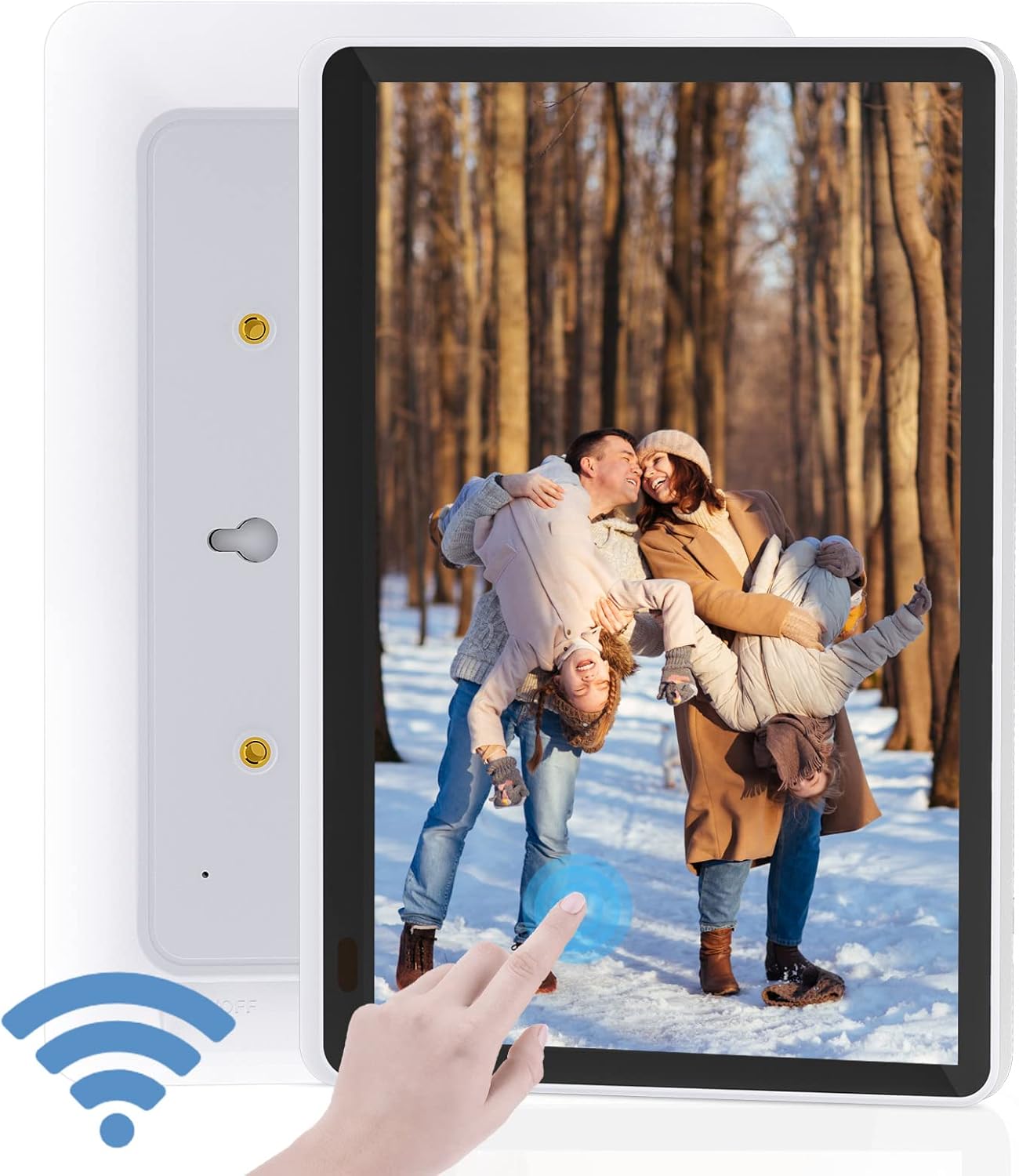
ภาพที่ 4.1: ด้านหน้า view of the Kenuo Digital Photo Frame, showing the touchscreen display and a finger interacting with it. A Wi-Fi signal icon is also visible.

ภาพที่ 4.2: Close-up of the 10-inch HD Touch Screen IPS Display, showcasing a clear image of a child with a puppy and a finger interacting with the screen.
5. การตั้งค่า
5.1 การเปิดเครื่องครั้งแรก
- Attach the support stand to the back of the frame.
- Connect the DC power adapter to the frame's power input and then plug it into a wall outlet.
- The frame will power on automatically. Follow the on-screen prompts to select your preferred language and time zone.
5.2 การเชื่อมต่อ Wi-Fi
The frame requires a 2.4GHz Wi-Fi network for full functionality. 5GHz networks are not supported.
- จากเมนูหลักไปที่ การตั้งค่า.
- เลือก ไวไฟ และเปิดมันขึ้นมา
- เลือกเครือข่าย Wi-Fi 2.4GHz ของคุณจากรายการและป้อนรหัสผ่าน
- เมื่อเชื่อมต่อแล้ว ไอคอน Wi-Fi จะปรากฏบนหน้าจอ
5.3 OurPhoto App Installation and Pairing
The free "OurPhoto" app is essential for sharing photos and videos to your frame.
- Download the "OurPhoto" app from the iOS App Store or Google Play Store on your smartphone or tablet.
- Open the app and create an account. No mobile phone number is required for registration.
- On your Kenuo frame, go to การตั้งค่า > บัญชีผูกมัด to find your unique frame code.
- In the "OurPhoto" app, add your frame by entering the frame code.
- เมื่อจับคู่เสร็จแล้ว คุณสามารถเริ่มส่งสื่อไปยังเฟรมของคุณได้
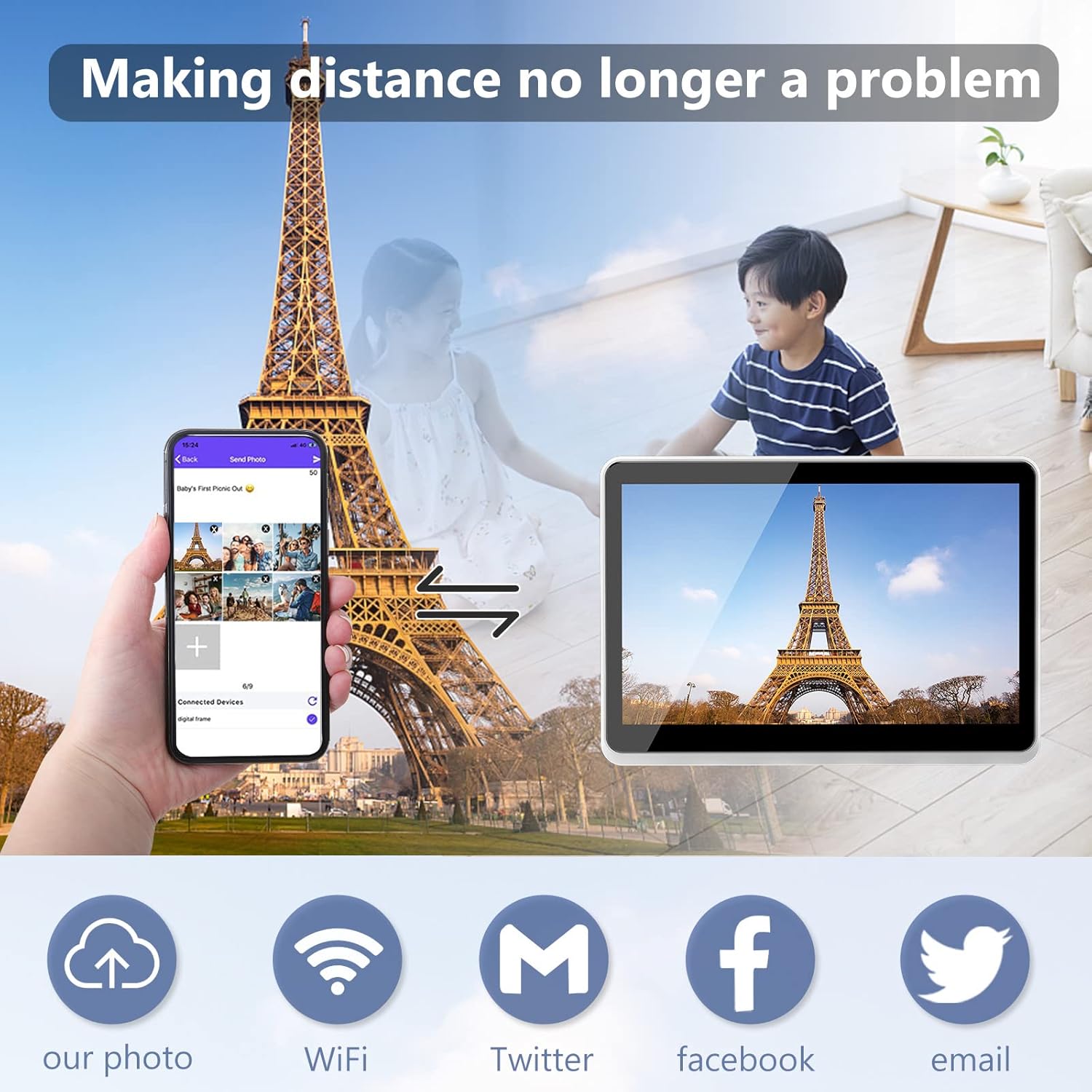
ภาพที่ 5.1: Illustration of sharing photos from a smartphone via the OurPhoto app to the Kenuo Digital Photo Frame, with options for Wi-Fi, Twitter, Facebook, and Email sharing.
6. คู่มือการใช้งาน
6.1 การส่งภาพถ่ายและวิดีโอ
You can send media to your frame using several methods:
- OurPhoto App: Select photos or videos from your device's gallery within the app and send them directly to the paired frame.
- อีเมล: Send photos or videos as attachments to the unique email address associated with your frame (found in app settings).
- โซเชียลมีเดีย: The app may offer integration with platforms like Facebook and Twitter for sharing.
- หน่วยความจำภายนอก: Insert an SD card (up to 32GB) or a USB drive into the frame's respective slots to display media directly.
6.2 การจัดการผู้ใช้
The OurPhoto app allows you to manage who can send photos to your frame:
- Share your frame code with family and friends. They can add it to their OurPhoto app to send you pictures.
- You can add or remove users from your frame's settings within the app, maintaining control over who shares content.
6.3 การนำทางแบบหน้าจอสัมผัส
หน้าจอสัมผัส IPS ขนาด 10 นิ้ว ช่วยให้ควบคุมได้อย่างง่ายดายและเป็นธรรมชาติ:
- ปัด: Swipe left or right to navigate through photos and menus.
- แตะ: Tap on icons or images to select them or access options.
- บีบเพื่อซูม: Use two fingers to zoom in or out on images.
6.4 การหมุนอัตโนมัติ
The frame supports automatic photo reorientation. You can place the frame in either portrait or landscape mode, and the display will adjust accordingly for optimal viewการไอเอ็นจี

ภาพที่ 6.1: Demonstration of the auto-rotate function, showing the frame displaying an image correctly in both portrait and landscape orientations.
6.5 การตั้งค่าสไลด์โชว์
Customize your photo display experience:
- นำทางไปที่ การตั้งค่าสไลด์โชว์ ในเมนู
- Choose from various slide intervals: 5 seconds, 10 seconds, 15 seconds, 30 seconds, 1 minute, 5 minutes, 10 minutes, 15 minutes, 20 minutes, 30 minutes, 1 hour, or 'Never'.
- Select transition effects (if available).
6.6 ฟังก์ชั่นเพิ่มเติม
The Kenuo Digital Photo Frame includes several utility features:
- เตือน: ตั้งปลุกเพื่อเตือนความจำ
- นาฬิกา: Display the current time in 12 or 24-hour format.
- ปฏิทิน: View ปฏิทิน
- สวิตช์เวลา: Schedule automatic power on/off times for the frame.
- Image Zoom & 360-degree Rotation: Zoom into photos and rotate them manually.

ภาพที่ 6.2: The Kenuo Digital Photo Frame on a table, displaying a family photo, with icons representing its features: Wi-Fi, Photo, Video, Weather, Touch, and OurPhoto App.

ภาพที่ 6.3: Various applications of the Kenuo Digital Photo Frame, including displaying photos on a wall, playing music, showing calendar and alarm functions, and use in a retail environment.
7. การบำรุงรักษา
7.1 การทำความสะอาดหน้าจอ
ในการทำความสะอาดหน้าจอสัมผัส ให้เช็ดเบาๆ ด้วยผ้าเนื้อนุ่มที่ไม่เป็นขุย สำหรับคราบสกปรกที่ล้างออกยาก ให้ใช้ผ้าชุบน้ำหมาดๆ เช็ดเบาๆampชุบผ้าด้วยน้ำหรือน้ำยาทำความสะอาดหน้าจอ หลีกเลี่ยงการใช้สารเคมีรุนแรงหรือวัสดุที่มีฤทธิ์กัดกร่อน
7.2 พื้นที่จัดเก็บ
When not in use for extended periods, store the frame in a cool, dry place away from direct sunlight and extreme temperatures. Ensure it is powered off and unplugged.
8 การแก้ไขปัญหา
If you encounter issues with your Kenuo Digital Photo Frame, please refer to the following common solutions:
| ปัญหา | สาเหตุที่เป็นไปได้ | สารละลาย |
|---|---|---|
| เครื่องไม่เปิดเครื่อง | อะแดปเตอร์ไฟไม่ได้เชื่อมต่อหรือมีข้อบกพร่อง | ตรวจสอบให้แน่ใจว่าอะแดปเตอร์แปลงไฟเชื่อมต่อกับโครงอย่างแน่นหนาและเสียบเข้ากับเต้ารับไฟฟ้าที่ใช้งานได้ ลองเสียบเข้ากับเต้ารับอื่นดู |
| ไม่สามารถเชื่อมต่อ Wi-Fi ได้ | Incorrect password; 5GHz network selected; router issues. | Verify Wi-Fi password. Ensure you are connecting to a 2.4GHz network. Restart your router. |
| รูปภาพ/วิดีโอไม่ปรากฏ | Frame not paired with app; incorrect frame code; network issue; unsupported file รูปแบบ | Confirm frame is paired with the OurPhoto app. Check network connection. Ensure media is in a supported format (JPEG, MP4, etc.). |
| Screen freezes or is unresponsive | ซอฟต์แวร์มีปัญหาชั่วคราว | รีสตาร์ทเครื่องโดยถอดปลั๊กและเสียบปลั๊กอะแดปเตอร์แปลงไฟอีกครั้ง |
| External storage (SD/USB) not recognized | Unsupported format; card/drive not inserted correctly; faulty card/drive. | Ensure card/drive is formatted to FAT32. Reinsert the card/drive. Try a different card/drive. Max 32GB supported. |
If the problem persists, please contact Kenuo customer support for further assistance.
9. ข้อมูลจำเพาะ
- แบบอย่าง: KEEU-DC0015
- แสดง: 10-inch Full HD IPS Touch Screen
- ปณิธาน: 1920 x 1080 พิกเซล
- อัตราส่วนภาพ: 16:10 น.
- Viewอิงมุม: 170° ไอพีเอส
- พื้นที่เก็บข้อมูลภายใน: 16GB
- หน่วยความจำภายนอก: Supports SD, MMC, MS, U disk up to 32GB (not included)
- ไวไฟ : 2.4GHz (ไม่รองรับ 5GHz)
- รูปแบบภาพ: JPEG, BMP, GIF, PNG
- รูปแบบเสียง: MP3, WMA, OGG, FLAC, AMR, WAV, AAC
- รูปแบบวิดีโอ: MP4, MOV, FLV, MPG, VOB, 3GP, M4V (Max 1920x1080 @ 30FPS)
- อินเทอร์เฟซอินพุต: USB, SD Card Slot
- กำลังไฟเข้า: กระแสตรง 5V/2A
- ฟังก์ชั่น: Alarm, Clock, Calendar, Time Switch, Image Zoom, 360-degree Rotation
- ภาษา: รองรับหลายภาษา
- ขนาด : 15.8 x 28 x 2.5 ซม. (6.2 x 11 x 1 นิ้ว)
- น้ำหนัก: 1.03 กก. (2.27 ปอนด์)
10. การรับประกันและการสนับสนุน
Kenuo products are designed for reliability and performance. For warranty information, please refer to the documentation included with your purchase or visit the official Kenuo webเว็บไซต์.
If you require technical assistance or have questions regarding your Kenuo Digital Photo Frame, please contact our customer support team. Contact details can typically be found on the Kenuo official website or within the OurPhoto application.
แหล่งข้อมูลออนไลน์:
- For app-related queries, refer to the OurPhoto app's help section.
- Visit the Kenuo official webเว็บไซต์นี้รวบรวมคำถามที่พบบ่อยและข้อมูลติดต่อฝ่ายสนับสนุน


