1. บทนำ
This manual provides instructions for the Monoprice Dark Matter 27-inch 165Hz Gaming Monitor. This monitor features an IPS panel, a 165Hz refresh rate, and a 1920x1080p Full HD resolution. It includes Adaptive Sync technology for smooth visuals and offers multiple connectivity options, including HDMI and DisplayPort inputs.
2. ข้อมูลด้านความปลอดภัย
- Read all instructions before operating the monitor.
- ควรเก็บจอภาพให้ห่างจากน้ำหรือความชื้นamp สภาพแวดล้อม
- อย่าปิดกั้นช่องระบายอากาศ
- ใช้เฉพาะอะแดปเตอร์ไฟฟ้าที่ผู้ผลิตจัดให้เท่านั้น
- หลีกเลี่ยงการวางจอภาพบนพื้นผิวที่ไม่มั่นคง
- ถอดสายไฟออกขณะเกิดพายุฝนฟ้าคะนองหรือเมื่อไม่ได้ใช้งานเป็นเวลานาน
- ส่งต่อการบริการทั้งหมดให้กับบุคลากรที่มีคุณสมบัติเหมาะสม
3. เนื้อหาบรรจุภัณฑ์
ตรวจสอบว่าแพ็คเกจของคุณมีรายการต่อไปนี้:
- Monoprice Dark Matter 27-inch Gaming Monitor
- ขาตั้งจอมอนิเตอร์ (ฐานและคอ)
- อะแดปเตอร์แปลงไฟและสายไฟ
- สาย HDMI
- คู่มือการใช้งาน (เอกสารนี้)
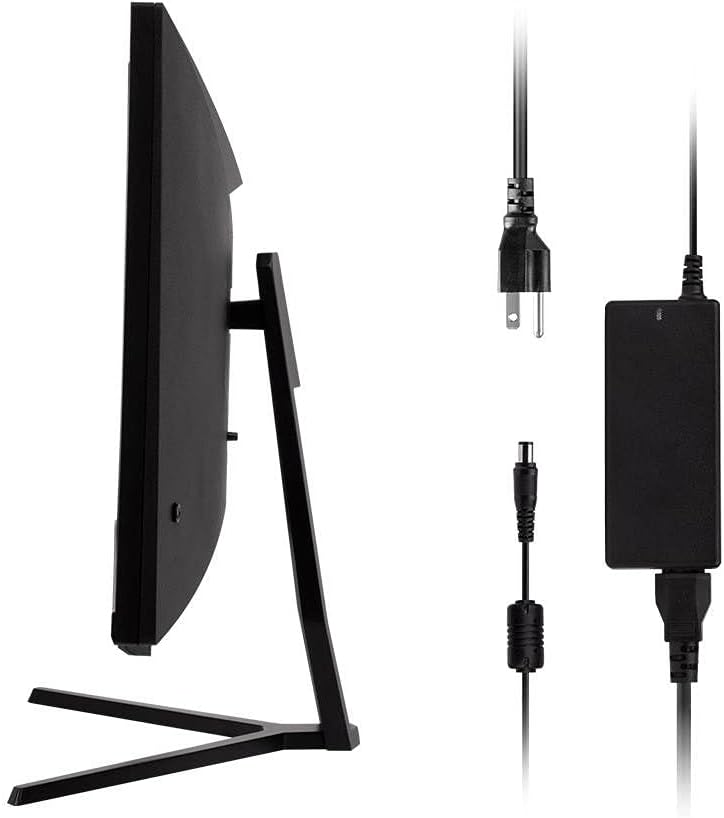
Image: Monitor side view with included power adapter and cable.
4. การตรวจสอบview
ด้านหน้า View
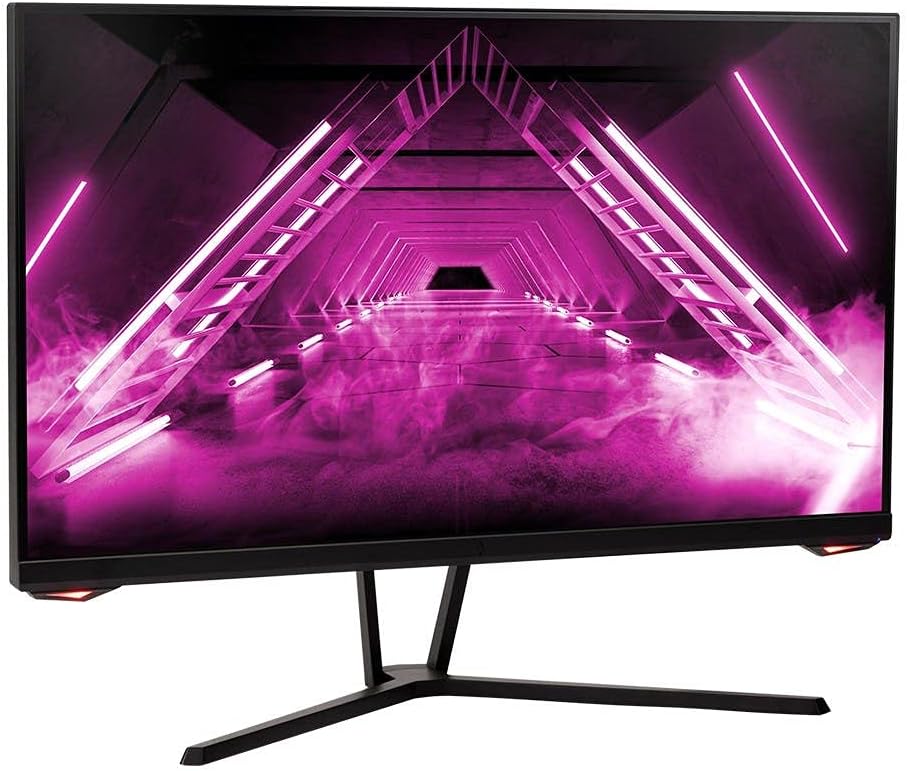
ภาพ: ด้านหน้า view ของจอภาพ
หลัง View และท่าเรือ
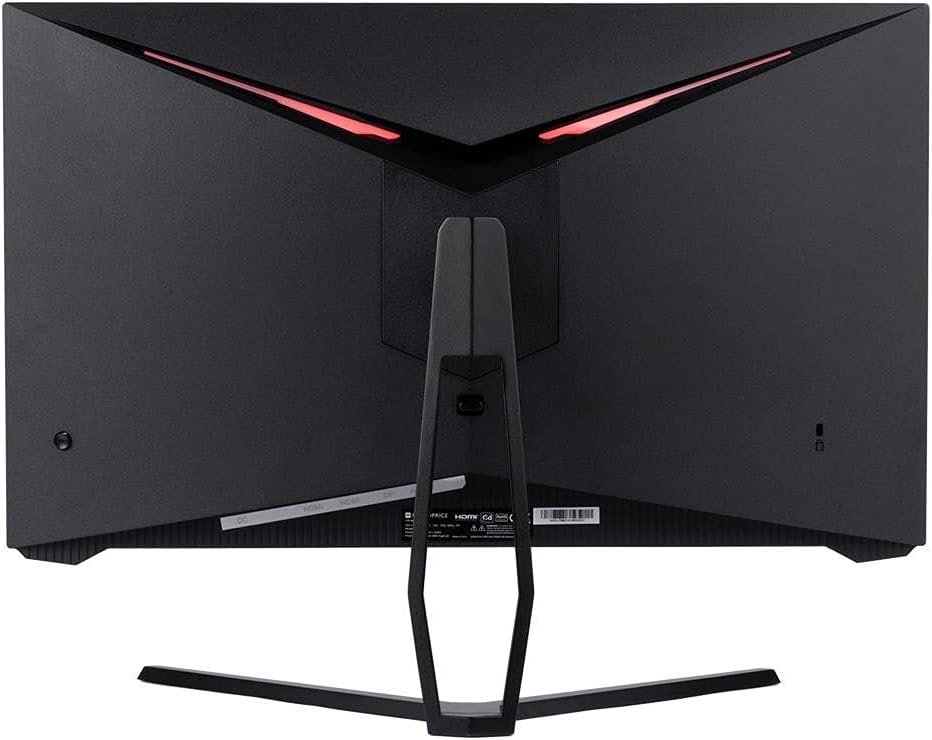
ภาพ: ด้านหลัง view of the monitor, highlighting the VESA mount and stand attachment.

Image: Close-up of the monitor's input ports.
5. การตั้งค่า
5.1 ชุดขาตั้ง
- นำจอภาพออกจากบรรจุภัณฑ์อย่างระมัดระวัง โดยวางไว้บนพื้นผิวที่อ่อนนุ่มเพื่อป้องกันความเสียหาย
- Attach the stand neck to the monitor's rear panel by aligning the tabs and securing any screws if present.
- Attach the stand base to the stand neck, ensuring it is firmly secured.
- วางจอภาพที่ประกอบแล้วไว้บนพื้นผิวที่มั่นคงและเรียบ
5.2 การติดตั้ง VESA
The monitor supports a 75x75mm VESA mount pattern. To use a wall or desk mount:
- Remove the pre-attached stand by unscrewing it from the monitor's rear panel.
- Attach your VESA-compatible mount to the monitor using the appropriate screws (not included).
- Ensure the mount is securely fastened before releasing จอภาพ
5.3 การเชื่อมต่อกับคอมพิวเตอร์
เชื่อมต่อจอภาพเข้ากับคอมพิวเตอร์ของคุณโดยใช้วิธีใดวิธีหนึ่งต่อไปนี้:
- ดิสเพลย์พอร์ต: Connect one end of a DisplayPort cable to the DisplayPort output on your computer's graphics card and the other end to the DisplayPort input on the monitor.
- ช่องต่อ HDMI: Connect one end of an HDMI cable to an HDMI output on your computer's graphics card and the other end to one of the HDMI inputs on the monitor.
After connecting the video cable, connect the power adapter to the monitor's DC input and then plug the power cable into a wall outlet.
6. การใช้งานจอภาพ
6.1 เปิด/ปิดเครื่อง
Press the power button, typically located on the rear or bottom of the monitor, to turn the monitor on or off. The power indicator light will illuminate when the monitor is on.
6.2 เมนูการแสดงผลบนหน้าจอ (OSD)
The OSD menu allows you to adjust various monitor settings. Access the OSD menu by pressing the menu button (often a joystick or a series of buttons) on the monitor. Navigate through the options using the directional controls and confirm selections.
การตั้งค่า OSD ทั่วไปได้แก่:
- การตั้งค่ารูปภาพ: ความสว่าง, คอนทราสต์, ความคมชัด, อุณหภูมิสี
- เลือกอินพุต: Choose between DisplayPort and HDMI inputs.
- เสียง: ปุ่มปรับระดับเสียงสำหรับเอาต์พุตเสียง
- คุณสมบัติการเล่นเกม: Overdrive, FreeSync/Adaptive Sync settings.
6.3 คุณสมบัติหลัก
- อัตราการรีเฟรช 165Hz: This monitor supports a 165Hz refresh rate, providing smoother motion and reduced input lag compared to standard 60Hz monitors. Ensure your graphics card and system settings are configured to utilize this refresh rate.
- การซิงโครไนซ์แบบปรับได้: This technology synchronizes the monitor's refresh rate with your graphics card's frame rate, eliminating screen tearing and stuttering for a smoother gaming experience. Enable Adaptive Sync in your graphics card's control panel and the monitor's OSD menu.
- Full HD Resolution (1920x1080p): The monitor displays content at 1920x1080 pixels, offering clear and detailed visuals.
7. การบำรุงรักษา
To maintain your monitor and ensure its longevity:
- การทำความสะอาดหน้าจอ: เช็ดหน้าจอเบาๆ ด้วยผ้านุ่มๆ ที่ไม่เป็นขุย สำหรับคราบฝังแน่น ให้ใช้น้ำยาทำความสะอาดเฉพาะสำหรับจอภาพเช็ดลงบนผ้า อย่าเช็ดลงบนหน้าจอโดยตรง
- การทำความสะอาด Casing: ใช้ผ้าแห้งนุ่มเช็ดจอภาพasinก. หลีกเลี่ยงการใช้น้ำยาทำความสะอาดที่มีฤทธิ์กัดกร่อน
- การระบายอากาศ : ตรวจสอบให้แน่ใจว่าช่องระบายอากาศของจอภาพไม่มีฝุ่นและสิ่งกีดขวางเพื่อป้องกันความร้อนสูงเกินไป
- หมดแรง: ปิดจอภาพเมื่อไม่ได้ใช้งานเป็นเวลานาน
8 การแก้ไขปัญหา
หากคุณพบปัญหาเกี่ยวกับจอภาพของคุณ โปรดดูคำแนะนำการแก้ไขปัญหาต่อไปนี้:
| ปัญหา | สาเหตุที่เป็นไปได้ | สารละลาย |
|---|---|---|
| ไม่มีภาพปรากฏบนหน้าจอ / ไฟ LED แสดงสถานะการทำงานดับ | Monitor not powered on; Power cable loose; Power outlet faulty. | Press the power button; Check power cable connections; Try a different power outlet. |
| ไม่มีภาพ / ข้อความ "ไม่มีสัญญาณ" | Video cable loose; Incorrect input selected; Computer not outputting signal. | Check video cable connections; Select the correct input via OSD; Ensure computer is on and outputting video. |
| Screen flickers or goes black intermittently | Loose video cable; Graphics driver issue; Monitor overheating; Faulty cable. | Ensure video cable is secure; Update graphics drivers; Ensure adequate ventilation around the monitor; Try a different video cable. |
| ความร้อนสูงเกินไป / ควัน | Blocked ventilation; Internal component issue. | Immediately unplug the monitor. Ensure ventilation is clear. Do not use the monitor if smoke is present. Contact support. |
| Red line or other display artifacts | Faulty panel; Graphics card issue. | Test with a different video cable and computer. If the issue persists, contact support. |
| Backlight turns off, requires power cycle | Power management settings; Internal fault. | Check computer's power saving settings. If issue persists, contact support. |
9. ข้อมูลจำเพาะ
| คุณสมบัติ | ข้อมูลจำเพาะ |
|---|---|
| หมายเลขรุ่น | 142771 |
| ขนาดหน้าจอ | 27 นิ้ว |
| ประเภทแผง | ไอพีเอส |
| ปณิธาน | 1920 x 1080 (FHD 1080p) |
| อัตราการรีเฟรช | 165เฮิรตซ์ |
| อัตราส่วนภาพ | 16:9 น. |
| อินพุตวิดีโอ | 2x HDMI 1.4, 1x DisplayPort 1.2a |
| แท่นยึด VESA | 75x75มม. |
| ขนาด (กxยxส) | 28.8 x 7.1 x 19.3 นิ้ว |
| น้ำหนักสินค้า | 15.77 ปอนด์ |
10. การรับประกันและการสนับสนุน
10.1 ข้อมูลการรับประกัน
This Monoprice monitor is backed by a 1 Year PixelPerfect Guarantee. This warranty covers defects in materials and workmanship under normal use for one year from the date of purchase. Please refer to Monoprice's official webเว็บไซต์เพื่อดูข้อกำหนดและเงื่อนไขการรับประกันฉบับเต็ม
10.2 การสนับสนุนลูกค้า
For technical assistance, warranty claims, or further information, please contact Monoprice Customer Support. Contact details can typically be found on the official Monoprice webเว็บไซต์หรือเอกสารการซื้อของคุณ
11. แหล่งข้อมูลวิดีโอ
ไม่พบวิดีโอแนะนำผลิตภัณฑ์อย่างเป็นทางการจากผู้ขายสำหรับรุ่นนี้


