1. บทนำ
This user manual provides detailed instructions for the AOLION Bluetooth Wireless Controller Adapter (Model 2070). This versatile adapter allows you to connect various wireless controllers to multiple platforms, enhancing your gaming experience with features like motion sensing and vibration feedback.

Image 1: The AOLION Bluetooth Wireless Controller Adapter, a compact black USB dongle.
2. คุณสมบัติหลัก
- ความเข้ากันได้กว้าง: Supports Switch, Switch Lite, Windows PC, Android TV Box, and Steam. Compatible with PS4, PS5, and Switch Pro controllers.
- การตรวจจับการเคลื่อนไหว: Retains precise motion-sensing capabilities for PS4, PS5, and Switch Pro controllers on Switch console (not on PC).
- ข้อเสนอแนะการสั่นสะเทือน: Enables in-game vibration transmission for PS4 and Switch Pro controllers on both PC and Switch console (excluding PS5 controller).
- ปลั๊กแอนด์เพลย์: No driver installation required for quick setup.
- การออกแบบที่กะทัดรัด: Portable and robust design for easy use.
- Bluetooth 5.0: ช่วยให้การเชื่อมต่อไร้สายมีเสถียรภาพและมีความหน่วงต่ำ
- ระยะรับสัญญาณ 10 เมตร: จัดเตรียมให้ ample range for comfortable gaming.
- การเชื่อมต่อหน่วยความจำ: Remembers previously paired devices for quick reconnection.
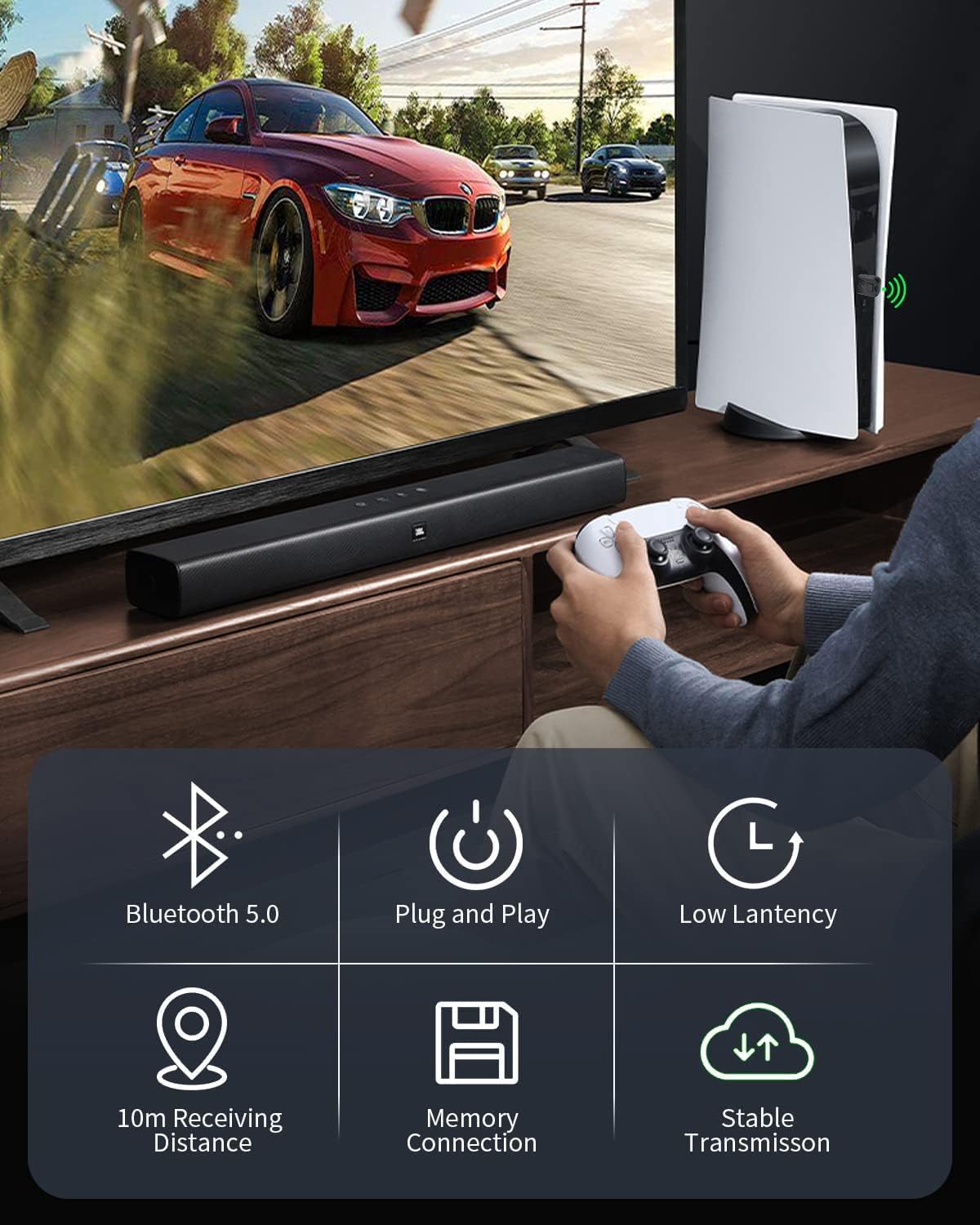
ภาพที่ 2: จบแล้วview of the adapter's key features, highlighting its wireless capabilities and ease of use.
3. คู่มือการติดตั้ง
3.1 เนื้อหาบรรจุภัณฑ์
- 1 x AOLION Bluetooth Wireless Controller Adapter (Model 2070)
- 1 x Type-C OTG Cable (for Android TV Box/Switch Lite)
- 1 x คู่มือผู้ใช้
3.2 การเชื่อมต่อกับพีซี (Windows)
- Plug the AOLION adapter into an available USB port on your Windows PC.
- The LED indicator on the adapter will blink quickly, indicating it is in pairing mode.
- Press the pairing button on your controller (e.g., PS button for PS4/PS5, Sync button for Switch Pro).
- The controller's indicator lights will blink and then become solid when successfully paired. The adapter's LED will also remain solid.

Image 3: The adapter connected to a PC, demonstrating plug-and-play functionality with a controller.
Video 1: Demonstrates how to connect a PS4 controller to a PC using the AOLION adapter. The video shows plugging the adapter into the PC and then pairing the controller.
Video 2: Illustrates the process of connecting a Switch Pro controller to a PC via the AOLION adapter. The video highlights the pairing steps for the Switch Pro controller.
Video 3: Demonstrates how to connect a PS4 controller to a PC using the AOLION adapter. The video shows plugging the adapter into the PC and then pairing the controller.
3.3 Connecting to Nintendo Switch/Switch Lite
- For Nintendo Switch (docked mode), plug the adapter into an available USB port on the dock. For Switch Lite, use the included Type-C OTG cable to connect the adapter to the console's USB-C port.
- On your Switch console, navigate to System Settings > Controllers and Sensors > Pro Controller Wired Communication and ensure it is set to "On".
- The adapter's LED will blink quickly. Press the pairing button on your controller (e.g., PS button for PS4/PS5, Sync button for Switch Pro).
- The controller's indicator lights will blink and then become solid when successfully paired. The adapter's LED will also remain solid.

Image 4: Diagram illustrating the broad compatibility of the adapter with different gaming platforms and controllers.
Video 4: Demonstrates how to connect a wireless controller to the Nintendo Switch console using the adapter. It shows the necessary settings adjustment on the Switch and the pairing process.
4. คู่มือการใช้งาน
4.1 Pairing a Controller
Once the adapter is plugged into your device (PC, Switch, Android TV Box), its LED will flash rapidly, indicating it's ready for pairing. Activate pairing mode on your controller (refer to your controller's manual for specific instructions, typically holding a sync or home button). The adapter and controller will automatically connect. The LED on the adapter and the controller's indicator will become solid upon successful pairing.
4.2 Reconnecting a Paired Controller
After initial pairing, the adapter remembers your controller. Simply plug the adapter into your device and turn on your controller. They should automatically reconnect within a few seconds. If not, briefly press the pairing button on the adapter and then the home/sync button on your controller to re-establish the connection.
4.3 Motion Sensing Functionality
The adapter supports motion sensing for PS4, PS5, and Switch Pro controllers when used with the Nintendo Switch console. This feature is not supported when the adapter is used with a PC.

Image 5: Visual representation of the somatosensory (motion sensing) function supported by the adapter for compatible controllers on the Switch.
4.4 การตอบรับการสั่นสะเทือน
Vibration feedback is supported for PS4 and Switch Pro controllers on both PC and Nintendo Switch. Please note that vibration transmission is not compatible with PS5 controllers through this adapter.

Image 6: Depiction of the vibration feedback feature, showing how in-game vibrations are transmitted to the controller.
5. การบำรุงรักษา
- รักษาอะแดปเตอร์ให้สะอาดและปราศจากฝุ่น ใช้ผ้านุ่มและแห้งเช็ดทำความสะอาด
- หลีกเลี่ยงการให้อะแดปเตอร์สัมผัสกับอุณหภูมิที่สูงหรือความชื้นสูงหรือแสงแดดโดยตรง
- ห้ามถอดประกอบหรือซ่อมแซมอะแดปเตอร์ด้วยตนเอง เนื่องจากจะทำให้การรับประกันเป็นโมฆะ
- เก็บอะแดปเตอร์ไว้ในที่ปลอดภัยเมื่อไม่ใช้งานเพื่อป้องกันความเสียหาย
6 การแก้ไขปัญหา
| ปัญหา | สาเหตุที่เป็นไปได้ | สารละลาย |
|---|---|---|
| Adapter not recognized by PC/Switch. | Loose connection, faulty USB port, console settings. | Ensure the adapter is fully inserted into the USB port. Try a different USB port. For Switch, verify "Pro Controller Wired Communication" is enabled in System Settings. Restart your PC/console. |
| Controller not pairing with adapter. | Controller not in pairing mode, interference, adapter not in pairing mode. | Ensure your controller is in pairing mode (refer to controller manual). Briefly press the pairing button on the adapter to re-enter pairing mode. Move closer to the adapter to reduce interference. |
| Vibration not working with PS5 controller. | PS5 controller not supported for vibration. | Vibration feedback is not supported for PS5 controllers with this adapter. This is a product limitation. |
| Motion sensing not working on PC. | Motion sensing not supported on PC. | Motion sensing is exclusively available on the Switch console, not on PC. |
| ตัวควบคุมตัดการเชื่อมต่อบ่อยครั้ง | Out of range, interference, low controller battery. | Ensure you are within the 10m operating range. Minimize obstacles between the adapter and controller. Charge your controller's battery. |
7. ข้อมูลจำเพาะ
- ยี่ห้อ: เอโอเลี่ยน
- หมายเลขรุ่น: 2070
- ขนาดสินค้า : 0.79 x 0.39 x 1.18 นิ้ว (ยาว 0.7 นิ้ว x กว้าง 0.3 นิ้ว x สูง 1.38 นิ้ว)
- น้ำหนักสินค้า: 40 มิลลิกรัม
- สี: สีดำ
- อินเทอร์เฟซฮาร์ดแวร์: ยูเอสบี 2.0
- โปรโตคอลการเชื่อมต่อข้อมูล: บลูทูธ
- อัตราการถ่ายโอนข้อมูล: 3 เมกะบิตต่อวินาที
- แพลตฟอร์มที่รองรับ: Nintendo Switch, Switch Lite, Windows PC, Android TV Box, Steam
- คอนโทรลเลอร์ที่เข้ากันได้: PS4, PS5, Switch Pro
- ยูพีซี: 765128527975
8. การรับประกันและการสนับสนุน
AOLION stands behind its product with a 60-day money-back guarantee and a 24-month warranty. If you encounter any issues while using the adapter, please contact AOLION's dedicated support team for assistance.
For support, please refer to the contact information provided with your product packaging or visit the official AOLION webเว็บไซต์.


