1. บทนำ
The Inateck Redcomets U27 is a high-performance PCIe expansion card designed to add a single USB 3.2 Gen 2x2 Type-C port to your computer. This card provides an exclusive 20 Gbps bandwidth, significantly enhancing data transfer speeds for compatible devices. It is engineered for reliability and ease of use, drawing power directly from the PCIe slot without requiring an external power supply.
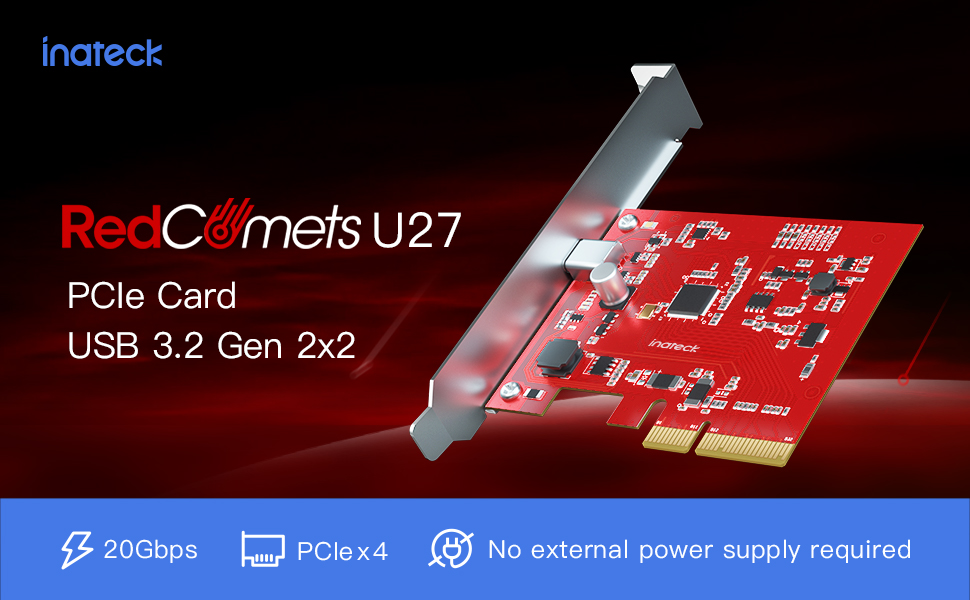
Image 1.1: The Inateck Redcomets U27 PCIe USB 3.2 Gen 2x2 Card, highlighting its 20Gbps bandwidth and self-powered design.
คุณสมบัติหลัก:
- High-speed Transmission: Dedicated USB Type-C port with 20 Gbps bandwidth.
- ความเข้ากันได้ในวงกว้าง: Supports Windows 8/10/11 (32/64 bit) and Linux operating systems.
- Dual Brackets: รวมทั้งแบบมาตรฐานและแบบความละเอียดต่ำfile brackets for versatile installation in various PC cases.
- การรักษาความปลอดภัยที่เพิ่มขึ้น: Features ESD protection to prevent short circuits and over-current protection for connected devices.
- ไม่ต้องใช้แหล่งจ่ายไฟภายนอก: Draws all necessary power directly from the PCIe slot.
2. การตั้งค่าและการติดตั้ง
Follow these steps to properly install your Inateck Redcomets U27 PCIe USB 3.2 Gen 2x2 Card into your computer system.
2.1 เนื้อหาบรรจุภัณฑ์
ก่อนการติดตั้ง ตรวจสอบว่ามีส่วนประกอบทั้งหมดอยู่ในแพ็คเกจ:

Image 2.1: The package includes the Inateck Redcomets U27 PCIe card, a standard bracket, a low-profile bracket, mounting screws, a screwdriver, and an installation guide.
2.2 ข้อกำหนดของระบบ
- Available PCIe 2.0, 3.0, or 4.0 slot (x4, x8, or x16 recommended for optimal performance).
- Operating System: Windows 8, Windows 10, Windows 11 (32/64 bit), or Linux.
- บันทึก: This card is not compatible with Windows 7 or macOS.
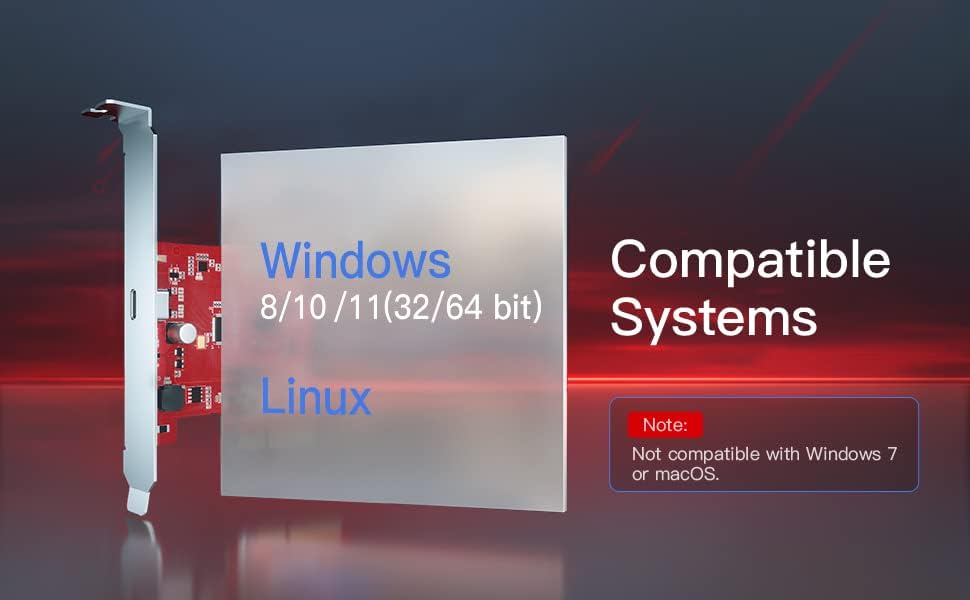
Image 2.2: Visual representation of compatible operating systems, including Windows 8, 10, 11, and Linux, with a note on incompatibility with Windows 7 and macOS.
2.3 ขั้นตอนการติดตั้งฮาร์ดแวร์
- ปิดและตัดการเชื่อมต่อ: ปิดเครื่องคอมพิวเตอร์ให้สนิทและถอดสายไฟออกจากเต้ารับที่ผนัง
- เปิดเคส: ถอดแผงด้านข้างของเคสคอมพิวเตอร์ของคุณเพื่อเข้าถึงเมนบอร์ด
- ค้นหาสล็อต PCIe: Identify an available PCIe x4, x8, or x16 slot on your motherboard. For maximum performance, a PCIe 3.0 or 4.0 x16 slot is recommended.
- ถอดฝาครอบช่อง: ถอดฝาครอบช่องโลหะออกจากด้านหลังเคสคอมพิวเตอร์ของคุณที่ตรงกับช่อง PCIe ที่เลือก
- ติดตั้งการ์ด: Carefully align the Inateck Redcomets U27 card with the PCIe slot and press it firmly until it is securely seated. Ensure the card's bracket aligns with the opening in the case.
- บัตรที่ปลอดภัย: Use the provided screw to secure the card's bracket to the computer case.
- ปิดคดี: Replace the computer's side panel and reconnect the power cord.
- เปิดเครื่อง: Turn on your computer. The operating system should automatically detect and install the necessary drivers.

ภาพที่ 2.3: รายละเอียด view of a PCIe slot, indicating support for PCIe 2.0, 3.0, and 4.0, and compatibility with x4, x8, and x16 slots.

Image 2.4: The Inateck Redcomets U27 PCIe card correctly installed in a computer's PCIe slot, demonstrating that no additional power cables are required.
2.4 Bracket Replacement (Optional)
If your computer case requires a low-profile bracket, you can replace the pre-installed standard bracket:
- Carefully unscrew the two small screws holding the standard bracket to the PCIe card.
- Remove the standard bracket.
- จัดตำแหน่งโปรต่ำfile bracket with the screw holes on the card and secure it with the screws.
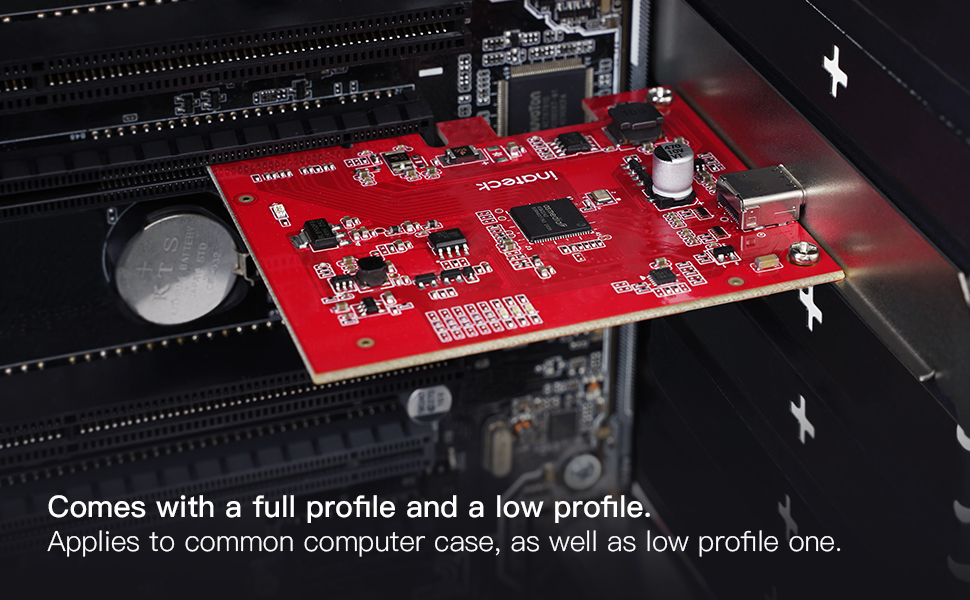
Image 2.5: The Inateck Redcomets U27 PCIe card is supplied with both a full-profile and a low-profile bracket to accommodate different computer case sizes.
3. คู่มือการใช้งาน
Once the Inateck Redcomets U27 card is installed and your computer has booted, the USB 3.2 Gen 2x2 Type-C port is ready for use.
3.1 การเชื่อมต่ออุปกรณ์
Connect your USB 3.2 Gen 2x2 compatible devices (e.g., external SSDs, high-speed storage devices) to the Type-C port on the card. Ensure you use a high-quality USB-C to USB-C cable that supports 20 Gbps data transfer rates to achieve optimal performance.

Image 3.1: A visual comparison illustrating the significant speed advantage of 20Gbps USB 3.2 Gen 2x2 over 5Gbps USB 3.2 Gen 1.
3.2 การติดตั้งไดรเวอร์
For Windows 8/10/11 and Linux, the card is typically plug-and-play, meaning the operating system will automatically install the necessary drivers upon first boot after installation. No manual driver installation is usually required.
4. การบำรุงรักษา
Proper maintenance ensures the longevity and optimal performance of your Inateck Redcomets U27 card.
- รักษาความสะอาด: Periodically open your computer case and use compressed air to gently remove dust accumulation from the card and surrounding components. Dust can impede airflow and lead to overheating.
- การเชื่อมต่อที่ปลอดภัย: Ensure the card remains firmly seated in its PCIe slot. Loose connections can cause intermittent issues or performance degradation.
- การป้องกัน ESD: The card features built-in ESD (Electrostatic Discharge) protection. However, always handle the card by its edges and avoid touching the gold contacts or components directly to prevent static damage during installation or handling.

ภาพที่ 4.1: ภายใน view of the card's circuitry, illustrating the over-current and ESD protection mechanisms that safeguard connected devices from potential damage.
5 การแก้ไขปัญหา
If you encounter issues with your Inateck Redcomets U27 card, refer to the following troubleshooting tips:
5.1 ไม่พบการ์ดหรือการ์ดใช้งานไม่ได้
- ตรวจสอบที่นั่ง: Ensure the card is fully and securely seated in the PCIe slot. Power off your PC, open the case, and gently press down on the card until it clicks into place.
- ลองเล่นในช่องอื่นดู: If available, try installing the card in a different PCIe slot to rule out a faulty motherboard slot.
- ตรวจสอบความเข้ากันได้: Confirm your operating system is Windows 8/10/11 or Linux. The card is not compatible with Windows 7 or macOS.
- ตรวจสอบตัวจัดการอุปกรณ์ (Windows): Open Device Manager and look for any unknown devices or devices with error symbols under "Universal Serial Bus controllers" or "Other devices." If found, try updating the driver (though typically automatic).
5.2 ความเร็วในการถ่ายโอนข้อมูลช้า
- แบนด์วิดท์สล็อต PCIe: While the card works in x4, x8, or x16 slots, ensure it is installed in a PCIe 3.0 or 4.0 x16 slot for optimal 20 Gbps performance. Installing in a lower bandwidth slot (e.g., PCIe 2.0 x1) will limit the speed.
- คุณภาพของสาย USB: Use a high-quality USB-C to USB-C cable specifically rated for 20 Gbps (USB 3.2 Gen 2x2) or higher. Lower quality or older cables may limit speeds to 5 Gbps or 10 Gbps.
- Connected Device Capability: Ensure the external device (e.g., SSD enclosure, external drive) connected to the card also supports USB 3.2 Gen 2x2 (20 Gbps) speeds. The overall transfer speed will be limited by the slowest component in the chain.
- Motherboard Configuration: Some motherboards may share PCIe lanes. Refer to your motherboard manual to ensure the chosen PCIe slot has dedicated bandwidth and is not sharing lanes with other components that could reduce performance.
6. ข้อมูลจำเพาะ
| คุณสมบัติ | รายละเอียด |
|---|---|
| ยี่ห้อ | อินาเท็ค |
| หมายเลขรุ่น | KU1222 |
| ฮาร์ดแวร์อินเตอร์เฟซ | USB Type C (PCIe) |
| อัตราการถ่ายโอนข้อมูล | 20 Gbps (USB 3.2 Gen 2x2) |
| ความเข้ากันได้ของระบบปฏิบัติการ | วินโดวส์ 8/10/11, ลินุกซ์ |
| PCIe Slot Compatibility | PCIe 2.0, 3.0, 4.0 (x4, x8, x16 slots) |
| แหล่งจ่ายไฟ | PCIe Bus Powered (No external power required) |
| ขนาด (กxยxส) | 3.62 x 3.15 x 0.94 นิ้ว (9.2 x 8.0 x 2.4 ซม.) |
| น้ำหนักสินค้า | 3.2 ออนซ์ (90.7 กรัม) |
| รวมวงเล็บ | สแตนดาร์ดโปรfile, โปรต่ำfile |
7. การรับประกันและการสนับสนุน
7.1 ข้อมูลการรับประกัน
For detailed warranty information regarding your Inateck Redcomets U27 PCIe USB 3.2 Gen 2x2 Card, please refer to the official Inateck webตรวจสอบเว็บไซต์หรือบัตรรับประกันที่แนบมาในบรรจุภัณฑ์ของผลิตภัณฑ์ เงื่อนไขและข้อกำหนดการรับประกันอาจแตกต่างกันไปตามภูมิภาคและวันที่ซื้อ
7.2 การสนับสนุนด้านเทคนิค
If you require technical assistance, have questions about installation, or need further troubleshooting, please visit the official Inateck support website. You can typically find FAQs, driver downloads (if applicable), and contact information for customer service there.
อินาเทค อย่างเป็นทางการ Webเว็บไซต์: www.inatec.com


