StarTech.com 2 Port Dual Monitor HDMI KVM Switch
Model: SV231DHU34K6
1. บทนำ
This instruction manual provides detailed information on the installation, operation, and maintenance of your StarTech.com 2 Port Dual Monitor HDMI KVM Switch. This device allows you to control two computers from a single set of peripherals, including two HDMI monitors, a keyboard, a mouse, and other USB devices, supporting resolutions up to 4K at 60Hz.
2. ข้อมูลด้านความปลอดภัย
โปรดอ่านและทำความเข้าใจคำแนะนำทั้งหมดก่อนใช้ผลิตภัณฑ์นี้ การไม่ปฏิบัติตามคำแนะนำเหล่านี้อาจส่งผลให้เกิดไฟฟ้าช็อต ไฟไหม้ หรือการบาดเจ็บร้ายแรงได้
- อันตรายจากไฟฟ้า: Do not use damaged or frayed cables. Exposed wires can lead to electric shocks. Ensure all cables are properly connected and secured to prevent accidental disconnection.
- ความร้อนสะสม: Overloaded or tightly bundled cables can overheat and pose a fire hazard. Ensure adequate ventilation and avoid bundling power cables.
- ความเสียหาย: ควรดึงปลั๊กอะแดปเตอร์โดยจับที่ตัวปลั๊ก ไม่ใช่ที่สายไฟ การดึงที่สายไฟอาจทำให้สายไฟที่มีกระแสไฟฟ้าไหลผ่านออกมา ซึ่งอาจทำให้เกิดไฟฟ้าช็อตหรือไฟไหม้ได้
3. สินค้าหมดview
The StarTech.com SV231DHU34K6 KVM switch is designed to streamline your workspace by enabling control of two computers with dual 4K HDMI displays and shared USB peripherals. Its robust steel housing ensures durability.
3.1. คุณสมบัติหลัก
- Supports dual 4K (3840 x 2160) resolution at 60Hz per monitor.
- HDMI 2.0, HDCP 2.2, and HDR10 support.
- Integrated 2-port USB 3.0 Hub (5Gbps) for sharing peripherals.
- Four USB 2.0 HID ports for keyboard and mouse.
- Hotkey and front-panel push-button switching.
- EDID and HDCP signal emulation for fast, seamless switching.
- Supports stereo analog and 7.1 digital audio.
- OS Independent compatibility (Windows, Mac, Linux).
3.2. แผงด้านหน้า

รูปที่ 1: เค้าโครงแผงด้านหน้า
- HID USB Port: For connecting a keyboard or mouse.
- 5G USB Port: สำหรับเชื่อมต่ออุปกรณ์ USB 3.0 ความเร็วสูง
- Computer Selection Buttons (1, 2): Press to switch to the corresponding computer.
- ปุ่มเลือก: Used for various functions, including auto-scan activation.
3.3. แผงด้านหลัง
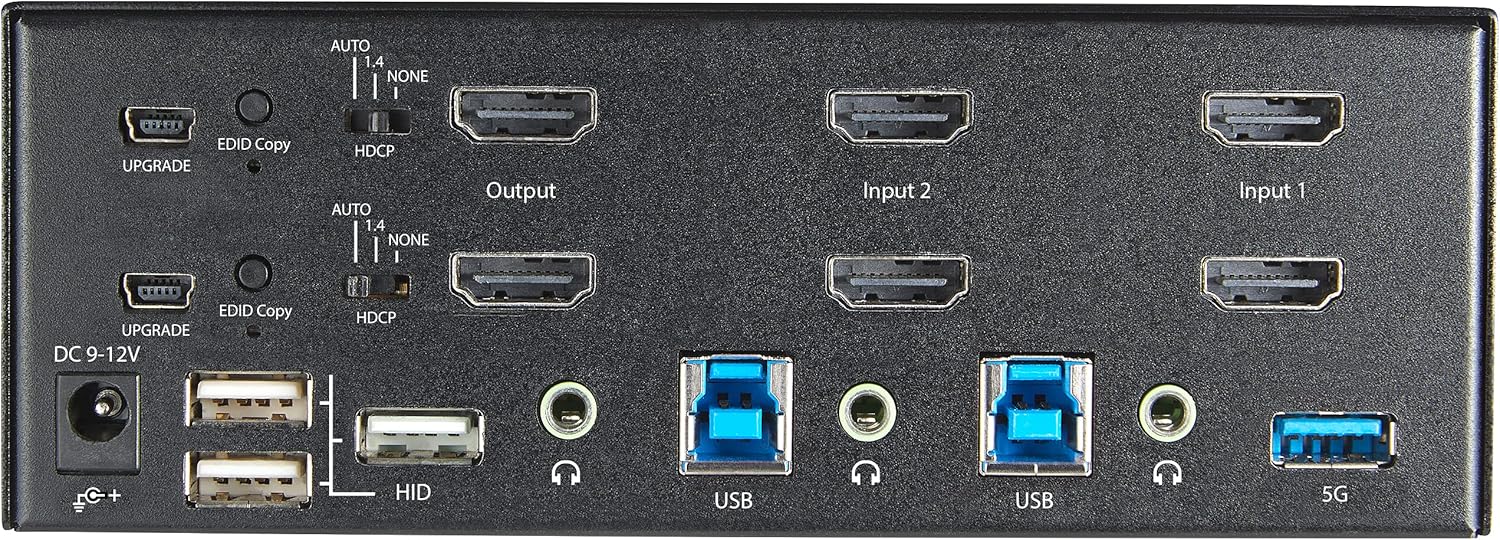
รูปที่ 2: เค้าโครงแผงด้านหลัง
- แหล่งจ่ายไฟ DC 9-12V: เชื่อมต่ออะแดปเตอร์ไฟฟ้าที่ให้มาด้วย
- อัปเกรดพอร์ต: สำหรับการอัพเดตเฟิร์มแวร์
- EDID Copy Button/Switch: Manages Extended Display Identification Data.
- สวิตช์ HDCP: Manages High-bandwidth Digital Content Protection.
- Output (HDMI): Connect to your monitors.
- Input 1/Input 2 (HDMI): Connect to the HDMI outputs of your computers.
- USB (ประเภท-B): Connect to the USB 3.0 ports of your computers.
- HID USB Ports (Type-A): For additional keyboard/mouse connections or other low-power USB devices.
- Audio Jacks (3.5mm): For connecting speakers/headphones and microphones.
- 5G USB Port (Type-A): สำหรับเชื่อมต่ออุปกรณ์ USB 3.0 ความเร็วสูง
4. การตั้งค่า
4.1. อะไรอยู่ในกล่อง
- 1 x KVM Switch (SV231DHU34K6)
- 1 x อะแดปเตอร์แปลงไฟอเนกประสงค์ (NA/JP, EU, UK, ANZ)
- 4 x เท้ายาง
- 1 x คู่มือเริ่มต้นอย่างรวดเร็ว
Note: HDMI cables, USB 3.0 Type-A to Type-B cables, and audio cables are not included and must be purchased separately.
4.2. คำแนะนำในการเชื่อมต่อ
ปฏิบัติตามขั้นตอนเหล่านี้เพื่อเชื่อมต่อสวิตช์ KVM ของคุณ:
- เชื่อมต่อจอภาพ: Connect your two HDMI monitors to the 'Output' HDMI ports on the rear panel of the KVM switch.
- Connect Computers (HDMI): Connect the HDMI outputs from Computer 1 to the 'Input 1' HDMI ports on the KVM switch. Repeat for Computer 2 and 'Input 2'. Ensure both HDMI outputs from each computer are connected for dual monitor support.
- Connect Computers (USB): Connect the USB 3.0 Type-B ports on the KVM switch to the USB 3.0 Type-A ports on Computer 1 and Computer 2 using appropriate USB 3.0 cables. These connections enable keyboard, mouse, and USB hub functionality.
- เชื่อมต่ออุปกรณ์ต่อพ่วง:
- Connect your keyboard and mouse to the 'HID' USB ports on the front or rear panel.
- Connect other USB devices (e.g., printer, scanner, webcam) to the '5G' USB 3.0 ports on the front or rear panel.
- เชื่อมต่อเสียง (อุปกรณ์เสริม): If desired, connect your speakers/headphones and microphone to the 3.5mm audio jacks on the rear panel.
- เชื่อมต่อพลังงาน: Connect the included universal power adapter to the 'DC 9-12V' power input on the rear panel, then plug it into a power outlet. The KVM switch will power on automatically.

Figure 3: KVM Switch with Ports for Connection
5. การใช้งานสวิตช์ KVM
5.1. การสลับระหว่างคอมพิวเตอร์
You can switch between connected computers using either the front-panel push buttons or hotkey commands.
- Front-Panel Buttons: Press the '1' or '2' button on the front panel to directly switch to Computer 1 or Computer 2, respectively.
- การสลับปุ่มลัด: Use keyboard hotkey combinations to switch computers. The default hotkey sequence is typically Scroll Lock, Scroll Lock, [1 or 2]. Refer to the Quick-Start Guide for a complete list of hotkey commands and customization options. A buzzer sound confirms the switch.
5.2. EDID and HDCP Emulation
The KVM switch includes EDID (Extended Display Identification Data) and HDCP (High-bandwidth Digital Content Protection) signal emulation. This feature ensures that your monitors remain synced and desktop settings are maintained when switching between computers, preventing display resolution changes or window rearrangement.
5.3. USB Hub Functionality
The integrated USB 3.0 hub allows you to share two USB 3.0 peripherals (connected to the 5G ports) and four USB 2.0 HID peripherals (connected to the HID ports) between the connected computers. Devices connected to these ports will function as if directly connected to the currently selected host computer.
5.4. การสนับสนุนด้านเสียง
The KVM switch supports both digital audio (via HDMI, 7.1 Channel Audio) and separate 3.5mm stereo analog audio (2 Channel Audio). Ensure your displays and sources support the desired audio format for full compatibility.
6. การบำรุงรักษา
เพื่อให้มั่นใจได้ว่าสวิตช์ KVM ของคุณจะมีอายุการใช้งานยาวนานและทำงานได้อย่างมีประสิทธิภาพสูงสุด โปรดปฏิบัติตามคำแนะนำในการบำรุงรักษาดังต่อไปนี้:
- การทำความสะอาด: ใช้ผ้าแห้งนุ่มเช็ดทำความสะอาดภายนอกของอุปกรณ์ ห้ามใช้น้ำยาทำความสะอาดหรือสเปรย์กระป๋อง
- การระบายอากาศ : Ensure the KVM switch is placed in a well-ventilated area. Do not block any ventilation openings.
- การจัดการสายเคเบิล: Keep cables organized and untangled to prevent damage and ensure proper airflow. Avoid excessive bending or crimping of cables.
- พื้นที่จัดเก็บ: เมื่อไม่ได้ใช้งานเป็นเวลานาน ควรเก็บอุปกรณ์ไว้ในที่แห้งและเย็น หลีกเลี่ยงแสงแดดโดยตรงและอุณหภูมิที่สูงหรือต่ำเกินไป
7 การแก้ไขปัญหา
หากคุณพบปัญหาเกี่ยวกับสวิตช์ KVM โปรดดูปัญหาและวิธีแก้ไขทั่วไปต่อไปนี้:
- ไม่มีการแสดงผลหรือความละเอียดไม่ถูกต้อง:
- Ensure all HDMI cables are securely connected to both the KVM switch and your computers/monitors.
- Verify that your HDMI cables are rated for 4K 60Hz if you are using 4K displays. Longer cables (e.g., over 3m/10ft) may require higher quality or active cables.
- Check the display settings on your computers to ensure they are configured for the correct resolution and refresh rate.
- Try power cycling the KVM switch and monitors.
- คีย์บอร์ด/เมาส์ไม่ตอบสนอง:
- Ensure the USB Type-B cables are securely connected from the KVM switch to your computers.
- Verify that your keyboard and mouse are connected to the designated HID USB ports.
- ลองเชื่อมต่อคีย์บอร์ด/เมาส์เข้ากับคอมพิวเตอร์โดยตรงเพื่อตรวจสอบว่าใช้งานได้หรือไม่
- Some specialized keyboards/mice with advanced features may require direct connection or specific drivers.
- ไม่พบอุปกรณ์ USB:
- Ensure the USB Type-B cables are connected from the KVM switch to your computers.
- Verify that the USB device is connected to the appropriate 5G USB 3.0 port.
- Some high-power USB devices may require an external power source or a powered USB hub connected to the KVM's 5G port.
- ปัญหาเกี่ยวกับเสียง:
- Check all 3.5mm audio cable connections.
- Verify audio output settings on your computers.
- Ensure your monitors or audio devices support the HDMI audio format being sent.
- Slow Switching Time:
- The KVM switch is designed for fast switching. If experiencing delays, ensure EDID and HDCP emulation are functioning correctly.
- Ensure all cables are of good quality and properly seated.
If the problem persists after attempting these solutions, please contact StarTech.com technical support.
8. ข้อมูลจำเพาะ
| หมวดหมู่ | ข้อมูลจำเพาะ |
|---|---|
| หมายเลขรุ่น | SV231DHU34K6 |
| พอร์ต KVM | 2 |
| Monitors Supported | 2 |
| ประเภทวิดีโอ | HDMI2.0 การเชื่อมต่อ |
| ความละเอียดที่รองรับ | สูงสุด 3840 x 2160 @ 60Hz |
| รองรับ HDCP | HDCP2.2 ขึ้นไป |
| รองรับ HDR | HDR10 |
| ฮับ USB | พอร์ต USB 2 3.0 พอร์ต (5Gbps) |
| พอร์ต USB HID | USB 4 2.0 ช่อง |
| การสนับสนุนด้านเสียง | HDMI (7.1 Channel), Analog Stereo (3.5mm) |
| การเลือกพอร์ต | Push Button, Hotkeys |
| วัสดุ | เหล็ก |
| สี | สีดำ |
| ขนาดสินค้า (กว้าง x ยาว x สูง) | 6.3 x 3.9 x 2.3 นิ้ว (16.0 x 10.0 x 5.8 ซม.) |
| น้ำหนักผลิตภัณฑ์ | 1.8 ปอนด์ (0.8 กก.) |
| แหล่งพลังงาน | อะแดปเตอร์ AC (รวม) |
| อินพุต Voltage | 100 - 240 AC |
| การใช้พลังงาน | 36วัตต์ |
| อุณหภูมิในการทำงาน | 0 ℃ ถึง 40 ℃ (32 ℉ ถึง 104 ℉) |
| อุณหภูมิในการจัดเก็บ | -10°C ถึง 60°C (14°F ถึง 140°F) |
| ความชื้น | ความชื้นสัมพัทธ์ 0% ถึง 80% (ไม่ควบแน่น) |
9. การรับประกันและการสนับสนุน
This StarTech.com KVM Switch (Model: SV231DHU34K6) is backed by a รับประกัน 2 ปี. StarTech.com also provides บริการสนับสนุนด้านเทคนิคฟรีตลอดอายุการใช้งาน. For technical assistance or warranty claims, please visit the official StarTech.com webเว็บไซต์หรือติดต่อทีมสนับสนุนลูกค้าของพวกเขา
หากต้องการข้อมูลเพิ่มเติม โปรดเยี่ยมชม: www.startech.com


