การแนะนำ
Introducing MX Keys Mini – a smaller, smarter, and mightier keyboard made for creators. Type with confidence on a keyboard crafted for efficiency, stability, and precision. The ergonomic design aligns your shoulders, allowing you to place your mouse closer to your keyboard for less arm reaching, more comfort, and improved body posture. Easily pair MX Keys Mini via Bluetooth Low Energy with up to 3 devices. Smart Keys transform the way you work, with a Dictation key to talk-to-text with the press of a button, an Emoji key to instantly open your emoji window, and a Mic Mute/Unmute button for smooth video calls. Team up with a Flow-enabled MX Master 3 or MX Anywhere 3 and type on multiple devices in one fluid workflow. Transfer files, documents, and images across computers and Mac and Windows operating systems. Not compatible with Logitech Unifying Receiver Technology.
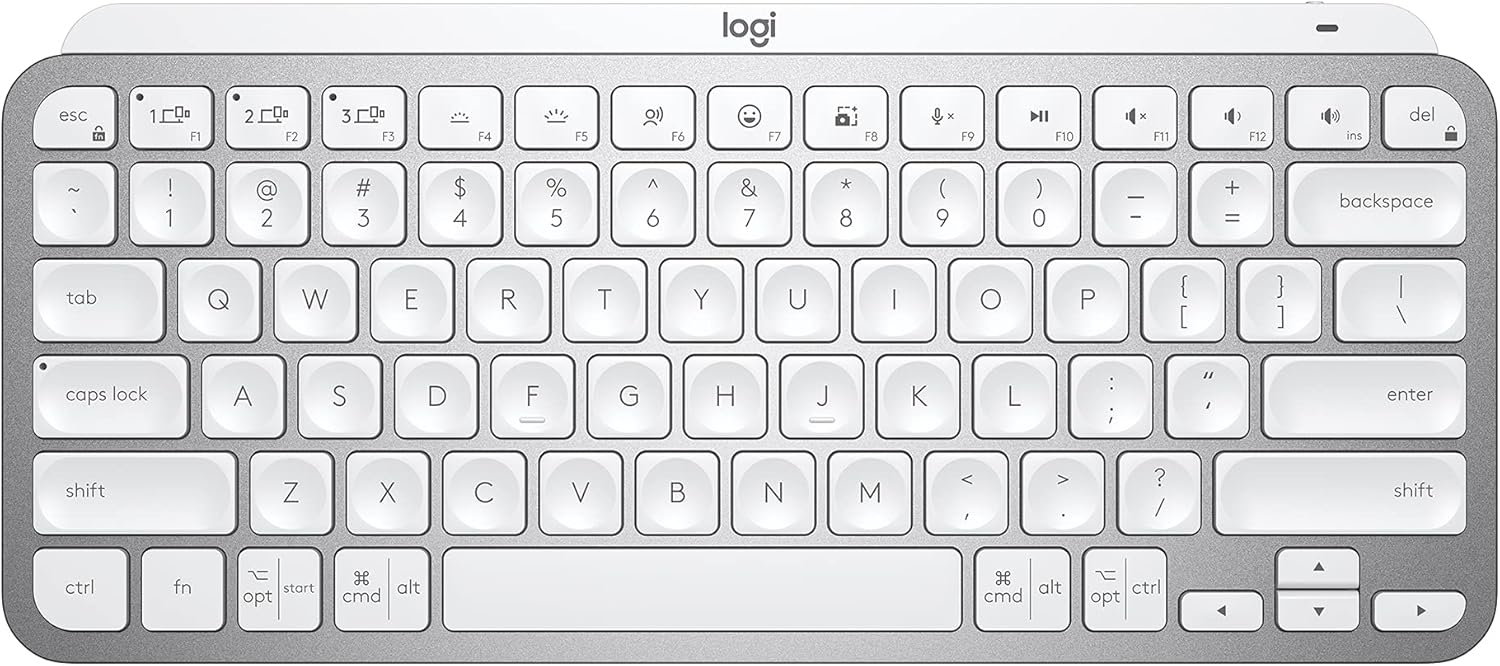
Image: The Logitech MX Keys Mini keyboard in pale gray, showcasing การออกแบบที่กะทัดรัด
มีอะไรอยู่ในกล่อง
The Logitech MX Keys Mini package includes the following items:
- แป้นพิมพ์
- สายชาร์จ
- เอกสารข้อมูลสำคัญ

Image: A visual representation of the items included in the product packaging: the keyboard, a USB-C charging cable, and documentation.
การตั้งค่า
To begin using your Logitech MX Keys Mini keyboard, follow these general setup steps. For detailed instructions, refer to the comprehensive User Guide PDF linked in the Warranty and Support section.
1. ค่าธรรมเนียมเริ่มต้น
Before first use, it is recommended to fully charge the keyboard using the provided USB-C charging cable. Connect the cable to the keyboard's USB-C port and to a power source (e.g., computer USB port, USB wall adapter).

Image: A close-up of the keyboard showing the USB-C port with a charging cable connected, indicating quick charging capability.
2. การจับคู่อุปกรณ์
The MX Keys Mini can be paired with up to three devices via Bluetooth Low Energy. Use the Easy-Switch keys (1, 2, 3) located at the top left of the keyboard to select a channel and initiate pairing. Hold down the Easy-Switch key until the LED indicator blinks rapidly, then search for the keyboard on your device's Bluetooth settings.
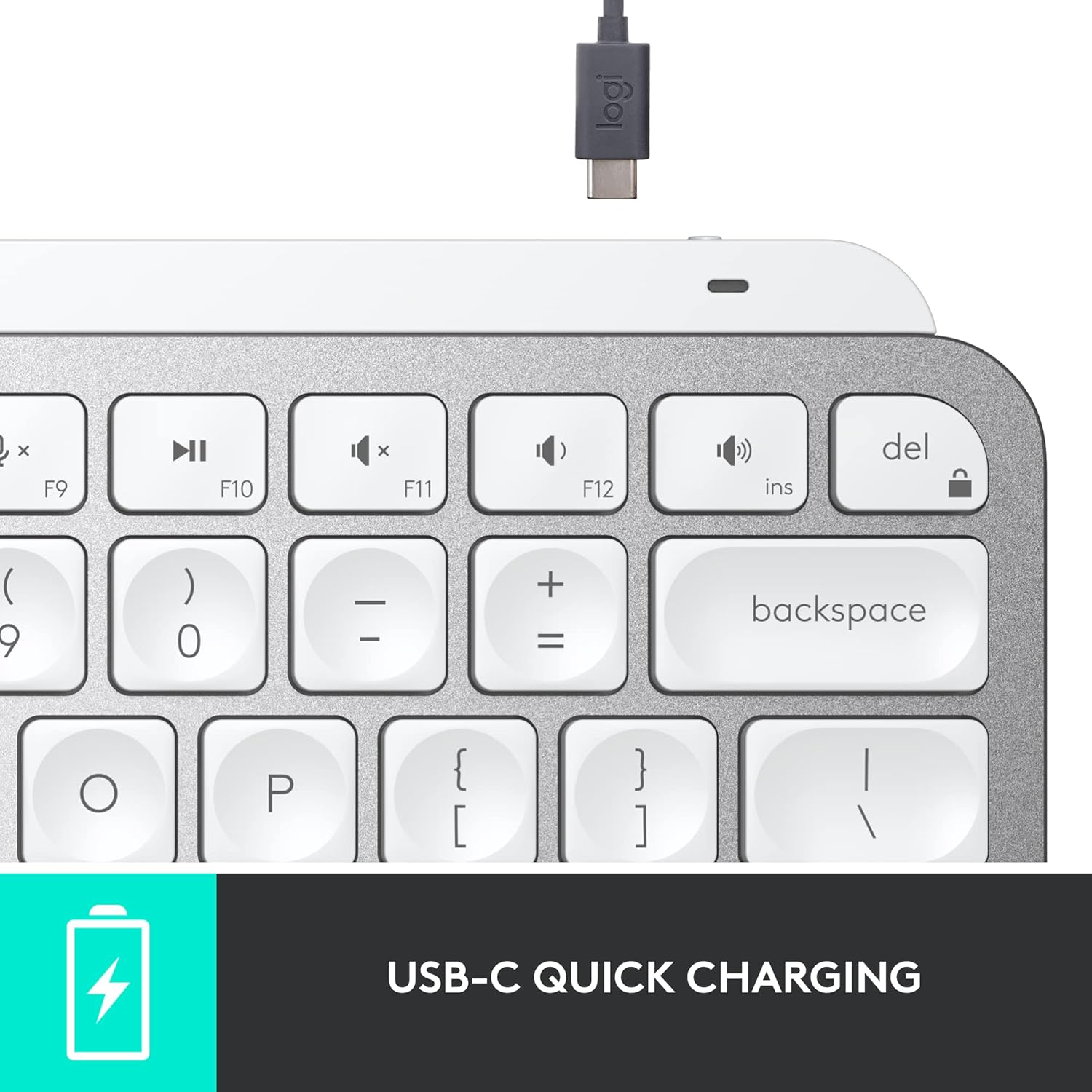
Image: Illustration demonstrating the keyboard's ability to connect to multiple devices (desktop, laptop, tablet) and switch between them using dedicated keys.
3. Install Logitech Options Software (Recommended)
For full functionality and customization of Smart Keys, backlighting, and Flow features, install the Logitech Options software. This software is available for Windows and macOS. Basic functions will work without the software on other operating systems.
เยี่ยมชมฝ่ายสนับสนุน Logitech อย่างเป็นทางการ website to download the latest version of Logitech Options.
การใช้งานแป้นพิมพ์
The Logitech MX Keys Mini is designed for an efficient and comfortable typing experience with several intelligent features.
Perfect Stroke Typing
The keys are shaped for your fingertips, providing a fluid, efficient, and responsive typing experience. This design contributes to reduced typing fatigue.

ภาพ: ภาพระยะใกล้ view of the keyboard keys, highlighting their concave shape and "Perfect Stroke Keys" feature for comfortable typing.
Smart Keys and Functionality
The keyboard features dedicated Smart Keys for enhanced productivity:
- ปุ่มการบอกตามคำบอก: Press to activate talk-to-text functionality (requires Logitech Options software).
- ปุ่มอิโมจิ: เปิดหน้าต่างอีโมจิของคุณทันที
- Mic Mute/Unmute Button: For convenient control during video calls.
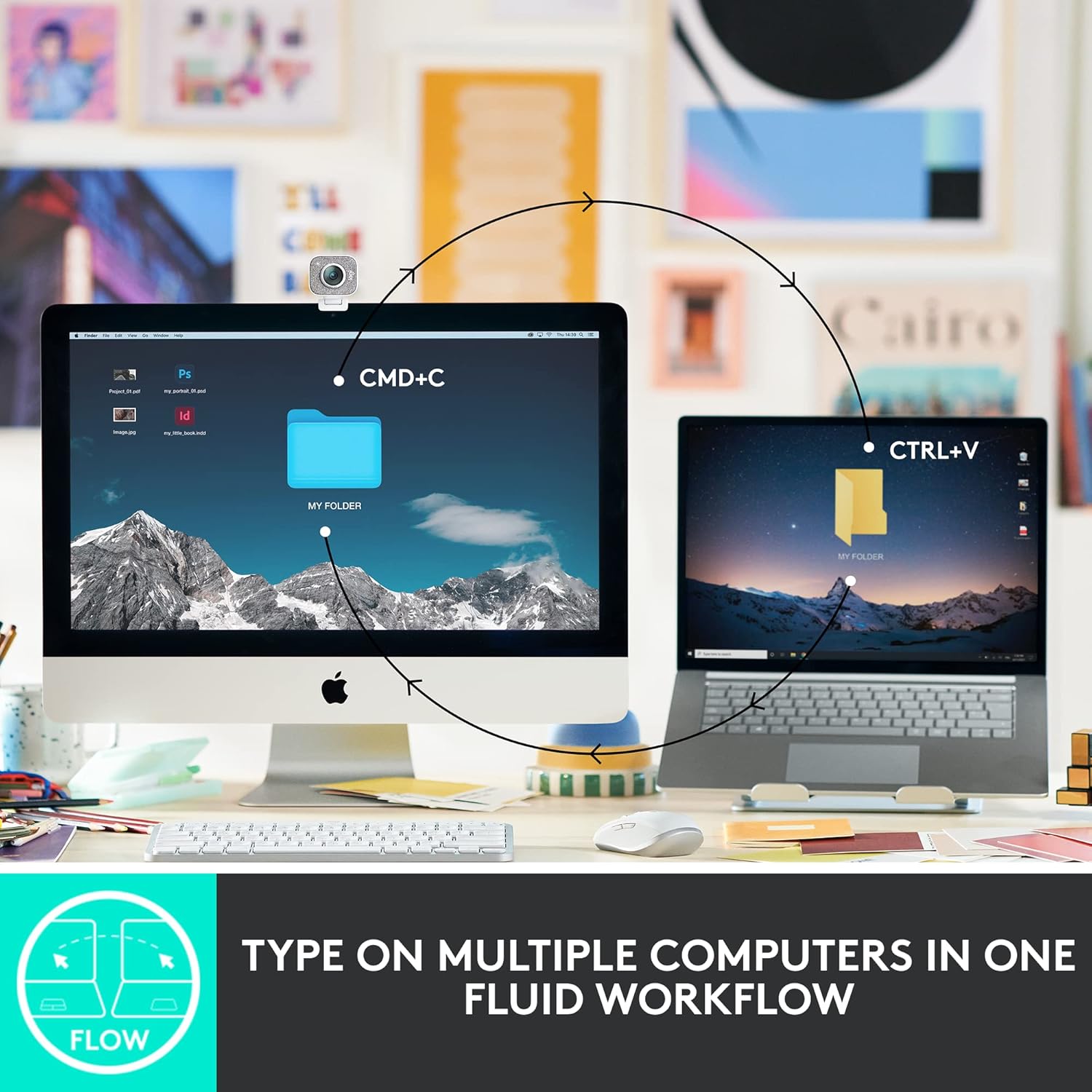
Image: An annotated image of the keyboard pointing out key features such as Easy Switch buttons, Smart Keys, USB-C quick charging, and Smart Backlighting.
ไฟส่องสว่างอัจฉริยะ
The wireless keyboard's backlit keys light up the moment your hands approach and automatically adjust to suit changing lighting conditions, conserving battery life.

Image: The keyboard illuminated in a low-light setting, demonstrating its smart backlighting feature that adjusts to the environment.
ความเข้ากันได้กับ Logitech Flow
When paired with a Flow-enabled MX Master 3 or MX Anywhere 3 mouse, you can type across multiple computers or laptops in one fluid workflow. This allows for seamless transfer of files, documents, and images between different operating systems (Mac and Windows).

Image: A diagram illustrating the Logitech Flow feature, enabling users to type and transfer content between two different computers (desktop and laptop) seamlessly.
การซ่อมบำรุง
Proper care and maintenance will ensure the longevity and optimal performance of your Logitech MX Keys Mini keyboard.
การทำความสะอาด
To clean the keyboard, use a soft, lint-free cloth. For stubborn dirt, slightly dampen the cloth with water or a mild, non-abrasive cleaning solution. Avoid using harsh chemicals, solvents, or abrasive materials, as these can damage the keyboard's finish and components.
การดูแลแบตเตอรี่
The keyboard features a LiPo rechargeable battery. To maximize battery life, avoid extreme temperatures. The battery can last up to 10 days on a full charge with backlighting on, or up to 5 months with backlighting turned off. Recharge the keyboard when the battery indicator shows low power.
การพิจารณาด้านสิ่งแวดล้อม
The plastic parts in MX Keys Mini include certified post-consumer recycled plastic (Pale Gray and Rose 12%). The product also features responsible packaging, reflecting Logitech's commitment to sustainability.

Image: An infographic highlighting the keyboard's design for a positive future, emphasizing its use of recycled plastic, smart battery efficiency, and responsible packaging.
การแก้ไขปัญหา
If you encounter issues with your Logitech MX Keys Mini, try the following common troubleshooting steps:
- ปัญหาการเชื่อมต่อ: Ensure the keyboard is charged. Verify Bluetooth is enabled on your device and the keyboard is selected on one of the Easy-Switch channels (1, 2, or 3). Try re-pairing the keyboard.
- ไฟแบ็คไลท์ไม่ทำงาน: Check if the backlighting is enabled and adjust its intensity using the dedicated function keys (F6/F7). Ensure the keyboard has sufficient battery charge.
- คีย์ไม่ตอบสนอง: Recharge the keyboard. If individual keys are unresponsive, ensure no debris is lodged beneath them.
- ปัญหาด้านซอฟต์แวร์: If features like Dictation or Flow are not working, ensure Logitech Options software is installed and up to date. Restart the software or your computer.
For more in-depth troubleshooting or persistent issues, please refer to the official Logitech support webไซต์หรือคู่มือผู้ใช้ฉบับเต็ม PDF
ข้อมูลจำเพาะ
| ยี่ห้อ | โลจิเทค |
| ชุด | Logitech MX Keys Mini |
| หมายเลขรุ่น | 920-010473 |
| แพลตฟอร์มฮาร์ดแวร์ | Windows, macOS, Chrome OS, Linux, iOS, iPadOS, Android |
| ความเข้ากันได้ของระบบปฏิบัติการ | Windows 10, 11 หรือเวอร์ชันที่ใหม่กว่า, Linux, Chrome OS, macOS, iPadOS, Android |
| น้ำหนักสินค้า | 1.5 ปอนด์ (680.4 กรัม) |
| ขนาดสินค้า (กxยxส) | 5.19 x 11.65 x 0.83 นิ้ว (131.95 x 295.99 x 20.97 มม.) |
| สี | สีเทาอ่อน |
| แหล่งพลังงาน | ใช้พลังงานจากแบตเตอรี่ |
| ประเภทแบตเตอรี่ | แบตเตอรี่ลิเธียมโพลิเมอร์ 1 ก้อน (รวมอยู่ด้วย) |
| อายุการใช้งานแบตเตอรี่ | ใช้งานได้นานสูงสุด 10 วัน (เมื่อเปิดไฟแบ็คไลท์), สูงสุด 5 เดือน (เมื่อปิดไฟแบ็คไลท์) |
| เทคโนโลยีการเชื่อมต่อ | Bluetooth Low Energy (USB-C for charging) |
| คำอธิบายแป้นพิมพ์ | เมมเบรน |
| คุณสมบัติพิเศษ | Backlit, Rechargeable, Multi-Device, Smart Keys |
การรับประกันและการสนับสนุน
สำหรับข้อมูลการรับประกันโดยละเอียด การสนับสนุนทางเทคนิค และแหล่งข้อมูลเพิ่มเติม โปรดเยี่ยมชมเว็บไซต์สนับสนุนอย่างเป็นทางการของ Logitech webเว็บไซต์.
A comprehensive User Guide is also available in PDF format for download:


