1. บทนำ
This manual provides detailed instructions for the setup, operation, and maintenance of your JADENS Thermal Shipping Label Printer, model JD-168. Please read this manual thoroughly before using the printer to ensure proper functionality and to maximize its lifespan.
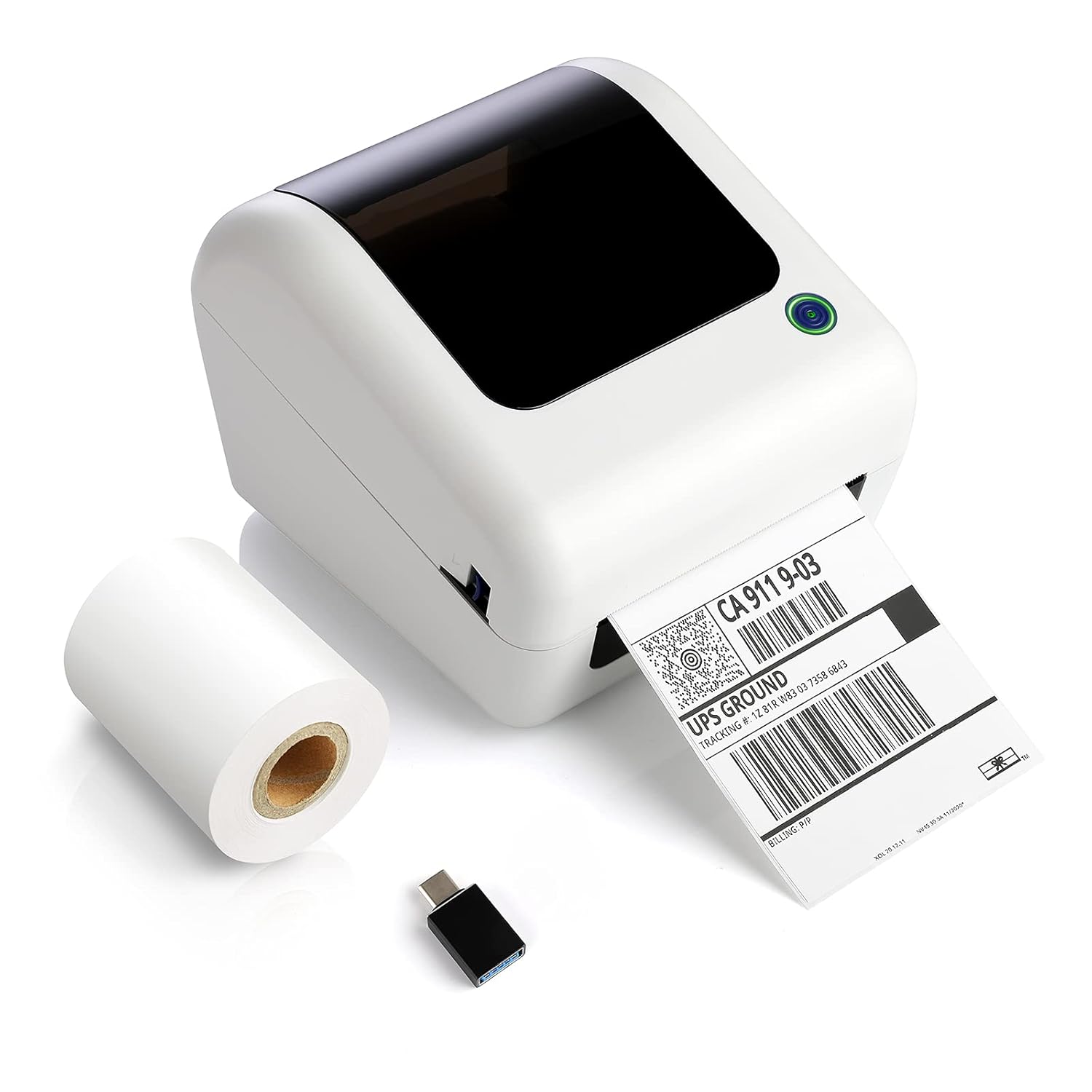
Image: The JADENS Thermal Shipping Label Printer JD-168, shown with a printed shipping label emerging from the front slot and a roll of blank thermal labels next to it. A USB adapter is also visible.
2. เนื้อหาบรรจุภัณฑ์
เมื่อแกะกล่องแล้วโปรดตรวจสอบว่ามีสิ่งของทั้งหมดที่ระบุไว้ด้านล่างนี้อยู่:
- JADENS Thermal Shipping Label Printer (Model JD-168)
- อะแดปเตอร์แปลงไฟ
- สาย USB
- U-disk (containing drivers and instruction videos)
- คู่มือเริ่มต้นอย่างรวดเร็ว
- 1 Roll of Thermal Labels (100 sheets)
3. คุณสมบัติของผลิตภัณฑ์
- การพิมพ์ความร้อนโดยตรง: No ink or toner required.
- การพิมพ์ความเร็วสูง: Up to 150mm/s (approximately 72 labels per minute).
- ความเข้ากันได้ของฉลากแบบกว้าง: Supports thermal direct labels with widths from 1.57" to 4.1".
- การระบุฉลากอัตโนมัติ: Automatically detects label properties for accurate printing.
- Built-in Paper Bin: Space-saving design for both roll and fan-fold labels.
- ความเข้ากันได้กับแพลตฟอร์มที่หลากหลาย: Works with major shipping and e-commerce platforms.

ภาพ: อินโฟกราฟิกแสดง...asing the JADENS Thermal Label Printer's features, including built-in bin, easy operation, great compatibility, fast printing, high resolution, automatic label identification, multiple paper sizes, and no ink/toner requirement.
4. ข้อกำหนดของระบบและความเข้ากันได้
The JADENS JD-168 printer is designed for use with specific operating systems and platforms:
- ระบบปฏิบัติการ: Windows 8 or later, Mac OS X v10.9 or later.
- การเชื่อมต่อ: USB direct connection.
- แพลตฟอร์มที่รองรับ: Compatible with most major shipping and e-commerce platforms such as eBay, Amazon, Etsy, Pirateship, Endicia, ShipStation, Ordoro, and Shopify.
- ระบบที่ไม่รองรับ: This printer does ไม่ support Chromebook or Linux operating systems. Bluetooth connectivity is also ไม่ ได้รับการสนับสนุน

Image: The JADENS printer connected via USB to a laptop, with icons indicating compatibility with Windows 7/8/10 and Mac OS X v10.9 or later. A warning states that Chromebook and Linux are not supported.

Image: A JADENS printer on a desk with Mac and Windows logos, emphasizing compatibility. Text clearly states "Support Windows (8,10 or later), MAC" and "Not Support Chromebook" and "Not Support Bluetooth."
5. การตั้งค่า
5.1 การเชื่อมต่อเครื่องพิมพ์
- วางเครื่องพิมพ์บนพื้นผิวที่มั่นคงและเรียบ
- เชื่อมต่ออะแดปเตอร์แปลงไฟเข้ากับพอร์ตจ่ายไฟของเครื่องพิมพ์ จากนั้นเสียบปลั๊กเข้ากับเต้ารับไฟฟ้า
- Connect the USB cable to the printer's USB port and the other end to your computer.
5.2 การติดตั้งไดรเวอร์
It is crucial to install the printer driver ก่อน attempting to print.
- เสียบแฟลชไดรฟ์ที่ให้มาเข้ากับพอร์ต USB ของคอมพิวเตอร์ของคุณ
- ค้นหาและเรียกใช้โปรแกรมติดตั้ง file for your operating system (Windows or Mac) from the U-disk.
- ปฏิบัติตามคำแนะนำบนหน้าจอเพื่อดำเนินการติดตั้งไดรเวอร์ให้เสร็จสมบูรณ์
- Instructional videos are also available on the U-disk for visual guidance.

Image: A JADENS printer connected to a laptop via USB, with a visual cue suggesting a straightforward installation process.
5.3 การโหลดฉลาก
The JD-168 printer supports both roll and fan-fold thermal labels.
- เปิดฝาครอบด้านบนของเครื่องพิมพ์
- For roll labels: Place the label roll into the built-in paper bin, ensuring the labels feed from the bottom and the printable side faces upwards.
- For fan-fold labels: Feed the stack of labels from the rear slot into the printer, ensuring the printable side faces upwards.
- ปรับตัวกั้นฉลากให้พอดีกับความกว้างของฉลากอย่างแน่นหนา โดยไม่ทำให้ฉลากเสียหายasinกรัมพวกเขา
- Close the top cover. The printer will automatically detect the label size and calibrate.

Image: An open JADENS printer revealing the internal mechanism with a roll of thermal labels correctly loaded into the built-in paper bin. Label guides are visible, and an arrow indicates automatic position detection.
6. คู่มือการใช้งาน
6.1 การเปิด/ปิดเครื่อง
- เปิดเครื่อง: Press the power button located on the side or front of the printer. The indicator light will illuminate.
- หมดแรง: กดปุ่มเปิด/ปิดค้างไว้จนกว่าไฟแสดงสถานะจะดับ
6.2 การพิมพ์ฉลาก
- โปรดตรวจสอบให้แน่ใจว่าเครื่องพิมพ์เปิดใช้งานอยู่และเชื่อมต่อกับคอมพิวเตอร์ของคุณแล้ว
- Open the document or application from which you wish to print (e.g., shipping software, PDF viewเอ่อ).
- Select the JADENS JD-168 printer from your printer options.
- Verify print settings, especially label size, to match your loaded labels. For best quality, open PDF files with Adobe printing software.
- Initiate the print command. The printer will feed and print the label.

Image: The JADENS printer actively printing a label, with text indicating "150mm/s High Speed Printing" and "72 Labels/one minute," highlighting its efficiency.
6.3 การระบุฉลากอัตโนมัติ
The JD-168 features automatic label identification. After loading labels and closing the cover, the printer will briefly feed a label to detect its size and type, ensuring correct alignment and preventing misprints.

Image: The JADENS printer with a label partially fed, illustrating the automatic label identification feature with a blue light indicating the process.
6.4 Label Size Guidelines
The printer supports thermal labels with a width range of 1.57 inches (40mm) to 4.1 inches (104mm). Ensure your labels fall within this range for optimal performance.

Image: The JADENS printer with a label emerging, visually indicating the supported label width range of 1.57" to 4.1". Below, examples of various label types are shown, including nutrition facts, shipping, address, and ASIN code labels.
7. การบำรุงรักษา
7.1 การทำความสะอาดหัวพิมพ์
Regular cleaning of the print head ensures consistent print quality and extends the printer's life. Clean the print head if print quality degrades or after every few rolls of labels.
- ปิดเครื่องพิมพ์และถอดปลั๊กไฟ
- เปิดฝาครอบด้านบน
- Gently wipe the print head surface with an alcohol swab or a soft cloth lightly dampเคลือบด้วยแอลกอฮอล์ไอโซโพรพิล
- รอให้หัวพิมพ์แห้งสนิทก่อนปิดฝาและเปิดเครื่องพิมพ์

ภาพ: รายละเอียด view of the JADENS printer's internal components, specifically highlighting the thermal print head. Text indicates "Thermal Print Head No Need of Ink Ribbon or Toner."
7.2 การดูแลทั่วไป
- เก็บเครื่องพิมพ์ไว้ในสภาพแวดล้อมที่สะอาดและปราศจากฝุ่นละออง
- Avoid exposing the printer to direct sunlight, extreme temperatures, or high humidity.
- ห้ามใช้สารทำความสะอาดที่มีฤทธิ์กัดกร่อนหรือตัวทำละลายกับภายนอกเครื่องพิมพ์ ให้ใช้ผ้าหรือวัสดุที่อ่อนนุ่มและเช็ดทำความสะอาดแทนamp ผ้าสำหรับทำความสะอาด
8 การแก้ไขปัญหา
If you encounter issues with your JADENS JD-168 printer, refer to the following common problems and solutions:
| ปัญหา | สาเหตุที่เป็นไปได้ | สารละลาย |
|---|---|---|
| เครื่องพิมพ์ไม่ตอบสนอง | Power cable loose, USB cable disconnected, printer off. | Check power and USB connections. Ensure printer is powered on. |
| ไม่มีการพิมพ์ฉลาก | No labels loaded, labels loaded incorrectly, driver not installed. | Load labels correctly. Install printer driver. |
| คุณภาพการพิมพ์ไม่ดี (สีซีดจาง ภาพเบลอ) | Print head dirty, incorrect label type, low-quality image. | Clean the print head. Ensure you are using thermal direct labels. Use high-resolution images. |
| Labels feeding incorrectly or skipping | Label guides not adjusted, labels jammed, automatic identification failed. | Adjust label guides. Clear any jams. Power cycle the printer to re-initiate auto-identification. |
| คอมพิวเตอร์ไม่รู้จักเครื่องพิมพ์ | Driver not installed or corrupted, faulty USB cable. | Reinstall the driver. Try a different USB port or cable. |
If these solutions do not resolve your issue, please contact JADENS customer support.
9. ข้อมูลจำเพาะ
| คุณสมบัติ | รายละเอียด |
|---|---|
| หมายเลขรุ่น | JD-168 |
| เทคโนโลยีการพิมพ์ | ความร้อนโดยตรง |
| การเชื่อมต่อ | ยูเอสบี |
| ความเร็วในการพิมพ์ | 150 มม./วินาที (สูงสุด) |
| เอาท์พุตเครื่องพิมพ์ | เอกรงค์ |
| ความกว้างของฉลาก | 1.57" - 4.1" (40 มม. - 104 มม.) |
| ขนาดสินค้า (ลึก x กว้าง x สูง) | 6.1" x 7.87" x 6.69" (15.5 ซม. x 20 ซม. x 17 ซม.) |
| น้ำหนัก | 4.52 ปอนด์ (2.05 กก.) |
| สี | สีขาวออกครีม |
10. ข้อมูลการรับประกัน
Specific warranty details for the JADENS Thermal Shipping Label Printer JD-168 are not provided in the product information. Please refer to the warranty card included with your product or visit the official JADENS webโปรดเยี่ยมชมเว็บไซต์นี้เพื่อดูนโยบายการรับประกันและข้อมูลการลงทะเบียนล่าสุด
11. การสนับสนุนลูกค้า
For technical assistance, troubleshooting, or any inquiries regarding your JADENS Thermal Shipping Label Printer, please contact our customer support team:
- อีเมล: (Please refer to your product packaging or JADENS website for email address)
- โทรศัพท์: (Please refer to your product packaging or JADENS web(เว็บไซต์สำหรับหมายเลขโทรศัพท์)
- Webเว็บไซต์: JADENS Official Store on Amazon (for general information and support resources)
- Remote control assistance is also available for certain technical issues.
Our support team is available to assist you with any questions or concerns.
12. ตัวอย่างการประยุกต์ใช้ผลิตภัณฑ์ampเลส
The JADENS JD-168 printer is versatile and suitable for various applications:
- สำนักงานที่บ้าน: Efficiently print shipping labels for personal use or small online sales.
- ธุรกิจขนาดเล็ก: Ideal for e-commerce businesses needing to print shipping labels for platforms like Amazon, eBay, Etsy, and Shopify.
- Warehouse & Logistics: Suitable for printing warehouse labels, barcode labels, and product identification labels.

Image: A collage depicting four common usage scenarios for the JADENS thermal label printer: home office, shipping label creation, small business operations, and warehouse label printing.


