การแนะนำ
This manual provides detailed instructions for setting up, operating, and maintaining your TECKNET Wireless Bluetooth Keyboard and Mouse Combo (Model TK-KM033). This combo offers versatile connectivity options, including 2.4G USB and dual Bluetooth modes, allowing seamless switching between multiple devices. Please read this manual thoroughly to ensure optimal performance and longevity of your product.

Image: The TECKNET Wireless Bluetooth Keyboard and Mouse Combo, featuring a full-size keyboard, a compact mouse, and a 2.4G USB receiver.
เนื้อหาแพ็คเกจ
ก่อนดำเนินการติดตั้ง โปรดตรวจสอบว่าบรรจุภัณฑ์มีรายการทั้งหมดหรือไม่:
- TECKNET Wireless Keyboard
- TECKNET Wireless Mouse
- 2.4G USB Receiver (typically stored in the mouse battery compartment)
- สายชาร์จ USB-C (0.5 เมตร)
- คู่มือการใช้งาน (เอกสารนี้)
คำแนะนำการตั้งค่า
1. การชาร์จอุปกรณ์
Both the keyboard and mouse are equipped with rechargeable lithium-ion batteries. Before first use, it is recommended to fully charge both devices.
- เชื่อมต่อสายชาร์จ USB-C ที่ให้มากับพอร์ตชาร์จบนคีย์บอร์ดและเมาส์
- เสียบปลายอีกด้านของสายเคเบิลเข้ากับแหล่งจ่ายไฟ USB (เช่น พอร์ต USB ของคอมพิวเตอร์ อะแดปเตอร์ติดผนัง USB)
- The charging indicator light will illuminate during charging and turn off when fully charged. A full charge typically takes approximately 2 hours.

Image: The TECKNET keyboard and mouse connected to a power source via USB-C cables, illustrating the charging process. The image highlights a 2-hour charging time for 45 days of use.
2. การเชื่อมต่อผ่านตัวรับสัญญาณ USB 2.4G
This method provides a stable wireless connection using the included USB receiver.
- Locate the 2.4G USB receiver, usually stored in the mouse's battery compartment.
- เสียบตัวรับสัญญาณ USB เข้ากับพอร์ต USB-A ที่ว่างอยู่บนคอมพิวเตอร์หรืออุปกรณ์ของคุณ
- เปิดคีย์บอร์ดและเมาส์โดยใช้สวิตช์เปิด/ปิดตามลำดับ
- อุปกรณ์ควรเชื่อมต่อกับคอมพิวเตอร์ของคุณโดยอัตโนมัติ
3. Connecting via Bluetooth (BT1 & BT2)
The combo supports two independent Bluetooth connections, allowing you to pair with two different Bluetooth-enabled devices.
- การจับคู่บลูทูธคีย์บอร์ด:
- เปิดคีย์บอร์ด
- กดปุ่ม เอฟเอ็น+คิว keys simultaneously for BT1 or Fn + ว for BT2. The corresponding indicator light (BT1 or BT2) will flash rapidly, indicating pairing mode.
- บนอุปกรณ์ของคุณ (เช่น แล็ปท็อป แท็บเล็ต สมาร์ทโฟน) ไปที่การตั้งค่าบลูทูธ แล้วค้นหาอุปกรณ์ใหม่
- Select "TECKNET Keyboard" from the list of available devices.
- Follow any on-screen prompts to complete the pairing. The indicator light will stop flashing once connected.
- การจับคู่บลูทูธของเมาส์:
- เปิดเมาส์
- Press the Bluetooth mode switch button on the bottom of the mouse to select BT1 or BT2. The corresponding indicator light will flash rapidly.
- บนอุปกรณ์ของคุณ ไปที่การตั้งค่าบลูทูธและค้นหาอุปกรณ์ใหม่
- Select "TECKNET Mouse" from the list.
- Complete the pairing. The indicator light will stop flashing once connected.
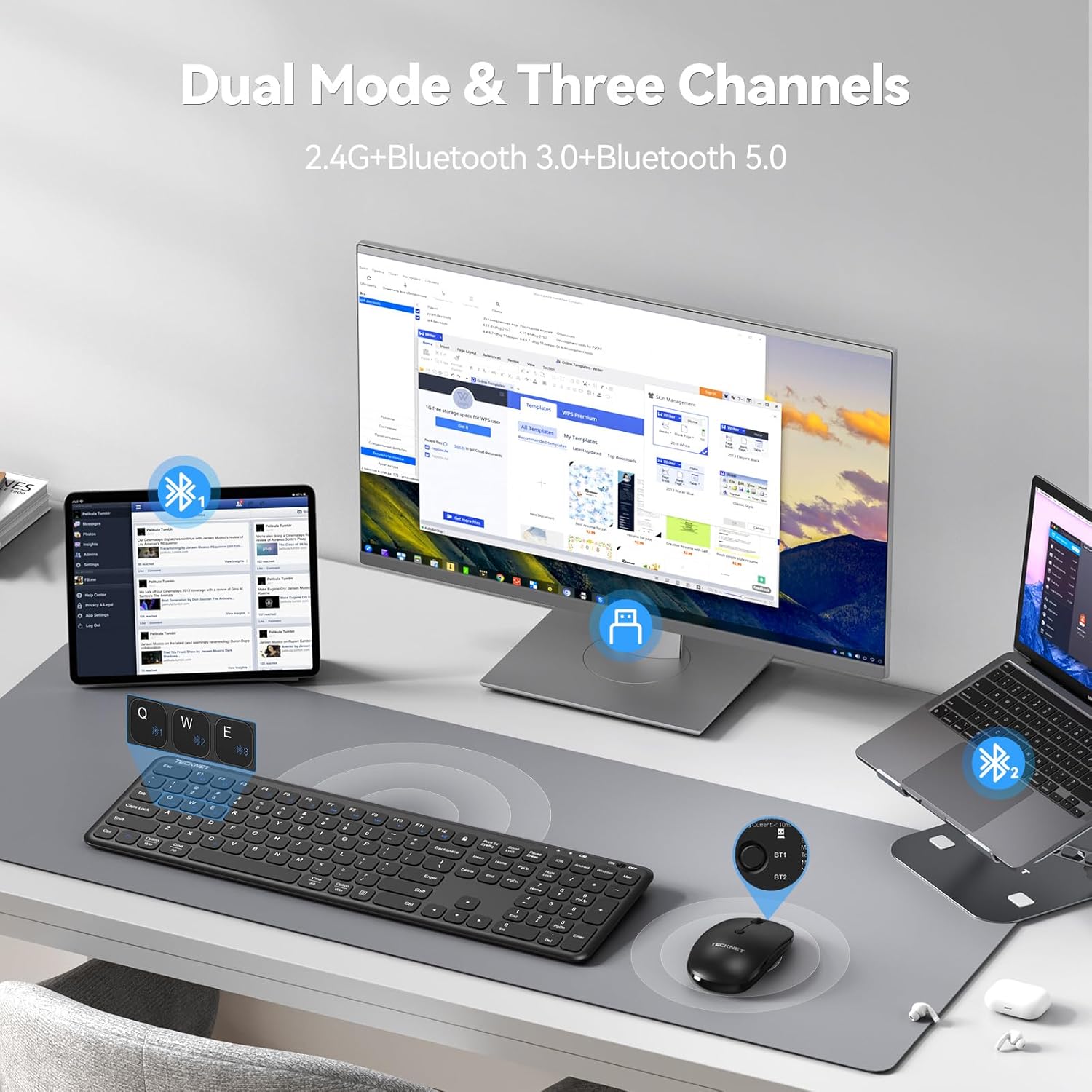
Image: The TECKNET keyboard and mouse connected to a desktop monitor via 2.4G USB, a tablet via Bluetooth 1, and a laptop via Bluetooth 2, demonstrating multi-device connectivity.
4. การสลับระหว่างอุปกรณ์ที่เชื่อมต่อ
To switch between devices connected via 2.4G USB and Bluetooth:
- แป้นพิมพ์: กด Fn + อี for 2.4G USB, เอฟเอ็น+คิว for Bluetooth 1, or Fn + ว for Bluetooth 2. The corresponding indicator light will show the active connection.
- หนู: Press the mode switch button on the bottom of the mouse to cycle between 2.4G USB, Bluetooth 1, and Bluetooth 2. The indicator light will show the active connection.
คำแนะนำการใช้งาน
1. ฟังก์ชันแป้นพิมพ์
The keyboard features a full-size layout with a numeric keypad and multimedia shortcut keys.
- คีย์มัลติมีเดีย: ใช้ Fn key in combination with the F1-F12 keys for various functions such as play/pause, volume control, and email access. Refer to the key legends for specific functions.
- Operating System Mode Switch: The keyboard supports Windows, Android, iOS, and macOS. Use the dedicated keys (e.g., ปุ่ม Fn + แอนดรอยด์, Fn + iOS, Fn + Windows, Fn + Mac) to optimize key functions for your operating system.
- Scissor-Switch Mechanism: The keys utilize a scissor-switch mechanism designed for quiet operation and tactile feedback.

ภาพ: ภาพระยะใกล้ view of the TECKNET keyboard, highlighting the internal scissor-switch key mechanism for quiet and precise keystrokes.
2. ฟังก์ชันของเมาส์
The mouse is designed for ergonomic comfort and adjustable sensitivity.
- การปรับ DPI: The mouse offers three adjustable DPI settings (800/1200/1600). Press the DPI button located on the top of the mouse to cycle through these settings and adjust cursor speed.
- การออกแบบที่สมมาตร: The mouse features a symmetrical design, suitable for both right-handed and left-handed users.

Image: The TECKNET wireless mouse, illustrating its ultra-slim design and the three adjustable DPI settings (800, 1200, 1600) for customized cursor sensitivity.
3. การจัดการพลังงาน
Both devices are equipped with energy-saving features to extend battery life.
- โหมดสลีปอัตโนมัติ: If inactive for more than 10 minutes (keyboard) or 30 minutes (mouse), the devices will enter sleep mode to conserve power.
- ตื่นนอน: To wake the devices, simply click any button on the mouse or press any key on the keyboard.
- สวิตช์เปิดปิด: Use the ON/OFF switches on both the keyboard and mouse to manually power them down when not in use for extended periods.
การซ่อมบำรุง
1. การทำความสะอาด
To maintain the appearance and functionality of your devices:
- Ensure both devices are powered off before cleaning.
- ใช้ผ้านุ่มไม่เป็นขุยเช็ดเล็กน้อยampลงด้วยน้ำหรือน้ำยาทำความสะอาดอ่อนๆ
- หลีกเลี่ยงการใช้สารเคมีรุนแรง น้ำยาทำความสะอาดที่มีฤทธิ์กัดกร่อน หรือตัวทำละลาย
- สำหรับแป้นพิมพ์ ให้ใช้ลมอัดเพื่อกำจัดเศษสิ่งสกปรกระหว่างปุ่ม
2. การดูแลแบตเตอรี่
Proper battery care helps prolong the lifespan of the built-in rechargeable batteries:
- ควรหลีกเลี่ยงการปล่อยประจุแบตเตอรี่จนหมดบ่อยๆ
- ควรเก็บอุปกรณ์ไว้ในที่แห้งและเย็นเมื่อไม่ได้ใช้งานเป็นเวลานาน
- If storing for a long time, charge the devices to about 50% capacity.
การแก้ไขปัญหา
If you encounter issues with your TECKNET Wireless Bluetooth Keyboard and Mouse Combo, refer to the following common solutions:
| ปัญหา | วิธีแก้ปัญหาที่เป็นไปได้ |
|---|---|
| Devices not connecting (2.4G USB) |
|
| Devices not connecting (Bluetooth) |
|
| การเชื่อมต่อล่าช้าหรือขาดๆ หายๆ |
|
| Keyboard keys or mouse buttons unresponsive |
|
| Mouse cursor moves erratically |
|
ข้อมูลจำเพาะ
Key technical specifications for the TECKNET Wireless Bluetooth Keyboard and Mouse Combo (Model TK-KM033):
- แบบอย่าง: TK-KM033
- เทคโนโลยีการเชื่อมต่อ: 2.4G RF (USB Receiver), Bluetooth 3.0, Bluetooth 5.0
- รูปแบบแป้นพิมพ์: Full-size QWERTY with numeric keypad
- แบตเตอรี่คีย์บอร์ด: 280mAh Lithium-ion (Rechargeable)
- แบตเตอรี่เมาส์: 300mAh Lithium-ion (Rechargeable)
- พอร์ตชาร์จ: ยูเอสบี-ซี
- การตั้งค่า DPI ของเมาส์: 800 / 1200 / 1600
- อุปกรณ์ที่รองรับ: PC, Laptop, iPad, Desktop (Windows, macOS, iOS, Android)
- วัสดุ: พลาสติก ABS
- สี: สีดำ
- น้ำหนักสินค้า: น้ำหนักประมาณ 1.72 ปอนด์ (รวมทั้งสองอย่าง)
- ขนาดแพ็คเกจ: 17.68 x 8.43 x 1.65 นิ้ว

Image: The TECKNET keyboard and mouse with measurements indicating their full-size and ultra-slim design, including the USB receiver and charging cable.
การรับประกันและการสนับสนุน
TECKNET products are designed for reliability and performance. This product is backed by a reliable 36-month warranty (registration may be required).
- For warranty claims or technical assistance, please contact TECKNET customer support.
- โดยทั่วไปแล้ว ข้อมูลการติดต่อสามารถพบได้ในเว็บไซต์อย่างเป็นทางการของ TECKNET webเว็บไซต์หรือผ่านแพลตฟอร์มการซื้อของคุณ
Our professional customer support team is available to assist you with any questions or issues you may encounter.


