1. บทนำ
This manual provides detailed instructions for the GOWENIC G7BTS Bluetooth 5.0 Air Remote Mouse. This device combines traditional remote control, air mouse, and motion sensing game functions, offering versatile control for various Bluetooth-enabled devices. Please read this manual thoroughly before use to ensure proper operation and to maximize your experience.
2. สินค้าหมดview
2.1 คุณสมบัติหลัก
- การเชื่อมต่อบลูทูธ 5.0: Ensures a stable and convenient wireless connection.
- 6-Axis Gyroscope Sensor: Enables air mouse functionality and motion sensing for compatible applications.
- ปลั๊กแอนด์เพลย์: No additional drivers are required for most compatible devices.
- ความเข้ากันได้กว้าง: Suitable for smart phones, laptops, smart TVs, and Android TV boxes with Bluetooth functionality.
- 5-Key Infrared Learning: Allows for programming specific infrared functions from other remotes.
- แสงไฟด้านหลัง: Illuminated keys for use in low-light conditions.
2.2 เนื้อหาบรรจุภัณฑ์
- 1 x GOWENIC G7BTS Air Remote Mouse
- 1 x สายชาร์จ
- 1 x คู่มือผู้ใช้ (เอกสารนี้)
2.3 เค้าโครงอุปกรณ์

รูปที่ 1 : ด้านหน้า View of the GOWENIC G7BTS Air Remote Mouse. This image displays the front face of the remote, showing the power button, volume controls, navigation pad with OK button, media playback controls, page up/down buttons, return, cursor toggle, home, backlight, delete, and numeric keypad.

รูปที่ 2: ย้อนกลับ View of the GOWENIC G7BTS Air Remote Mouse. This image shows the reverse side of the remote, which features a full QWERTY keyboard for text input.

รูปที่ 3: ด้านหน้าและด้านหลัง Views. This image presents both the remote control side and the QWERTY keyboard side of the GOWENIC G7BTS Air Remote Mouse.
3. การตั้งค่า
3.1 การชาร์จอุปกรณ์
Before initial use, ensure the GOWENIC G7BTS Air Remote Mouse is fully charged.
- Connect the provided charging cable to the charging port on the remote.
- Connect the other end of the charging cable to a standard USB power source (e.g., computer USB port, USB wall adapter).
- The indicator light on the remote will show charging status (refer to device for specific light behavior).
- เมื่อชาร์จเต็มแล้ว ให้ถอดสายเคเบิลออก

Figure 4: Charging the Remote. This image shows the GOWENIC G7BTS Air Remote Mouse connected to its charging cable.
3.2 การจับคู่บลูทูธ
The GOWENIC G7BTS Air Remote Mouse connects via Bluetooth 5.0. It does not require a USB dongle.
- Ensure your target device (smart TV, Android TV box, smartphone, laptop) has Bluetooth enabled.
- On the GOWENIC G7BTS remote, press and hold the OK ปุ่มและ กลับ button simultaneously for approximately 3-5 seconds until the indicator light starts flashing rapidly. This indicates pairing mode.
- On your target device, navigate to the Bluetooth settings and search for new devices.
- Select "G7BTS" or a similar name from the list of available devices to initiate pairing.
- Once paired, the indicator light on the remote will stop flashing and remain solid or turn off, depending on the device's design.
บันทึก: If pairing fails, ensure the remote is charged and within range, then repeat the steps. Some devices may require a passcode (usually 0000 or 1234) during pairing, though this is uncommon for this type of device.
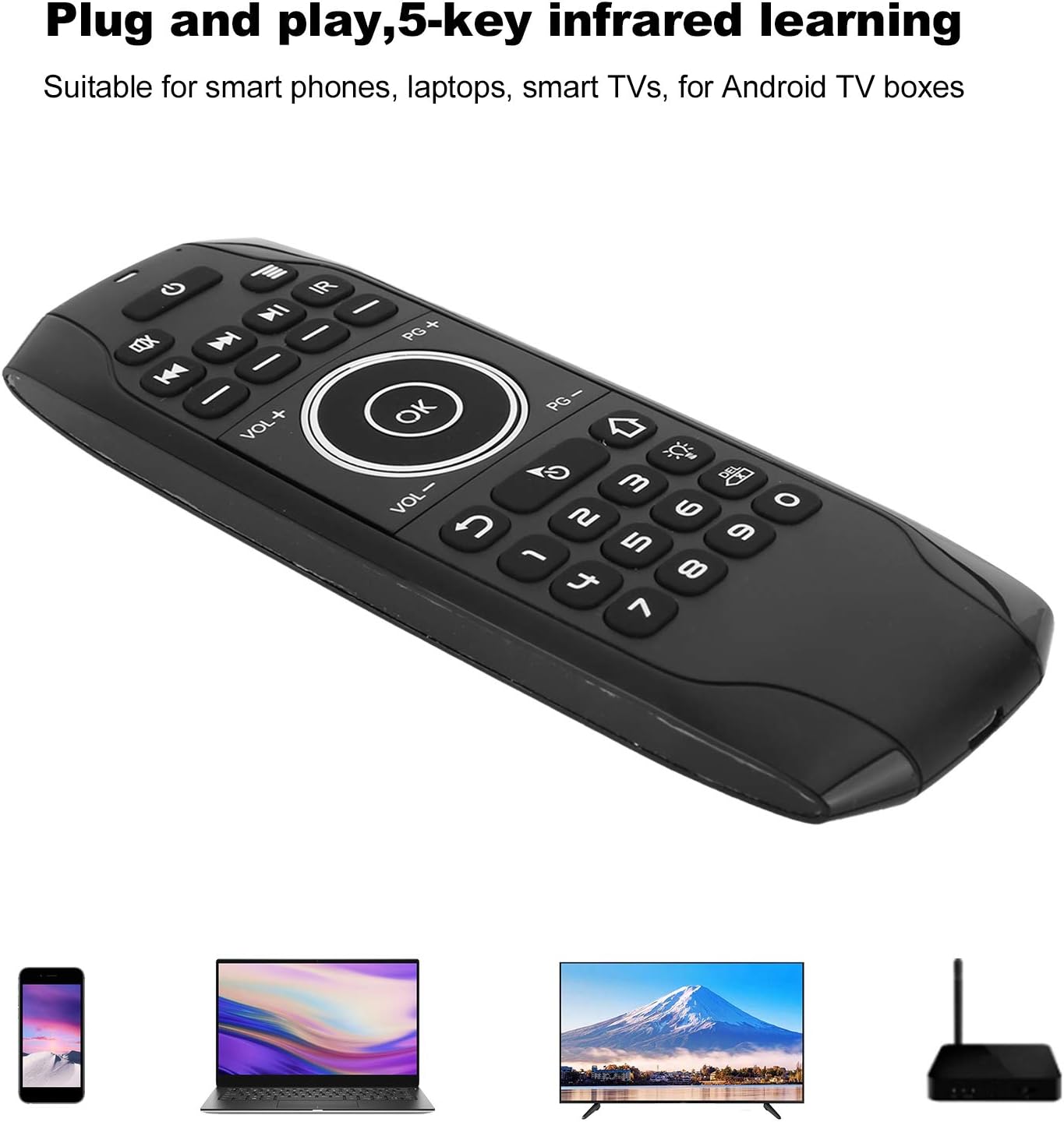
Figure 5: Device Compatibility. This image illustrates the GOWENIC G7BTS Air Remote Mouse being used with a smartphone, laptop, smart TV, and Android TV box.
4. คู่มือการใช้งาน
4.1 Basic Remote Functions
- ปุ่มเพาเวอร์ (⏻): Turns the remote on/off or sends a power signal to the connected device (if IR learned).
- Navigation Pad & OK Button: Use the directional arrows to navigate menus and the OK ปุ่มเพื่อยืนยันการเลือก
- Volume Controls (VOL+, VOL-): ปรับระดับเสียงของอุปกรณ์ที่เชื่อมต่อ
- การควบคุมการเล่นสื่อ: Includes buttons for Play/Pause, Fast Forward, Rewind, Next Track, and Previous Track.
- Page Up/Down (PG+, PG-): For scrolling through content.
- ปุ่มย้อนกลับ (↩): กลับไปยังหน้าจอหรือเมนูที่แล้ว
- ปุ่มโฮม (⌂): Returns to the home screen of the connected device.
- Backlight Button (💡): Toggles the backlight for the keys.
- Delete Button (DEL): Deletes characters when using the keyboard.
4.2 Air Mouse Function
The G7BTS features a 6-axis gyroscope for air mouse functionality, allowing you to control a cursor on screen by moving the remote in the air.
- เปิดใช้งาน/ปิดใช้งาน: กดปุ่ม สลับเคอร์เซอร์ button (often depicted as a hand icon or mouse pointer) to enable or disable the air mouse function.
- ควบคุม: Once activated, move the remote in the air to control the on-screen cursor.
- คลิก: กดปุ่ม OK button to perform a left-click action.
- การสอบเทียบ: If the cursor drifts, place the remote on a flat surface for a few seconds to recalibrate the gyroscope.

Figure 6: Air Mouse in Action. This image shows the remote being used to control a cursor on a television screen, highlighting the stable connection and gyroscope functionality.
4.3 QWERTY Keyboard
Flip the remote over to access the full QWERTY keyboard for easy text input.
- The keyboard automatically activates when the remote is flipped to that side.
- Use the keys for typing, similar to a standard computer keyboard.
- การ กะ และ Fn keys provide access to alternative characters and functions.
4.4 5-Key Infrared (IR) Learning
This feature allows you to program up to 5 specific buttons on the G7BTS remote to mimic functions from another infrared remote control (e.g., your TV's power button). The IR button is typically labeled "IR" or has a specific icon.
- Place the G7BTS remote and your original IR remote head-to-head, about 1-3 cm apart.
- กดปุ่มค้างไว้ IR button on the G7BTS remote for approximately 3-5 seconds until the indicator light starts flashing slowly. This indicates learning mode.
- Press the button on the G7BTS remote that you wish to program (e.g., the Power button). The indicator light will flash rapidly.
- Press the corresponding button on your original IR remote (e.g., the TV's power button). The indicator light on the G7BTS will flash three times and then remain solid, indicating successful learning.
- Repeat steps 3 and 4 for up to 4 other programmable keys.
- To exit IR learning mode, press the IR button again. The indicator light will turn off.
บันทึก: Not all IR remotes are compatible with the learning function. Ensure the original remote has a strong IR signal.
5. การบำรุงรักษา
- การทำความสะอาด: Use a soft, dry cloth to clean the remote. Avoid using liquid cleaners or abrasive materials.
- พื้นที่จัดเก็บ: เก็บรีโมทไว้ในที่แห้งและเย็น ห่างจากแสงแดดโดยตรงและอุณหภูมิที่สูงหรือต่ำมาก
- การดูแลแบตเตอรี่ Recharge the remote regularly to maintain battery health. Avoid fully discharging the battery for extended periods.
- หลีกเลี่ยงการหยด: Protect the device from physical impact and drops.
6 การแก้ไขปัญหา
| ปัญหา | สาเหตุที่เป็นไปได้ | สารละลาย |
|---|---|---|
| รีโมทไม่ตอบสนอง | Low battery; Not paired; Out of range. | Charge the remote; Re-pair the remote (see Section 3.2); Move closer to the device. |
| Air mouse cursor drifts or is inaccurate | Gyroscope needs calibration. | Place the remote on a flat, stable surface for a few seconds to allow it to recalibrate. |
| Cannot pair the remote | Bluetooth not enabled on target device; Remote not in pairing mode; Interference. | Ensure Bluetooth is active on your device; Follow pairing steps carefully (Section 3.2); Move away from other wireless devices. |
| IR learning fails | Incorrect distance; Weak IR signal from original remote; Not all buttons are learnable. | Ensure remotes are 1-3 cm apart; Try again with a fresh battery in the original remote; Confirm the button is one of the 5 programmable keys. |
| No USB dongle included | This product is designed for Bluetooth connectivity only and does not use a USB dongle. | Ensure your device supports Bluetooth. This remote connects directly via Bluetooth. |
7. ข้อมูลจำเพาะ
- โหมดการส่งสัญญาณ: บลูทูธ 5.0
- เซ็นเซอร์: ไจโรสโคปแบบแกน 6
- ระยะการส่งข้อมูล: Approximately 10 meters / 32.8 feet
- ความจุแบตเตอรี่: 250มิลลิแอมป์
- กระแสไฟฟ้าทำงาน: <5มิลลิแอมป์
- กระแสไฟสแตนด์บาย: <20uA
- ขนาดสินค้า : 0.39 x 0.39 x 0.39 นิ้ว
- น้ำหนักสินค้า: 5.1 ออนซ์
- ยี่ห้อ: โกเวนิค
- เทคโนโลยีการเชื่อมต่อ: บลูทูธ
- คุณสมบัติพิเศษ: มีไฟแบ็คไลท์
- เทคโนโลยีการตรวจจับการเคลื่อนไหว: ออฟติคอล
8. การรับประกันและการสนับสนุน
Specific warranty information for the GOWENIC G7BTS Air Remote Mouse is not provided in this manual. For warranty details, please refer to the product packaging, the retailer where the product was purchased, or contact GOWENIC customer support directly.
For further assistance or technical support, please visit the official GOWENIC webเว็บไซต์หรือติดต่อฝ่ายบริการลูกค้าของพวกเขา