1. บทนำ
This manual provides detailed instructions for the installation, operation, and maintenance of your FoMaKo NDI PTZ Camera KN20A Pro. This camera features AI auto-tracking, 20x optical zoom, and multiple output interfaces including HDMI, 3G-SDI, IP, NDI, and USB3.0. It is designed for professional video production and live streaming in various environments such as churches, educational institutions, and event venues.
2. อะไรอยู่ในกล่อง
ตรวจสอบว่ามีรายการทั้งหมดอยู่ในแพ็คเกจ:
- FoMaKo AI Tracking NDI PTZ Camera (20x optical zoom)
- รีโมทคอนโทรล IR
- ขายึดติดผนัง
- ขายึดเพดาน
- สาย USB
- อะแดปเตอร์ไฟฟ้า (12V 2A)
- คู่มือการใช้งาน (เอกสารนี้)

Image 2.1: FoMaKo NDI PTZ Camera KN20A Pro and its standard accessories.
3. คุณสมบัติของผลิตภัณฑ์view
- Official NDI 6 & NDI HX3 Certification: Ensures stable and high-quality video transmission, even with limited bandwidth.
- ซูมออปติคอล 20 เท่า: Provides clear, detailed images from a distance.
- Advanced AI Auto-Tracking (Gen 3): Offers customizable tracking modes, sensitivity, and target switching.
- อินเทอร์เฟซเอาต์พุตวิดีโอหลายช่อง: Simultaneous 3G-SDI, HDMI, LAN/Ethernet, and USB3.0 for versatile connectivity.
- รองรับการจ่ายไฟผ่านอีเธอร์เน็ต (PoE): ช่วยให้การติดตั้งง่ายขึ้นด้วยการจ่ายไฟและส่งข้อมูลผ่านสายอีเธอร์เน็ตเพียงเส้นเดียว
- Efficient Video Encoding: Supports H.264/H.265 for fluent motion video under various bandwidth conditions.
- ประสิทธิภาพแสงน้อย: High SNR CMOS combined with 2D & 3D noise reduction for clear images in challenging lighting.
- Precise Gear Transmission Structure: Ensures accurate preset positioning and enhanced durability compared to belt-driven systems.
- วิธีการควบคุมหลายวิธี: Includes IR remote, dedicated PTZ controller, web interface, OBS/vMix PTZ plugins, and StreamDeck compatibility.

ภาพที่ 3.1: ภาพแสดงคุณสมบัติหลักของกล้อง
4. การตั้งค่า
4.1 การติดตั้งทางกายภาพ
The FoMaKo NDI PTZ Camera supports three primary installation methods:
- ติดผนัง: Securely attach the camera to a vertical surface using the provided wall mount bracket.
- ขาตั้งกล้อง: Mount the camera on a standard tripod for portable or temporary setups.
- ติดเพดาน: Install the camera inverted on a ceiling using the provided ceiling bracket. The camera automatically adjusts its image and control orientation when mounted upside down.

ภาพที่ 4.1: อดีตampบทเรียนเกี่ยวกับวิธีการติดตั้งกล้องวงจรปิด
4.2 การเชื่อมต่อ
Connect the camera to your system using the appropriate ports on the rear panel:
- เอาต์พุต 3G-SDI: For professional video transmission over coaxial cable.
- เอาท์พุต HDMI: For direct connection to displays or video switchers.
- เอาท์พุต USB3.0: For direct connection to a computer for live streaming or recording.
- พอร์ต LAN/อีเธอร์เน็ต: For IP streaming (NDI, RTSP, RTMP, SRT), control (VISCA over IP), and PoE power.
- RS232/RS485: For serial control using a PTZ controller.
- เข้าแถว: อินพุตเสียง 3.5 มม.
- ดีซี12วี: Power input if not using PoE.
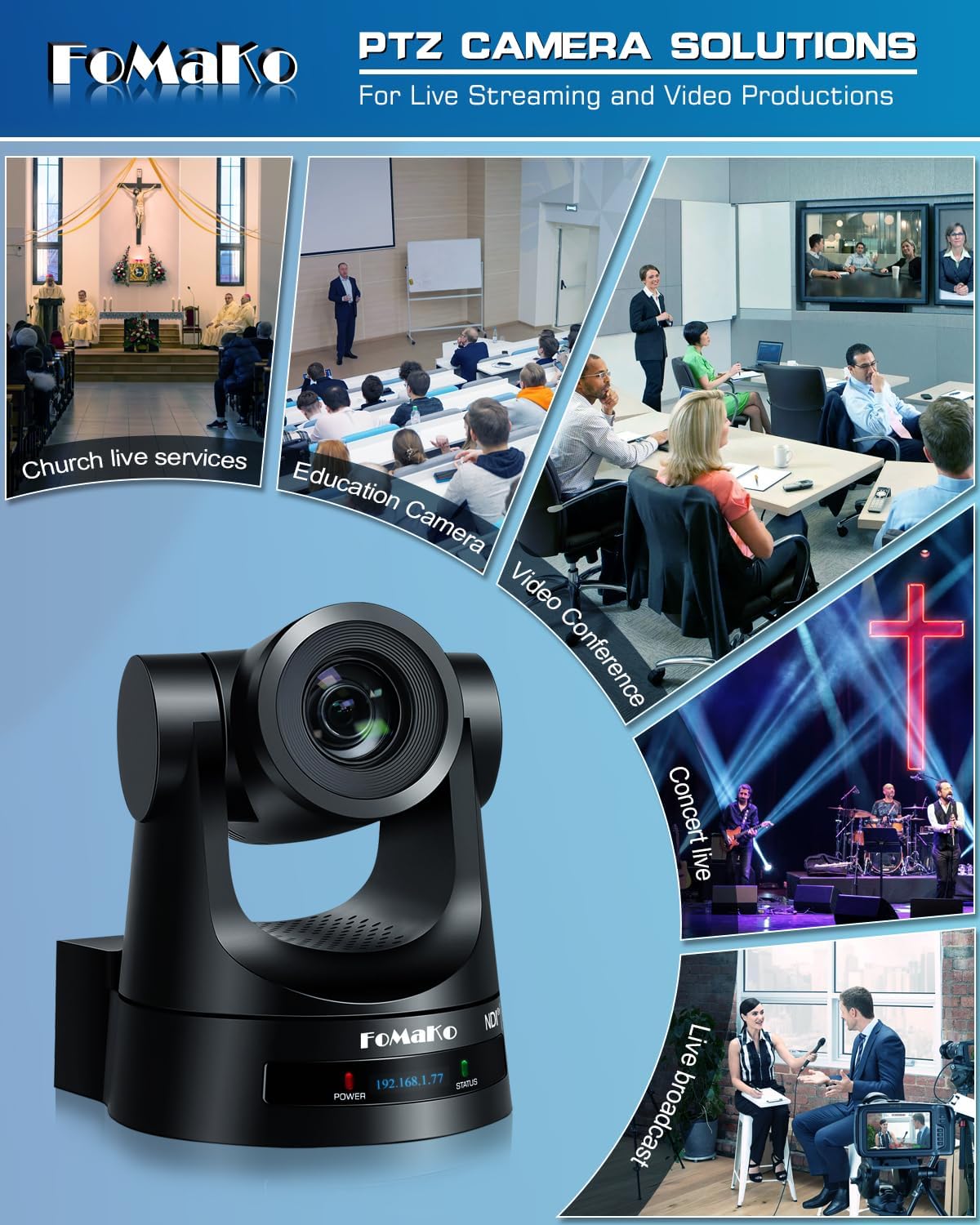
Image 4.2: Rear panel connections.
4.3 การกำหนดค่าเครือข่าย
For IP-based control and streaming, configure the camera's network settings. This can typically be done via the camera's web interface or on-screen display (OSD) menu.
- ดีเอชซีพี: Enable DHCP for automatic IP address assignment or disable it to set a static IP.
- IP Address, Subnet Mask, Gateway: Manually configure these settings if DHCP is disabled.
เข้าถึงกล้อง web อินเทอร์เฟซโดยป้อนที่อยู่ IP ลงใน web browser. The default IP address is often printed on the camera or can be found using an NDI discovery tool.

Image 4.3: Network settings interface.
5. คู่มือการใช้งาน
5.1 การควบคุมขั้นพื้นฐาน
The camera can be controlled using the IR remote, a dedicated PTZ controller, or the web อินเทอร์เฟซ
- แพน/เอียง/ซูม: Use the joystick on a PTZ controller or directional buttons on the IR remote/web อินเทอร์เฟซสำหรับปรับแต่งกล้อง view.
- การปรับความเร็ว: Pan, tilt, and zoom speeds can be adjusted to achieve smooth camera movements. Preset speed is also adjustable.
- จุดสนใจ: The camera features fast auto-focus. Manual focus adjustment is also available.
5.2 ระบบติดตามอัตโนมัติด้วย AI
The third-generation AI auto-tracking system allows the camera to automatically follow a designated subject.
- การเปิดใช้งาน: Press the F2 button on the IR remote control to activate automatic tracking.
- Target Switching: Press the F4 button on the IR remote to switch between detected tracking targets.
- การปรับแต่ง: Adjust tracking modes, sensitivity, figure size, AI-track speed, horizontal tracking only, character position, and lost target action via the camera's settings menu or web อินเทอร์เฟซ

Image 5.1: AI Tracking Gen 3 settings and capabilities.
5.3 ค่าที่ตั้งล่วงหน้า
The camera supports up to 255 preset positions, allowing quick recall of specific camera angles and zoom levels. Ten presets can be accessed directly via the IR remote control.
- การตั้งค่าพรีเซ็ต: ปรับตำแหน่งกล้องไปยังตำแหน่งที่ต้องการ view, then use the remote or controller to save the preset. Refer to the detailed manual for specific steps.
- การเรียกคืนค่าที่ตั้งไว้ล่วงหน้า: Use the preset buttons on the remote or controller to move the camera to a saved position.
6. การบำรุงรักษา
To ensure optimal performance and longevity of your FoMaKo NDI PTZ Camera, follow these maintenance guidelines:
- การทำความสะอาด: ใช้ผ้าแห้งนุ่มเช็ดทำความสะอาดตัวกล้อง สำหรับเลนส์ ให้ใช้ผ้าและน้ำยาทำความสะอาดเลนส์โดยเฉพาะ หลีกเลี่ยงวัสดุที่มีฤทธิ์กัดกร่อนหรือสารเคมีรุนแรง
- สิ่งแวดล้อม: ใช้งานและเก็บรักษากล้องในที่สะอาดและแห้ง หลีกเลี่ยงอุณหภูมิที่สูงหรือต่ำเกินไป ความชื้นสูง และแสงแดดโดยตรง
- อัพเดตเฟิร์มแวร์: Periodically check the FoMaKo webเว็บไซต์นี้เป็นแหล่งอัปเดตเฟิร์มแวร์เพื่อให้มั่นใจว่ากล้องของคุณมีคุณสมบัติล่าสุดและประสิทธิภาพการทำงานที่ดีขึ้น
- การจัดการสายเคเบิล: ตรวจสอบให้แน่ใจว่าสายเคเบิลทั้งหมดเชื่อมต่อแน่นหนาและไม่ตึงเกินไป เพื่อป้องกันความเสียหายต่อพอร์ตหรือสายเคเบิล
7 การแก้ไขปัญหา
หากคุณพบปัญหาเกี่ยวกับกล้อง โปรดดูขั้นตอนการแก้ไขปัญหาทั่วไปต่อไปนี้:
- ไม่มีไฟฟ้า: Ensure the power adapter is correctly connected or that your PoE switch is providing power if using PoE. Check power indicators on the camera.
- ไม่มีเอาต์พุตวิดีโอ: Verify all video cables (HDMI, SDI, USB, Ethernet) are securely connected. Check input selections on your display or switcher. Ensure the camera is powered on.
- ไม่มีการเชื่อมต่อเครือข่าย: Confirm Ethernet cable connection. Check network settings (IP address, subnet mask, gateway) in the camera's web interface. Ensure the camera and controlling device are on the same network segment.
- การควบคุม PTZ ไม่ตอบสนอง: Check remote control batteries. Ensure the camera is receiving IR signals or that the network/serial control connection is active. Verify the correct camera ID is selected on the controller.
- Auto-Tracking Issues: Ensure AI auto-tracking is enabled (F2 on remote). Check tracking sensitivity and other settings in the menu. Ensure the subject is clearly visible and within the camera's tracking range.
- ปัญหาคุณภาพของภาพ: Check lighting conditions. Ensure lens is clean. Adjust exposure and white balance settings if necessary.
For more detailed troubleshooting or issues not covered here, please refer to the full user manual PDF available online or contact FoMaKo customer support.
8. ข้อมูลจำเพาะ
| คุณสมบัติ | ข้อมูลจำเพาะ |
|---|---|
| ชื่อยี่ห้อ | โฟมาโค |
| หมายเลขรุ่น | KN20A |
| น้ำหนักสินค้า | 2.64 ปอนด์ |
| ขนาดสินค้า | 5.63 x 6.93 x 6.65 นิ้ว |
| สี | สีดำ |
| คุณสมบัติพิเศษ | AI tracking NDI PTZ Camera |
| ซูมออปติคอล | 20 เท่า |
| ความละเอียดในการจับภาพวิดีโอ | 1080p |
| โหมดการถ่ายภาพ | อัตโนมัติ |
| ประเภทการควบคุมการรับแสง | อัตโนมัติ |
| การเชื่อมต่อ | 3G-SDI, HDMI, IP (NDI 6 & NDI HX3), USB3.0, RS232, RS485, PoE |
9. การรับประกันและการสนับสนุน
FoMaKo is committed to providing excellent customer service and product reliability.
- การรับประกัน: The product includes a 3-Year Limited Warranty.
- การรับประกันคืนเงิน: A 30-Day No-Questions-Asked Money-Back Guarantee is provided for risk-free purchase.
- การฝึกอบรมออนไลน์: Free online training is available to help users get started easily.
- ความช่วยเหลือจากผู้เชี่ยวชาญ: 24/7 expert assistance is available, with responses typically within 24 hours. Please include your Order ID when contacting support.
- การช่วยเหลือระยะไกล: Remote assistance for setup can be provided if necessary.
- การสนับสนุนทางเทคนิคตลอดอายุการใช้งาน: Enjoy lifetime customer technical support for your product.

Image 9.1: FoMaKo customer support and warranty information.


