การแนะนำ
This user manual provides detailed instructions for the Gen Game S3 Wireless Bluetooth Gamepad. It covers setup, operation, maintenance, and troubleshooting to ensure optimal performance and longevity of your device. This gamepad is designed for use with Android smartphones, tablet PCs, and personal computers, offering a versatile gaming experience.

ภาพ: ด้านหน้า view of the Gen Game S3 Wireless Bluetooth Gamepad, showcasing its black body with red accents, dual analog sticks, D-pad, action buttons (A, B, X, Y), and central HOME button.
เนื้อหาแพ็คเกจ
เมื่อเปิดบรรจุภัณฑ์ โปรดตรวจสอบว่าประกอบด้วยสิ่งของต่อไปนี้ทั้งหมด:
- 1 x S3 Bluetooth Gamepad
- สาย USB 1 เส้น
- 1 x คู่มือผู้ใช้
ข้อมูลจำเพาะ
| คุณสมบัติ | รายละเอียด |
|---|---|
| แบบอย่าง | S3 |
| ฟังก์ชั่น | บลูทูธ |
| เวอร์ชันบลูทูธ | วี3.0 |
| ความเข้ากันได้ | Smartphone, Tablet PC, PC (Android, iOS) |
| ประเภทการเชื่อมต่อ | บลูทูธ |
| วัสดุ | เอบีเอส |
| ความจุของแบตเตอรี่ | 420mAh |
| เวลาในการชาร์จ | 2 - 3 ชั่วโมง |
| เวลาทำงาน | ประมาณ 1 ชั่วโมง |
| น้ำหนักสินค้า | 400 กรัม |
| สี | สีดำ |
การตั้งค่าและการเชื่อมต่อ
The Gen Game S3 gamepad supports various connection modes for different devices. Ensure the gamepad is charged before initial use.
การชาร์จ Gamepad
- Connect the supplied USB cable to the gamepad's charging port.
- เชื่อมต่อปลายอีกด้านหนึ่งของสาย USB เข้ากับแหล่งพลังงาน USB (เช่น พอร์ต USB ของคอมพิวเตอร์ อะแดปเตอร์ติดผนัง USB)
- The indicator light will show charging status. Charging typically takes 2-3 hours.
Bluetooth Pairing (Android/iOS Smartphone/Tablet)
- ตรวจสอบให้แน่ใจว่าได้เปิดใช้งาน Bluetooth บนสมาร์ทโฟนหรือแท็บเล็ตของคุณแล้ว
- บนจอยเกม ให้กดปุ่มค้างไว้ บ้าน button until the indicator light flashes rapidly, indicating pairing mode.
- On your device, search for Bluetooth devices. The gamepad should appear as "S3" or "Gen Game S3".
- Select the gamepad to pair. Once connected, the indicator light will become solid.

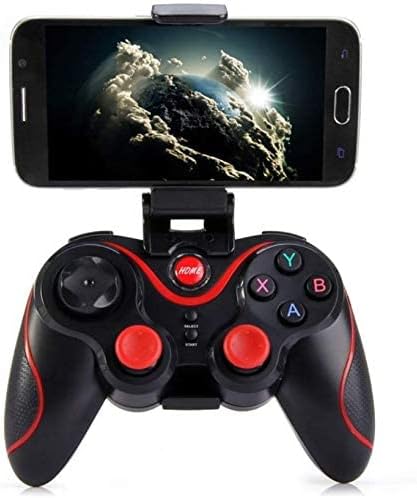
Image: The Gen Game S3 Wireless Bluetooth Gamepad with a smartphone securely mounted on its integrated holder, demonstrating its use with mobile devices.
การเชื่อมต่อพีซี
For PC connection, you may use Bluetooth if your PC has it, or connect via USB cable for a wired connection.
- Bluetooth (PC): Follow similar steps as for smartphone pairing. Ensure your PC's Bluetooth is on and discoverable.
- Wired (PC): Connect the gamepad to your PC using the supplied USB cable. The PC should automatically detect and install necessary drivers.
คำแนะนำการใช้งาน
Once connected, the Gen Game S3 gamepad is ready for use with compatible games and applications.
เค้าโครงปุ่มและฟังก์ชัน
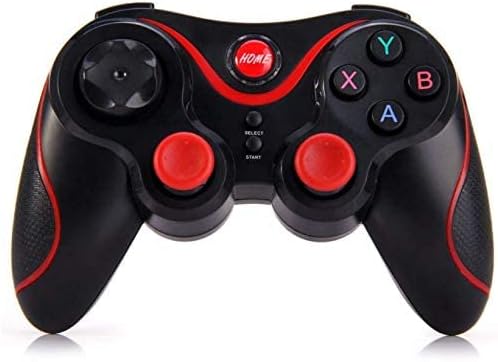
ภาพ: จากบนลงล่าง view of the Gen Game S3 Wireless Bluetooth Gamepad, highlighting the arrangement of its buttons, D-pad, and analog sticks.
- แท่งอนาล็อก: Used for directional movement and camera control in games.
- ดี-แพด: Digital directional input, often used for menu navigation or specific game actions.
- ปุ่มการกระทำ (A, B, X, Y): Primary interaction buttons for in-game actions.
- ปุ่มหน้าแรก: Powers on/off the gamepad, enters pairing mode, or returns to the system home screen.
- ปุ่มเลือก/เริ่ม: Used for various in-game functions, such as pausing or opening menus.
- ปุ่มไหล่ (L1, R1) และปุ่มไกปืน (L2, R2): Located on the top edge, used for additional in-game actions like shooting or aiming.

ภาพ: ด้านข้าง view of the Gen Game S3 Wireless Bluetooth Gamepad, clearly showing the L1, R1 shoulder buttons and L2, R2 triggers.
การจัดการพลังงาน
- เปิดเครื่อง: กดปุ่ม บ้าน ปุ่ม.
- หมดแรง: กดปุ่มค้างไว้ บ้าน button for approximately 5 seconds until the indicator light turns off. The gamepad will also automatically power off after a period of inactivity to conserve battery.
การบำรุงรักษาและการดูแล
Proper care will extend the life of your Gen Game S3 gamepad.
- การทำความสะอาด: Use a soft, dry cloth to wipe the surface of the gamepad. Do not use harsh chemicals or abrasive cleaners.
- พื้นที่จัดเก็บ: เก็บเกมแพดไว้ในที่แห้งและเย็น หลีกเลี่ยงแสงแดดโดยตรงและอุณหภูมิที่สูงหรือต่ำเกินไป
- แบตเตอรี่: To maintain battery health, avoid fully discharging the battery frequently. Charge the gamepad regularly, even if not in use for extended periods.
- หลีกเลี่ยงการหยด: ควรปกป้องจอยเกมจากการกระแทกและการตกหล่น ซึ่งอาจทำให้ชิ้นส่วนภายในเสียหายได้
การแก้ไขปัญหา
If you encounter issues with your gamepad, refer to the following common problems and solutions:
- จอยเกมไม่เปิดใช้งาน:
Ensure the gamepad is fully charged. Connect it to a power source using the USB cable and allow it to charge for at least 30 minutes before attempting to power on again. - จอยเกมไม่สามารถเชื่อมต่อผ่านบลูทูธได้:
Verify Bluetooth is enabled on your device. Ensure the gamepad is in pairing mode (flashing indicator light). Try restarting both the gamepad and your device. Remove any previous pairings of the gamepad from your device's Bluetooth settings and attempt to pair again. - ปุ่มกดหรือจอยสติ๊กไม่ตอบสนอง:
Check if the gamepad is properly connected. If connected via Bluetooth, ensure the connection is stable. If the issue persists, try resetting the gamepad (if a reset button is available, typically a small pinhole on the back, use a thin object to press it). - อายุการใช้งานแบตเตอรี่สั้น:
Ensure the gamepad is fully charged before use. Reduce the brightness of any indicator lights if possible (not applicable for this model, but general advice). The working time is approximately 1 hour, which is normal for this model.
ภาพ: ด้านหลัง view of the Gen Game S3 Wireless Bluetooth Gamepad, showing the battery compartment and regulatory information.
การรับประกันและการสนับสนุน
Gen Game products are designed for reliability and performance. For specific warranty information, please refer to the warranty card included in your product packaging or visit the official Gen Game website. If you require technical support or have questions not covered in this manual, please contact Gen Game customer service through their official channels.
For further assistance, you may also refer to the product's listing page on Amazon.eg: Gen Game S3 Product Page


