1. สูงกว่าview
The Tack GPS tracker is a compact, versatile, and reliable personal tracking device designed for a wide range of applications, including monitoring children, pets, elderly family members, vehicles, and valuable assets. Unlike traditional Bluetooth trackers, the Tack GPS operates independently with its own internet connection, providing global coverage and detailed location history. Its advanced technology ensures accurate positioning both indoors and outdoors, offering peace of mind through smart features like Safe Zones and emergency alerts.

Figure 1.1: Tack GPS device and companion mobile application interface.
คุณสมบัติหลัก:
- อายุการใช้งานแบตเตอรี่ยาวนานเป็นพิเศษ: Up to 30 days on a single charge in Standard Mode, powered by Smart A.I. and advanced movement detection algorithms.
- การดำเนินการแบบอิสระ: Works indoors and outdoors without relying on a mobile phone's Bluetooth connection.
- Hybrid Positioning: Utilizes GPS satellites, cellular tower triangulation, and Wi-Fi positioning for enhanced accuracy.
- โซนปลอดภัย: Receive automatic arrival and departure notifications when the device enters or leaves pre-set geofenced areas.
- One-Click Alert: A dedicated button for sending emergency notifications.
- ครอบคลุมทั่วโลก: Unlimited free roaming data in over 30 countries, including USA, Canada, Mexico, and major EU countries.
- ได้รับการรับรองจาก FCC: Tested to comply with stringent US Federal Communications Commission standards.

Figure 1.2: Comparison of Tack GPS capabilities versus standard Bluetooth trackers.
2. อะไรอยู่ในกล่อง
Upon unboxing your Tack GPS tracker, please ensure all the following components are present:
- Tack GPS Device
- SIM Card (pre-installed)
- Lithium Polymer Battery (internal)
- สายชาร์จ (USB-C)
- คู่มือเริ่มต้นอย่างรวดเร็ว
3. คู่มือการติดตั้ง
Setting up your Tack GPS tracker is a quick and straightforward process. Follow these steps to get your device ready for tracking:
- ชาร์จอุปกรณ์: Before initial use, fully charge your Tack GPS device using the provided USB-C charging cable. Connect the cable to the device's charging port and a standard USB power adapter (not included). The indicator light will show charging status.
- Download the OurSphere App: ค้นหา "OurSphere" in the Google Play Store (for Android devices) or the Apple App Store (for iOS devices) and download the official application.
- สร้างบัญชี: Open the OurSphere app and follow the on-screen instructions to create a new user account.
- เพิ่มอุปกรณ์ของคุณ: In the OurSphere app, select the option to add a new device. You will be prompted to scan the QR code located on your Tack GPS device. Alternatively, you may manually enter the device ID.
- เปิดใช้งานการสมัครสมาชิก: The Tack GPS comes with a complimentary 30-day subscription. Follow the in-app instructions to activate this trial period. Information on continuing your subscription will be available within the app after the trial.
- ปรับแต่งการตั้งค่าอุปกรณ์: Once connected, you can name your device (e.g., "Buddy's Tracker," "Car GPS"), assign an avatar, and configure initial tracking preferences within the app.
Your Tack GPS tracker is now ready for use. Ensure the device has a clear view of the sky for optimal GPS signal acquisition when used outdoors.
4. Operating the Tack GPS
The Tack GPS tracker offers various functionalities accessible through the OurSphere mobile application. Below are the primary operating features:
4.1 Tracking Modes
The device supports different tracking modes to balance location update frequency and battery life:
- โหมดมาตรฐาน: Provides location updates at regular intervals, optimized for maximum battery life (up to 30 days).
- โหมดใช้งาน: Increases the frequency of location updates for more dynamic tracking when needed.
- โหมดฉุกเฉิน: Offers the most frequent updates for critical situations, consuming more battery.
You can switch between these modes directly within the OurSphere app based on your tracking requirements.
4.2 Safe Zones (Geofencing)
Set up virtual boundaries, known as Safe Zones, to receive automated alerts when the tracker enters or exits a designated area. This feature is ideal for monitoring entry and exit from home, school, or other important locations.
- To create a Safe Zone: Navigate to the "Zones" section in the OurSphere app.
- Define the area: Use the map interface to draw a custom geofence around your desired location.
- Receive notifications: The app will automatically send notifications to your registered device when the Tack GPS crosses the defined boundary.
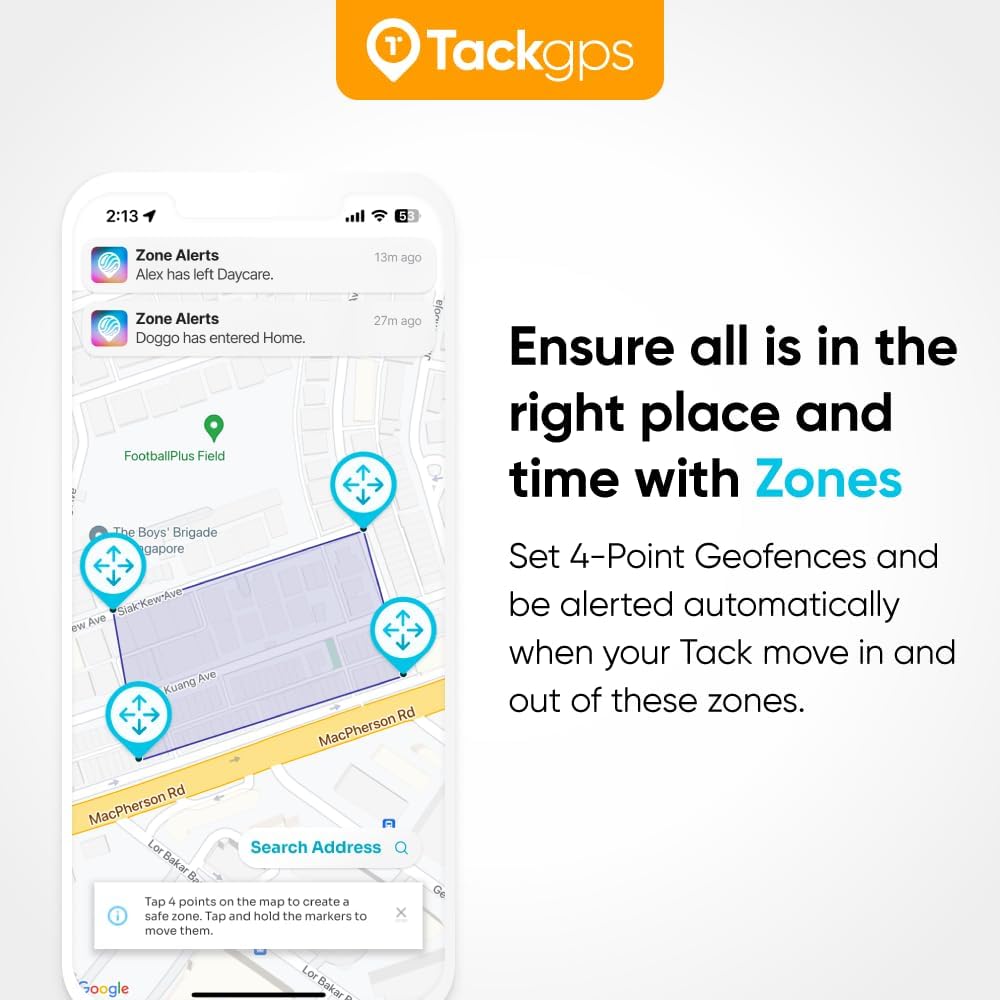
Figure 4.1: Setting up and receiving alerts from Safe Zones in the OurSphere app.
4.3 One-Click Emergency Alert
The Tack GPS device features a dedicated button for sending immediate emergency alerts. In a critical situation, the wearer can press this button to notify pre-selected contacts through the OurSphere app.
- To activate: Press and hold the emergency button on the Tack GPS device.
- Notification: An alert will be sent to designated contacts via the OurSphere app, indicating that attention is needed.

Figure 4.2: Initiating and receiving a One-Click Alert.
4.4 ประวัติตำแหน่งที่ตั้ง
The OurSphere app stores a detailed history of the tracker's movements, allowing you to review past locations and travel paths. This feature is invaluable for understanding movement patterns and retracing steps.
- Access history: Navigate to the specific device's profile in the OurSphere app.
- View timeline: A map will display the device's historical locations over a selected period.

รูปที่ 4.3: Viewing location history within the OurSphere app.
4.5 Global Coverage
The Tack GPS tracker provides seamless tracking across more than 30 countries worldwide, including the USA, Canada, Mexico, and all major EU countries, thanks to its included SIM card and unlimited free roaming data. This ensures continuous monitoring whether the device is used locally or during international travel.

Figure 4.4: Tack GPS offers global tracking capabilities.
5. อายุการใช้งานแบตเตอรี่และการชาร์จ
The Tack GPS tracker is engineered for extended use, offering an impressive battery life of up to 30 days on a single charge when operating in Standard Mode. Actual battery performance may vary based on usage patterns, tracking mode, signal strength, and environmental factors.

Figure 5.1: The Tack GPS boasts up to 30 days of battery life.
คำแนะนำในการชาร์จ:
- Connect the provided USB-C charging cable to the charging port on the Tack GPS device.
- Plug the other end of the cable into a compatible USB power source (e.g., computer USB port, wall adapter, power bank).
- The device's indicator light will illuminate to show that it is charging. Refer to the Quick Start Guide for specific light indications.
- A full charge typically takes a few hours. Once fully charged, the indicator light will change, and the device is ready for another extended period of use.
To maximize battery life, consider using the Standard Mode for everyday tracking and switching to more frequent update modes only when necessary.
6. ข้อมูลจำเพาะ
Detailed technical specifications for the Tack GPS tracker:
| คุณสมบัติ | รายละเอียด |
|---|---|
| หมายเลขรุ่น | แทค GPS |
| ขนาดสินค้า | 1.85 x 1.46 x 0.67 นิ้ว (47 x 37 x 17 มม.) |
| น้ำหนักสินค้า | 1.06 ออนซ์ (30 กรัม) |
| ประเภทแบตเตอรี่ | แบตเตอรี่ลิเธียมโพลิเมอร์ 1 ก้อน (รวมอยู่ด้วย) |
| เทคโนโลยีการเชื่อมต่อ | เซลลูล่าร์ |
| คุณสมบัติพิเศษ | GPS Satellites, Cell Tower Triangulation, Wi-Fi Positioning System |
| แอปพลิเคชั่นที่รองรับ | GPS (OurSphere App) |
| สี | สีขาว |
| วัสดุ | พลาสติก |
| ผู้ผลิต | Tack One Pte Ltd |
| ประเทศต้นกำเนิด | สิงคโปร์ |

Figure 6.1: Compact design of the Tack GPS tracker.
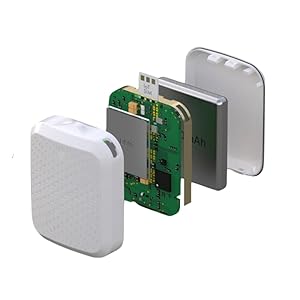
Figure 6.2: Internal components of the Tack GPS.
7. การสนับสนุนและการรับประกัน
For comprehensive support and warranty information regarding your Tack GPS tracker, please refer to the official resources provided by Tack One Pte Ltd.
คู่มือการใช้งาน 7.1 ฉบับ (PDF)
A detailed PDF user manual is available for download, offering in-depth instructions and troubleshooting tips:
7.2 การสนับสนุนออนไลน์
Visit the official Tack GPS support website for FAQs, troubleshooting guides, and contact information:
7.3 ข้อมูลการรับประกัน
Information regarding the product warranty, including coverage details and claims procedures, can be found in the full user manual or on the official Tack GPS support webโปรดเก็บหลักฐานการซื้อไว้เพื่อใช้ในเรื่องการรับประกัน


