
การแนะนำ
The eero Pro 6E mesh Wi-Fi system is designed to provide fast, reliable, and secure internet coverage throughout your home. Utilizing Wi-Fi 6E technology, it supports internet plans up to 2.5 Gbps, offering lower latency and increased bandwidth for a seamless online experience across multiple devices.
This manual provides essential information for setting up, operating, maintaining, and troubleshooting your eero Pro 6E system to ensure optimal performance.

Image: A three-pack of eero Pro 6E devices, showcasing การออกแบบที่เพรียวบาง
มีอะไรอยู่ในกล่อง
Your eero Pro 6E (3-pack) system includes the following components:
- Three (3) eero Pro 6E devices
- อะแดปเตอร์ไฟฟ้าสาม (3) ตัว
- สายอีเทอร์เน็ตหนึ่ง (1) เส้น
- คู่มือเริ่มต้นใช้งานฉบับย่อ (คู่มือฉบับนี้เป็นคู่มือที่ครอบคลุมทุกด้าน)
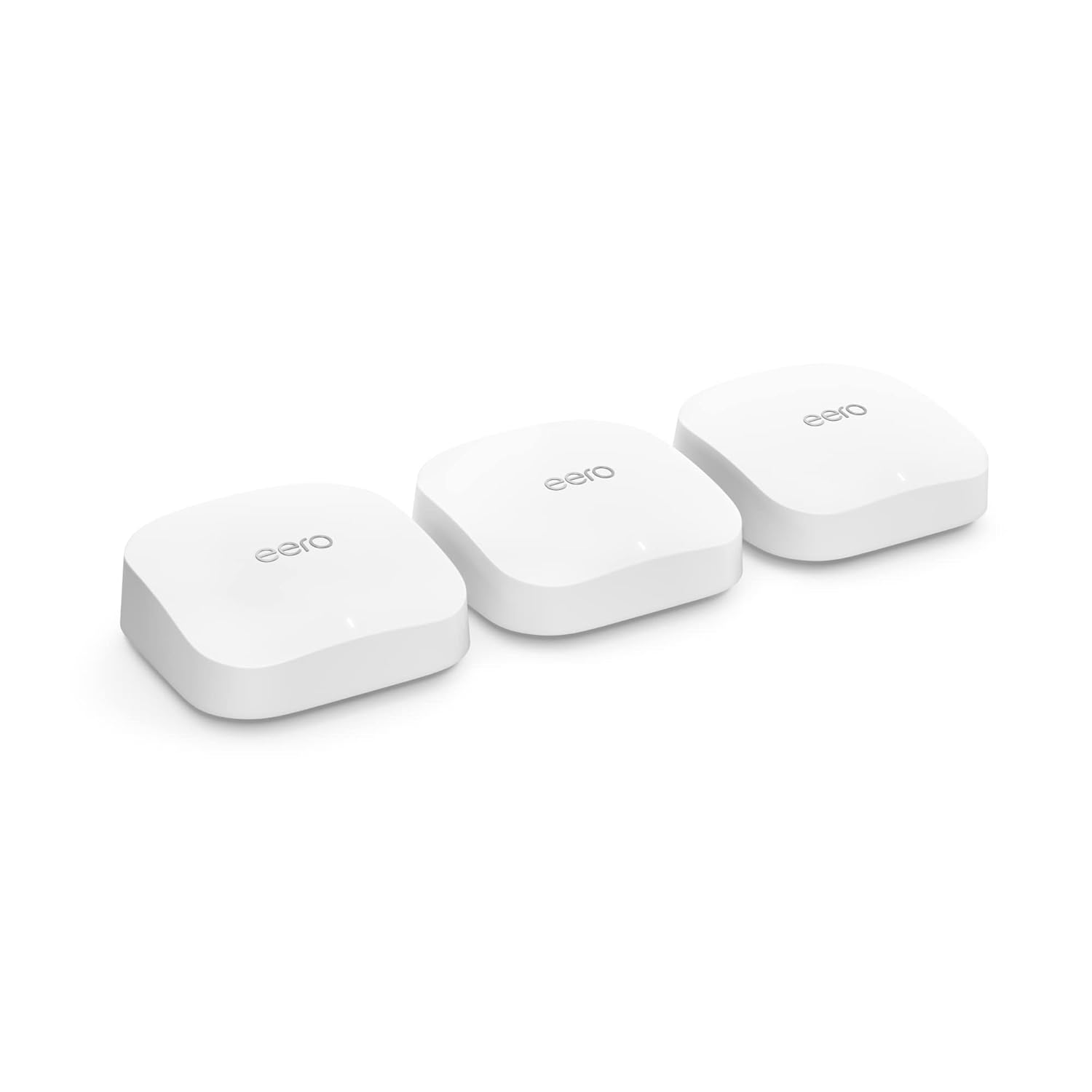
Image: The three eero Pro 6E devices included in the package.
การตั้งค่า
Setting up your eero Pro 6E system is a straightforward process guided by the eero app. Follow these steps for a quick and easy installation:
- ดาวน์โหลดแอป eero: ค้นหา "eero" in your mobile device's app store (iOS or Android) and download the application.
- สร้างบัญชี: Open the eero app and follow the on-screen prompts to create a new eero account or log in if you already have one.
- Connect Your First eero:
- Unplug your existing modem and router (if you have a separate router).
- Connect one eero Pro 6E device to your modem using the provided Ethernet cable. Use either Ethernet port on the eero.
- Plug in the power adapter to the eero device and then into a power outlet.
- Plug your modem back in and wait for it to fully power on and connect to the internet (indicator lights on your modem will confirm this).
- ทำตามคำแนะนำในแอป: The eero app will detect your connected eero and guide you through naming your network and setting a password.
- เพิ่มอุปกรณ์ eero เพิ่มเติม: Once your first eero is online, the app will prompt you to add the remaining eero devices. Place them strategically throughout your home to maximize coverage.
- Plug in each additional eero device to a power outlet.
- Ensure they are within range of another eero device to form a strong mesh network.
- The app will confirm when each eero is successfully added to your network.
- เชื่อมต่ออุปกรณ์ของคุณ: Once the setup is complete, connect your Wi-Fi enabled devices (smartphones, tablets, computers, smart home devices) to your new eero network using the Wi-Fi name and password you created.

Image: The eero app simplifies the setup process, guiding users step-by-step.
Operating Your eero Pro 6E System
The eero Pro 6E system operates as a unified mesh network, intelligently managing your Wi-Fi to provide optimal performance for all connected devices.
คุณสมบัติหลักและประโยชน์:
- Wi-Fi 6E Technology: Supports the new 6 GHz band, providing dedicated, interference-free channels for Wi-Fi 6E compatible devices. This results in significantly lower latency and faster speeds, even for non-6E devices on the network.
- TrueMesh Technology: eero's patented TrueMesh intelligently routes traffic to reduce drop-offs and dead spots, ensuring consistent coverage throughout your home.
- Gigabit+ Speeds: Capable of supporting network speeds up to 2.3 Gbps, including wired speeds up to 1 Gbps and wireless speeds up to 1.6 Gbps. The 2.5 Gb Ethernet port enables full utilization of gigabit+ internet plans.
- ครอบคลุมอย่างกว้างขวาง: A 3-pack system provides coverage up to 6,000 sq. ft., supporting over 100 connected devices simultaneously.
- Optimized for High-Bandwidth Activities: Ideal for 8K streaming, AR/VR applications, and competitive online gaming due to its high bandwidth and low latency capabilities.
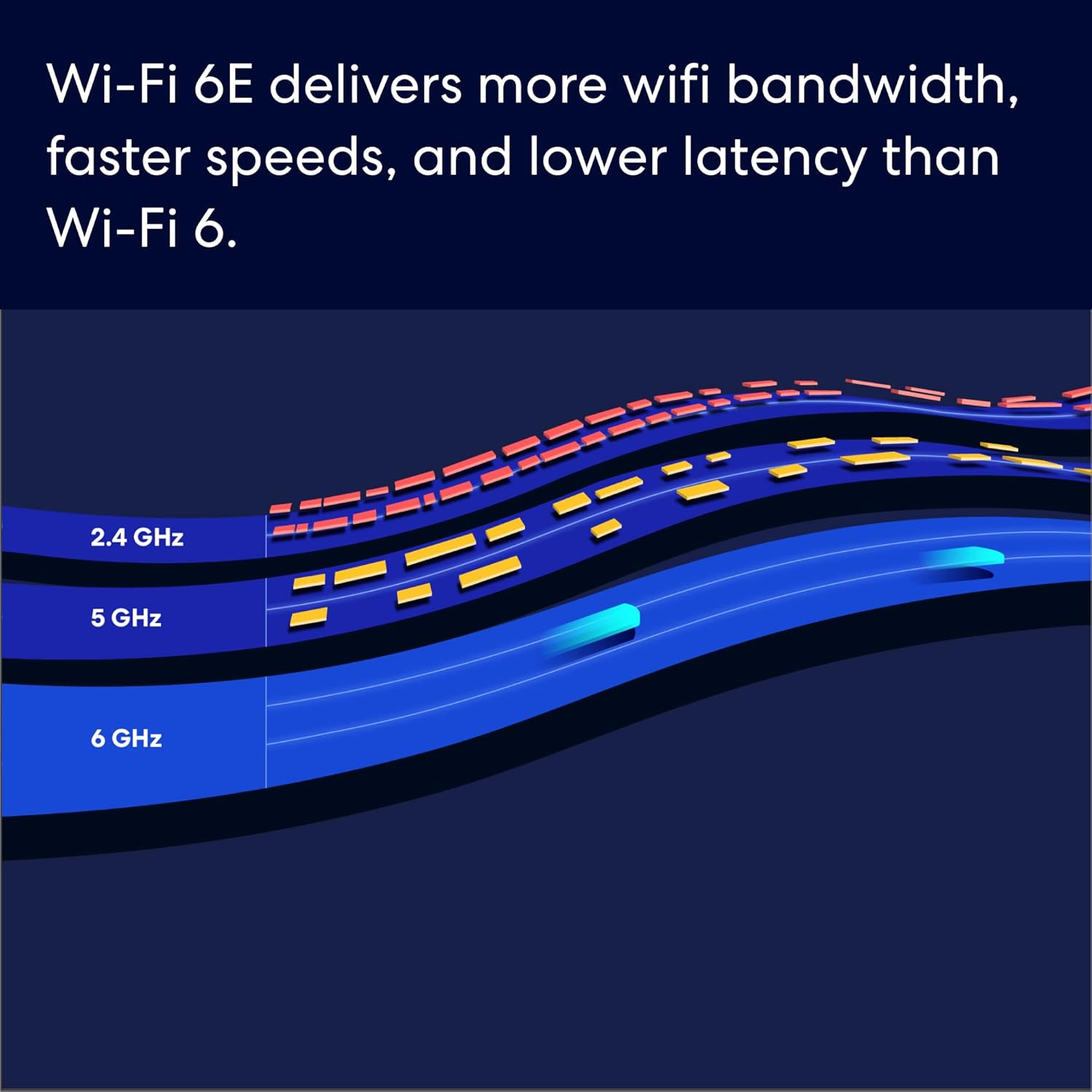
Image: The eero Pro 6E supports gigabit+ internet plans, enabling smooth streaming and work for the whole family.

Image: Wi-Fi 6E introduces the 6 GHz band for increased bandwidth and lower latency compared to Wi-Fi 6.

Image: The system is built for demanding applications like 8K streaming, AR/VR, and gaming.
Image: Illustrates how multiple eero devices provide extensive Wi-Fi coverage throughout a home, supporting over 100 devices.
การซ่อมบำรุง
To ensure the longevity and optimal performance of your eero Pro 6E system, consider the following maintenance guidelines:
- การอัปเดตอัตโนมัติ: Your eero system automatically receives software updates to improve performance, add new features, and enhance security. Ensure your eero devices are always connected to the internet to receive these updates.
- ตำแหน่งที่เหมาะสมที่สุด: Avoid placing eero devices in enclosed spaces, near large metal objects, or close to other electronics that might cause interference (e.g., microwaves, cordless phones). For best coverage, place them in open areas, ideally at eye level.
- การทำความสะอาด: Gently wipe the exterior of your eero devices with a soft, dry cloth. Do not use liquid cleaners or abrasive materials. Ensure the devices are unplugged before cleaning.
- การระบายอากาศ : Ensure that the ventilation holes on your eero devices are not obstructed to prevent overheating.
การแก้ไขปัญหา
If you encounter issues with your eero Pro 6E system, try the following common troubleshooting steps:
- ไม่มีการเชื่อมต่ออินเทอร์เน็ต:
- Check if your modem is working correctly. Try restarting your modem by unplugging it for 30 seconds and plugging it back in.
- Ensure the Ethernet cable connecting your main eero to the modem is securely plugged in.
- Restart your main eero device by unplugging its power adapter for 30 seconds and plugging it back in.
- Slow Speeds or Poor Coverage:
- Check the placement of your eero devices. Ensure they are not too far apart and are in open areas.
- Run a speed test using the eero app to diagnose network performance.
- Restart all eero devices in your network via the eero app or by unplugging them.
- Ensure your eero software is up to date.
- อุปกรณ์ไม่ได้เชื่อมต่อ:
- ตรวจสอบให้แน่ใจว่าคุณป้อนรหัสผ่าน Wi-Fi ที่ถูกต้อง
- รีสตาร์ทอุปกรณ์ที่คุณพยายามเชื่อมต่อ
- Move the device closer to an eero node to check for signal strength issues.
- ปัญหาเกี่ยวกับแอป eero:
- Ensure your mobile device has a stable internet connection (cellular or another Wi-Fi network).
- Try force-closing and reopening the eero app.
- ตรวจสอบการอัปเดตแอปในร้านแอปของอุปกรณ์ของคุณ
For more advanced troubleshooting or persistent issues, please refer to the Support Information section.
ข้อมูลจำเพาะ
| คุณสมบัติ | คำอธิบาย |
|---|---|
| บริการ Wi-Fi มาตรฐาน | ไวไฟ 6E (802.11ax) |
| ย่านความถี่ | 2.4กิกะเฮิรตซ์, 5กิกะเฮิรตซ์, 6กิกะเฮิรตซ์ |
| Max Network Speed | Up to 2.3 Gbps (wired + wireless combined) |
| ความเร็วไร้สาย | สูงสุดถึง 1.6 Gbps |
| พอร์ตอีเทอร์เน็ต | 2.5 Gb Ethernet port (1), 1.0 Gb Ethernet port (1) per eero device |
| ความคุ้มครอง (3 แพ็ค) | พื้นที่สูงสุดถึง 6,000 ตร.ฟุต |
| อุปกรณ์ที่เชื่อมต่อ | รองรับอุปกรณ์มากกว่า 100 เครื่อง |
| ความปลอดภัย | WPA3, การอัปเดตความปลอดภัยอัตโนมัติ |
| ฮับบ้านอัจฉริยะ | ฮับสมาร์ทโฮม Zigbee ในตัว |
ข้อมูลการรับประกัน
For detailed warranty information regarding your eero Pro 6E system, please refer to the warranty card included with your product packaging or visit the official eero support webไซต์ เงื่อนไขการรับประกันอาจแตกต่างกันไปตามภูมิภาคและสถานที่ซื้อ
การสนับสนุนลูกค้า
If you require further assistance or have questions not covered in this manual, please contact eero customer support:
- โทรศัพท์ (สหรัฐอเมริกา): +1-877-659-2347
- อีเมล: support@eero.com
- แอป eero: Utilize the in-app support features for quick access to help articles and direct contact options.
- แหล่งข้อมูลออนไลน์: Visit the official eero website for FAQs, community forums, and additional support documentation.


