1. บทนำ
The TOPDON Phoenix Plus 2 is a professional-grade automotive diagnostic scan tool designed for comprehensive vehicle system analysis, maintenance, and advanced functions. This manual provides detailed instructions for setting up, operating, and maintaining your device to ensure optimal performance and accurate diagnostics.
2. คุณสมบัติหลัก
- การเขียนโค้ด ECU: Compatible with various brands including Benz, BMW, and V.A.G, allowing for customization and module replacement.
- Bidirectional Control (Active Test): Perform specific tests on vehicle components to identify issues directly.
- 41+ Hot Reset Services: A wide range of maintenance functions such as AdBlue Reset, Oil Reset, SAS Reset, EPB Reset, TPMS Reset, BMS Reset, and more.
- การตรวจสอบระบบทั้งหมด: Comprehensive scanning of all available onboard systems (e.g., transmission, engine, body) to retrieve Diagnostic Trouble Codes (DTCs).
- Topology Map: Visual representation of the vehicle's full system status for easy fault identification.
- AutoVIN & AutoScan: Quickly identify vehicle information and perform automatic system scans.
- ระบบ AutoAuth สำหรับ FCA SGW: Bypass Security Gateway Module in FCA vehicles for advanced diagnostics.
- V.A.G Guided Function: Streamlined procedures for V.A.G vehicles.
- ฮาร์ดแวร์ขั้นสูง: Android 10.0 OS, 10.1-inch touchscreen, 64GB ROM, and 2 years of free software updates.
3. อะไรอยู่ในกล่อง
Upon unboxing your TOPDON Phoenix Plus 2, you should find the following components:
- 1x Phoenix Plus 2 Diagnostic Tablet
- 1x VCI Dongle
- 1x กระเป๋าใส่อุปกรณ์พกพา
- 1x คู่มือผู้ใช้
- Various Diagnostic Connectors (e.g., BMW-20, Fiat-3, GM/VAZ-12, Benz-38, Honda-3, Toyota-17, Toyota-22, Nissan-14+16, Mitsubishi/Hyundai-12+16)
- OBD I Adapter
- OBD II Extension Cable
- สายเคเบิล Type-C เป็น USB
- สายไฟที่จุดบุหรี่
- แบตเตอรี่Clampสายเคเบิล
- Power Adaptors (UK, EU, US Gauge)
- จดหมายรหัสผ่าน

Image: The TOPDON Phoenix Plus 2 Scanner, VCI dongle, and various cables neatly organized within its protective carry case.
Video: An unboxing demonstration of the TOPDON Phoenix Plus 2, showcasing the tablet, VCI, and included accessories.
4. การตั้งค่าและการกำหนดค่าเริ่มต้น
4.1. อุปกรณ์โอเวอร์view and Charging
Before first use, ensure the Phoenix Plus 2 tablet is fully charged using the provided power adapter and Type-C USB cable. The tablet features a robust design with protected ports.

Image: Close-up of the TOPDON Phoenix Plus 2 tablet highlighting the USB port and Type C charging slot.
4.2. การลงทะเบียนและการเปิดใช้งาน
To access all features and receive software updates, you must register and activate your device.
- Connect the tablet to a Wi-Fi network.
- Navigate to "User Info" > "Settings" > "Login".
- Select "New Registration" and follow the on-screen prompts to create an account. You will need to input a username, password, and email address.
- A verification code will be sent to your email. Enter this code when prompted.
- Locate the "PASSWORD LETTER" included in your package. This contains the Serial Number and Activation Code for your VCI (Vehicle Communication Interface) dongle.
- Input the Serial Number and Activation Code into the device.
- Tap "Activate" to complete the registration process.
Video: A step-by-step guide on how to register and activate your TOPDON Phoenix Plus 2 device.
4.3 การเชื่อมต่อกับยานพาหนะ
The Phoenix Plus 2 uses a VCI dongle for wireless communication with the vehicle. For older vehicles, various diagnostic connectors are provided.
- ค้นหาพอร์ต OBD-II ของรถ (โดยทั่วไปจะอยู่ใต้แผงหน้าปัด)
- Plug the VCI dongle directly into the OBD-II port. For non-standard OBD-II ports, use the appropriate diagnostic connector and cable from the kit.
- Ensure the VCI dongle's indicator light is on, signifying a successful connection to the vehicle's power.
- The tablet will automatically connect to the VCI via Bluetooth within a 10-meter range.

Image: A selection of diagnostic connectors, including BMW-20, Fiat-3, GM/VAZ-12, and Benz-38, for various vehicle models.
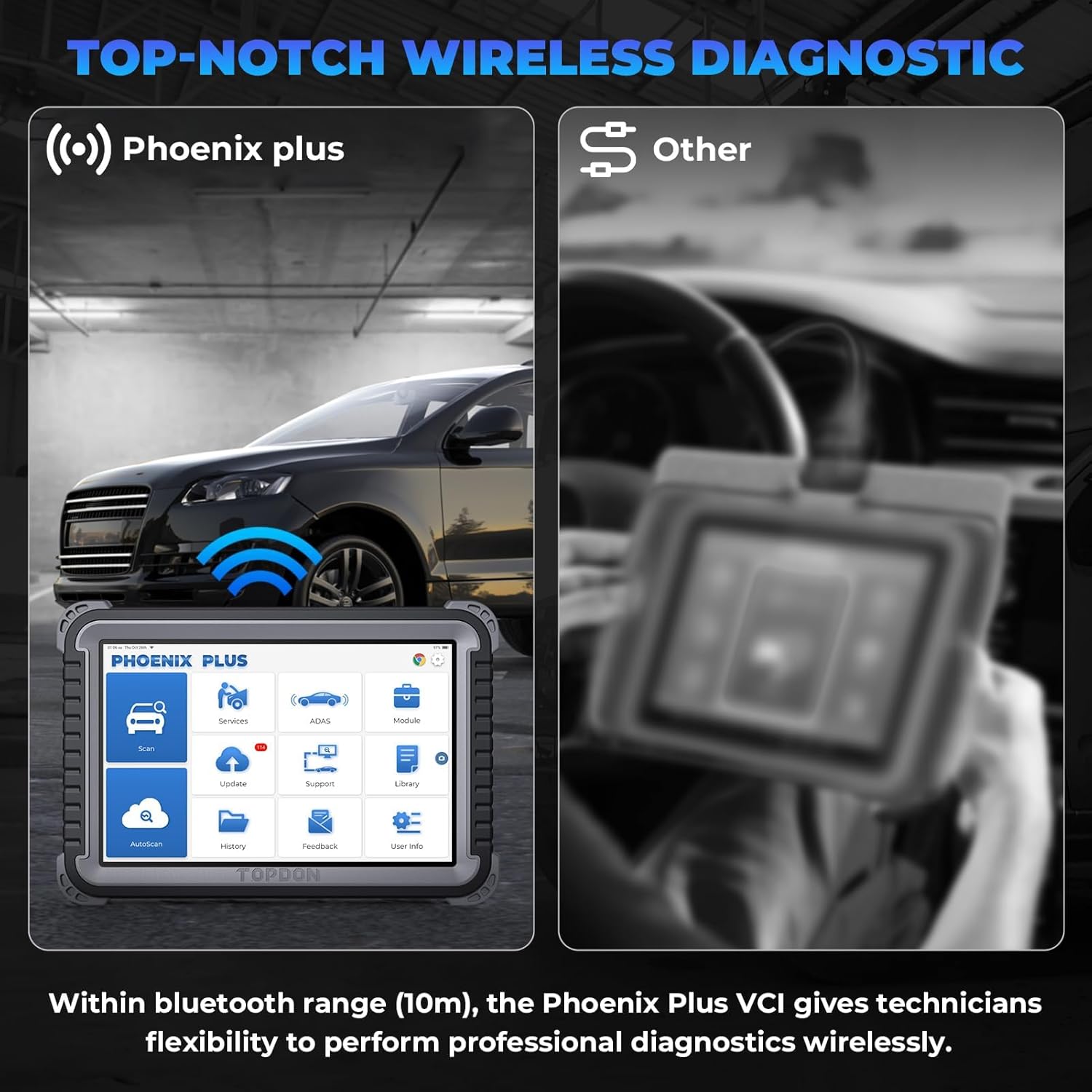
Image: The Phoenix Plus 2 tablet performing wireless diagnostics with a vehicle, illustrating the 10m Bluetooth range.
5. คู่มือการใช้งาน
5.1. การนำทางอินเทอร์เฟซ
The Phoenix Plus 2 operates on Android 10.0 with a user-friendly 10.1-inch touchscreen interface. The main screen provides access to key functions:
- สแกน: Initiate a diagnostic scan.
- บริการ: Access various maintenance and reset functions.
- เอดาส: Advanced Driver-Assistance Systems calibration.
- โมดูล: Specific module functions.
- อัปเดต: Download and install software updates.
- สนับสนุน: Access technical support and resources.
- ห้องสมุด: Contains OBD Fault Code Library, Coverage List, and Learning Materials.
- สแกนอัตโนมัติ: Automatic vehicle identification and full system scan.
- ประวัติศาสตร์: Review past diagnostic reports.
- ข้อเสนอแนะ: Send feedback to TOPDON.
- ข้อมูลผู้ใช้: Manage account settings and device information.
5.2. การทำการสแกนเพื่อวินิจฉัยโรค
The device offers both manual and automatic scanning options.
- Ensure the VCI is connected to the vehicle and the tablet is powered on.
- แตะ "AutoScan" on the home screen for automatic vehicle identification and a comprehensive scan of all available systems.
- อีกวิธีหนึ่งคือแตะ "Scan" to manually select vehicle make, model, and year, then proceed with a system-specific scan.
- การ Topology Map feature will display the vehicle's system status, highlighting any faulty areas for quick identification.

Image: The Topology Map function on the Phoenix Plus 2 screen, showing a visual overview of a vehicle's electronic control units and their status.

Image: The device demonstrating Topology Mapping to quickly locate faults and AutoVIN for rapid vehicle identification.
5.3. ECU Coding and Bidirectional Control
These advanced functions allow for in-depth vehicle customization and component testing.
- การเขียนโค้ด ECU: Access the ECU Coding menu to activate or deactivate hidden functions, match new ECUs after replacement, and perform variant coding. This is compatible with various vehicle brands.
- Bidirectional Control (Active Test): From the diagnostic menu, select the desired system and then choose "Active Test" to command specific components (e.g., turn on radiator fan, test fuel injectors, operate windows).

Image: The Phoenix Plus 2 illustrating ECU coding capabilities, such as activating hidden functions and matching new ECUs.

Image: The device demonstrating bidirectional control by activating various vehicle components like the radiator fan and windows.

ภาพ: รายละเอียด view of bidirectional control functions, including testing fuel injectors, coolant pumps, windows, and windshield wipers.
5.4. Maintenance Services
The Phoenix Plus 2 offers over 41 maintenance and reset services. Access these via the "Services" icon on the home screen.
- Common services include: Oil Reset, SAS (Steering Angle Sensor) Reset, EPB (Electronic Parking Brake) Reset, TPMS (Tire Pressure Monitoring System) Reset, BMS (Battery Management System) Reset, AdBlue Reset, Gearbox Reset, Sunroof Reset, Suspension Reset, AFS (Adaptive Front-lighting System) Headlamp Reset, and more.
- Follow the on-screen instructions for each specific service.

Image: The Phoenix Plus 2 screen showing a selection of over 41 maintenance services, including Oil Reset, Adblue Reset, and EPB Reset.

Image: A more detailed list of the 41+ maintenance services available, such as SRS, ABS, Transport, Suspension Reset, and more.
5.5. Vehicle Coverage Inquiry
To check specific functions supported for a particular vehicle, use the Vehicle Coverage feature:
- จากหน้าจอหลัก แตะ "Library".
- เลือก "Coverage List" to go to the Coverage List page.
- Select the make of the vehicle or the service function you wish to inquire about.
- Select or enter the vehicle model, year, and other relevant details to check the specific service functions covered.
Video: A demonstration on how to use the Vehicle Coverage feature to check supported functions for specific vehicle models and years.
6. การบำรุงรักษา
6.1. การอัปเดตซอฟต์แวร์
Regular software updates are crucial for maintaining optimal performance, expanding vehicle coverage, and adding new features. The Phoenix Plus 2 includes 2 years of free software updates.
- ตรวจสอบให้แน่ใจว่าอุปกรณ์เชื่อมต่อกับเครือข่าย Wi-Fi ที่เสถียรแล้ว
- แตะที่ "Update" ไอคอนบนหน้าจอหลัก
- Select the available updates and follow the on-screen instructions to install them.
6.2. การดูแลทั่วไป
- รักษาอุปกรณ์ให้สะอาด ปราศจากฝุ่นและความชื้น ใช้ผ้านุ่มและแห้งทำความสะอาด
- Store the device in its protective carry case when not in use to prevent damage.
- หลีกเลี่ยงการวางอุปกรณ์ไว้ในอุณหภูมิที่สูงหรือต่ำเกินไปหรือถูกแสงแดดโดยตรงเป็นเวลานาน
- อย่าพยายามถอดประกอบหรือซ่อมแซมอุปกรณ์ด้วยตนเอง ติดต่อฝ่ายสนับสนุนลูกค้าเพื่อขอความช่วยเหลือ
7 การแก้ไขปัญหา
If you encounter issues with your TOPDON Phoenix Plus 2, refer to the following common solutions:
- อุปกรณ์ไม่เปิดเครื่อง: ตรวจสอบให้แน่ใจว่าแบตเตอรี่ชาร์จเต็มแล้ว เสียบอุปกรณ์เข้ากับอะแดปเตอร์ไฟแล้วลองอีกครั้ง
- VCI เชื่อมต่อไม่ได้: Check if the VCI dongle is securely plugged into the vehicle's OBD-II port and the vehicle's ignition is on. Verify Bluetooth is enabled on the tablet.
- ซอฟต์แวร์ค้าง/ขัดข้อง: Restart the tablet. Ensure the software is up to date. If the issue persists, contact technical support.
- Inaccurate diagnostic results: Ensure the correct vehicle make, model, and year are selected. Verify all connections are secure.
- Update failures: Check your Wi-Fi connection stability. Ensure sufficient storage space on the device.
For further assistance, refer to the "Support" section on your device or visit the official TOPDON webเว็บไซต์.
8. ข้อมูลจำเพาะ
| คุณสมบัติ | ข้อมูลจำเพาะ |
|---|---|
| แบบอย่าง | ฟีนิกซ์ พลัส |
| ระบบปฏิบัติการ | แอนดรอยด์ 10.0 |
| ขนาดสินค้า | 27 x 19 x 4.4 ซม. |
| น้ำหนักสินค้า | 5.93 กก. |
| แบตเตอรี่ | ต้องใช้แบตเตอรี่ลิเธียมไอออน 1 ก้อน |
| หน่วยความจำ (ROM) | 64GB |
| ขนาดหน้าจอ | 10.1 นิ้ว |
| การอัพเดตซอฟต์แวร์ | อัปเดตฟรี 2 ปี |
9. การรับประกันและการสนับสนุน
TOPDON provides a product assurance period. For specific warranty details, please refer to the documentation included with your device or contact TOPDON customer service directly. Technical support is available to assist with any operational or technical queries.
For support, visit the official TOPDON website or use the "Support" feature within the device's interface.


