1. สินค้าหมดview
The HyperX Alloy Origins 60 is a supremely portable 60% form factor keyboard designed to provide more room for mouse movements. It features a durable, full aluminum body and reliable HyperX switches optimized for speed and performance, rated for 80 million keypresses. The double shot PBT keycaps include secondary functions printed on them for quick access. The exposed LED design of the HyperX switches allows for stunning RGB lighting effects. Further customization, including macros and personalized lighting profiles, can be achieved using HyperX NGENUITY software.

Figure 1.1: HyperX Alloy Origins 60 Mechanical Gaming Keyboard with vibrant RGB backlighting.
2. คุณสมบัติหลัก
- Petite 60% Form Factor: Maximizes desk space for mouse movement.

Figure 2.1: The compact 60% form factor of the keyboard.
- Full Aircraft-Grade Aluminum Body: Ensures structural soundness and stability.

Figure 2.2: Illustration of the durable full aluminum body construction.
- Double Shot PBT Keycaps with Side Printing: Durable keycaps resistant to wear, with secondary functions clearly printed.

Figure 2.3: Double shot PBT keycaps with secondary functions printed on the sides.
- สวิตช์เชิงกล HyperX: Custom-designed for speed and accuracy, rated for 80 million keypresses.

Figure 2.4: HyperX mechanical switches designed for optimal performance.
- RGB Backlit Keys with Radiant Lighting Effects: Enhanced RGB lighting due to exposed LED design.

Figure 2.5: The keyboard displaying its radiant RGB lighting effects.
- Advanced Customization with HyperX NGENUITY: Software for Game Mode, macros, and per-key lighting.

Figure 2.6: HyperX NGENUITY software for advanced customization.
- Three Adjustable Keyboard Angles and Detachable USB-C Cable: For ergonomic comfort and portability.

Figure 2.7: The keyboard's adjustable feet for three different tilt angles.
- Included Keycap Puller and Additional Keycaps: For customization and maintenance.
Figure 2.8: Included accessories for keycap customization.
- ความเข้ากันได้กับหลายแพลตฟอร์ม: Compatible with PC, PS5, PS4, Xbox Series X|S, and Xbox One.
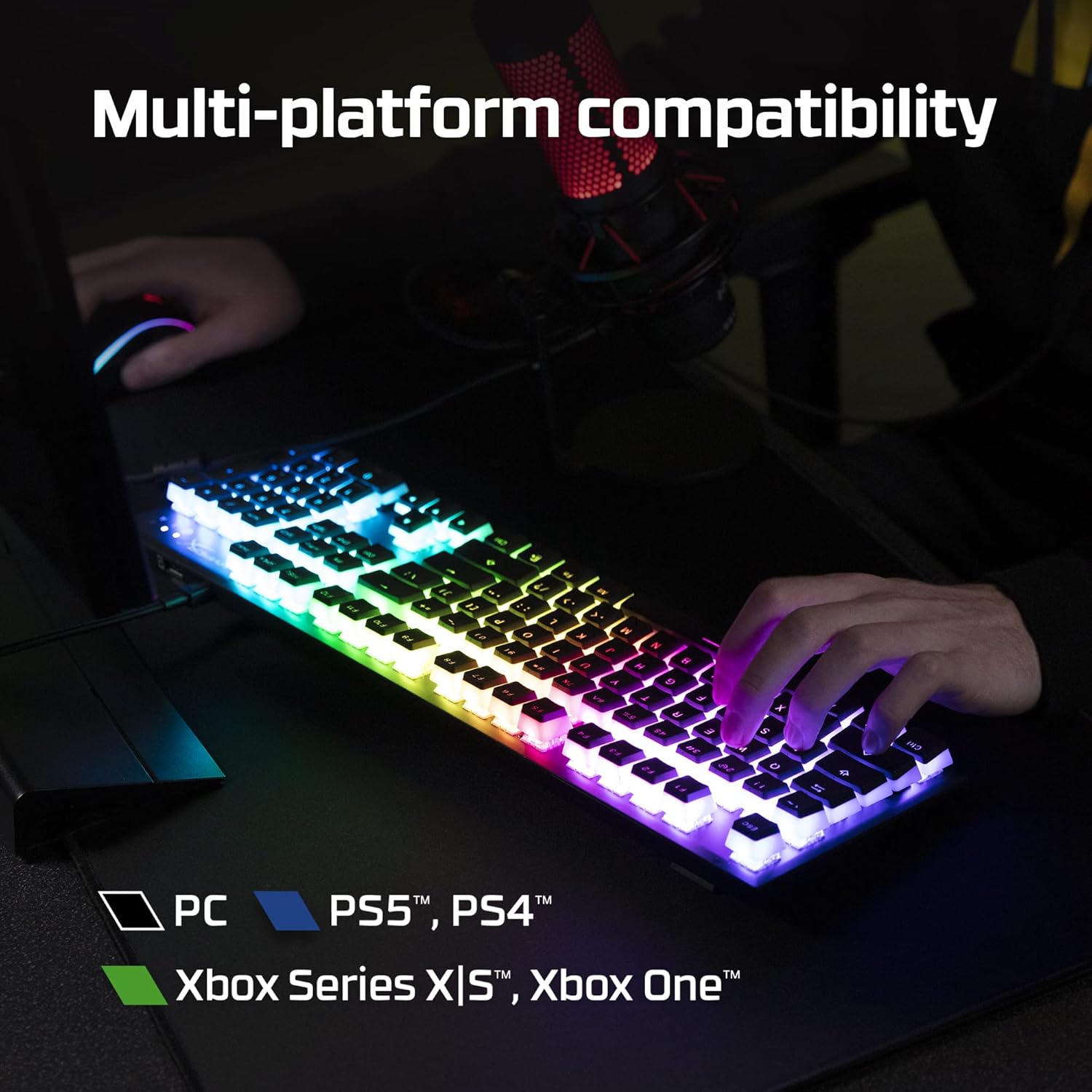
Figure 2.9: The keyboard's multi-platform compatibility.
3. คู่มือการติดตั้ง
3.1 เนื้อหาบรรจุภัณฑ์
ก่อนที่คุณจะเริ่มต้น โปรดตรวจสอบให้แน่ใจว่ามีรายการทั้งหมดอยู่ในแพ็คเกจ:
- HyperX Alloy Origins 60 คีย์บอร์ดเกมมิ่งแบบกลไก
- สาย USB-C ถึง USB-A แบบถอดได้
- ตัวดึงกุญแจ
- Additional Keycaps (e.g., alternate Esc key, special spacebar)
Figure 3.1: All components included in the HyperX Alloy Origins 60 package.
3.2 การเชื่อมต่อคีย์บอร์ด
- Locate the detachable USB-C to USB-A cable.
- Connect the USB-C end of the cable to the USB-C port on the back of the HyperX Alloy Origins 60 keyboard.
- Connect the USB-A end of the cable to an available USB-A port on your PC or gaming console.
- The keyboard will automatically be detected and drivers will install if necessary. The RGB lighting will illuminate upon successful connection.

Figure 3.2: Connecting the detachable USB-C cable to the keyboard.
3.3 การปรับมุมแป้นพิมพ์
The keyboard features two-step keyboard feet, allowing you to set it at three different tilt angles (3°, 7°, 11°) for optimal ergonomic comfort.
- Flip the keyboard over to access the feet on the underside.
- Extend the smaller feet for a moderate tilt.
- Extend both the smaller and larger feet for the maximum tilt.

Figure 3.3: Adjusting the keyboard's tilt angle using the integrated feet.
4. คู่มือการใช้งาน
4.1 ฟังก์ชั่นพื้นฐาน
The HyperX Alloy Origins 60 is a 60% keyboard, meaning it omits the number pad, function row, navigation cluster, and arrow keys to achieve its compact size. These functions are typically accessed via a combination of the Fn key and other keys.
- Fn + [ปุ่ม]: Activates the secondary function printed on the side of the keycap. Refer to the side legends for specific functions.
- โหมดเกม: Prevents accidental presses of the Windows key during gaming. Activate/deactivate via NGENUITY software.
4.2 HyperX NGENUITY Software
For advanced customization of your keyboard, download and install the HyperX NGENUITY software from the official HyperX webไซต์ ซอฟต์แวร์นี้ช่วยให้คุณ:
- Customize RGB lighting effects and colors on a per-key basis.
- Create and manage macros for complex commands.
- Set up and switch between multiple onboard profiles.
- Adjust Game Mode settings.

Figure 4.1: HyperX NGENUITY software for comprehensive keyboard control.
5. การบำรุงรักษา
Proper maintenance ensures the longevity and optimal performance of your HyperX Alloy Origins 60 keyboard.
5.1 การทำความสะอาดแป้นพิมพ์
- ถอดแป้นพิมพ์ออกจากคอมพิวเตอร์ของคุณก่อนทำความสะอาด
- ใช้กระป๋องอัดอากาศเพื่อกำจัดฝุ่นและเศษต่างๆ ออกจากระหว่างปุ่มต่างๆ
- For surface cleaning, gently wipe the keycaps and frame with a soft, lint-free cloth dampened with a small amount of water or a mild, non-abrasive cleaning solution. Avoid excessive moisture.
- ห้ามฉีดน้ำยาทำความสะอาดลงบนแป้นพิมพ์โดยตรง
5.2 การถอดและเปลี่ยนปุ่มกด
อุปกรณ์ถอดคีย์แคปที่ให้มา สามารถใช้ถอดและใส่คีย์แคปได้อย่างปลอดภัย เพื่อทำความสะอาดหรือปรับแต่งคีย์แคป
- Gently place the keycap puller over the keycap you wish to remove, ensuring the wires hook onto opposite sides of the keycap.
- Pull straight up with even pressure until the keycap detaches from the switch stem.
- ในการเปลี่ยนปุ่มกด ให้จัดวางปุ่มกดให้ตรงกับแกนสวิตช์ แล้วกดลงไปให้แน่นจนกว่าจะมีเสียงคลิกเข้าที่

Figure 5.1: Using the keycap puller to remove keycaps.
6 การแก้ไขปัญหา
If you encounter issues with your HyperX Alloy Origins 60 keyboard, try the following troubleshooting steps:
| ปัญหา | สาเหตุที่เป็นไปได้ / วิธีแก้ไข |
|---|---|
| Keyboard not responding / No lighting |
|
| RGB lighting not working correctly |
|
| กุญแจไม่ลงทะเบียนหรือพิมพ์ซ้ำ |
|
If these steps do not resolve the issue, please contact HyperX customer support for further assistance.
7. ข้อมูลจำเพาะ
| คุณสมบัติ | รายละเอียด |
|---|---|
| ขนาดสินค้า | 11.7 x 1.5 x 4.2 นิ้ว |
| น้ำหนักสินค้า | 2.14 ปอนด์ |
| ผู้ผลิต | บริษัท เอชพี อิงค์ |
| ภาษา | ภาษาอังกฤษ |
| ASIN | B08XBQ79MN |
| หมายเลขรุ่นสินค้า | HKBO1S-RB-US/G |
| ยี่ห้อ | ไฮเปอร์เอ็กซ์ |
| อุปกรณ์ที่รองรับ | เครื่องเล่นเกมคอนโซล, พีซี |
| เทคโนโลยีการเชื่อมต่อ | USB-C ถึง USB-A |
| คำอธิบายแป้นพิมพ์ | เครื่องกล, การเล่นเกม |
| การใช้งานที่แนะนำสำหรับผลิตภัณฑ์ | การเล่นเกม |
| คุณสมบัติพิเศษ | Backlit, Lighting, Portable |
| สี | สีดำ |
| จำนวนคีย์ | 61 |
| รองรับสีแบ็คไลท์คีย์บอร์ด | อาร์จีบี |
| สไตล์ | HyperX Red |
8. การรับประกันและการสนับสนุน
For detailed warranty information and technical support, please refer to the official HyperX resources:
- คู่มือผู้ใช้อย่างเป็นทางการ (PDF): ดาวน์โหลดคู่มือผู้ใช้
- HyperX Brand Store: Visit HyperX Store on Amazon
- For further assistance, contact HyperX customer support through their official webเว็บไซต์.


