คู่มือการใช้งานเมาส์ไร้สาย Trust
รุ่น : 24115
ยี่ห้อ: Trust
1. บทนำ
ขอบคุณสำหรับการซื้อasing the Trust Wireless Mouse. This manual provides detailed instructions for setting up, operating, maintaining, and troubleshooting your new wireless mouse. Please read this manual thoroughly before using the product to ensure optimal performance and longevity.

ภาพที่ 1.1: ด้านบน view of the Trust Wireless Mouse, showcasing การออกแบบตามหลักสรีรศาสตร์และเค้าโครงปุ่ม
2. ข้อมูลด้านความปลอดภัย
โปรดปฏิบัติตามคำแนะนำด้านความปลอดภัยต่อไปนี้เพื่อป้องกันความเสียหายต่ออุปกรณ์หรือการบาดเจ็บต่อตัวคุณเอง:
- อย่าให้เมาส์โดนน้ำหรือความชื้นมากเกินไป
- หลีกเลี่ยงการทำตกหรือให้เมาส์ได้รับแรงกระแทกรุนแรง
- อย่าพยายามถอดประกอบหรือซ่อมแซมเมาส์ด้วยตนเอง โปรดติดต่อช่างผู้ชำนาญการ
- ทิ้งแบตเตอรี่ตามระเบียบข้อบังคับในท้องถิ่น
3. เนื้อหาบรรจุภัณฑ์
ตรวจสอบว่ามีรายการทั้งหมดอยู่ในแพ็คเกจ:
- 1x Trust Wireless Comfort Mouse
- 1x ตัวรับสัญญาณไมโคร USB
- 1x AA แบตเตอรี่
- 1x คู่มือผู้ใช้ (เอกสารนี้)

Image 3.1: The retail packaging of the Trust Wireless Mouse, showing the mouse and included accessories.
4. การตั้งค่า
4.1. การติดตั้งแบตเตอรี่
- ค้นหาช่องใส่แบตเตอรี่ที่ด้านล่างของเมาส์
- เลื่อนฝาครอบช่องใส่แบตเตอรี่เปิดออก
- ใส่แบตเตอรี่ AA ที่ให้มา โดยตรวจสอบให้แน่ใจว่าขั้วบวก (+) และขั้วลบ (-) ตรงกับเครื่องหมายภายในช่องใส่แบตเตอรี่อย่างถูกต้อง
- ปิดฝาช่องใส่แบตเตอรี่ให้แน่น

Image 4.1: Underside of the mouse with the battery compartment open, showing the insertion of an AA battery.

ภาพที่ 4.2: ด้านล่าง view of the Trust Wireless Mouse, illustrating the battery compartment and the storage slot for the USB micro receiver.
4.2. การเชื่อมต่อตัวรับสัญญาณ USB Micro
- Locate the USB micro receiver, which is typically stored inside the mouse's battery compartment for transport.
- Remove the USB micro receiver from its storage slot.
- Plug the USB micro receiver into an available USB port on your computer (laptop or PC).
- The mouse should automatically connect to your computer. No additional drivers are typically required for Windows 10, 8, 7, or Mac OS X 10.15 (Catalina) or higher.
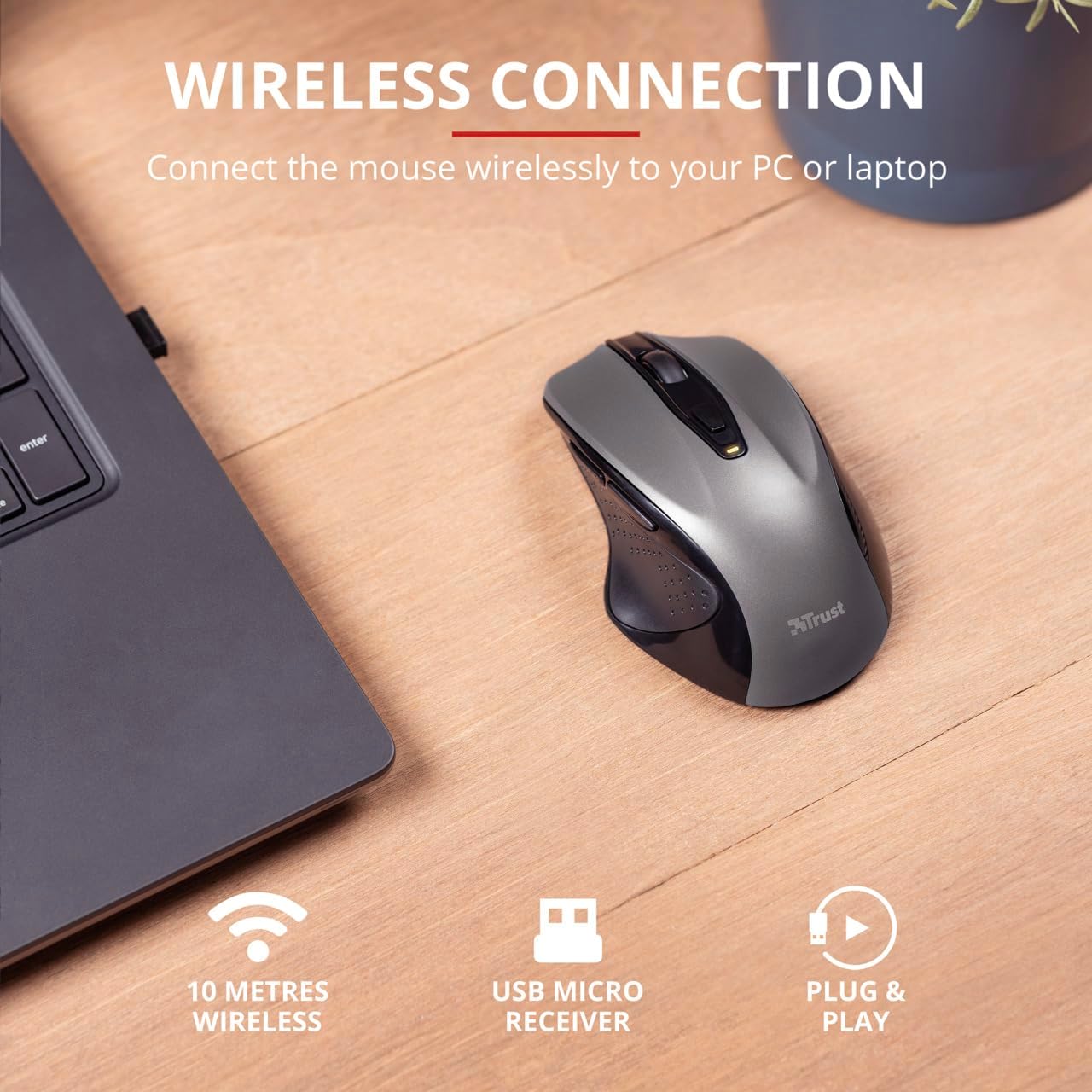
Image 4.3: The Trust Wireless Mouse positioned next to a laptop, demonstrating the wireless connection via the USB micro receiver plugged into the laptop's USB port.
5. การใช้งานเมาส์
5.1. ฟังก์ชั่นพื้นฐาน
- คลิกซ้าย: ปุ่มหลักสำหรับเลือกรายการและใช้งานซอฟต์แวร์
- คลิกขวา: ปุ่มรองสำหรับเมนูบริบทและตัวเลือกเพิ่มเติม
- ล้อเลื่อน: เลื่อนขึ้นหรือลงเพื่อเลื่อนดูเอกสารต่างๆ และ web pages. Press the scroll wheel for middle-click functionality.
5.2. การปรับ DPI
The Trust Wireless Mouse features an adjustable DPI (Dots Per Inch) setting, allowing you to control the cursor speed. There are 5 different speeds available: 800, 1200, 1600, 1800, and 2200 DPI.
- Locate the DPI button, usually positioned behind the scroll wheel.
- กดปุ่ม DPI เพื่อหมุนเวียนการตั้งค่า DPI ที่มี
- An LED indicator on the mouse will briefly show the current DPI setting.

ภาพที่ 5.1: ด้านข้าง view of the Trust Wireless Mouse highlighting its comfortable shape, thumb rest with extra grip, and the adjustable speed (DPI) feature.
5.3. Thumb Buttons
The mouse is equipped with two conveniently placed thumb buttons (forward and backward) on the left side. These buttons facilitate easy navigation, such as browsing through fileสหรือ web หน้า
- กดปุ่ม ซึ่งไปข้างหน้า button to move to the next page or item.
- กดปุ่ม ย้อนกลับ button to return to the previous page or item.
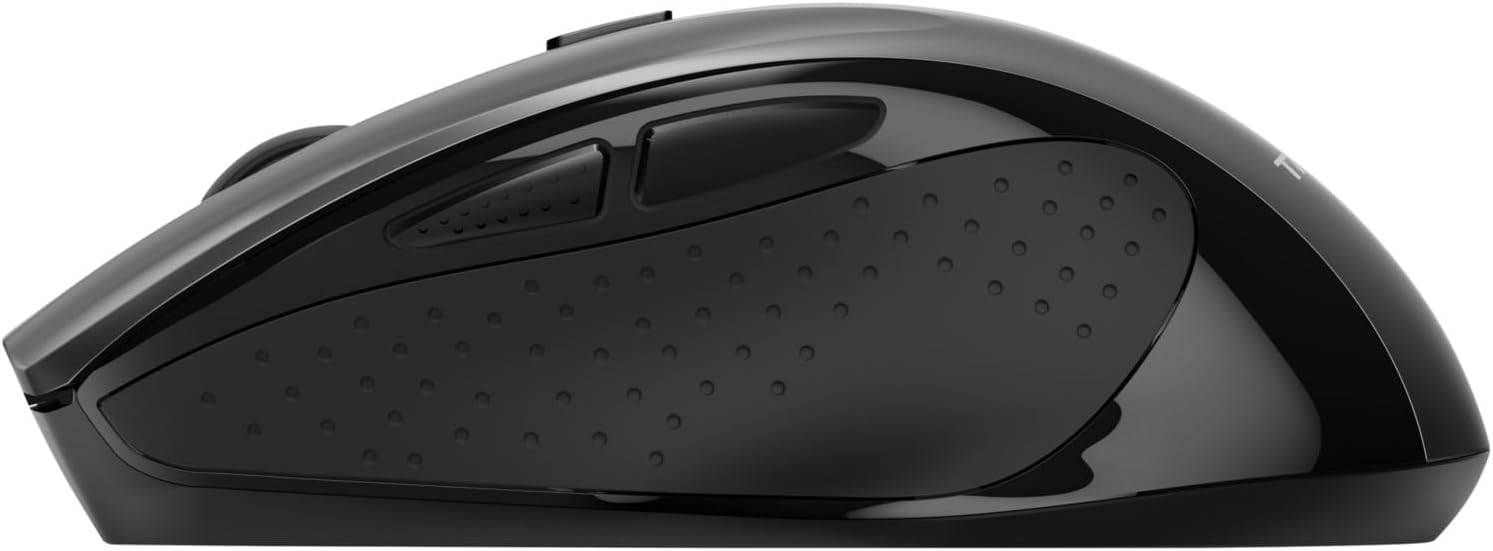
ภาพที่ 5.2: ด้านข้าง view of the Trust Wireless Mouse, clearly showing the placement of the two thumb buttons for forward and backward navigation.
Note: Functionality of side buttons may vary between operating systems.
5.4. คุณสมบัติประหยัดพลังงาน
To conserve battery life, the mouse includes a power-saving mode and an on/off switch.
- สวิตช์เปิด/ปิด: Located on the underside of the mouse. Turn the mouse off when not in use for extended periods to maximize battery life.
- ไฟ LED แสดงสถานะแบตเตอรี่: An LED indicator will light up when the battery level is low, signaling that it's time to replace the AA battery.
6. การบำรุงรักษา
6.1. การทำความสะอาด
To maintain optimal performance, clean your mouse regularly:
- ใช้ผ้าแห้งนุ่มเช็ดพื้นผิวของเมาส์
- สำหรับสิ่งสกปรกฝังแน่น ให้เช็ดออกเล็กน้อยampชุบผ้าด้วยน้ำหรือน้ำยาทำความสะอาดอ่อนๆ หลีกเลี่ยงสารเคมีรุนแรง
- ห้ามให้ของเหลวเข้าไปในส่วนประกอบภายในของเมาส์
6.2. การเปลี่ยนแบตเตอรี่
When the battery indicator lights up, replace the AA battery promptly to ensure uninterrupted use. Refer to section 4.1 for battery installation instructions.
7 การแก้ไขปัญหา
| ปัญหา |
สาเหตุที่เป็นไปได้ |
สารละลาย |
| เมาส์ไม่ตอบสนอง |
แบตเตอรี่เหลือน้อยหรือหมด |
เปลี่ยนแบตเตอรี่ AA |
| เมาส์ไม่ตอบสนอง |
ตัวรับสัญญาณ USB ไม่ได้เชื่อมต่ออย่างถูกต้อง |
ตรวจสอบให้แน่ใจว่าตัวรับสัญญาณ USB เสียบเข้ากับพอร์ต USB ที่ใช้งานได้แน่นสนิทแล้ว ลองใช้พอร์ต USB อื่นดู |
| เมาส์ไม่ตอบสนอง |
เมาส์ถูกปิดอยู่ |
เปิดใช้งานเมาส์โดยใช้สวิตช์เปิด/ปิดที่อยู่ด้านล่างของตัวเมาส์ |
| การเคลื่อนไหวของเคอร์เซอร์ไม่แน่นอนหรือช้า |
Low DPI setting. |
Press the DPI button to increase cursor speed. |
| การเคลื่อนไหวของเคอร์เซอร์ไม่แน่นอนหรือช้า |
Dirty sensor or unsuitable surface. |
Clean the optical sensor on the underside of the mouse. Use the mouse on a clean, non-reflective surface. |
| ปัญหาเกี่ยวกับการเชื่อมต่อไร้สาย |
สัญญาณรบกวนหรือระยะห่างจากเครื่องรับสัญญาณ |
Ensure the mouse is within 10 meters of the receiver. Remove any large metal objects between the mouse and receiver. |
8. ข้อมูลจำเพาะ
| คุณสมบัติ |
รายละเอียด |
| หมายเลขรุ่น |
24115 |
| การเชื่อมต่อ |
ระบบไร้สาย (RF 2.4GHz) |
| ช่วงสาย |
10 เมตร |
| การตั้งค่า DPI |
800, 1200, 1600, 1800, 2200 DPI (adjustable) |
| จำนวนปุ่ม |
6 (Left, Right, Mid, Forward, Backward, DPI loop) |
| ประเภทเซนเซอร์ |
ออฟติคอล |
| หลักสรีรศาสตร์ |
Ergonomic design with thumb rest and rubber inlay |
| แหล่งพลังงาน |
แบตเตอรี่ AA 1 ก้อน (รวมอยู่ด้วย) |
| ขนาด (กว้าง x ยาว x สูง) |
113 มม. x 74 มม. x 41 มม. (4.45 x 2.91 x 0.04 นิ้ว) |
| น้ำหนัก |
100 กรัม (2.65 ออนซ์) |
| ระบบปฏิบัติการที่รองรับ |
Windows 10, 8, 7; Mac OS X 10.15 (Catalina) or higher |
9. การรับประกันและการสนับสนุน
The Trust Wireless Mouse comes with a รับประกัน 1 ปี ตั้งแต่วันที่ซื้อ การรับประกันนี้ครอบคลุมถึงข้อบกพร่องในวัสดุและฝีมือการผลิตภายใต้การใช้งานปกติ
การรับประกันไม่ครอบคลุมถึง:
- ความเสียหายที่เกิดจากอุบัติเหตุ การใช้งานในทางที่ผิด น้ำท่วม ไฟไหม้ แผ่นดินไหว หรือสาเหตุภายนอกอื่นๆ
- Damage caused by operating the product outside the permitted or intended uses described by Trust.
- Damage caused by service (including upgrades and expansions) performed by anyone who is not a representative of Trust or a Trust Authorized Service Provider.
For technical support or warranty claims, please visit the official Trust website or contact their customer service department. Refer to the product packaging or Trust's official webเว็บไซต์สำหรับข้อมูลการติดต่อล่าสุด
แหล่งข้อมูลออนไลน์: www.trust.com


