1. บทนำ
This manual provides essential instructions for setting up, operating, maintaining, and troubleshooting your EPSON EcoTank M3140 A4 4-in-1 Monochrome Printer. Please read this manual thoroughly before using the product to ensure correct and safe operation.
2. สินค้าหมดview
The EPSON EcoTank M3140 is a versatile 4-in-1 monochrome printer designed for efficient document printing. It features an integrated ink tank system, Wi-Fi connectivity, an LCD screen, and an Automatic Document Feeder (ADF) for enhanced productivity.
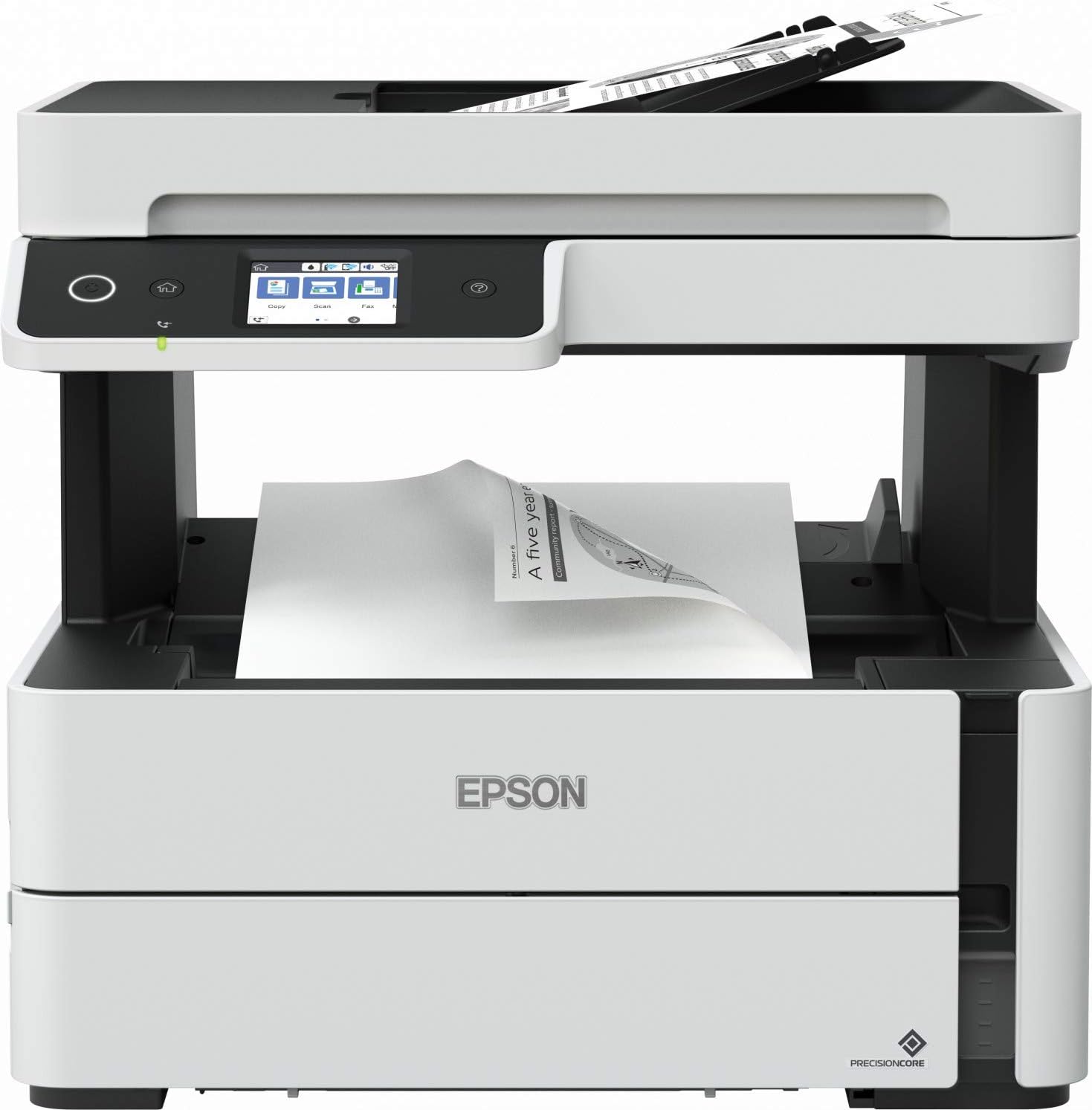
รูปที่ 2.1: ด้านหน้า view of the EPSON EcoTank M3140 printer, showing the control panel, ADF, and paper output tray.
3. การตั้งค่า
3.1 การแกะกล่อง
- นำเครื่องพิมพ์ออกจากบรรจุภัณฑ์
- นำเทปกาวป้องกันและวัสดุบรรจุภัณฑ์ทั้งหมดออกจากภายนอกและภายในเครื่องพิมพ์
- วางเครื่องพิมพ์บนพื้นผิวที่มั่นคงและเรียบ
3.2 การเชื่อมต่อสายไฟ
- ต่อสายไฟเข้ากับช่องเสียบสายไฟของเครื่องพิมพ์
- เสียบปลายอีกด้านของสายไฟเข้ากับเต้ารับไฟฟ้าที่มีสายดิน
- กดปุ่มเปิดปิดเพื่อเปิดเครื่องพิมพ์
3.3 การเติมหมึก
เครื่องพิมพ์ EcoTank M3140 ใช้ระบบแท็งก์หมึกแบบติดตั้งในตัว ทำตามขั้นตอนต่อไปนี้เพื่อเติมหมึก:
- เปิดฝาครอบแท็งก์หมึกของเครื่องพิมพ์
- เปิดฝาขวดหมึกสีดำออก
- Insert the ink bottle into the corresponding ink tank opening. The ink will automatically fill the tank.
- Once the tank is full, remove the bottle and recap it. Close the ink tank cover.

รูปที่ 3.1: Illustration of the ink refilling process for the EcoTank system.
3.4 การติดตั้งซอฟต์แวร์
- Insert the software CD-ROM into your computer's drive, or download the latest drivers and utilities from the official Epson support webเว็บไซต์.
- ทำตามคำแนะนำบนหน้าจอเพื่อติดตั้งไดรเวอร์เครื่องพิมพ์และซอฟต์แวร์เสริม
3.5 การเชื่อมต่อเครือข่าย (Wi-Fi)
- On the printer's LCD screen, navigate to the Wi-Fi setup menu.
- เลือกเครือข่ายไร้สาย (SSID) ของคุณจากรายการ
- Enter your network password (WPA/WPA2 key) using the on-screen keyboard.
- Confirm the connection. The Wi-Fi indicator on the printer should illuminate steadily once connected.
4. คู่มือการใช้งาน
4.1 กำลังโหลดกระดาษ
The printer supports various paper sizes, including A4. To load paper:
- ดึงตลับกระดาษออกจากด้านหน้าของเครื่องพิมพ์
- ปรับตัวกั้นกระดาษให้ตรงกับความกว้างของกระดาษของคุณ
- Load the paper stack print-side down into the cassette. Do not overload.
- Gently push the paper cassette back into the printer until it clicks into place.

รูปที่ 4.1: Proper loading of paper into the printer's paper cassette.
4.2 การพิมพ์ขั้นพื้นฐาน
- ตรวจสอบให้แน่ใจว่าเครื่องพิมพ์เปิดอยู่และเชื่อมต่อกับคอมพิวเตอร์หรือเครือข่ายของคุณแล้ว
- เปิดเอกสารที่คุณต้องการพิมพ์บนคอมพิวเตอร์ของคุณ
- เลือก 'พิมพ์' จากเมนูของแอปพลิเคชัน
- Choose the EPSON M3140 as your printer and adjust settings (e.g., paper size, number of copies).
- คลิก 'พิมพ์'
4.3 การคัดลอก
The M3140 can copy documents using either the flatbed scanner or the Automatic Document Feeder (ADF).
- การใช้รถบรรทุกพื้นเรียบ: วางเอกสารคว่ำหน้าลงบนกระจกสแกนเนอร์ โดยจัดให้ตรงกับเครื่องหมายที่มุม
- การใช้งาน ADF: Load multiple pages face-up into the ADF input tray.
- On the printer's LCD screen, select 'Copy'.
- Adjust copy settings such as number of copies, paper type, and quality.
- กดปุ่ม 'เริ่ม' เพื่อเริ่มการคัดลอก

รูปที่ 4.2: The printer's LCD control panel, used for selecting functions like Copy, Scan, and Fax.
4.4 การสแกน
- วางเอกสารของคุณบนกระจกสแกนเนอร์หรือในช่องป้อนเอกสารอัตโนมัติ (ADF)
- On the printer's LCD screen, select 'Scan'.
- Choose your scan destination (e.g., computer, cloud service) and adjust scan settings.
- กดปุ่ม 'เริ่ม' เพื่อเริ่มการสแกน
4.5 การส่งแฟกซ์
- Load the document(s) into the ADF or place a single document on the scanner glass.
- On the printer's LCD screen, select 'Fax'.
- ป้อนหมายเลขแฟกซ์ของผู้รับ
- Press the 'Start' button to send the fax.
การพิมพ์สองหน้า 4.6 หน้า
The M3140 supports automatic double-sided printing. To use this feature, select the duplex printing option in your printer driver settings before sending a print job.
5. การบำรุงรักษา
5.1 การเติมหมึก
When the ink level is low, the printer will notify you. Refer to Section 3.3 for detailed ink refilling instructions. Use only genuine EPSON ink bottles for optimal performance and to prevent damage.
5.2 การทำความสะอาดหัวพิมพ์
If print quality declines (e.g., missing lines, streaking), perform a print head cleaning:
- From the printer's control panel, navigate to 'Maintenance' or 'Setup'.
- Select 'Print Head Cleaning' or 'Nozzle Check'.
- Follow the on-screen prompts. You may need to perform this process multiple times.
5.3 การทำความสะอาดกระจกสแกนเนอร์
Dust or smudges on the scanner glass can affect scan and copy quality. Wipe the scanner glass and the ADF glass strip with a soft, lint-free cloth dampล้างออกด้วยน้ำยาทำความสะอาดกระจกชนิดอ่อน ห้ามฉีดน้ำยาทำความสะอาดลงบนกระจกโดยตรง
5.4 การแก้ไขปัญหากระดาษติด
If a paper jam occurs, the printer's LCD screen will display an error message. Carefully open the printer covers and remove any jammed paper, pulling it gently in the direction of the paper path. Ensure no torn pieces of paper remain inside the printer.
6 การแก้ไขปัญหา
This section addresses common issues you might encounter with your EPSON EcoTank M3140.
6.1 เครื่องพิมพ์ไม่ตอบสนอง
- Check if the printer is powered on and properly connected to the computer or network.
- ตรวจสอบให้แน่ใจว่าได้เลือกเครื่องพิมพ์ที่ถูกต้องในหน้าต่างการพิมพ์ของแอปพลิเคชันแล้ว
- โปรดรีสตาร์ททั้งเครื่องพิมพ์และคอมพิวเตอร์ของคุณ
6.2 คุณภาพการพิมพ์ไม่ดี
- ตรวจสอบระดับหมึกและเติมหมึกหากจำเป็น
- Perform a print head cleaning and nozzle check (refer to Section 5.2).
- โปรดตรวจสอบให้แน่ใจว่าคุณได้ใช้การตั้งค่ากระดาษที่เหมาะสมสำหรับงานพิมพ์ของคุณ
6.3 ปัญหาการเชื่อมต่อ Wi-Fi
- ตรวจสอบให้แน่ใจว่าเราเตอร์ Wi-Fi ของคุณทำงานได้อย่างถูกต้อง
- Re-enter your Wi-Fi password on the printer's control panel.
- Move the printer closer to the wireless router to improve signal strength.
For more detailed troubleshooting, refer to the comprehensive online support resources available on the official Epson webเว็บไซต์.
7. ข้อมูลจำเพาะ
| คุณสมบัติ | ข้อมูลจำเพาะ |
|---|---|
| สื่อสิ่งพิมพ์ | กระดาษ (ธรรมดา) |
| ประเภทสแกนเนอร์ | รถบรรทุกพื้นเรียบ |
| ความจุแผ่นสูงสุด | 100 |
| อุปกรณ์ที่รองรับ | สมาร์ทโฟน (แอนดรอยด์, ไอโอเอส) |
| ขนาดกระดาษ | A4 |
| ความละเอียดการพิมพ์ขาวดำสูงสุด | 200 dpi (implied from context, often higher for actual print) |
| การพิมพ์สองด้าน | ใช่ (ระบบกล้องสองทางอัตโนมัติ) |
| ขนาดสินค้า | 41 x 41 x 43.2 ซม. |
| น้ำหนักสินค้า | 9.13 กิโลกรัม |
| เทคโนโลยีการเชื่อมต่อ | ไวไฟ |
| เทคโนโลยีเครื่องพิมพ์ | ตลับหมึกพิมพ์ |
| คุณสมบัติพิเศษ | Auto-Duplex, ADF, LCD Screen |
| เอาท์พุตเครื่องพิมพ์ | เอกรงค์ |
8. การรับประกันและการสนับสนุน
8.1 ข้อมูลการรับประกัน
The EPSON EcoTank M3140 comes with a one-year or 100,000-page warranty, whichever comes first. Please retain your proof of purchase for warranty claims. The warranty covers defects in materials and workmanship under normal use.
8.2 การสนับสนุนลูกค้า
For technical assistance, product registration, or to find authorized service centers, please visit the official Epson support website or contact Epson customer service in your region. Support resources often include FAQs, driver downloads, and troubleshooting guides.


