1. บทนำ
The KuWFi AC1200 Dual Band Wireless USB Adapter provides high-speed Wi-Fi connectivity for your desktop or laptop PC. This adapter supports both 2.4GHz and 5GHz frequency bands, offering flexible and reliable wireless performance. Its compact design ensures portability and ease of use.

Image 1.1: The KuWFi AC1200 adapter highlighting its dual-band capabilities with speeds of 867Mbps on 5GHz and 300Mbps on 2.4GHz.
2. คุณสมบัติของผลิตภัณฑ์
- การเชื่อมต่อแบบดูอัลแบนด์: รองรับ 2.4GHz (สูงสุด 300Mbps) และ 5GHz (สูงสุด 867Mbps) สำหรับความเร็วรวมสูงสุด 1200Mbps
- ประสิทธิภาพความเร็วสูง: Ideal for online gaming, HD video streaming, and large file การโอนย้าย
- ความเข้ากันได้กว้าง: Compatible with Windows 10 (32/64bit), Windows 8, and Windows 7 operating systems.
- การติดตั้งแบบไม่ต้องใช้ไดรเวอร์: Plug-and-play functionality for Windows 10 (32/64bit) systems.
- การรักษาความปลอดภัยขั้นสูง: Supports WEP, WPA-PSK, WPA2-PSK, and WPA/WPA2 64/128bit encryption protocols.
- ดีไซน์ขนาดเล็กและพกพาสะดวก: Compact size for easy carrying and convenient use.
- รองรับโหมด AP: Can function as a Wi-Fi hotspot (SimulationAP).

Image 2.1: Key features of the KuWFi AC1200 adapter, including its compact size and AP mode capability.

Image 2.2: The adapter's mini size, making it highly portable.
3. ข้อกำหนดของระบบ
- Operating System: Windows 10 (32/64bit), Windows 8, Windows 7
- Available USB Port (USB 2.0 or higher recommended)
- CD-ROM drive (for driver installation on Windows 7/8, not required for Windows 10)
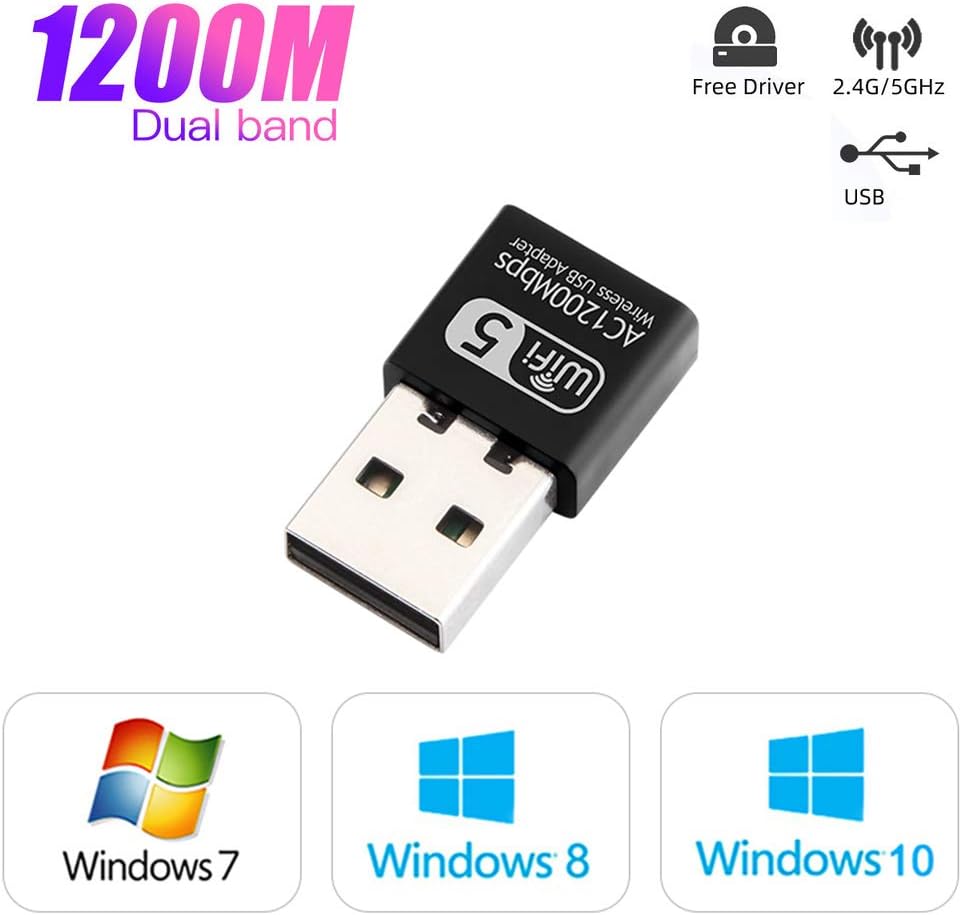
Image 3.1: Operating system compatibility and driver-free support for Windows 10.
4. เนื้อหาบรรจุภัณฑ์
- 1 x KuWFi AC1200 Dual Band Wireless USB Adapter
- 1 x Driver CD (for Windows 7/8)
5. คู่มือการติดตั้ง
Step 1: Insert the USB Adapter
Carefully insert the KuWFi AC1200 Wireless USB Adapter into an available USB port on your desktop or laptop computer.

Image 5.1: Inserting the USB adapter into a computer's USB port.
ขั้นตอนที่ 2: การติดตั้งไดรเวอร์
For Windows 10 (32/64bit): The adapter is designed for plug-and-play functionality. The system should automatically detect and install the necessary drivers. If not, proceed with the CD driver installation steps.
สำหรับ Windows 7/8:
- ใส่แผ่นซีดีไดร์เวอร์ที่ให้มาลงในไดรฟ์ซีดีรอมของคอมพิวเตอร์ของคุณ
- เปิด 'คอมพิวเตอร์ของฉัน' หรือ 'พีซีเครื่องนี้'
- Double-click on the CD Driver icon to open it.
- Locate and double-click the setup or install file.
- ปฏิบัติตามคำแนะนำบนหน้าจอเพื่อดำเนินการติดตั้งไดรเวอร์ให้เสร็จสมบูรณ์

Image 5.2: Visual guide for installing drivers from the CD.
Step 3: Connect to a Wi-Fi Network
Once the drivers are installed, your computer will detect available Wi-Fi networks. Select your desired network and enter the password to connect.
6. คู่มือการใช้งาน
การทำงานแบบดูอัลแบนด์
The KuWFi AC1200 adapter supports both 2.4GHz and 5GHz Wi-Fi bands. You can choose the band that best suits your needs:
- ย่านความถี่ 2.4GHz: ให้การครอบคลุมที่กว้างกว่าและทะลุทะลวงกำแพงได้ดีกว่า เหมาะสำหรับการท่องอินเทอร์เน็ตทั่วไปและงานที่ไม่ต้องการความเร็วสูงมากนัก
- ย่านความถี่ 5GHz: Provides faster speeds and less interference, ideal for online gaming, HD video streaming, and large file downloads. This band typically has a shorter range.
Your computer's Wi-Fi settings will display available networks. Networks operating on the 5GHz band often have '5G' or '5GHz' in their name (e.g., 'MyWiFi_5G'). Select the appropriate network based on your requirements.
AP Mode (Soft AP)
The adapter can function as a Wi-Fi hotspot (Soft AP) if your computer has an internet connection via Ethernet. This allows other devices to connect to your computer's internet through the adapter. Refer to your operating system's network settings for instructions on enabling mobile hotspot or Soft AP functionality.
7. การบำรุงรักษา
- รักษาอะแดปเตอร์ให้สะอาดและปราศจากฝุ่น
- หลีกเลี่ยงการให้อะแดปเตอร์สัมผัสกับอุณหภูมิหรือความชื้นที่สูงเกินไป
- Do not shake or plug/unplug the adapter excessively to prevent damage to the USB port or the adapter itself.
- เก็บอะแดปเตอร์ไว้ในที่ปลอดภัยเมื่อไม่ได้ใช้งาน
8 การแก้ไขปัญหา
No Wi-Fi Networks Detected
- ตรวจสอบให้แน่ใจว่าอะแดปเตอร์เสียบเข้ากับพอร์ต USB อย่างแน่นหนา
- Verify that the drivers are correctly installed. Check Device Manager (Windows) for any yellow exclamation marks next to the network adapter.
- รีสตาร์ทเครื่องคอมพิวเตอร์ของคุณ
- ลองเสียบอะแดปเตอร์เข้ากับพอร์ต USB อื่น
ความเร็วการเชื่อมต่อช้า
- ตรวจสอบให้แน่ใจว่าคุณเชื่อมต่อกับแบนด์ 5GHz แล้ว หากเราเตอร์ของคุณรองรับ และคุณอยู่ในระยะ
- Reduce the distance between your computer and the Wi-Fi router.
- Minimize obstacles (walls, large metal objects) between the adapter and the router.
- ตรวจสอบอุปกรณ์อื่นๆ ที่อาจก่อให้เกิดการรบกวน (เช่น ไมโครเวฟ โทรศัพท์ไร้สาย)
- อัปเดตเฟิร์มแวร์ของเราเตอร์ของคุณ
การเชื่อมต่อหลุดบ่อย
- ตรวจสอบให้แน่ใจว่าอะแดปเตอร์ไม่ได้หลวมในพอร์ต USB
- Check for driver updates from the manufacturer's webเว็บไซต์ถ้ามี
- Adjust the position of your computer or router to improve signal strength.
- Disable power-saving features for the USB port or network adapter in your computer's settings.
9. ข้อมูลจำเพาะ
| แบบอย่าง | เอซี1200 |
| ฮาร์ดแวร์อินเตอร์เฟซ | ยูเอสบี |
| อัตราการถ่ายโอนข้อมูล | สูงสุด 1200 Mbps (867 Mbps บน 5GHz, 300 Mbps บน 2.4GHz) |
| ย่านความถี่ | 2.4กิกะเฮิร์ตซ์, 5กิกะเฮิร์ตซ์ |
| อุปกรณ์ที่รองรับ | เดสก์ท็อป, โน๊ตบุ๊ก |
| ระบบปฏิบัติการ | Windows 10 (32/64bit), Windows 8, Windows 7 |
| Encryption Support | WEP, WPA-PSK, WPA2-PSK, WPA/WPA2 64/128bit |
| น้ำหนักสินค้า | 0.634 ออนซ์ (ประมาณ 18 กรัม) |
| ขนาดแพ็คเกจ | 3.78 x 3.35 x 0.47 นิ้ว |


