การแนะนำ
This manual provides comprehensive instructions for the setup, operation, and maintenance of your Plantronics Poly Studio P5 Webcam and Voyager 4220 UC Headset Kit. Please read this manual thoroughly before using the product to ensure optimal performance and longevity.
The kit includes a high-definition webcam designed for professional video conferencing and a stereo Bluetooth wireless headset for clear audio communication.
เนื้อหาแพ็คเกจ
- โพลีสตูดิโอ P5 Webลูกเบี้ยว
- หูฟังไร้สาย Poly Voyager 4220 UC
- USB-A Adapter (for headset)
- USB Cable (for webลูกเบี้ยว)
- คู่มือเริ่มต้นอย่างรวดเร็ว
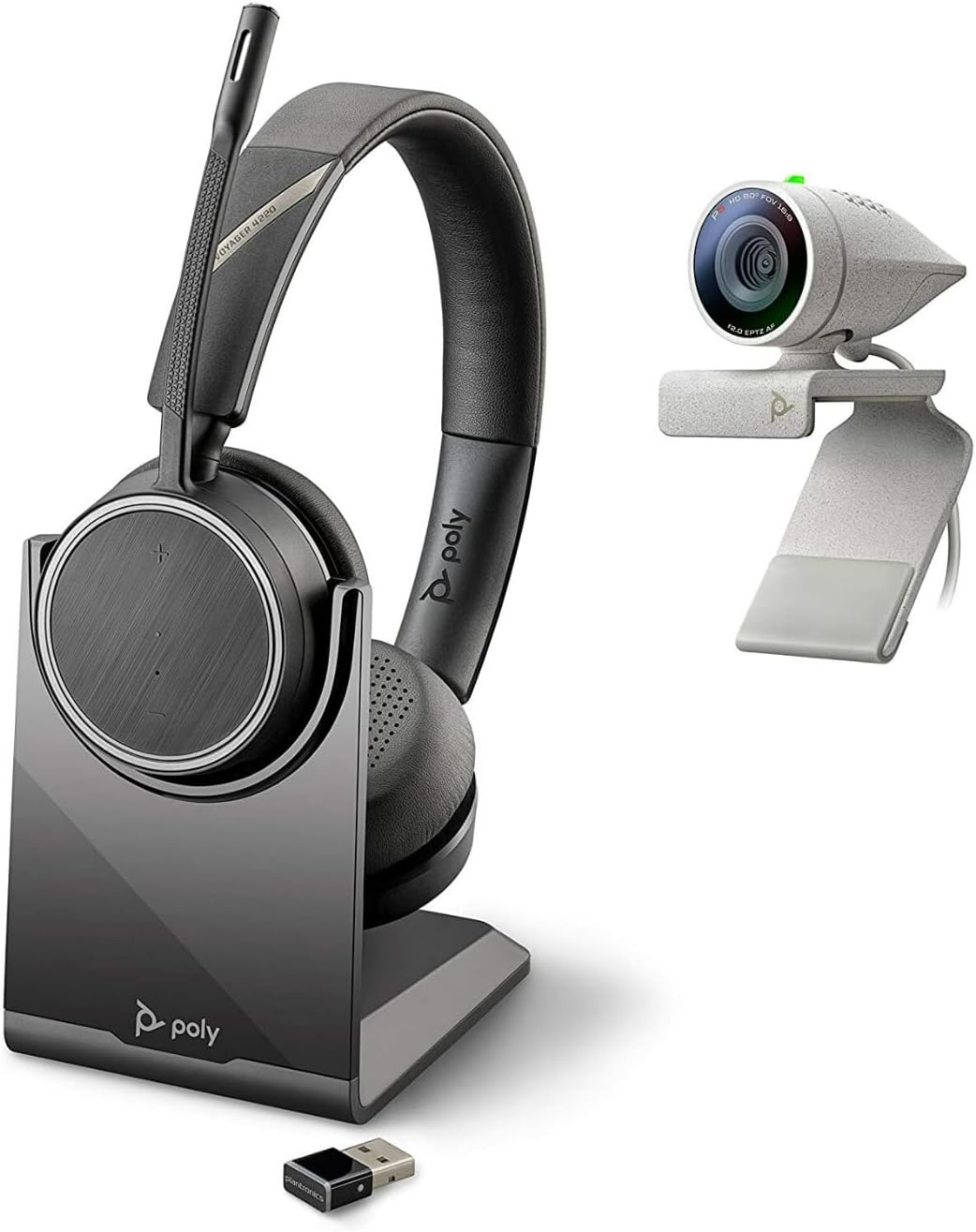
Image: Poly Studio P5 Webcam and Voyager 4220 UC Headset Kit, showing the webcam, headset, charging stand, and USB adapter.
คำแนะนำการตั้งค่า
1. Poly Studio P5 Webการตั้งค่าลูกเบี้ยว
- การติดตั้ง Webลูกเบี้ยว:
วาง webcam on top of your monitor or laptop screen. Adjust the clip to secure it firmly. The webcam can also be mounted on a tripod using the integrated tripod-ready design.

Image: Poly Studio P5 Webcam positioned on top of a laptop screen, showing its compact design and mounting clip.
- Connecting to your Computer:
Connect the integrated USB cable from the webcam to an available USB port on your PC or Mac. The device is plug-and-play; drivers will install automatically.
- ม่านความเป็นส่วนตัว:
การ webcam features an integrated privacy shutter. Slide the shutter to cover the lens when not in use to enhance security and privacy.

ภาพ: ด้านหน้า view of the Poly Studio P5 Webcam, highlighting the lens and the integrated privacy shutter mechanism.
2. Voyager 4220 UC Headset Setup
- การชาร์จชุดหูฟัง:
Before first use, fully charge the headset. Connect the charging cable to the headset and a USB power source. A full charge provides approximately 12 hours of talk time or 15 hours of listening time.
- Connecting the USB-A Adapter:
Insert the USB-A adapter into an available USB port on your PC or Mac. The adapter will automatically pair with the Voyager 4220 UC headset.
- การสวมชุดหูฟัง:
Adjust the headband for a comfortable fit. Position the microphone boom approximately two finger-widths from the corner of your mouth for optimal voice pickup.
คำแนะนำการใช้งาน
1. Using the Poly Studio P5 Webลูกเบี้ยว
- การประชุมทางวิดีโอ: การ webcam is compatible with Zoom, Microsoft Teams, and other video conferencing services. Select "Poly Studio P5" as your camera and microphone input within your chosen application's settings.
- Automatic Low-Light Compensation: การ webcam automatically adjusts to maintain proper light exposure, ensuring clear visibility even in darker environments.
- ซูมดิจิตอล: The camera supports up to 4x digital zoom. This feature can typically be controlled through your video conferencing software or the Poly Lens Desktop app.

Image: A person wearing the Voyager 4220 UC Headset and using the Poly Studio P5 Webcam with a laptop, demonstrating a typical video conferencing setup.
2. Using the Voyager 4220 UC Headset
- เปิด/ปิดเครื่อง: Slide the power switch to turn the headset on or off.
- การควบคุมระดับเสียง: Use the volume up (+) and volume down (-) buttons on the earcup to adjust audio levels.
- ปิดเสียง/เปิดเสียง: Press the mute button on the microphone boom or earcup to mute or unmute your microphone.
- การควบคุมการโทร: Press the call button to answer or end calls in supported applications.
- Noise-Cancelling Microphones: The headset features dual noise-cancelling microphones to reduce background noise for clear voice transmission.
3. Poly Lens Desktop App
The Poly Lens Desktop app allows you to customize settings, receive firmware updates, and access practical tips for your devices. Download the app from the official Poly webเว็บไซต์.
- ปรับ webcam settings (e.g., brightness, contrast, zoom).
- Configure headset audio preferences.
- Receive health and wellness reminders.
การซ่อมบำรุง
- การทำความสะอาด:
เช็ด webcam lens and headset surfaces with a soft, dry, lint-free cloth. Do not use liquid cleaners or abrasive materials.
- พื้นที่จัดเก็บ:
เก็บอุปกรณ์ไว้ในที่แห้งและเย็น หลีกเลี่ยงแสงแดดโดยตรงและอุณหภูมิที่สูงหรือต่ำเกินไปเมื่อไม่ได้ใช้งาน
- อัพเดตเฟิร์มแวร์:
Regularly check for firmware updates via the Poly Lens Desktop app to ensure optimal performance and access to new features.
การแก้ไขปัญหา
| ปัญหา | สาเหตุที่เป็นไปได้ | สารละลาย |
|---|---|---|
| Webตรวจไม่พบกล้อง | Loose USB connection, incorrect software settings, driver issue. |
|
| ไม่มีเสียงจากชุดหูฟัง | Headset not powered on, not paired, volume too low, incorrect audio output selected. |
|
| ไมโครโฟนไม่ทำงาน | Microphone muted, incorrect audio input selected, boom not positioned correctly. |
|
| คุณภาพวิดีโอไม่ดี | Low light conditions, dirty lens, internet bandwidth issues. |
|
ข้อมูลจำเพาะ
โพลีสตูดิโอ P5 Webลูกเบี้ยว
- ความละเอียดหน้าจอสูงสุด: FHD (1080p)
- ความละเอียดการจับภาพวิดีโอ: 1080p
- เทคโนโลยีโฟโต้เซนเซอร์: ซีมอส
- หลัง Webความละเอียดลูกเบี้ยว: 5 MP
- ระยะโฟกัสสูงสุด: 4
- รูรับแสงสูงสุด: เอฟ/2.0
- เทคโนโลยีการเชื่อมต่อ: ยูเอสบี
- แพลตฟอร์มฮาร์ดแวร์: พีซี, แมค
- คุณสมบัติพิเศษ: Integrated privacy shutter, automatic low-light compensation, tripod-ready design.
- ขนาดสินค้า : 14.1 x 8.3 x 4.5 inches (Kit dimensions)
- น้ำหนักสินค้า: 2.09 pounds (Kit weight)
ชุดหูฟัง Poly Voyager 4220 UC
- ประเภทไร้สาย: บลูทูธ
- เวลาสนทนา: นานถึง 12 ชั่วโมง
- เวลาฟัง: นานถึง 15 ชั่วโมง
- ไมโครโฟน: Dual noise-cancelling
- การเชื่อมต่อ: อะแดปเตอร์ USB-A
- รูปแบบเสียงที่รองรับ: เอเอซี, MP3
- แบตเตอรี่: แบตเตอรี่ลิเธียมโพลิเมอร์ 1 ก้อน (รวมอยู่ด้วย)
ข้อมูลการรับประกัน
สำหรับข้อมูลการรับประกันโดยละเอียด โปรดดูบัตรรับประกันที่แนบมากับผลิตภัณฑ์ของคุณ หรือเยี่ยมชมเว็บไซต์อย่างเป็นทางการของ Poly website. Standard warranty terms typically cover manufacturing defects for a specified period from the date of purchase.
การสนับสนุนและการติดต่อ
For technical support, product registration, or to download the latest software and drivers, please visit the official Poly support webเว็บไซต์:
Webเว็บไซต์: www.poly.com/support
คุณสามารถค้นหาคำถามที่พบบ่อยและฟอรัมชุมชนได้ที่หน้าการสนับสนุน


