1. บทนำ
This manual provides essential information for the safe and efficient operation of your iProda 2 in 1 Laptop, Model M1169YM. Please read this manual thoroughly before using the device and retain it for future reference. This convertible laptop features an 11.6-inch touchscreen, powered by an Intel N4100 processor, and runs on Windows 10 Pro.

Image: The iProda 2 in 1 Laptop can be used in multiple configurations, including traditional laptop, tent, stand, and tablet modes, showcasing ความเก่งกาจของมัน
2. ข้อมูลด้านความปลอดภัย
ปฏิบัติตามข้อควรระวังด้านความปลอดภัยต่อไปนี้เพื่อป้องกันความเสียหายต่ออุปกรณ์ของคุณหรือการบาดเจ็บต่อตัวคุณเอง:
- อย่าให้เครื่องสัมผัสกับอุณหภูมิที่สูงหรือต่ำเกินไป แสงแดดโดยตรง หรือความชื้นสูง
- หลีกเลี่ยงการทำเครื่องตกหรือได้รับแรงกระแทกรุนแรง
- Use only the provided or approved power adapter for charging.
- เก็บอุปกรณ์ให้ห่างจากน้ำและของเหลวอื่นๆ
- อย่าพยายามถอดประกอบหรือซ่อมแซมอุปกรณ์ด้วยตนเอง โปรดติดต่อช่างผู้ชำนาญการ
3. เนื้อหาบรรจุภัณฑ์
ตรวจสอบว่ามีรายการทั้งหมดอยู่ในแพ็คเกจของคุณ:
- iProda 2 in 1 Laptop (Model M1169YM)
- อะแดปเตอร์แปลงไฟ
- คู่มือการใช้งาน (เอกสารนี้)
4. สินค้าหมดview
The iProda 2 in 1 Laptop is designed for versatility, offering multiple usage modes and essential connectivity options.
4.1. คุณสมบัติหลัก
- หน้าจอสัมผัส IPS ขนาด 11.6 นิ้ว: A responsive 10-point precision touchscreen with 1920x1080 resolution for interactive use.
- การออกแบบที่ปรับเปลี่ยนได้: 360-degree hinge allows seamless transition between laptop, tablet, tent, and stand modes.
- โปรเซสเซอร์ Intel N4100: Provides efficient performance for daily tasks.
- Windows 10 โปร: Pre-installed operating system for productivity and security.
- พื้นที่เก็บข้อมูลที่ขยายได้: Supports M.2 2242 SSD for additional storage capacity.

Image: Key features of the iProda laptop, including its touchscreen, operating system, display specifications, and camera resolution.

Image: The laptop's 360-degree hinge allows it to convert into a tablet, enabling direct interaction via its precision touchscreen.
4.2. พอร์ตและปุ่ม
Familiarize yourself with the various ports and buttons on your laptop:
- พอร์ต Type-C: Used for power supply and data transfer.
- ไมโคร HDMI: สำหรับเชื่อมต่อกับจอแสดงผลภายนอก
- ไมโคร USB: สำหรับเชื่อมต่ออุปกรณ์ USB
- ช่องเสียบการ์ด TF: สำหรับเพิ่มพื้นที่จัดเก็บข้อมูลด้วยการ์ด TF (MicroSD)
- ปุ่มเปิด/ปิด: เพื่อเปิด/ปิดอุปกรณ์หรือทำให้เครื่องเข้าสู่โหมดสลีป
- ปุ่มปรับระดับเสียง: เพื่อปรับระดับเสียงออก
- แจ็คหูฟัง: สำหรับการเชื่อมต่อหูฟังหรือลำโพงภายนอก

ภาพ: รายละเอียด view of the laptop's side panels, indicating the location and function of each port and button for easy identification.
5. การตั้งค่า
5.1. การชาร์จแบตเตอรี่
Before first use, fully charge the laptop's battery. Connect the provided power adapter to the Type-C port on the laptop and plug it into a power outlet. The charging indicator light will illuminate.
5.2. การบูตครั้งแรกและการตั้งค่า Windows
- กดปุ่มเปิด/ปิดค้างไว้จนกว่าหน้าจอจะเปิดขึ้น
- ปฏิบัติตามคำแนะนำบนหน้าจอเพื่อดำเนินการตั้งค่าเริ่มต้นของ Windows 10 Pro ให้เสร็จสิ้น รวมถึงการเลือกภาษา การเชื่อมต่อเครือข่าย และการสร้างบัญชีผู้ใช้
6. การใช้งานแล็ปท็อปของคุณ
6.1. การใช้หน้าจอสัมผัส
The 10-point precision touchscreen allows for intuitive interaction with Windows 10 Pro. Use gestures such as tapping, swiping, pinching, and stretching to navigate, zoom, and interact with applications.
6.2. คีย์บอร์ดและทัชแพด
The integrated keyboard and touchpad provide traditional input methods. The touchpad supports multi-touch gestures for scrolling, zooming, and switching applications.

Image: The laptop's full-size American keyboard and responsive touchpad, designed for comfortable typing and navigation.
6.3. โหมดปรับเปลี่ยนได้
The 360-degree hinge allows you to switch between various modes:
- โหมดแล็ปท็อป: การตั้งค่ามาตรฐานสำหรับการพิมพ์และการเพิ่มประสิทธิภาพการทำงาน
- โหมดแท็บเล็ต: Fold the screen back completely for a tablet experience, ideal for browsing or drawing.
- โหมดเต็นท์: Position the laptop like a tent for media consumption or presentations.
- โหมดสแตนด์บาย: Flip the keyboard face down to use the screen as a display, suitable for watching videos.

Image: The laptop configured in tent mode, demonstrating its flexibility for viewing content without the keyboard in the way.
7. การขยายพื้นที่เก็บข้อมูล
The laptop comes with 64GB eMMC storage. You can expand the storage capacity by installing an M.2 2242 SSD (128GB/256GB/512GB, not included).
7.1. Installing an M.2 2242 SSD
To install an M.2 2242 SSD:
- Power off the laptop and disconnect the power adapter.
- Carefully open the back cover of the laptop.
- Locate the M.2 slot.
- Insert the M.2 2242 SSD into the slot and secure it with the appropriate screw (if provided).
- เปลี่ยนฝาหลัง
- Upon booting, you may need to initialize and format the new SSD through Windows Disk Management.
Note: If you are unsure about this procedure, it is recommended to seek professional assistance.

Image: Visual representation of the M.2 SSD slot, illustrating how additional storage can be integrated into the laptop.
8. การเชื่อมต่อ
8.1 การเชื่อมต่อ Wi-Fi
The laptop supports dual-frequency 2.4GHz/5GHz Wi-Fi. To connect to a wireless network:
- คลิกไอคอน Wi-Fi ในแถบระบบ
- เลือกเครือข่ายที่คุณต้องการจากรายการ
- หากระบบถาม ให้ป้อนรหัสผ่านเครือข่าย แล้วคลิก 'เชื่อมต่อ'
8.2. External Display (Micro HDMI)
Connect an external monitor or TV using a Micro HDMI to HDMI cable. Once connected, you can configure display settings (duplicate, extend, second screen only) through Windows display settings.
8.3. อุปกรณ์ USB
Use the Micro USB port or the Type-C port (with an appropriate adapter) to connect peripherals such as a mouse, keyboard, or external storage devices.
9. การบำรุงรักษา
9.1. การทำความสะอาด
To clean the laptop, power it off and disconnect the power adapter. Use a soft, lint-free cloth slightly dampened with water or a screen cleaner for the display. Avoid harsh chemicals or abrasive materials.
9.2. การดูแลแบตเตอรี่
เพื่อยืดอายุแบตเตอรี่:
- หลีกเลี่ยงการปล่อยแบตเตอรี่จนหมดบ่อยครั้ง
- Do not expose the laptop to high temperatures.
- หากต้องเก็บแล็ปท็อปไว้เป็นเวลานาน ควรตรวจสอบให้แน่ใจว่าแบตเตอรี่มีประจุอยู่ประมาณ 50-70%
10 การแก้ไขปัญหา
ต่อไปนี้เป็นวิธีแก้ไขปัญหาทั่วไปที่คุณอาจพบเจอ:
| ปัญหา | สารละลาย |
|---|---|
| โน๊ตบุ๊คไม่สามารถเปิดเครื่องได้ | Ensure the battery is charged. Connect the power adapter and try again. If still unresponsive, perform a hard reset by holding the power button for 10-15 seconds. |
| หน้าจอว่างเปล่าหรือกะพริบ | Restart the laptop. Check if an external display is connected and interfering. Update display drivers if possible. |
| ปัญหาการเชื่อมต่อ Wi-Fi | ตรวจสอบให้แน่ใจว่าได้เปิดใช้งาน Wi-Fi แล้ว รีสตาร์ทเราเตอร์และแล็ปท็อป ตรวจสอบการตั้งค่าเครือข่ายใน Windows |
| หน้าจอสัมผัสไม่ตอบสนอง | Restart the laptop. Ensure the screen is clean. Check for any pending Windows updates or driver updates for the touchscreen. |
11. ข้อมูลจำเพาะ
Technical specifications for the iProda 2 in 1 Laptop (Model M1169YM):
| คุณสมบัติ | รายละเอียด |
|---|---|
| ยี่ห้อ | iProda |
| หมายเลขรุ่น | M1169YM |
| ระบบปฏิบัติการ | วินโดวส์ 10 โปร |
| ขนาดหน้าจอ | 11.6 นิ้ว |
| ความละเอียดหน้าจอ | 1920 x 1080 พิกเซล (1080p) |
| โปรเซสเซอร์ | Intel N4100 (up to 2.4 GHz Burst Frequency) |
| แรม | แรม 4GB DDR4 |
| ฮาร์ดไดรฟ์ | 64GB อีเอ็มซี |
| การ์ดจอ | Integrated (UHD 600 Graphics) |
| ประเภทไร้สาย | 2.4 GHz / 5 GHz Dual-frequency Wi-Fi |
| อายุการใช้งานแบตเตอรี่โดยเฉลี่ย | 8 Hours (3500mAh, 27Wh) |
| น้ำหนักสินค้า | 3.63 ปอนด์ |
| ขนาดสินค้า | 11.99 x 11.6 x 0.5 นิ้ว |
| เทคโนโลยีการเชื่อมต่อ | HDMI, USB Type-C, Micro USB |
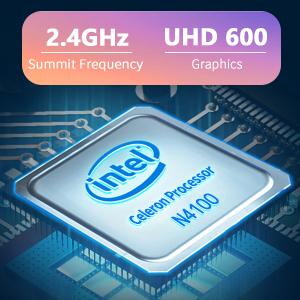
Image: The Intel Celeron N4100 processor, central to the laptop's performance, highlighting its clock speed and integrated graphics capabilities.

Image: The laptop's battery specifications, indicating its power capacity for extended use.
12. การรับประกันและการสนับสนุน
For warranty information and technical support, please refer to the documentation included with your purchase or visit the official iProda website. Contact information for customer service can typically be found on the manufacturer's support page.


