1. บทนำ
This manual provides comprehensive instructions for the setup, operation, and maintenance of your LG 27UK670-B 27-inch UHD (3840 x 2160) IPS Display. This monitor is designed to deliver a high-quality visual experience with its sRGB 99% Color Gamut, HDR10 support, and a 3-Side Virtually Borderless Design. It also offers flexible connectivity including USB Type-C with 40W Power Delivery and an adjustable stand for ergonomic comfort.

รูปที่ 1 : ด้านหน้า view of the LG 27UK670-B monitor.
2. เนื้อหาบรรจุภัณฑ์
ตรวจสอบว่ามีรายการทั้งหมดอยู่ในแพ็คเกจก่อนดำเนินการตั้งค่า
- Monitor Display Panel
- ขาตั้งจอมอนิเตอร์ (ฐานและคอ)
- สายไฟ
- สายเคเบิล USB Type-C
- สาย HDMI
- สายเคเบิล DisplayPort
- คู่มือการใช้งาน (เอกสารนี้)
3. การตั้งค่า
3.1 การประกอบขาตั้ง
- วางแผงหน้าจอมอนิเตอร์คว่ำหน้าลงบนพื้นผิวที่นุ่มและสะอาดอย่างระมัดระวัง เพื่อป้องกันรอยขีดข่วน
- ติดส่วนคอของขาตั้งเข้ากับด้านหลังของแผงจอภาพ ตรวจสอบให้แน่ใจว่าล็อคเข้าที่อย่างแน่นหนา
- ต่อฐานขาตั้งเข้ากับคอขาตั้ง ขันสกรูที่ด้านล่างของฐานให้แน่นเพื่อยึด
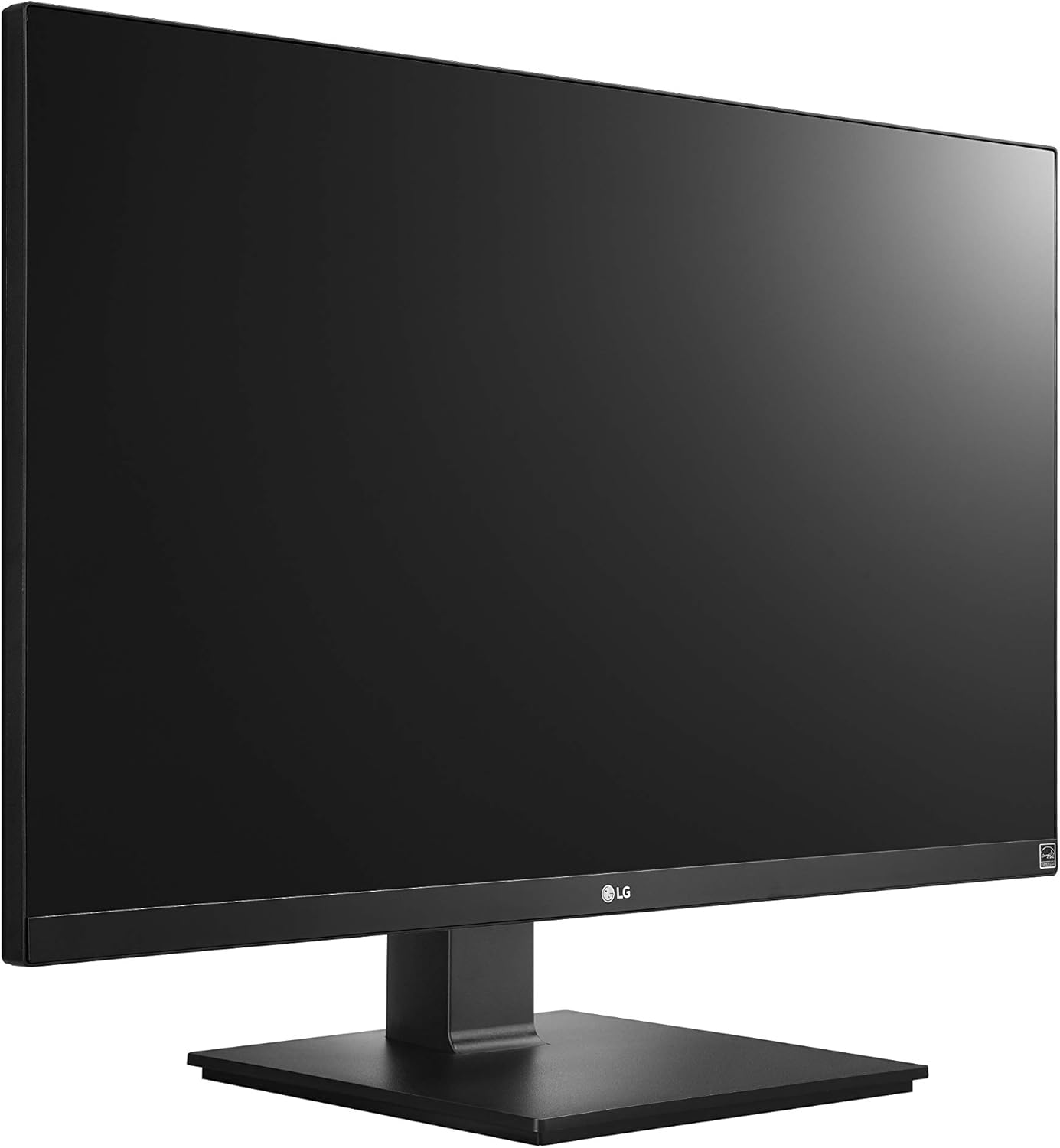
Figure 2: Assembled LG 27UK670-B monitor.
3.2 การเชื่อมต่อกับคอมพิวเตอร์
The LG 27UK670-B monitor offers multiple connectivity options.
- การเชื่อมต่อ USB Type-C: Connect one end of the USB Type-C cable to the USB-C port on the monitor and the other end to your computer's USB-C port. This connection supports video, data transfer, and power delivery (up to 40W) to your connected device.
- การเชื่อมต่อ HDMI: Use an HDMI cable to connect the monitor to your computer's HDMI output.
- การเชื่อมต่อดิสเพลย์พอร์ต: Use a DisplayPort cable to connect the monitor to your computer's DisplayPort output.
- การเชื่อมต่อไฟฟ้า: เชื่อมต่อสายไฟเข้ากับแหล่งจ่ายไฟของจอภาพ จากนั้นจึงเชื่อมต่อกับเต้ารับที่ผนัง

รูปที่ 3: ด้านหลัง view ของจอภาพพร้อมช่องต่อพอร์ต
3.3 การปรับขาตั้ง
ขาตั้งจอภาพสามารถปรับตามหลักสรีรศาสตร์ได้หลายแบบ:
- การปรับความสูง: Gently push or pull the monitor up or down to achieve your desired viewความสูงของไอเอ็นจี
- การปรับเอียง: Tilt the monitor screen forward or backward to optimize your viewมุมอิง
- การปรับเดือย: หมุนจอภาพ 90 องศาเพื่อสลับระหว่างโหมดแนวนอนและแนวตั้ง
- การปรับหมุน: Rotate the monitor left or right on its base to share your screen or adjust your viewตำแหน่งการวางตำแหน่ง
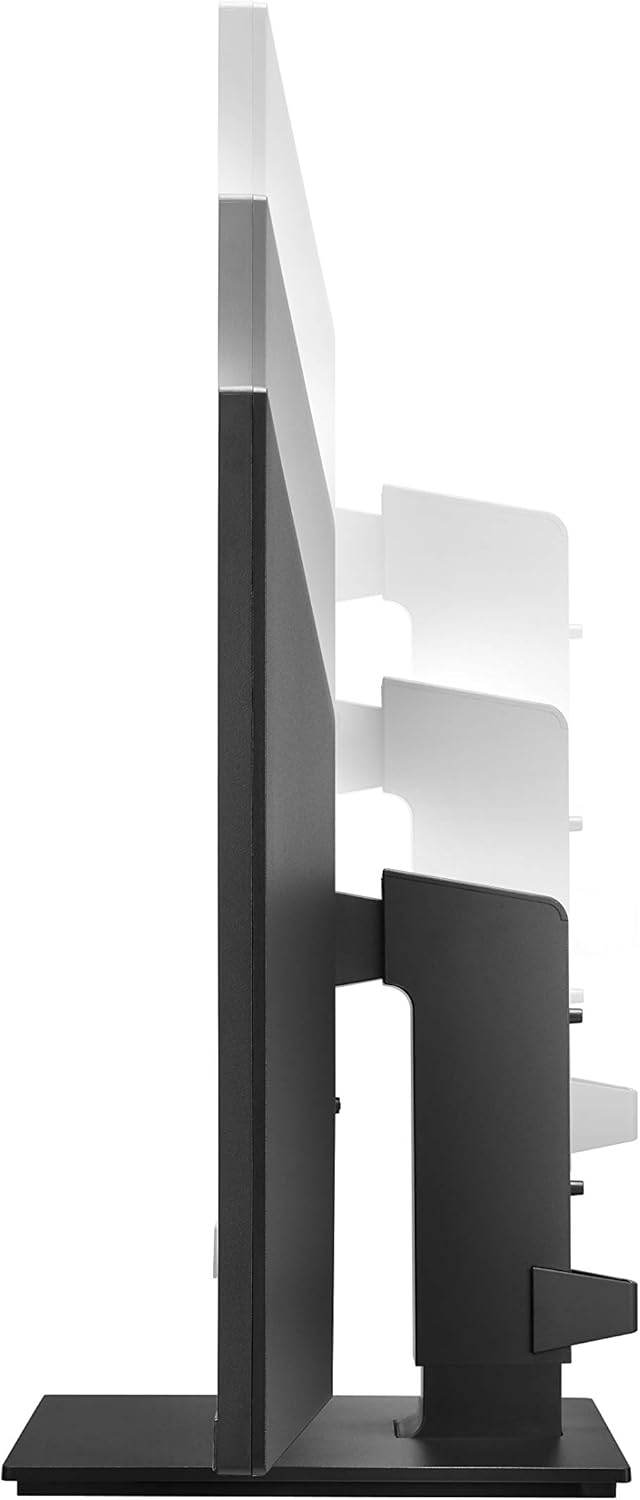
รูปที่ 4: การปรับความสูงของจอภาพ

Figure 5: Monitor in portrait orientation (pivot feature).
4. การใช้งานจอภาพ
4.1 เปิด/ปิดเครื่อง
Press the power button, usually located on the bottom center or rear of the monitor, to turn the display on or off.
4.2 เมนูการแสดงผลบนหน้าจอ (OSD)
The OSD menu allows you to adjust various display settings. Access it by pressing the joystick button (often located on the bottom center of the monitor). Navigate through the menu using the joystick to control brightness, contrast, color modes, input selection, and other advanced features.
4.3 คุณสมบัติหลัก
- UHD (3840 x 2160) Resolution: Provides sharp, detailed images.
- จอแสดงผลไอพีเอส: ข้อเสนอกว้าง viewมุมและการสร้างสีที่สม่ำเสมอ
- sRGB 99% ขอบเขตสี: Ensures accurate and vibrant colors, suitable for creative professionals.
- HDR10: Enhances dynamic range for brighter whites and deeper blacks.
- เทคโนโลยีเอเอ็มดี FreeSync: Reduces screen tearing and stuttering for smoother gaming and video playback.
5. การบำรุงรักษา
5.1 การทำความสะอาดจอภาพ
- ปิดเครื่องจอภาพและถอดสายไฟออกทุกครั้งก่อนทำความสะอาด
- ใช้ผ้านุ่มไม่เป็นขุยเช็ดเล็กน้อยampเคลือบด้วยน้ำหรือน้ำยาทำความสะอาดหน้าจอโดยเฉพาะ
- อย่าฉีดน้ำยาลงบนหน้าจอโดยตรง ให้ฉีดลงบนผ้าก่อน
- Avoid using abrasive cleaners, waxes, or solvents as they can damage the screen surface.
5.2 การดูแลทั่วไป
- เก็บจอภาพให้ห่างจากแสงแดดโดยตรง แหล่งความร้อน และฝุ่นละอองจำนวนมาก
- ตรวจสอบให้แน่ใจว่ามีการระบายอากาศที่เหมาะสมรอบๆ จอภาพเพื่อป้องกันความร้อนสูงเกินไป
- หลีกเลี่ยงการวางวัตถุหนักบนจอภาพหรือสายเคเบิล
6 การแก้ไขปัญหา
หากคุณพบปัญหาเกี่ยวกับจอภาพของคุณ โปรดดูปัญหาทั่วไปและวิธีแก้ไขต่อไปนี้:
- ไม่มีไฟฟ้า:
- ตรวจสอบให้แน่ใจว่าสายไฟเชื่อมต่อกับจอภาพและเต้ารับไฟฟ้าที่ใช้งานได้แน่นหนาดีแล้ว
- ตรวจสอบว่าได้กดปุ่มเปิด/ปิดของจอภาพแล้วหรือไม่
- ไม่มีสัญญาณ/หน้าจอว่างเปล่า:
- Verify that the video cable (USB-C, HDMI, or DisplayPort) is securely connected to both the monitor and your computer.
- ตรวจสอบให้แน่ใจว่าได้เลือกแหล่งอินพุตที่ถูกต้องบนเมนู OSD ของจอภาพ
- ตรวจสอบว่าคอมพิวเตอร์ของคุณเปิดอยู่และไม่ได้อยู่ในโหมดสลีป
- Image Quality Issues (e.g., blurry, distorted):
- ปรับการตั้งค่าความละเอียดบนคอมพิวเตอร์ของคุณให้ตรงกับความละเอียดดั้งเดิมของจอภาพ (3840 x 2160)
- Reset the monitor's display settings to factory defaults via the OSD menu.
- ตรวจสอบให้แน่ใจว่าสายเคเบิลวิดีโอไม่ชำรุด
For further assistance, please consult the official LG support webเว็บไซต์หรือติดต่อฝ่ายบริการลูกค้า
7. ข้อมูลจำเพาะ
| คุณสมบัติ | รายละเอียด |
|---|---|
| ยี่ห้อ | LG |
| หมายเลขรุ่น | 27UK670-B |
| ขนาดหน้าจอ | 27 นิ้ว |
| ปณิธาน | ยูเอชดี (3840 x 2160) |
| ประเภทแผง | ไอพีเอส |
| ช่วงสี | เอสอาร์จีบี 99% |
| รองรับ HDR | HDR10 |
| การเชื่อมต่อ | USB Type-C (with 40W PD), 2x HDMI, DisplayPort, 2x USB 3.0, 3x USB 2.0 |
| การปรับขาตั้ง | Tilt, Height, Pivot, Swivel |
| น้ำหนักสินค้า | 15.4 ปอนด์ |
| ขนาดสินค้า (กxยxส) | 24.1 x 9.9 x 20.4 นิ้ว |
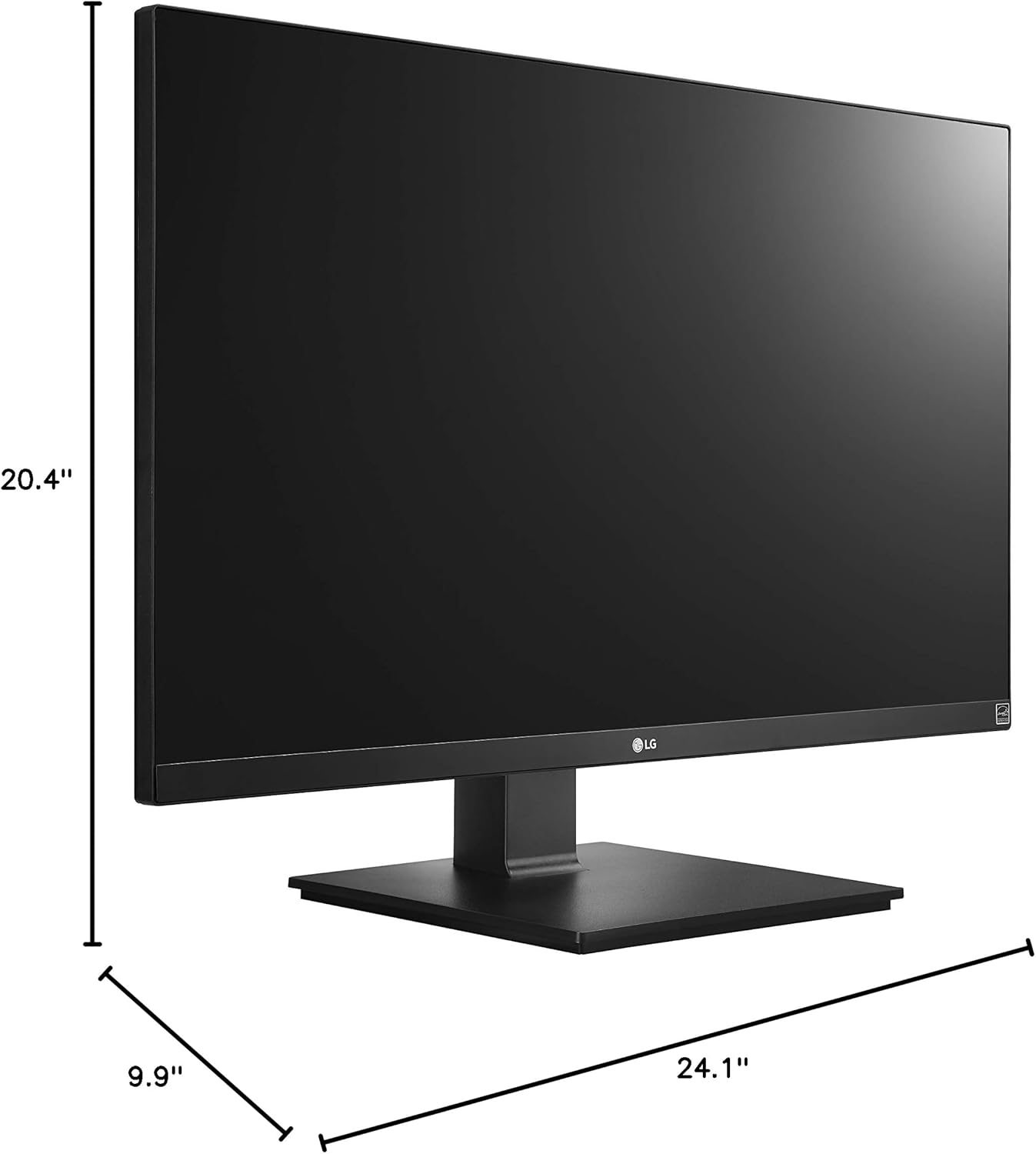
รูปที่ 6: ขนาดจอภาพ
8. การรับประกันและการสนับสนุน
Your LG 27UK670-B monitor is covered by a manufacturer's warranty. For detailed information regarding warranty terms, conditions, and registration, please refer to the warranty card included in your product packaging or visit the official LG Electronics webเว็บไซต์.
For technical support, service inquiries, or to download the latest drivers and software, please visit the LG support portal or contact LG customer service directly.
การสนับสนุนทางออนไลน์: www.lg.com/us/support