1. สินค้าหมดview
The Xfinity XE2-SG xFi Pod is designed to extend and improve WiFi coverage throughout your home. It works seamlessly with your existing xFi Gateway to create a mesh WiFi network, helping to eliminate dead spots and provide more consistent WiFi coverage.
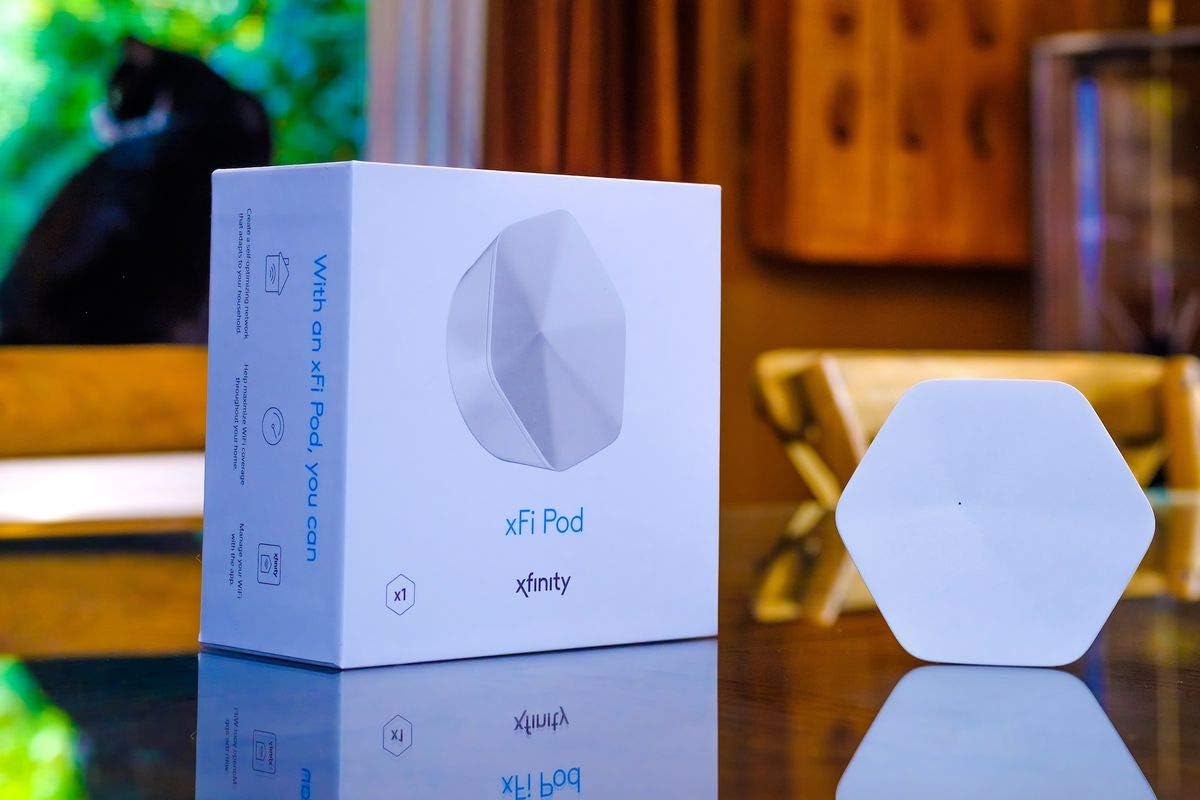
Image: The Xfinity XE2-SG xFi Pod shown next to its retail packaging, highlighting its compact, hexagonal design.
คุณสมบัติหลัก:
- Plug-In and Easy Self-Install: Designed for quick and straightforward setup.
- Self-Optimizing Network: Automatically adapts to your home's WiFi needs for optimal performance.
- More Consistent WiFi Coverage: Helps eliminate dead spots and extends coverage.
- Seamless Integration: Works with your xFi Gateway to form a mesh WiFi network.
- xFi App Control: Monitor and manage your WiFi activity directly through the xFi app.
2. ข้อมูลความเข้ากันได้
It is critical to understand the compatibility requirements for the Xfinity XE2-SG xFi Pod:
- Consumer/Home-Based Xfinity Accounts Only: This xFi Pod is exclusively compatible with consumer/home-based Xfinity accounts.
- Not Compatible with Comcast Business Accounts: This device cannot be activated or used with Comcast Business accounts.
- Requires Comcast Rented Router/Modem: The xFi Pod is only compatible with Comcast-rented routers/modems. If you own your modem/router, this device is not compatible with your network setup.
- Potential Modem Upgrade: Comcast may require you to upgrade your modem to be able to use this product.
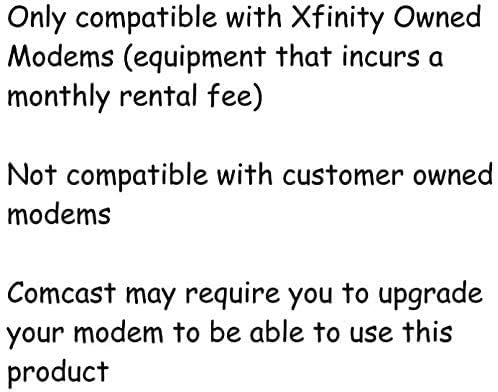
Image: A graphic detailing the compatibility requirements, emphasizing that the pod works only with Xfinity-owned modems (rented equipment) and not with customer-owned modems or business accounts.
3. คู่มือการติดตั้ง
The Xfinity XE2-SG xFi Pod is designed for easy self-installation using the xFi app.
ขั้นตอนการติดตั้ง:
- Download the xFi App: Ensure you have the latest version of the Xfinity xFi app installed on your smartphone or tablet. You can find it on the Apple App Store or Google Play Store.
- Plug in the Pod: Select an indoor electrical outlet where you want to extend your WiFi coverage. Plug the xFi Pod directly into the outlet. Avoid plugging it into power strips or surge protectors for optimal performance.
- ทำตามคำแนะนำในแอป: Open the xFi app and follow the on-screen prompts to activate and configure your new xFi Pod. The app will guide you through the process of connecting the pod to your xFi Gateway and integrating it into your home network.
- เคล็ดลับการจัดวาง: For best results, place pods in areas where WiFi signal is weak, typically halfway between your xFi Gateway and the area needing improved coverage. Avoid placing pods near large metal objects, microwaves, or other devices that may cause interference.
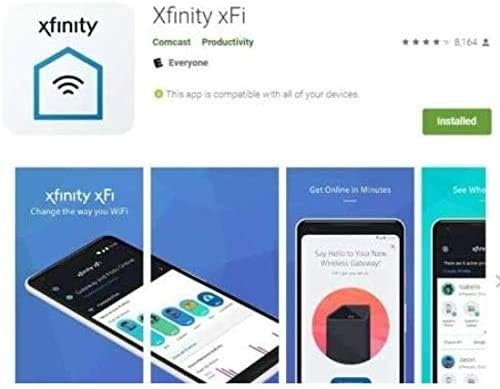
Image: Screenshots of the Xfinity xFi app interface, showing its icon and various screens for managing WiFi.
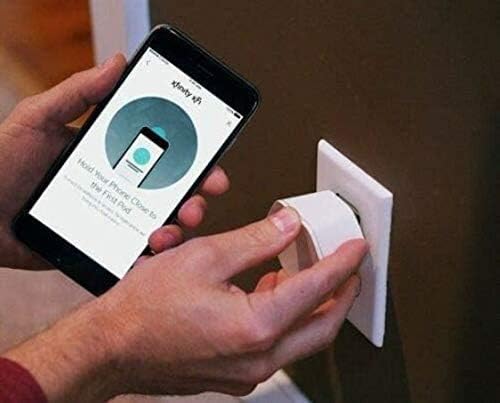
Image: A person plugging the Xfinity xFi Pod into a wall outlet while holding a smartphone displaying the xFi app, indicating the setup process.
4. Operating the xFi Pod
Once installed, the Xfinity XE2-SG xFi Pod operates automatically to enhance your home WiFi.
การเพิ่มประสิทธิภาพอัตโนมัติ:
The xFi Pod works with your xFi Gateway to continuously monitor and optimize your home network. It intelligently routes traffic and extends your WiFi signal to ensure consistent coverage and performance across all your connected devices.
Monitoring with the xFi App:
The xFi app provides tools to monitor your network's performance and connected devices. You can view signal strength, identify connected devices, and manage parental controls or pause WiFi access for specific devices directly from the app.
5. การบำรุงรักษา
The Xfinity XE2-SG xFi Pod requires minimal maintenance to ensure optimal performance.
- ให้ชัดเจน: Ensure the pod's ventilation holes are not obstructed. Avoid placing it in enclosed spaces or covering it with objects.
- การทำความสะอาด: If necessary, gently wipe the exterior of the pod with a soft, dry cloth. Do not use liquid cleaners or abrasive materials.
- สภาพแวดล้อม : Operate the pod within typical indoor temperature and humidity ranges. Avoid extreme heat, cold, or moisture.
- อัพเดตเฟิร์มแวร์: Firmware updates are typically managed automatically by Xfinity to ensure your pod has the latest features and security enhancements.
6 การแก้ไขปัญหา
If you encounter issues with your Xfinity XE2-SG xFi Pod, consider the following troubleshooting steps:
- ตรวจสอบความเข้ากันได้: Re-verify that your account and modem are compatible with the xFi Pod as outlined in Section 2. Incompatibility is a common reason for activation failure.
- วงจรไฟฟ้า: Unplug the xFi Pod from the electrical outlet, wait 10-15 seconds, and then plug it back in. Allow a few minutes for it to restart and reconnect.
- Check xFi Gateway: Ensure your primary xFi Gateway is powered on and functioning correctly. The pod relies on the gateway for connectivity.
- Relocate Pod: Try plugging the pod into a different electrical outlet, preferably one closer to your xFi Gateway, to rule out signal interference or outlet issues.
- Check xFi App: Use the xFi app to check the status of your pod and network. The app often provides diagnostic information and guided troubleshooting steps.
- Reset Pod (Last Resort): If instructed by Xfinity support, there may be a reset option. Consult Xfinity support before performing a factory reset.
- Contact Xfinity Support: If problems persist after trying these steps, contact Xfinity customer support for further assistance. Provide them with your model number (XE2-SG) and a description of the issue.
7. ข้อมูลจำเพาะ
| คุณสมบัติ | รายละเอียด |
|---|---|
| ชื่อรุ่น | XE2-SG |
| ยี่ห้อ | เอ็กซ์ฟินิตี้ |
| เทคโนโลยีการเชื่อมต่อ | ไวไฟ |
| มาตรฐานการสื่อสารไร้สาย | 802.11ac |
| ระดับย่านความถี่ | ดูอัลแบนด์ |
| ความถี่ | 5 กิกะเฮิรตซ์ |
| คุณสมบัติพิเศษ | ดับบลิวพีเอส |
| อุปกรณ์ที่รองรับ | คอมพิวเตอร์ส่วนบุคคล (และอุปกรณ์อื่นๆ ที่รองรับ WiFi) |
| การใช้ที่แนะนำ | Home WiFi Extension |
| น้ำหนักสินค้า | 10 ออนซ์ |
| ขนาดแพ็คเกจ | 6.46 x 6.1 x 2.95 นิ้ว |
| ส่วนประกอบที่รวมอยู่ | Pod Only |

Image: The underside of the Xfinity XE2-SG xFi Pod, showing its two Ethernet ports and ventilation design.
8. การรับประกันและการสนับสนุน
For information regarding warranty coverage and technical support for your Xfinity XE2-SG xFi Pod, please refer to your Xfinity service agreement or contact Xfinity customer support directly.
Xfinity Customer Support:
- Visit the official Xfinity support webไซต์สำหรับคำถามที่พบบ่อย คำแนะนำในการแก้ไขปัญหา และตัวเลือกการติดต่อ
- Use the Xfinity xFi app for in-app support and diagnostics.
- Contact Xfinity by phone for direct assistance.
Note: Warranty terms and support availability may vary based on your service plan and region.


