1. บทนำ
The XPPen Deco mini7W is a versatile wireless graphic tablet designed for digital art, online teaching, e-learning, and light office work. It offers both wired and wireless connectivity options, a battery-free stylus with high pressure sensitivity, and customizable shortcut keys to enhance your workflow.

Image 1.1: XPPen Deco mini7W Graphic Tablet, battery-free stylus, and 2.4 GHz wireless receiver.
2. อะไรอยู่ในกล่อง
Upon unboxing your XPPen Deco mini7W, please ensure all the following items are present:
- 1x Pen Tablet
- 1x ปากกาสไตลัส
- ตัวรับสัญญาณไร้สาย 1x
- 1x Pen-Clipper
- หัวปากกา 10 ชิ้น
- สาย USB ถึง USB-C 1 เส้น
- อะแดปเตอร์ USB เป็น USB-C 1 ชิ้น
- 1x USB to Micro USB Adapter

Image 2.1: Contents of the XPPen Deco mini7W package, including the tablet, pen, cables, adapters, and accessories.
3. การตั้งค่า
3.1. การติดตั้งไดร์เวอร์
Before connecting your tablet, it is recommended to download and install the latest drivers from the official XPPen website. This ensures optimal performance and access to all features, including customizable keys and pressure sensitivity settings.
3.2. การเชื่อมต่อแบบมีสาย
To connect the Deco mini7W via a wired connection:
- Connect one end of the provided USB to USB-C cable to the USB-C port on the tablet.
- เชื่อมต่อปลายอีกด้านของสายเคเบิลเข้ากับพอร์ต USB ที่มีอยู่ในคอมพิวเตอร์ของคุณ
- If your computer only has USB-C ports, use the included USB to USB-C adapter.
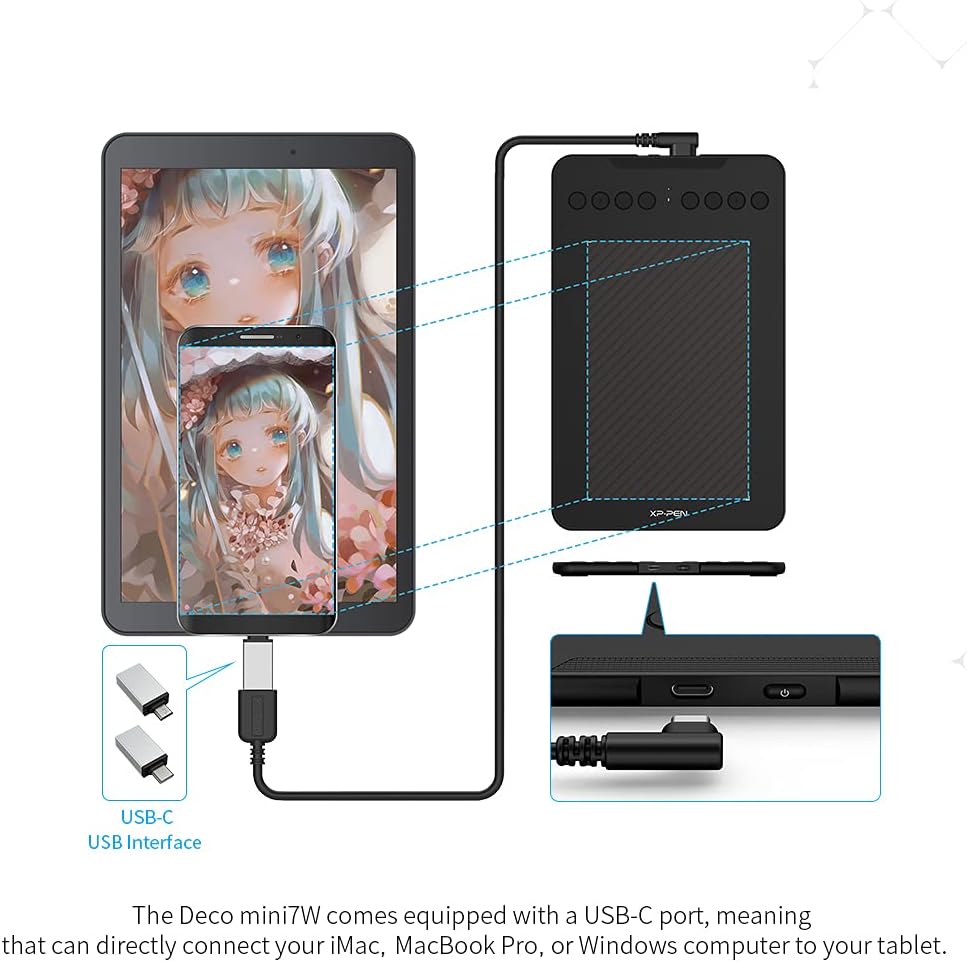
Image 3.1: The Deco mini7W supports USB-C to USB-C connections with the included adapter, allowing connection to various computing devices.
3.3 การเชื่อมต่อแบบไร้สาย
To connect the Deco mini7W wirelessly:
- Plug the included USB wireless receiver into an available USB port on your computer.
- Ensure the tablet is powered on. The 2.4 GHz wireless technology will establish a connection, allowing you to use the tablet without cables.

Image 3.2: The Deco mini7W connects wirelessly to your PC or laptop by plugging the USB dongle into your computer.
วิดีโอ 3.1: จบแล้วview of the XP-PEN Deco mini7W Wireless Drawing Graphics Tablet, demonstrating its features and connectivity.
4. คู่มือการใช้งาน
4.1. การใช้สไตลัส
The Deco mini7W comes with a battery-free stylus that offers 8192 levels of pressure sensitivity and tilt-response capabilities. This allows for precise and natural drawing or writing experience. Simply hold the stylus like a regular pen and interact with the tablet's active area.
4.2. Customizable Press Keys
The tablet features 8 customizable press keys located on the side. These keys can be programmed through the driver software to perform various functions, such as undo, redo, zoom in/out, or switch between tools, streamlining your creative process.

Image 4.1: The Deco mini7W features 8 customizable press keys and a compact design for portable use.
4.3. สถานการณ์การใช้งาน
The Deco mini7W is suitable for various applications:
- Digital Art: Create illustrations, paintings, and graphic designs with precision.
- Online Teaching/E-Learning: Write, annotate, and illustrate directly on virtual whiteboards or shared documents.
- Light Office Work: Sign documents digitally, take handwritten notes, or use it for presentations.

Image 4.2: The Deco mini7W is ideal for online teaching and e-learning, allowing for interactive annotation and drawing.

Image 4.3: The tablet can be used for light office work, including digital signatures and note-taking.
5. ความเข้ากันได้
The XPPen Deco mini7W Wireless Graphic Tablet offers broad compatibility with various operating systems and creative software:
- ระบบปฏิบัติการ: Windows 7 and above, Mac OS X 10.10 (and higher), Android 6.0 (and higher), Chrome OS 88.0.4324.109 or above.
- ซอฟต์แวร์ที่รองรับ: Compatible with major creative applications such as Photoshop, SAI, Painter, Illustrator, Clip Studio, GIMP, Medibang, Krita, Fire Alpaca, and Blender 3D.

Image 5.1: The Deco mini7W is compatible with Windows, Mac OS, Android, and Chrome OS, supporting a wide range of creative software.
Video 5.1: This video demonstrates how to use the XP-PEN Tablet with a Chromebook, highlighting its ease of use and compatibility.
6. การบำรุงรักษา
To ensure the longevity and optimal performance of your Deco mini7W tablet:
- การทำความสะอาด: Use a soft, dry cloth to gently wipe the tablet surface and stylus. Avoid abrasive materials or harsh chemicals.
- พื้นที่จัดเก็บ: เก็บแท็บเล็ตและปากกาไว้ในที่แห้งและเย็น หลีกเลี่ยงแสงแดดโดยตรงและอุณหภูมิที่สูงหรือต่ำเกินไป
- การเปลี่ยนปลายปากกา: Replace the stylus nibs when they show signs of wear to maintain drawing accuracy. Use the included pen-clipper for easy replacement.
7 การแก้ไขปัญหา
If you encounter issues with your Deco mini7W tablet, consider the following:
- No Pen Response: Ensure the tablet is properly connected (wired or wireless) and powered on. Verify that the drivers are correctly installed and updated.
- เคอร์เซอร์ไม่แม่นยำ: Recalibrate the tablet through the driver settings. Check for any interference if using a wireless connection.
- ปุ่มกำหนดเองใช้งานไม่ได้: Confirm that the custom keys are correctly configured in the driver software. Ensure the driver application is running in the background.
- ปัญหาการเชื่อมต่อ: For wireless, try reconnecting the USB dongle or restarting your computer. For wired, try a different USB port or cable.
8. ข้อมูลจำเพาะ
| คุณสมบัติ | ข้อมูลจำเพาะ |
|---|---|
| ขนาดสินค้า | 122.88 x 76.56 x 4.32 นิ้ว |
| น้ำหนักสินค้า | 1.23 ปอนด์ |
| หมายเลขรุ่นสินค้า | เดคโค mini7W |
| แบตเตอรี่ | ต้องใช้แบตเตอรี่ลิเธียมโพลิเมอร์ 1 ก้อน (รวมอยู่ด้วย) |
| เทคโนโลยีการเชื่อมต่อ | บลูทูธ, ยูเอสบี |
| ความไวต่อแรงกด | 8192 ระดับ |
| ระบบปฏิบัติการ | Windows 7+, Mac OS X 10.10+, Android 6.0+, Chrome OS 88+, Linux |
| คุณสมบัติพิเศษ | 60° Tilt Support, Extra-Slim, Shortcut Key |
9. การรับประกันและการสนับสนุน
The XPPen Deco mini7W comes with a แผนคุ้มครอง 1 ปี. XPPen also offers lifetime service for all its products. For detailed terms and conditions regarding support, returns, and refunds, please refer to the official XPPen webเว็บไซต์หรือติดต่อฝ่ายบริการลูกค้า
If you have any questions about the product or require assistance, you can get in touch with XPPen via Amazon Message.


