1. บทนำ
This manual provides essential information for the proper setup, operation, and maintenance of your OWC Thunderbolt Hub. Please read this manual thoroughly before using the device to ensure optimal performance and safety.
The OWC Thunderbolt Hub is designed to expand the connectivity of your computer, offering multiple Thunderbolt 4 ports and a USB-A port for various peripherals. It is compatible with Thunderbolt 4, Thunderbolt 3, USB-C, and USB4 machines.

รูปที่ 1 : ด้านหน้า view of the OWC Thunderbolt Hub, showcasinด้วยการออกแบบที่กะทัดรัดและการจัดวางพอร์ต
2. เนื้อหาบรรจุภัณฑ์
ตรวจสอบว่ามีรายการทั้งหมดอยู่ในแพ็คเกจของคุณ:
- OWC Thunderbolt Hub
- แหล่งจ่ายไฟ
- สายเคเบิลสายฟ้า
- คู่มือเริ่มต้นอย่างรวดเร็ว
3. คำแนะนำในการตั้งค่า
3.1 การเชื่อมต่ออะแดปเตอร์ไฟฟ้า
- Connect the power supply cable to the DC IN port on the rear of the OWC Thunderbolt Hub.
- เสียบอะแดปเตอร์จ่ายไฟเข้ากับเต้ารับไฟฟ้ามาตรฐาน
3.2 การเชื่อมต่อกับคอมพิวเตอร์ของคุณ
- Using the provided Thunderbolt cable, connect one end to the upstream Thunderbolt 4 port on the OWC Thunderbolt Hub. This port is typically labeled with a computer icon and a lightning bolt.
- Connect the other end of the Thunderbolt cable to a Thunderbolt 4, Thunderbolt 3, USB-C, or USB4 port on your computer.
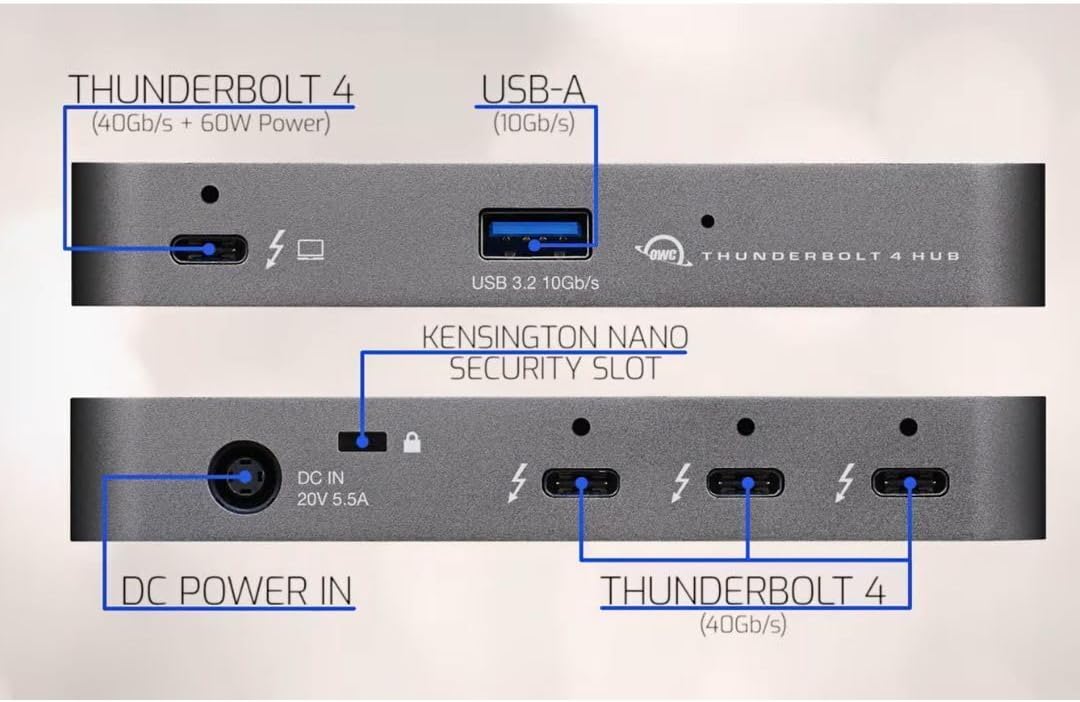
Figure 2: Diagram illustrating the ports on the OWC Thunderbolt Hub, including the Thunderbolt 4 (40Gb/s + 60W Power) upstream port, USB 3.2 10Gb/s Type-A port, DC Power In (20V 5.5A), Kensington Nano Security Slot, and three downstream Thunderbolt 4 (40Gb/s) ports.
3.3 การเชื่อมต่ออุปกรณ์ต่อพ่วง
Once the hub is connected to your computer and powered on, you can connect your peripherals:
- Thunderbolt Devices: Use the three downstream Thunderbolt 4 ports for connecting Thunderbolt devices such as external drives, displays, or other Thunderbolt hubs.
- อุปกรณ์ USB-A: Use the USB 3.2 10Gb/s Type-A port for connecting standard USB-A peripherals like keyboards, mice, or external storage.

Figure 3: An OWC Thunderbolt Hub connected to a laptop, tablet, and various external storage devices, demonstrating its multi-device connectivity capabilities.
4. คู่มือการใช้งาน
4.1 การเปิดและปิดเครื่อง
The OWC Thunderbolt Hub powers on automatically when connected to a power source and a host computer. There is no separate power button. To power off, disconnect the power supply or the Thunderbolt cable from the host computer.
4.2 การชาร์จอุปกรณ์
The upstream Thunderbolt 4 port provides up to 60W of power delivery to charge your connected laptop or host device. The USB-A port also supports charging for compatible devices.

Figure 4: The OWC Thunderbolt Hub connected to a laptop, illustrating its ability to charge devices while in use.
4.3 Daisy-Chaining Thunderbolt Devices
The OWC Thunderbolt Hub supports daisy-chaining, allowing you to connect multiple Thunderbolt devices in a series. This creates an expanded workflow without compromising performance. You can connect up to three bus-powered Thunderbolt devices directly to the hub's downstream ports.
4.4 การเชื่อมต่อจอแสดงผล
The Thunderbolt 4 ports support various display configurations, including single and dual displays at resolutions up to 8K, depending on your host computer's capabilities. Refer to the specifications section for detailed display support.
5. ข้อมูลจำเพาะ
| คุณสมบัติ | รายละเอียด |
|---|---|
| หมายเลขรุ่น | W125947845 |
| ขนาดสินค้า | 2.95 x 9.25 x 5.71 นิ้ว |
| น้ำหนักสินค้า | 2.11 ปอนด์ |
| สี | สีเทา/สีดำ |
| ฮาร์ดแวร์อินเตอร์เฟซ | สายฟ้า |
| พอร์ต |
|
| การสนับสนุนการแสดงผล | Up to 8K resolution (single display), Dual 4K displays (host dependent) |
| อุปกรณ์ที่รองรับ | Desktops, Laptops, Smartphones, Tablets with Thunderbolt 4, Thunderbolt 3, USB-C, or USB4 ports. |
6 การแก้ไขปัญหา
If you encounter issues with your OWC Thunderbolt Hub, refer to the following common problems and solutions:
6.1 No Power or Device Not Recognized
- ตรวจสอบการเชื่อมต่อพลังงาน: Ensure the power adapter is securely connected to both the hub and a working electrical outlet.
- Verify Thunderbolt Cable: Confirm that the Thunderbolt cable is properly connected to both the hub and your computer. Try using a different Thunderbolt cable if available.
- รีสตาร์ทคอมพิวเตอร์: Sometimes a simple restart of your host computer can resolve connectivity issues.
- การอัปเดตไดรเวอร์: Ensure your computer's Thunderbolt drivers are up to date. Visit your computer manufacturer's webเว็บไซต์สำหรับไดรเวอร์ล่าสุด
6.2 Peripherals Not Functioning
- ทดสอบโดยตรง: Connect the peripheral directly to your computer to confirm it is functional.
- ลองใช้พอร์ตอื่นดู: Connect the peripheral to a different port on the OWC Thunderbolt Hub.
- ความต้องการพลังงาน: Ensure that bus-powered devices are not exceeding the power output capabilities of the hub. Some high-power devices may require their own power supply.
6.3 ปัญหาการแสดงผล
- คุณภาพสายเคเบิล: Use high-quality, certified Thunderbolt or USB-C display cables.
- การสนับสนุนความละเอียด: Verify that your computer and display support the desired resolution and refresh rate.
- การตั้งค่าการแสดงผล: ตรวจสอบการตั้งค่าการแสดงผลของคอมพิวเตอร์เพื่อให้แน่ใจว่าระบบตรวจพบและตั้งค่าจอภาพภายนอกอย่างถูกต้อง
7. การบำรุงรักษา
To ensure the longevity and optimal performance of your OWC Thunderbolt Hub, follow these maintenance guidelines:
- การทำความสะอาด: Use a soft, dry, lint-free cloth to clean the exterior of the hub. Avoid using liquid cleaners or aerosols, which can damage the device.
- การระบายอากาศ : ตรวจสอบให้แน่ใจว่าฮับตั้งอยู่ในพื้นที่ที่มีอากาศถ่ายเทสะดวกเพื่อป้องกันความร้อนสูงเกินไป อย่าปิดกั้นช่องระบายอากาศใดๆ
- พื้นที่จัดเก็บ: เมื่อไม่ได้ใช้งานเป็นเวลานาน ควรเก็บฮับไว้ในที่แห้งและเย็น หลีกเลี่ยงแสงแดดโดยตรงและอุณหภูมิที่สูงหรือต่ำเกินไป
- การจัดการสายเคเบิล: Avoid bending or crimping cables excessively, as this can lead to damage and connectivity issues.
8. การรับประกันและการสนับสนุน
OWC products are designed for reliability and performance. For warranty information and technical support, please refer to the official OWC webไซต์หรือเอกสารที่รวมอยู่กับผลิตภัณฑ์ของคุณ
การสนับสนุนทางออนไลน์: Visit the OWC support page for FAQs, driver downloads, and contact information.
ข้อมูลติดต่อ: For direct assistance, contact OWC customer service. Details can be found on the OWC webเว็บไซต์.


