1. บทนำ
This manual provides comprehensive instructions for the ZAGG Pro Keys Detachable Case and Wireless Keyboard. This product is designed to enhance the functionality and protection of your compatible iPad Air device, transforming it into a versatile workstation.

Image: ZAGG Pro Keys Detachable Case and Wireless Keyboard with iPad Air.
2. ความเข้ากันได้
The ZAGG Pro Keys Detachable Case and Wireless Keyboard is compatible with the following Apple iPad Air models:
- iPad Air 10.9 นิ้ว (รุ่นที่ 4)
- iPad Air 10.9 นิ้ว (รุ่นที่ 5)
- ไอแพดแอร์ 11 นิ้ว (M2)
- ไอแพดแอร์ 11 นิ้ว (M3)

Image: Compatibility graphic for 10.9-inch iPad Air (Gen 4-5).
3. เนื้อหาบรรจุภัณฑ์
Your ZAGG Pro Keys package includes:
- ZAGG Pro Keys Detachable Case
- คีย์บอร์ดไร้สาย
- สายชาร์จ USB-C
- คู่มือเริ่มต้นอย่างรวดเร็ว (ไม่รวมอยู่ในคู่มือดิจิทัลฉบับนี้)
4. คำแนะนำในการตั้งค่า
4.1 การเชื่อมต่อ iPad ของคุณ
- Carefully insert your iPad Air into the protective case. Ensure all edges are securely seated within the case's frame.
- The case features rubberized edges and corner bumpers for enhanced protection.

Image: Durable impact protection of the Pro Keys case.
4.2 การจับคู่บลูทูธ
- Ensure the keyboard is charged. Connect the provided USB-C cable to the keyboard and a power source if needed.
- Turn on the keyboard using the power button, typically located on the side or top edge.
- บน iPad ของคุณไปที่ การตั้งค่า > บลูทูธ.
- Toggle Bluetooth to the On ตำแหน่ง.
- On the ZAGG Pro Keys keyboard, press and hold the Bluetooth pairing key (often marked with a Bluetooth symbol or a number like '1' or '2' for multi-device pairing) for a few seconds until the indicator light flashes.
- Your iPad should detect "ZAGG Pro Keys" in the "Other Devices" list. Tap on it to connect.
- ปฏิบัติตามคำแนะนำบนหน้าจอเพื่อดำเนินการจับคู่ให้เสร็จสมบูรณ์
The keyboard supports multi-device pairing, allowing you to connect to two devices simultaneously and switch between them using dedicated keys.
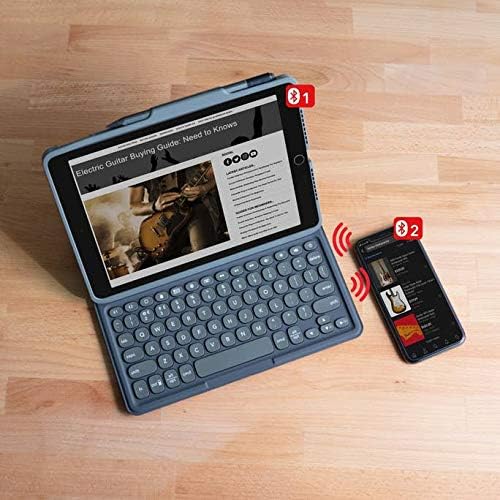
Image: Multi-device pairing functionality.
5. คู่มือการใช้งาน
5.1 การใช้คีย์บอร์ด
- Laptop-Style Keys: The keyboard features a Pro keyframe design with comfortably-spaced, low-profile keys for a precise typing experience.
- ปุ่มเรืองแสง: The keys are backlit in 7 different colors. Use the dedicated backlight key (often a sun icon) to cycle through colors and adjust brightness levels.

Image: Backlit, laptop-style keys for typing in various lighting conditions.
5.2 Detachable Case and Adjustable Stand
- The keyboard and case are detachable, allowing for flexible use. You can remove the iPad in its protective case from the keyboard when not needed.
- The integrated adjustable stand allows you to set your iPad at various viewมุมที่เหมาะสมที่สุดเพื่อความสะดวกสบายและประสิทธิภาพการทำงานสูงสุด

Image: Detachable keyboard and case design.
5.3 Apple Pencil Holder
The case includes a dedicated holder for your Apple Pencil or other stylus, ensuring it is securely stored and readily accessible.

Image: Integrated Apple Pencil holder.
6. การบำรุงรักษา
6.1 การชาร์จคีย์บอร์ด
- Connect the provided USB-C charging cable to the keyboard's charging port and a compatible USB power adapter.
- A full charge can provide up to one year of battery life, depending on backlight usage.
- The keyboard features a sleep/wake function to conserve battery when not in use.

Image: Long-lasting battery feature of the keyboard.
6.2 การทำความสะอาด
To clean your ZAGG Pro Keys case and keyboard, use a soft, damp cloth. Avoid harsh chemicals or abrasive materials that could damage the surfaces.
7 การแก้ไขปัญหา
| ปัญหา | สารละลาย |
|---|---|
| Keyboard does not pair with iPad. |
|
| Keys are not responding or are duplicating characters. |
|
| Backlight is not working. |
|
8. ข้อมูลจำเพาะ
- หมายเลขรุ่น: 103406884
- ยี่ห้อ: แซ็ก
- ชุด: Pro Keys
- อุปกรณ์ที่รองรับ: iPad Air 10.9-inch (Gen 4, Gen 5), iPad Air 11-inch (M2), iPad Air 11-inch (M3)
- เทคโนโลยีการเชื่อมต่อ: บลูทูธ (ไร้สาย)
- คำอธิบายแป้นพิมพ์: iPad Air Keyboard and Case
- คุณสมบัติพิเศษ: Backlit keys (RGB, 7 colors)
- สี: สีดำ
- น้ำหนักสินค้า: ประมาณ 1.48 ปอนด์
- ขนาดสินค้า : 9.98 x 7.73 x 0.89 นิ้ว (ยาว x กว้าง x สูง)
- แหล่งพลังงาน: ใช้พลังงานจากแบตเตอรี่ (รวมแบตเตอรี่ลิเธียมโพลิเมอร์ 1 ก้อน)
- อายุการใช้งานแบตเตอรี่: Up to 1 year between charges (varies with backlight usage)
- การป้องกันการตก: 6.6 ฟุต (2 เมตร)
9. การรับประกันและการสนับสนุน
For warranty information, product registration, or technical support, please visit the official ZAGG webหรือติดต่อฝ่ายบริการลูกค้า โปรดเก็บหลักฐานการซื้อไว้เพื่อใช้ในการเคลมประกัน
The product is designed with durable materials to provide 6.6ft (2m) drop protection for your device.


