1. สินค้าหมดview
The Tera Pro Extreme Performance 2D Ring Barcode Scanner is a compact, wearable device designed for efficient and flexible barcode scanning. Its innovative ring design allows for hands-free operation, making it ideal for various applications including retail, warehousing, and logistics. This scanner supports multiple connection modes and is capable of reading a wide range of 1D and 2D barcodes.

Figure 1: Tera Pro Ring Barcode Scanner highlighting its design principles.
คุณสมบัติหลัก:
- ดีไซน์แหวนสวมใส่: Allows for comfortable, hands-free operation and 330° rotation for optimal scanning angles.
- โหมดการเชื่อมต่อหลายโหมด: Supports Bluetooth, 2.4G wireless, and USB wired connections for versatile compatibility.
- Broad Barcode Compatibility: Decodes most 1D, 2D, and QR codes from paper, labels, and digital screens, including damaged or fuzzy barcodes.
- การแจ้งเตือนการสั่นสะเทือน: Provides tactile feedback for successful scans, useful in noisy or quiet environments.
- โหมดอัปโหลดสองโหมด: Instant upload for real-time data transfer and storage mode for up to 50,000 barcodes.
2. คู่มือการติดตั้ง
2.1 เนื้อหาบรรจุภัณฑ์
ก่อนเริ่มต้น โปรดตรวจสอบให้แน่ใจว่ามีรายการทั้งหมดอยู่ในบรรจุภัณฑ์:
- Tera Pro Ring Barcode Scanner x1
- สาย USB x1
- 2.4G Wireless Dongle x1
- คู่มือผู้ใช้ x1 (เอกสารฉบับนี้และไฟล์ PDF ที่แนบมาด้วย)
2.2 การชาร์จเครื่องสแกน
To ensure optimal performance, fully charge the scanner before first use. Use the provided USB cable for charging.
- Connect the USB cable to the scanner and a compatible power source.
- ปริมาณการชาร์จที่แนะนำtage/current is 5V/1A. The maximum charging voltage/current is 5V/1.2A.
- สำคัญ: Do not use quick charge adapters or USB Power Delivery (USB PD) standard power adapters and data cables to charge this product. It is recommended to use the original USB cable included in the package.

รูปที่ 2: คำแนะนำเกี่ยวกับการชาร์จแบตเตอรี่สำหรับเครื่องสแกน
2.3 โหมดการเชื่อมต่อ
เครื่องสแกนนี้มีตัวเลือกการเชื่อมต่อที่หลากหลายถึงสามแบบ:
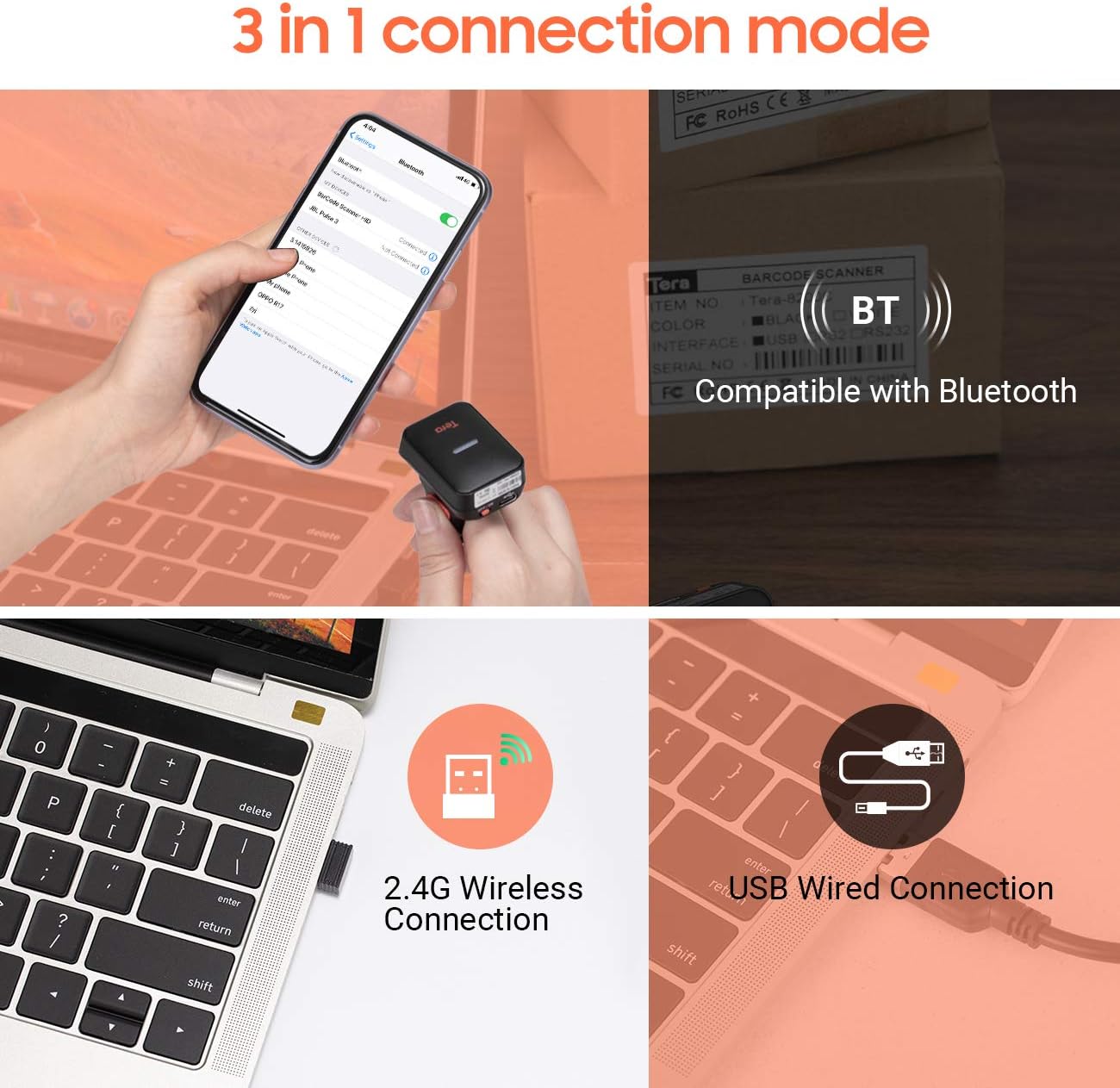
รูปที่ 3: เกินview จากโหมดการเชื่อมต่อทั้งสามแบบ
- การเชื่อมต่อบลูทู ธ :
Ideal for connecting to Bluetooth-enabled devices such as smartphones, tablets, and laptops. Supports Bluetooth HID, SPP, and BLE protocols.
- ตรวจสอบให้แน่ใจว่าสแกนเนอร์เปิดอยู่
- Activate Bluetooth on your host device (e.g., phone, tablet, computer).
- Scan the Bluetooth pairing barcode (refer to the full user manual PDF for specific pairing barcodes).
- Select "Tera Barcode Scanner" or similar from your device's Bluetooth settings to pair.
- การเชื่อมต่อไร้สาย 2.4G:
Provides a stable wireless connection via the included USB dongle, suitable for PCs and laptops without built-in Bluetooth.
- Insert the 2.4G wireless dongle into an available USB port on your computer.
- The scanner should automatically connect to the dongle. If not, scan the 2.4G pairing barcode (refer to the full user manual PDF).
- การเชื่อมต่อแบบใช้สาย USB:
A direct and reliable connection using the USB cable, offering plug-and-play functionality.
- เชื่อมต่อสแกนเนอร์กับคอมพิวเตอร์ของคุณโดยใช้สาย USB ที่ให้มา
- The scanner will function as a USB HID keyboard device, and no drivers are typically required.
The scanner is compatible with Windows XP/7/8/10, Linux, iOS, Android, and Mac OS systems.

รูปที่ 4: อุปกรณ์และระบบปฏิบัติการที่ใช้งานร่วมกันได้
3. คู่มือการใช้งาน
3.1 การสวมใส่เครื่องสแกน
The scanner is designed to be worn on your finger for maximum convenience and efficiency.
- Slide the scanner onto your index finger, ensuring the scanning window faces away from your palm.
- Adjust the strap for a secure yet comfortable fit.
- The scanner can rotate 330° on your finger, allowing you to adjust the scanning angle as needed for different barcode orientations.

Figure 5: Proper way to wear the ring scanner.

Figure 6: The 330° rotation feature for flexible scanning.
3.2 การสแกนบาร์โค้ด
หากต้องการสแกนบาร์โค้ด:
- Point the scanning window towards the barcode.
- Press the scan button (typically located on the side or top of the scanner).
- A successful scan will be indicated by a beep (if enabled) and/or a vibration.
The scanner supports a wide variety of 1D and 2D barcode symbologies, including but not limited to:
- บาร์โค้ด 1 มิติ: EAN, UPC, Code 39, Code 128, Industrial 25, etc.
- บาร์โค้ด 2 มิติ: QR Code, DataMatrix, Aztec, Maxicode, PDF417, etc.
It can scan barcodes from various surfaces, including paper, labels, and digital screens. It is also capable of reading some special barcodes like colorful, fuzzy, or damaged ones.

รูปที่ 7: อดีตamples of readable 1D and 2D barcode types.

Figure 8: Scannable environments for different scanning technologies.
3.3 โหมดการอัปโหลดข้อมูล
เครื่องสแกนรองรับโหมดการอัปโหลดข้อมูลหลักสองโหมด:
- โหมดอัปโหลดทันใจ: Data is transmitted to your connected device immediately after each successful scan. This is the default mode and is suitable for real-time inventory management or POS systems.
- โหมดการจัดเก็บ: Barcodes are stored in the scanner's built-in memory (up to 50,000 barcodes). This mode is useful when working out of range of your host device. Data can be uploaded in bulk later by scanning a specific command barcode (refer to the full user manual PDF for details).

รูปที่ 9: โหมดการอัปโหลดข้อมูล
3.4 การแจ้งเตือนการสั่นสะเทือน
The scanner features a vibration alert function. This can be particularly useful in environments where audible beeps are undesirable or difficult to hear. You can configure the scanner to vibrate upon a successful scan. Refer to the full user manual PDF for instructions on enabling or disabling the vibration and sound alerts.
4. การบำรุงรักษา
4.1 การดูแลทั่วไปและการทำความสะอาด
- Keep the scanner clean and free from dust and debris. Use a soft, dry cloth to wipe the exterior.
- For the scanning window, use a lens cleaning cloth or a soft, lint-free cloth lightly dampล้างด้วยน้ำหรือน้ำยาทำความสะอาดอ่อนๆ ที่ไม่ทำให้เกิดรอยขีดข่วน หลีกเลี่ยงสารเคมีรุนแรง
- Do not immerse the scanner in water or expose it to excessive moisture.
- เก็บสแกนเนอร์ไว้ในที่แห้งและเย็นเมื่อไม่ได้ใช้งาน
4.2 การดูแลแบตเตอรี่
- เพื่อยืดอายุการใช้งานแบตเตอรี่ ควรหลีกเลี่ยงการปล่อยแบตเตอรี่จนหมดบ่อยครั้ง
- ชาร์จสแกนเนอร์เมื่อไฟแสดงสถานะแบตเตอรี่แสดงว่าพลังงานเหลือน้อย
- If the scanner will not be used for an extended period, charge it to about 50% before storing and recharge every few months to prevent deep discharge.
- Always use the provided USB cable and adhere to the recommended charging voltage/current (5V/1A).
5 การแก้ไขปัญหา
This section addresses common issues you might encounter. For more detailed troubleshooting steps and advanced configurations, please refer to the comprehensive User Manual PDF provided with your product.
5.1 Scanner Not Responding / Not Powering On
- Ensure the scanner is fully charged. Connect it to a power source and allow it to charge for at least 30 minutes.
- Press and hold the power button for a few seconds to ensure it's attempting to power on.
- If charging lights do not appear, try a different USB cable or power adapter (within specified voltagอี/กระแส)
5.2 Unable to Scan Barcodes
- Check if the scanner is powered on and connected to your device.
- ตรวจสอบให้แน่ใจว่าบาร์โค้ดสะอาด ชัดเจน และไม่เสียหายมากเกินไป
- Adjust the distance and angle between the scanner and the barcode. Try scanning from different distances (typically 2-16 inches).
- Verify the barcode symbology is supported by the scanner.
- Clean the scanning window if it appears dirty or smudged.
- If scanning from a screen, ensure the screen brightness is sufficient and there's no glare.
5.3 Connection Issues (Bluetooth/2.4G Wireless)
- บลูทูธ: Ensure Bluetooth is enabled on your host device. Forget the scanner from your device's Bluetooth list and attempt to re-pair. Make sure the scanner is in Bluetooth pairing mode.
- 2.4G ไร้สาย: Ensure the USB dongle is securely inserted into a working USB port. Try a different USB port. Re-pair the scanner with the dongle by scanning the appropriate pairing barcode (found in the full user manual PDF).
- Move closer to the host device to rule out range issues.
- Try connecting via USB wired mode to confirm the scanner's basic functionality.
5.4 การแสดงผลข้อมูลที่ไม่ถูกต้อง
- Ensure the correct keyboard layout is selected on your host device (e.g., US keyboard layout).
- If you are experiencing extra characters or missing digits, you may need to configure the scanner's data formatting settings. Refer to the full user manual PDF for programming barcodes related to prefix/suffix, adding/hiding digits, etc.
- Confirm the scanner is in the desired upload mode (Instant vs. Storage).
6. ข้อมูลจำเพาะ
| คุณสมบัติ | รายละเอียด |
|---|---|
| ขนาดสินค้า | 5 x 4.2 x 1.7 นิ้ว |
| น้ำหนักสินค้า | 4.2 ออนซ์ |
| ASIN | B08GWSL4Y5 |
| วันที่พร้อมใช้งานครั้งแรก | วันที่ 28 สิงหาคม 2020 |
| ผู้ผลิต | เทระ |
| ประเทศต้นกำเนิด | จีน |
| อุปกรณ์ที่รองรับ | Tablet, Smartphone, PC, Laptop, POS |
| แหล่งพลังงาน | ใช้พลังงานจากแบตเตอรี่ |
| เทคโนโลยีการเชื่อมต่อ | บลูทูธ, ระบบไร้สาย 2.4G, สาย USB |
| ปฏิบัติการฉบับที่tage | 5 โวลต์ |
7. การรับประกันและการสนับสนุน
Tera products are designed and manufactured to high-quality standards. For detailed warranty information and terms, please refer to the official User Manual PDF or contact Tera customer support.
7.1 คู่มือผู้ใช้ฉบับทางการ
A comprehensive user manual in PDF format is available for download. This manual contains detailed instructions, advanced configuration options, and extensive troubleshooting guides.
ดาวน์โหลดคู่มือผู้ใช้ฉบับเต็ม (PDF)
7.2 การสนับสนุนลูกค้า
For any questions, technical assistance, or support inquiries, please visit the official Tera website or contact their customer service department. Contact information can typically be found in the full user manual or on the product packaging.
Tera is an international brand specializing in barcode scanners, with research centers in Berlin and Munich, and a U.S.-based company. They are committed to providing quality products and support.


