1. สินค้าหมดview
The Yottamaster M.2 NVMe Dual Bay Enclosure is a versatile device designed for both offline cloning of M.2 NVMe SSDs and functioning as a high-speed external docking station. It supports two M.2 NVMe SSDs simultaneously and offers data transfer rates up to 10Gbps via USB 3.1 Gen2 Type-C. Its robust aluminum construction aids in efficient heat dissipation.

2. เนื้อหาบรรจุภัณฑ์
- Yottamaster M.2 NVMe Dual Bay Enclosure
- สาย USB-C ถึง USB-C
- สาย USB-C ถึง USB-A
- 5V/4A Power Adapter with multiple international plug adapters (CN, US, EU, UK, JP)
- Thermal Silicone Pads (2x)
- SSD Fixing Screws/Rubber Plugs
- ไขควงเล็ก
- คู่มือการใช้งาน (เอกสารนี้)
3. การตั้งค่าและการติดตั้ง
3.1 การติดตั้ง SSD M.2 NVMe
- Gently slide open the enclosure cover to access the M.2 slots.
- Insert your M.2 NVMe SSDs into the designated slots (Source and Target). Ensure the SSDs are fully seated.
- Secure the SSDs using the provided rubber plugs or screws, depending on the SSD length (supports 2230, 2242, 2260, 2280 form factors).
- Apply the thermal silicone pads onto the SSDs for optimal heat dissipation.
- Close the enclosure cover securely.

3.2 การต่อสายไฟ
Connect the provided 5V/4A power adapter to the DC input port on the enclosure and then to a power outlet. The external power supply is crucial for stable operation, especially during cloning.

4. คู่มือการใช้งาน
4.1 Offline Cloning (Stand-alone Duplication)
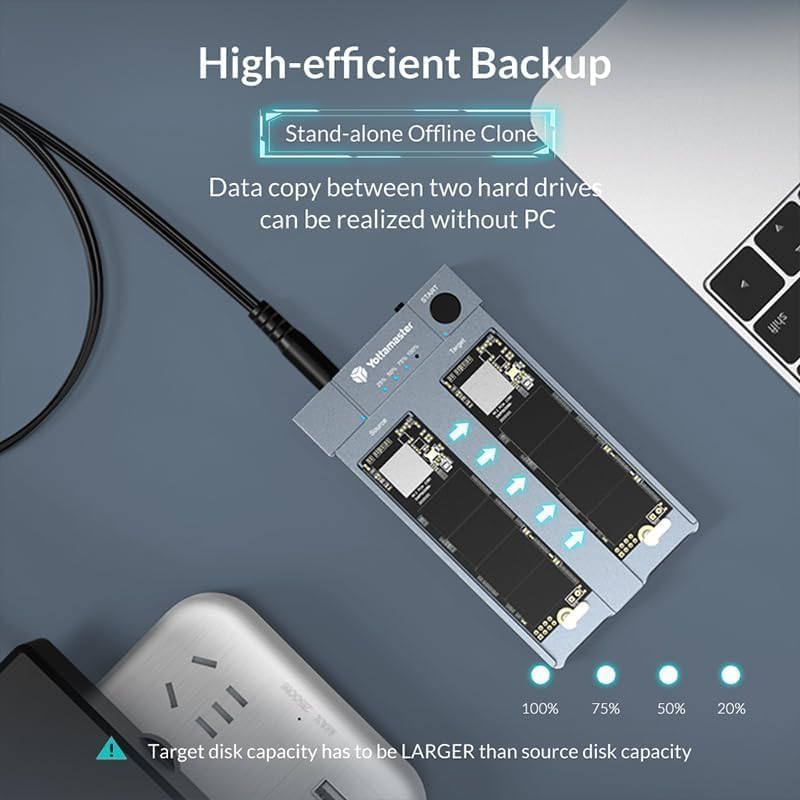
This feature allows you to clone an M.2 NVMe SSD without connecting the enclosure to a computer.
- การตระเตรียม:
- Ensure the enclosure is ไม่ connected to any computer.
- ใส่ แหล่งที่มา M.2 NVMe SSD into the 'Source' slot.
- ใส่ เป้า M.2 NVMe SSD into the 'Target' slot.
- สำคัญ: The capacity of the Target SSD must be equal to or larger than the Source SSD. All data on the Target SSD will be overwritten during the cloning process.
- Connect the 5V/4A power adapter to the enclosure and a power outlet.
- เริ่มการโคลน:
- กดและ ถือ the 'START' button on the enclosure.
- While holding the 'START' button, turn on the power switch.
- Continue to hold the 'START' button until the 25% progress indicator LED begins to blink. This typically takes 15-20 seconds after the initial power-on sequence where all four LEDs light up and then turn off.
- Once the 25% LED is blinking, you can release the 'START' button.
- ติดตามความคืบหน้า:
- The progress indicator LEDs (25%, 50%, 75%, 100%) will illuminate sequentially to show the cloning status.
- When all four LEDs are solid (100%), the cloning process is complete.
- เสร็จสิ้น:
- Once cloning is finished, turn off the power switch and safely remove the SSDs.
4.2 Online Enclosure Mode (Connecting to PC)
The enclosure can be used as an external dual-bay M.2 NVMe SSD docking station.
- Ensure SSDs are properly installed in the enclosure.
- Connect the 5V/4A power adapter to the enclosure and a power outlet.
- Connect the enclosure to your computer using either the USB-C to USB-C cable or the USB-C to USB-A cable. For optimal performance (up to 10Gbps), use the USB-C to USB-C cable with a USB 3.2 Gen 2 compatible port on your PC.
- The SSDs will appear as external drives on your computer. You may need to initialize and format new SSDs via your operating system's disk management utility before use.

5. การบำรุงรักษา
5.1 การกระจายความร้อน
The enclosure features an all-aluminum design and includes thermal silicone pads to facilitate heat dissipation from the NVMe SSDs. While operating, especially during intensive tasks like cloning or large data transfers, the enclosure may become warm. This is normal and indicates effective heat transfer. Ensure adequate airflow around the device.

5.2 การดูแลทั่วไป
- รักษาอุปกรณ์ให้สะอาดและปราศจากฝุ่น ใช้ผ้านุ่มและแห้งทำความสะอาด
- หลีกเลี่ยงการให้อุปกรณ์สัมผัสกับอุณหภูมิ ความชื้น หรือแสงแดดโดยตรง
- อย่าทำอุปกรณ์หล่นหรือกระแทกอย่างรุนแรง
6 การแก้ไขปัญหา
6.1 Cloning Issues
- Cloning Fails or Stops:
- Target Disk Capacity: Ensure the target disk's actual capacity is equal to or greater than the source disk's actual capacity. Even a single byte less can cause failure.
- Holding START Button: Make sure you press and ถือ the 'START' button continuously until the 25% progress LED starts blinking, then release. Releasing too early will prevent cloning from starting.
- No PC Connection: The enclosure must not be connected to a computer during offline cloning.
- Bad Sectors: If the source SSD contains bad sectors, the cloning process may stop. Scan the SSD for errors before attempting to clone.
- SSD Initialization: For new target NVMe SSDs, it is recommended to initialize them and ensure they are 'online' in Disk Management before cloning, if using them in enclosure mode first.
6.2 Connection and Performance Issues
- ไม่รู้จักอุปกรณ์:
- Ensure the power adapter is securely connected and providing power.
- ลองใช้สาย USB หรือพอร์ต USB อื่นบนคอมพิวเตอร์ของคุณ
- Verify that the SSDs are correctly seated in their slots.
- การถ่ายโอนข้อมูลช้า:
- Ensure you are using a USB 3.1 Gen2 (10Gbps) compatible port on your computer. Older USB 2.0 or 3.0 ports will result in lower speeds.
- Use the provided USB-C to USB-C cable for best performance.
- Check the performance of your SSDs; slower SSDs will limit transfer speeds.
7. ข้อมูลจำเพาะ
| คุณสมบัติ | ข้อมูลจำเพาะ |
|---|---|
| หมายเลขรุ่น | Yottamaster-HC1-C3-GY-EU |
| อินเทอร์เฟซ | ยูเอสบี 3.1 เจนเนอเรชั่น 2 ชนิด-C |
| อัตราการถ่ายโอนข้อมูล | สูงสุดถึง 10 Gbps |
| SSD ที่รองรับ | M.2 NVMe PCIe SSDs (M Key / B&M Key) |
| ขนาด SSD ที่รองรับ | 2230, 2242, 2260, 2280 |
| Max Capacity per Slot | ความจุสูงสุด 4TB (รวมทั้งหมด 8TB) |
| วัสดุ | อลูมิเนียม |
| แหล่งจ่ายไฟ | External 5V/4A DC Power Adapter |
| ระบบปฏิบัติการ | วินโดวส์, แมคโอเอส, ลินุกซ์ |
8. การรับประกันและการสนับสนุน
8.1 ข้อมูลการรับประกัน
Yottamaster products typically come with a manufacturer's warranty. Please refer to the warranty card included with your product or visit the official Yottamaster webเว็บไซต์สำหรับข้อกำหนดและเงื่อนไขการรับประกันโดยละเอียดที่เฉพาะเจาะจงกับภูมิภาคของคุณ
8.2 การสนับสนุนลูกค้า
If you encounter any issues or have questions regarding your Yottamaster M.2 NVMe Dual Bay Enclosure, please contact Yottamaster customer support through their official website or the contact information provided in your product packaging. When contacting support, please have your model number (Yottamaster-HC1-C3-GY-EU) and purchase details ready.


