1. บทนำ
This manual provides detailed instructions for the installation, operation, and maintenance of your MoesGo Smart RF433 WiFi Wall Switch. This smart switch is designed for convenient control of your lighting, offering multiple control methods including touch, app, voice, and RF433 remote.
คุณสมบัติหลัก:
- No neutral wire required for installation.
- Supports 2.4GHz WiFi connectivity for Smart Life/Tuya App control.
- Compatible with Alexa and Google Home for hands-free voice control.
- RF433 frequency support for remote control (remote not included).
- Programmable timing schedules and countdowns.
- Relay status memory and backlight preferences.

Image 1.1: MoesGo Smart RF433 WiFi Wall Switch, showcasing its sleek design and "No neutral" indicator.
2. ข้อมูลด้านความปลอดภัย
WARNING: Electrical installation should only be performed by a qualified electrician. Always turn off power at the circuit breaker before installation or maintenance.
- Ensure the power supply is disconnected before handling any wiring.
- This device is designed for 2.4GHz Wi-Fi networks only. It is not compatible with 5.0GHz Wi-Fi.
- A capacitor is required for proper operation and must be connected to both ends of the bulb.
- Only use with certified bulbs that have a rated power of 5W or higher.
- This switch is not designed for use as a 3-way switch.
- The capacitor may produce a faint humming sound during operation. This is normal.
3. เนื้อหาบรรจุภัณฑ์
กรุณาตรวจสอบแพ็คเกจสำหรับรายการต่อไปนี้:
- MoesGo Smart RF433 WiFi Wall Switch (1 unit)
- Capacitor (1 unit)
- สกรูยึด (2 ตัว)
- คู่มือผู้ใช้ (เอกสารนี้)
4. ข้อมูลจำเพาะ
| คุณสมบัติ | รายละเอียด |
|---|---|
| ยี่ห้อ | โมเอสโก |
| หมายเลขรุ่น | WS-EU1-LB-N-MG |
| โหมดการทำงาน | เปิดปิด |
| ประเภทการติดต่อ | ปิดปกติ |
| วัสดุ | กระจก |
| ประเภทการติดตั้ง | ติดผนัง |
| การให้คะแนนการคุ้มครองระหว่างประเทศ | IP65 |
| สี | สีดำ |
| ขนาด (แพ็คเกจ) | 11 x 10.2 x 5.1 ซม. |
| น้ำหนัก (แพ็คเกจ) | 193 กรัม |

Image 4.1: Detailed dimensions of the MoesGo Smart Switch and a basic wiring diagram for single-wire installation with capacitor.
5. การติดตั้งและการตั้งค่า
5.1 รายการตรวจสอบก่อนการติดตั้ง
- ตรวจสอบว่าเครือข่าย Wi-Fi ของคุณคือ 2.4GHz ไม่รองรับเครือข่าย 5GHz
- Ensure the bulbs connected to the switch have a rated power of 5W or higher.
- Confirm you are not attempting to install this as a 3-way switch.
- Have the included capacitor ready.
5.2 คำแนะนำในการเดินสายไฟ
- ปิดเครื่อง: ค้นหาเบรกเกอร์วงจรของคุณและปิดสวิตช์ที่คุณกำลังเปลี่ยน ตรวจสอบว่าไฟฟ้าปิดอยู่โดยใช้โวลท์tagอีผู้ทดสอบ
- ถอดสวิตช์เก่าออก: ถอดสวิตช์ไฟติดผนังตัวเดิมออกจากกล่องอย่างระมัดระวัง
- Connect Capacitor: The included capacitor is essential for stable operation with no neutral wire. Connect the capacitor across the two terminals of the light bulb (in parallel with the load). This helps prevent flickering and ensures proper functionality.
- เชื่อมต่อสวิตช์อัจฉริยะ:
- Connect the live wire (L) from your electrical box to the 'L IN' terminal on the MoesGo switch.
- Connect the load wire (L1) going to your light fixture to the 'L OUT' terminal on the MoesGo switch.
- ตรวจสอบให้แน่ใจว่าการเชื่อมต่อทั้งหมดมีความปลอดภัย
- เมานต์สวิตช์: Gently push the wired switch into the wall box and secure it with the provided screws. Attach the glass panel.
- คืนค่าพลัง: เปิดไฟที่เบรกเกอร์อีกครั้ง

Image 5.1: Visual guide highlighting critical installation requirements: 2.4GHz Wi-Fi, minimum 5W bulb power, not for 3-way use, and no neutral wire needed.

Image 5.2: Illustration showing the capacitor and its importance for the MoesGo Smart Switch, indicating it should be connected to the bulb.
5.3 App Pairing (Smart Life/Tuya)
- ดาวน์โหลดแอพ: Download the "Smart Life" or "Tuya Smart" app from your smartphone's app store (iOS or Android).
- ลงทะเบียน/เข้าสู่ระบบ: เปิดแอปและลงทะเบียนบัญชีใหม่หรือเข้าสู่ระบบด้วยบัญชีที่มีอยู่
- เข้าสู่โหมดจับคู่: On the MoesGo switch, press and hold the touch button for approximately 5-10 seconds until the indicator light starts blinking rapidly. This indicates it's in pairing mode.
- เพิ่มอุปกรณ์: In the app, tap the "+" icon (usually in the top right corner) to add a device. Select "Switch (Wi-Fi)" or "Wall Switch".
- ยืนยันการกะพริบ: ตรวจสอบว่าไฟแสดงสถานะบนสวิตช์กำลังกะพริบอย่างรวดเร็วในแอป
- กรอกรายละเอียด Wi-Fi: ป้อนชื่อเครือข่าย Wi-Fi 2.4GHz และรหัสผ่านของคุณ
- เชื่อมต่อ: The app will begin connecting to the switch. Once connected, the indicator light on the switch will stop blinking and remain solid.
- เปลี่ยนชื่ออุปกรณ์: คุณสามารถเปลี่ยนชื่อสวิตช์ในแอปเพื่อให้ระบุได้ง่ายขึ้น (เช่น "ไฟห้องนั่งเล่น")
6. การดำเนินการ
The MoesGo Smart Switch offers multiple ways to control your lighting:
6.1 การควบคุมแบบสัมผัส
Simply touch the designated area on the glass panel of the switch to turn the light ON or OFF. The touch control functions independently of app or voice commands.

Image 6.1: A hand touching the MoesGo Smart Switch, illustrating the touch control functionality.
6.2 การควบคุมแอป (ชีวิตอัจฉริยะ/Tuya)
Once paired with the Smart Life or Tuya Smart app, you can control your switch from anywhere with an internet connection.
- เปิด/ปิดระยะไกล: Tap the switch icon in the app to turn the light ON or OFF.
- Relay Status Settings: Access the switch settings in the app to configure the relay status after a power outage (ON/OFF/Remember last status). You can also adjust backlight preferences.
- การควบคุมการแบ่งปัน: Share control of the switch with family members or friends through the app, allowing multiple users to manage the device.
- การควบคุมกลุ่ม: Create groups within the app to control multiple smart switches simultaneously.

Image 6.2: Screenshot of the Smart Life/Tuya app interface showing options for setting relay status and backlight preferences for the MoesGo Smart Switch.
6.3 การควบคุมด้วยเสียง (Alexa และ Google Home)
Integrate your MoesGo Smart Switch with Amazon Alexa or Google Home for convenient hands-free voice control.
- เชื่อมโยงบัญชี: ในแอป Alexa หรือ Google Home ให้เปิดใช้งานทักษะ/บริการ "Smart Life" หรือ "Tuya Smart" แล้วเชื่อมโยงบัญชีของคุณ
- ค้นพบอุปกรณ์: สอบถาม Alexa หรือ Google Home เพื่อค้นหาอุปกรณ์ใหม่ ๆ
- คำสั่งเสียง: ใช้คำสั่งเช่น:
- "Alexa, turn on [Switch Name]"
- "Hey Google, turn off [Switch Name]"
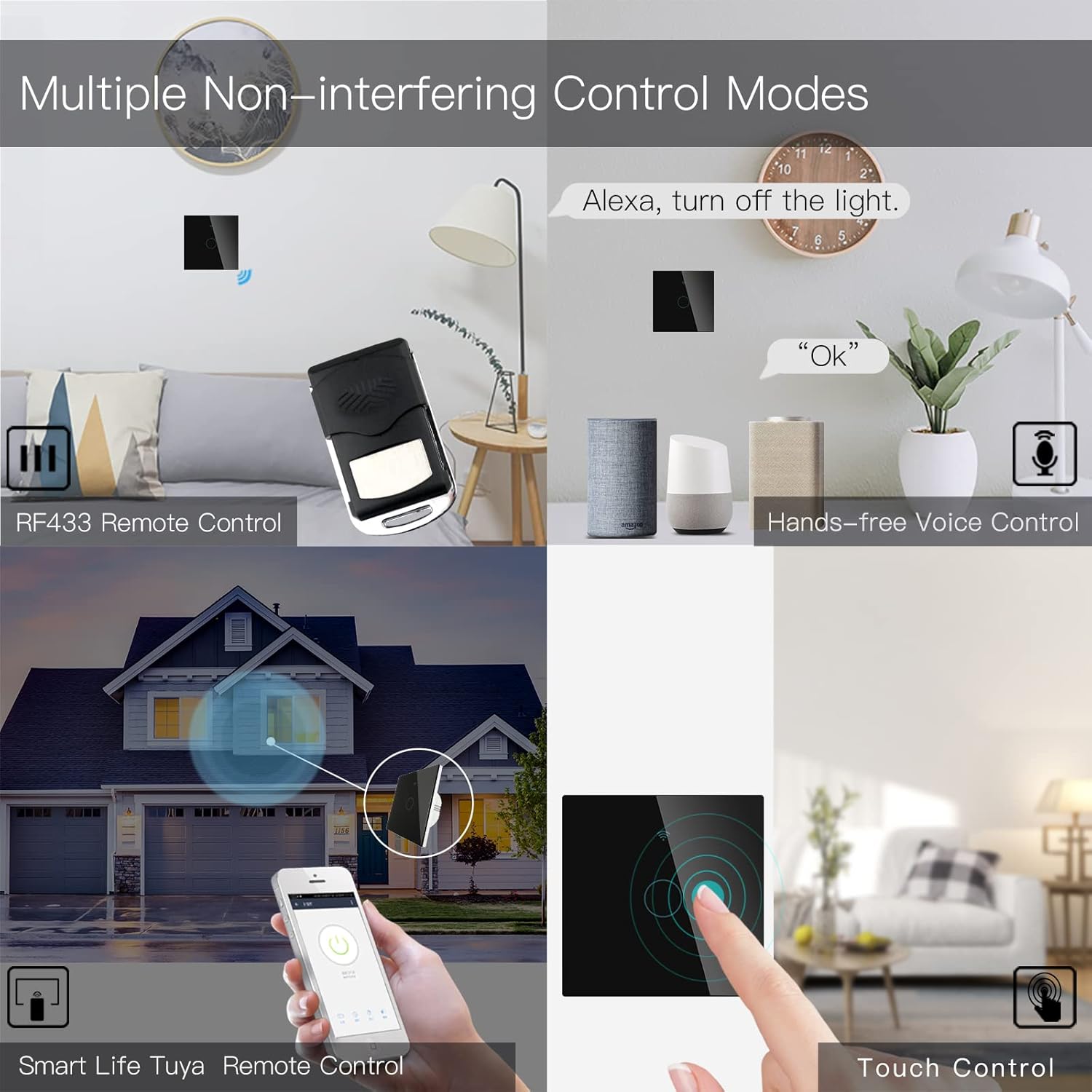
Image 6.3: Depiction of the MoesGo Smart Switch being controlled via voice commands using Amazon Alexa and Google Home devices.
6.4 รีโมทคอนโทรล RF433
The switch supports RF433 frequency for remote control. An RF433 remote (not included) with 1527 encoding can be paired with the switch.
- Enter RF Pairing Mode: In the Smart Life/Tuya app, navigate to the switch settings and find the "RF area" to enter pairing mode.
- จับคู่รีโมท: Press a button on your RF433 remote. Ensure a one-second delay between presses to avoid errors. The switch will confirm successful pairing.
6.5 Timing Schedules and Countdown
Utilize the Smart Life/Tuya app to set up automated schedules for your lights.
- ตารางเวลา: Program specific times for the light to turn ON or OFF daily or on selected days of the week.
- นับถอยหลัง: Set a countdown timer for the light to turn OFF after a specified duration (e.g., 1, 5, 30 minutes, 1 hour).

ภาพที่ 6.4: อดีตample of setting a timing schedule in the Smart Life/Tuya app, showing lights turning on at 7:00 AM and off at 10:00 PM.
7. การบำรุงรักษา
To maintain your MoesGo Smart Switch:
- การทำความสะอาด: Gently wipe the glass panel with a soft, dry cloth. Avoid abrasive cleaners or solvents.
- อัพเดตเฟิร์มแวร์: ตรวจสอบแอป Smart Life/Tuya เป็นระยะเพื่อดูการอัปเดตเฟิร์มแวร์ที่มีให้ใช้งาน เพื่อให้มั่นใจได้ถึงประสิทธิภาพและความปลอดภัยสูงสุด
8 การแก้ไขปัญหา
- สวิตช์ไม่ตอบสนอง:
- ตรวจสอบว่าเบรกเกอร์เปิดอยู่หรือไม่
- ตรวจสอบให้แน่ใจว่าการเดินสายไฟถูกต้องและแน่นหนาดีแล้ว
- Verify the capacitor is properly installed across the bulb terminals.
- แสงกะพริบ:
- This often indicates an issue with the capacitor installation or an incompatible bulb. Ensure the capacitor is correctly wired and the bulb meets the 5W minimum power requirement.
- ไม่สามารถเชื่อมต่อกับ Wi-Fi ได้:
- ตรวจสอบให้แน่ใจว่าเครือข่าย Wi-Fi ของคุณใช้ความถี่ 2.4GHz
- Ensure the switch is in pairing mode (rapidly blinking indicator light).
- ตรวจสอบรหัสผ่าน Wi-Fi ของคุณเพื่อความถูกต้อง
- ขณะทำการจับคู่ ให้เลื่อนสวิตช์เข้าใกล้เราเตอร์ Wi-Fi มากขึ้น
- Faint Humming Sound:
- A faint humming sound from the capacitor is normal for no-neutral switches. If the sound is loud or concerning, recheck the capacitor installation and bulb compatibility.
- RF433 Remote Pairing Issues:
- Ensure the switch is in RF pairing mode via the app.
- Press remote buttons with a one-second delay between presses.
- Verify the remote uses 1527 encoding.
9. การรับประกันและการสนับสนุน
For warranty information and technical support, please refer to the official MoesGo website or contact their customer service directly. Details are typically provided on the product packaging or the manufacturer's official online resources.


