การแนะนำ
The Victrix Gambit Dual Core Tournament Controller is designed for competitive gaming across Xbox One, Xbox Series X|S, and Windows 10/11 PC. It features advanced technology for responsive input and extensive customization options to adapt to various play styles.
คุณสมบัติหลัก:
- Dual Core Technology: Dedicated processing for ultra-fast input and clear audio.
- Swappable Components: Includes interchangeable thumbsticks, D-pads, and faceplates for personalized ergonomics and aesthetics.
- Customizable Paddles & Triggers: Remappable buttons, bumpers, and paddles, along with adjustable hair triggers with five positional stops.
- Dolby Atmos Integration: Built-in support for immersive surround sound via the 3.5mm audio jack with compatible headsets.
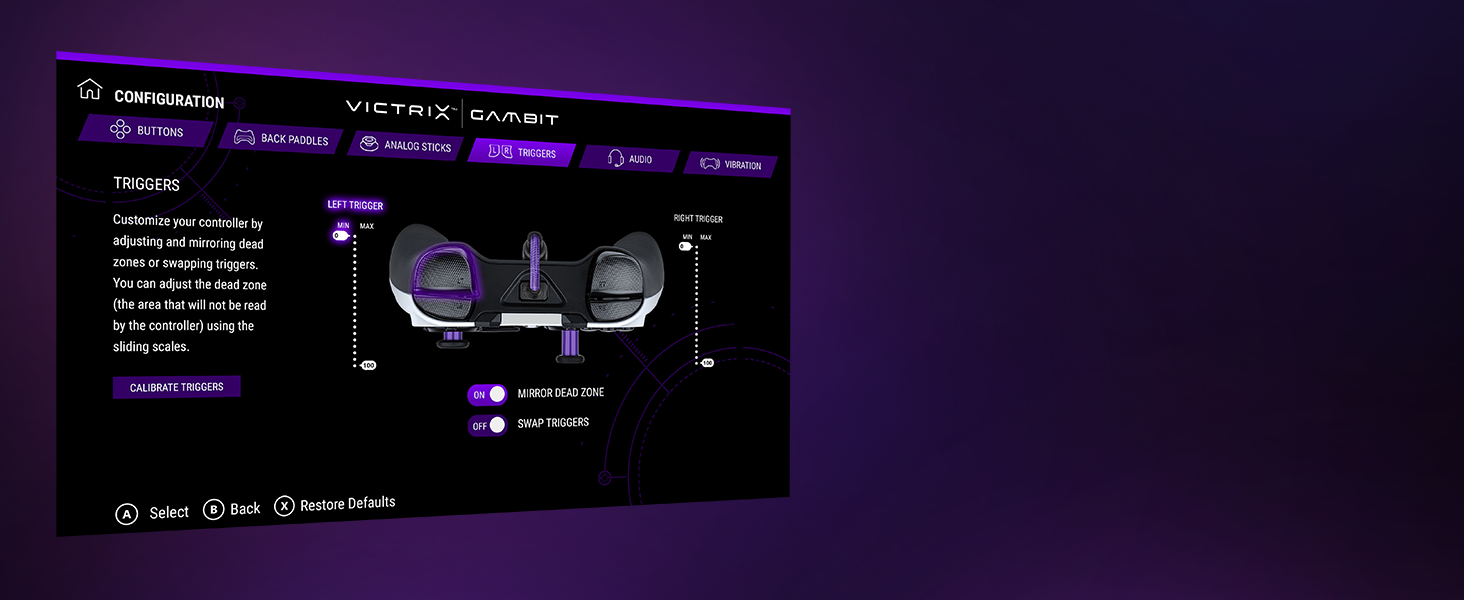
- Victrix Control Hub App: Software for fine-tuning controller settings, including button remapping, dead zones, audio profiles, and vibration strength.
- การออกแบบที่ทนทาน: Comes with a hard-shell carrying case for protection and portability.
การตั้งค่า
Connecting Your Controller:
- Ensure your Xbox console or PC is powered on.
- Connect the braided USB-C cable to the USB-C port on the top of the Victrix Gambit controller.
- Connect the other end of the USB-C cable to an available USB port on your Xbox console or PC.
- The controller's Xbox button will illuminate, indicating a successful connection.
Installing the Victrix Control Hub App:
- For Xbox: Download the 'Victrix Control Hub' app from the Xbox Store.
- For PC: Download the 'Victrix Control Hub' app from the Microsoft Store or Victrix's official webเว็บไซต์.
- Launch the app to access customization options and firmware updates.
การใช้งานคอนโทรลเลอร์
Swapping Components:
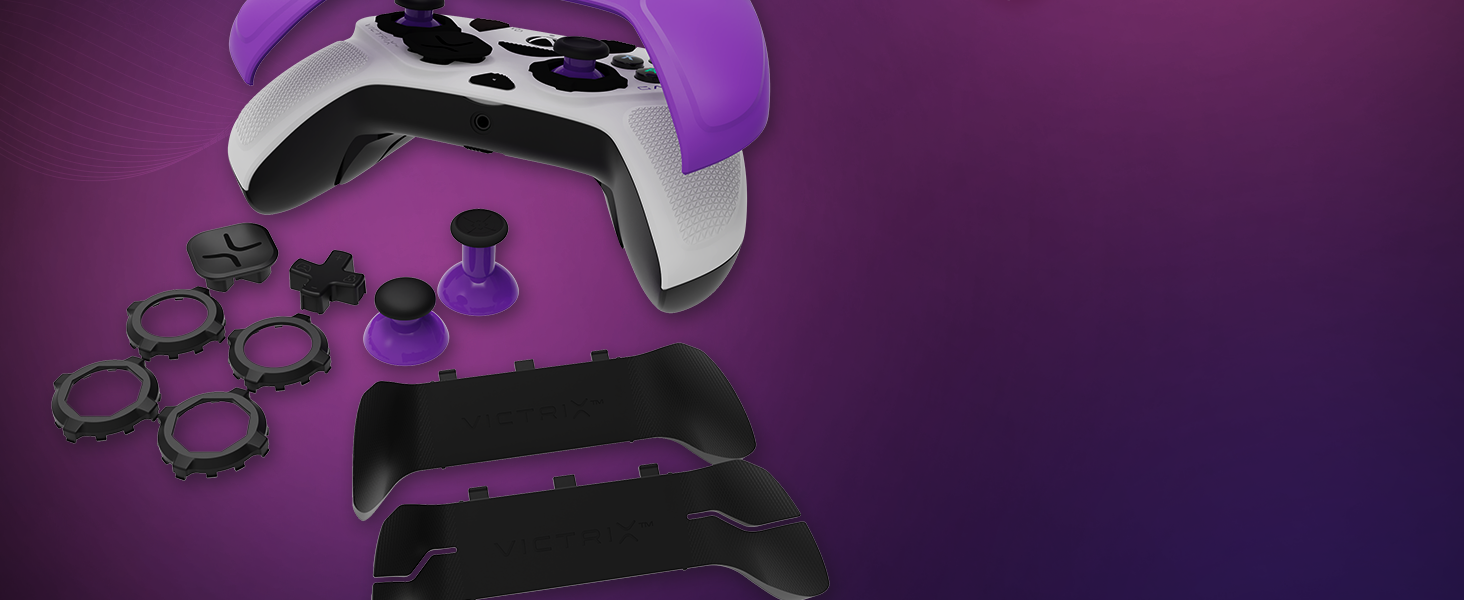
The Victrix Gambit controller features magnetic, swappable components for personalized comfort and control.
- แผ่นหน้า: Gently lift the existing faceplate from the controller to remove it. Align the new faceplate with the controller's body and press down until it snaps into place.
- แท่งอนาล็อก: Pull the existing thumbstick straight up to remove it. Insert the desired thumbstick into the base and push down until it is securely seated.
- D-Pads: The D-pad is also magnetically attached. Simply pull it off and replace it with your preferred style.
- ไม้พายหลัง: The back paddle module can be removed by sliding it off. Replace it with the 2-button or 4-button module as desired.
Adjusting Trigger Stops:
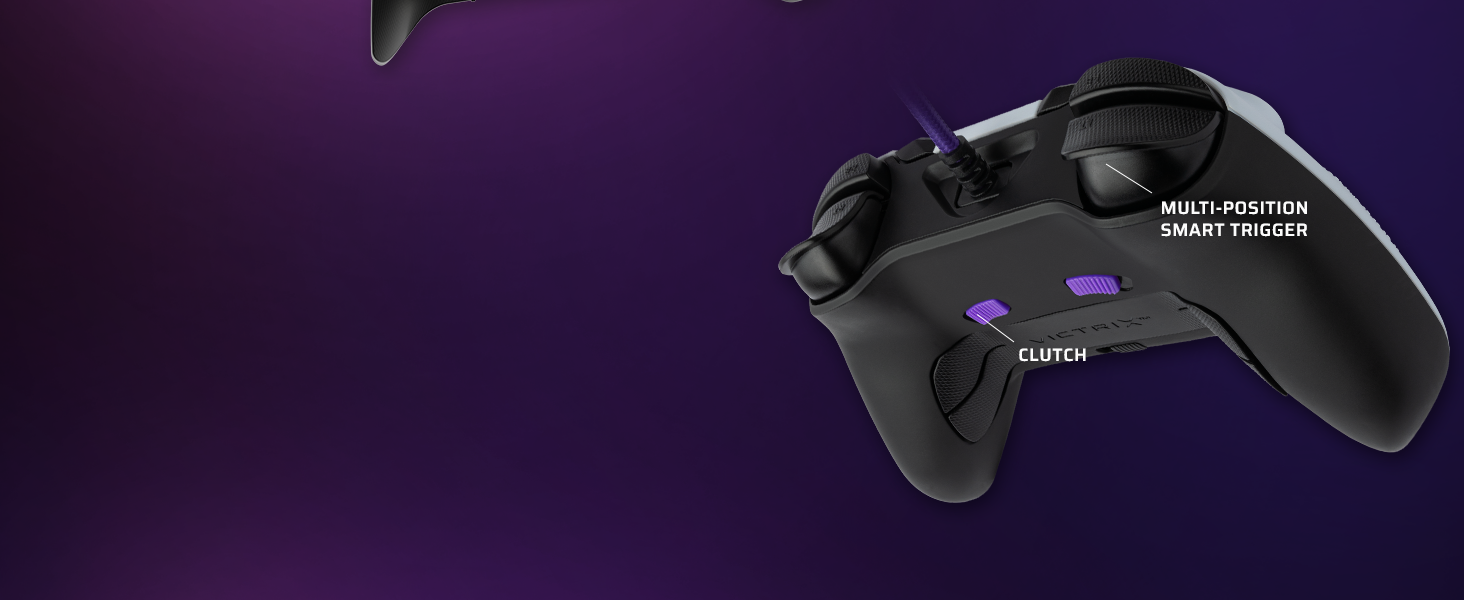
The controller features patented five-position trigger stops, allowing you to reduce the travel distance of the triggers for faster response times in games. Locate the small switches on the underside of the controller, near the triggers. Slide these switches to adjust the trigger travel to your preferred setting.
Customizing with the Control Hub App:
The Victrix Control Hub app provides extensive customization options:
- การแมปปุ่มใหม่: Assign any button function to another button or paddle.
- Analog Stick Adjustment: Test and calibrate analog sticks, adjust dead zones, and invert X/Y axes.
- การตั้งค่าทริกเกอร์: Calibrate triggers, adjust dead zones, and swap trigger functions.
- ออดิโอโปรfiles: Fine-tune volume, game/chat balance, mic mute, and mic monitoring. Create custom EQ profiles.
- การสั่นสะเทือน: Adjust the strength of the controller's vibration or turn it off completely.
วิดีโอ: เจ้าหน้าที่ผ่านview of the Victrix Gambit Dual Core Tournament Controller, demonstrating its features and customization options through the Victrix Control Hub app.
การซ่อมบำรุง
Cleaning Your Controller:
- ใช้ผ้าแห้งเนื้อนุ่มเช็ดทำความสะอาดพื้นผิวของตัวควบคุมเป็นประจำ
- สำหรับสิ่งสกปรกฝังแน่น ให้เช็ดออกเล็กน้อยampชุบผ้าด้วยน้ำหรือน้ำยาทำความสะอาดอ่อนๆ ที่ไม่กัดกร่อน หลีกเลี่ยงความชื้นที่มากเกินไป
- Do not use harsh chemicals or solvents, as these can damage the controller's finish.
- Ensure the controller is disconnected from its power source before cleaning.
พื้นที่จัดเก็บ:
- Store the controller in its included hard-shell carrying case when not in use to protect it from dust, spills, and physical damage.
- Avoid storing the controller in extreme temperatures or direct sunlight.
การแก้ไขปัญหา
ปัญหาทั่วไปและวิธีแก้ไข:
- คอนโทรลเลอร์ไม่ตอบสนอง:
- ตรวจสอบให้แน่ใจว่าได้เสียบสาย USB-C เข้ากับทั้งคอนโทรลเลอร์และเครื่องเล่นเกม/พีซีอย่างแน่นหนาแล้ว
- ลองเสียบตัวควบคุมเข้ากับพอร์ต USB อื่นดู
- รีสตาร์ทเครื่องเล่นเกมหรือเครื่องคอมพิวเตอร์ของคุณ
- Check for any firmware updates via the Victrix Control Hub app.
- Stick Drift or Inaccurate Input:
- Open the Victrix Control Hub app and navigate to the 'Analog Sticks' section. Perform a stick calibration.
- Clean around the base of the thumbsticks to remove any debris.
- Adjust dead zone settings in the Control Hub app if minor drift persists.
- Buttons Not Registering or Malfunctioning:
- ตรวจสอบให้แน่ใจว่าไม่มีเศษขยะติดอยู่ใต้ปุ่ม
- Check button remapping settings in the Victrix Control Hub app to ensure correct assignments.
- If using trigger stops, ensure they are not set too aggressively, preventing full button press.
- ปัญหาเกี่ยวกับเสียง:
- Verify your headset is properly connected to the 3.5mm jack.
- Check audio settings within the Victrix Control Hub app and your console/PC's system settings.
- Ensure Dolby Atmos is correctly configured if you are using it.
ข้อมูลจำเพาะ
| คุณสมบัติ | รายละเอียด |
|---|---|
| หมายเลขรุ่น | 049-006- ณ |
| ความเข้ากันได้ | Xbox One, Xbox Series X|S, Windows 10/11 PC |
| การเชื่อมต่อ | แบบมีสาย (USB-C) |
| การสนับสนุนด้านเสียง | 3.5mm audio jack with Dolby Atmos (lifetime access included) |
| การปรับแต่ง | Swappable faceplates, thumbsticks, D-pads, back paddles; adjustable trigger stops; software remapping |
| ขนาด | 3.74 x 8.27 x 8.27 นิ้ว |
| น้ำหนัก | 1.18 ปอนด์ |
| ผู้ผลิต | Victrix |
| วันที่วางจำหน่าย | 4 ตุลาคม 2021 |
การรับประกันและการสนับสนุน
For warranty information, technical support, or service inquiries, please refer to the official Victrix webเข้าชมเว็บไซต์หรือติดต่อฝ่ายบริการลูกค้าโดยตรง เก็บหลักฐานการซื้อไว้สำหรับการเคลมประกันใดๆ
Online resources, including FAQs and additional guides, may be available on the Victrix support page.


