1. บทนำ
This manual provides essential information for the safe and efficient use of your Amazon Fire HD 10 tablet (2021 release). Please read it thoroughly before operating your device.
คุณสมบัติหลัก
- Fast and Responsive: Powered by an octa-core processor and 3 GB RAM, offering 50% more RAM than the previous generation.
- แบตเตอรี่ใช้งานได้ยาวนาน: Up to 12 hours of battery life for reading, browsing, video, and music.
- การแสดงผลที่สดใส: 10.1-inch 1080p Full HD display, 10% brighter than the previous generation, with over 2 million pixels.
- Ampที่เก็บของ: Available with 32 GB or 64 GB internal storage, expandable up to 1 TB with a microSD card (sold separately).
- ความเข้ากันได้ของแอพ: Access to popular apps like Netflix, Facebook, Disney+, Instagram, TikTok, and more via Amazon’s Appstore.
- เครื่องมือเพิ่มผลผลิต: Supports apps like Microsoft Office, OneNote, and Dropbox for enhanced productivity.
- การออกแบบที่ทนทาน: Thinner and lighter than the previous generation, with a screen strengthened by aluminosilicate glass.
- ฟังก์ชั่นแยกหน้าจอ: Allows two compatible apps to be open side-by-side for multitasking.
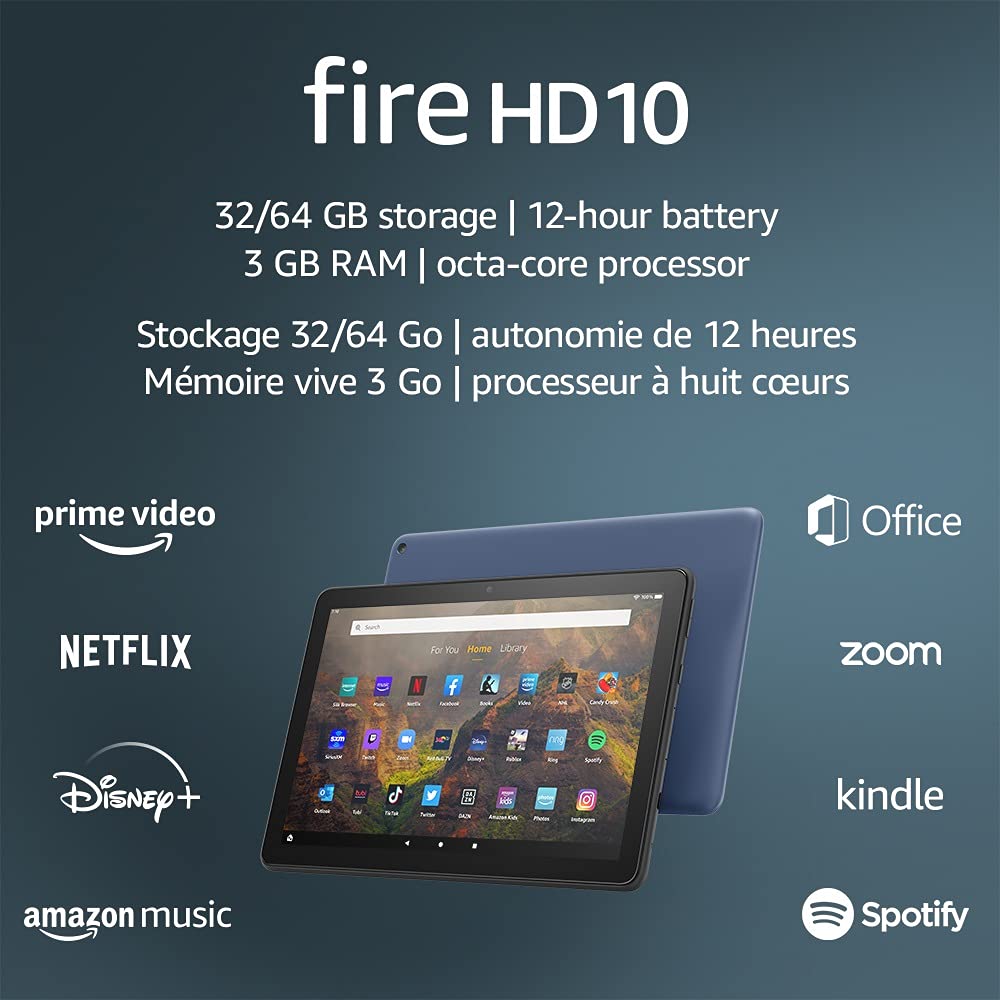
Image 1.1: The Amazon Fire HD 10 tablet highlighting its 32/64 GB storage, 12-hour battery, 3 GB RAM, and octa-core processor, alongside logos of supported applications such as Prime Video, Netflix, Disney+, Amazon Music, Office, Zoom, Kindle, and Spotify.
2. การตั้งค่า
2.1 การแกะกล่องและการชาร์จครั้งแรก
Upon receiving your Fire HD 10 tablet, carefully remove all components from the packaging. Before first use, it is recommended to fully charge the device.
- Connect the provided USB-C (2.0) cable to the tablet's USB-C port.
- Plug the other end of the USB-C cable into the 9W power adapter.
- เสียบอะแดปเตอร์ไฟฟ้าเข้ากับเต้ารับไฟฟ้าที่ผนัง
- A full charge from 0% to 100% typically takes approximately 4 hours while the device is in standby mode.
2.2 การเปิด/ปิดเครื่อง
- การเปิดเครื่อง: Press and hold the power button located on the side of the tablet until the Amazon logo appears on the screen.
- วิธีปิดเครื่อง: Press and hold the power button until a power options menu appears. Select 'Power Off'.
- ในการรีสตาร์ท: จากเมนูตัวเลือกพลังงาน ให้เลือก 'รีสตาร์ท'
2.3 การเชื่อมต่อ Wi-Fi
To access online content and services, connect your Fire HD 10 to a Wi-Fi network.
- จากหน้าจอหลัก ให้ปัดลงจากด้านบนเพื่อเปิดแผงการตั้งค่าด่วน
- แตะไอคอน Wi-Fi
- เลือกเครือข่าย Wi-Fi ที่คุณต้องการจากรายการเครือข่ายที่มีอยู่
- หากระบบถาม ให้ป้อนรหัสผ่านเครือข่ายแล้วแตะ 'เชื่อมต่อ'
- The tablet supports 2.4 GHz and 5.0 GHz networks. Ad-hoc (peer-to-peer) Wi-Fi networks are not supported.
2.4 การตั้งค่าบัญชี
During the initial setup process, you will be guided to register your Fire HD 10 to an Amazon account. This is necessary to download apps, access Amazon content, and utilize cloud services.
- Follow the on-screen prompts to sign in with an existing Amazon account or create a new one.
- Ensure your account details are accurate for full functionality.
3. คู่มือการใช้งาน
3.1 การนำทางอินเทอร์เฟซ
The Fire HD 10 tablet features a touch-sensitive display for interaction.
- แตะ: ในการเลือกรายการ ให้เปิดแอป หรือกดปุ่ม
- ปัด: เพื่อเลื่อนดูหน้าต่างๆ รายการ หรือสลับระหว่างหน้าจอหลัก
- บีบเพื่อซูม: เพื่อซูมเข้าหรือซูมออกภาพ web หน้า หรือเอกสาร
- กดแบบยาว: เพื่อเข้าถึงเมนูบริบทหรือย้ายไอคอนแอป
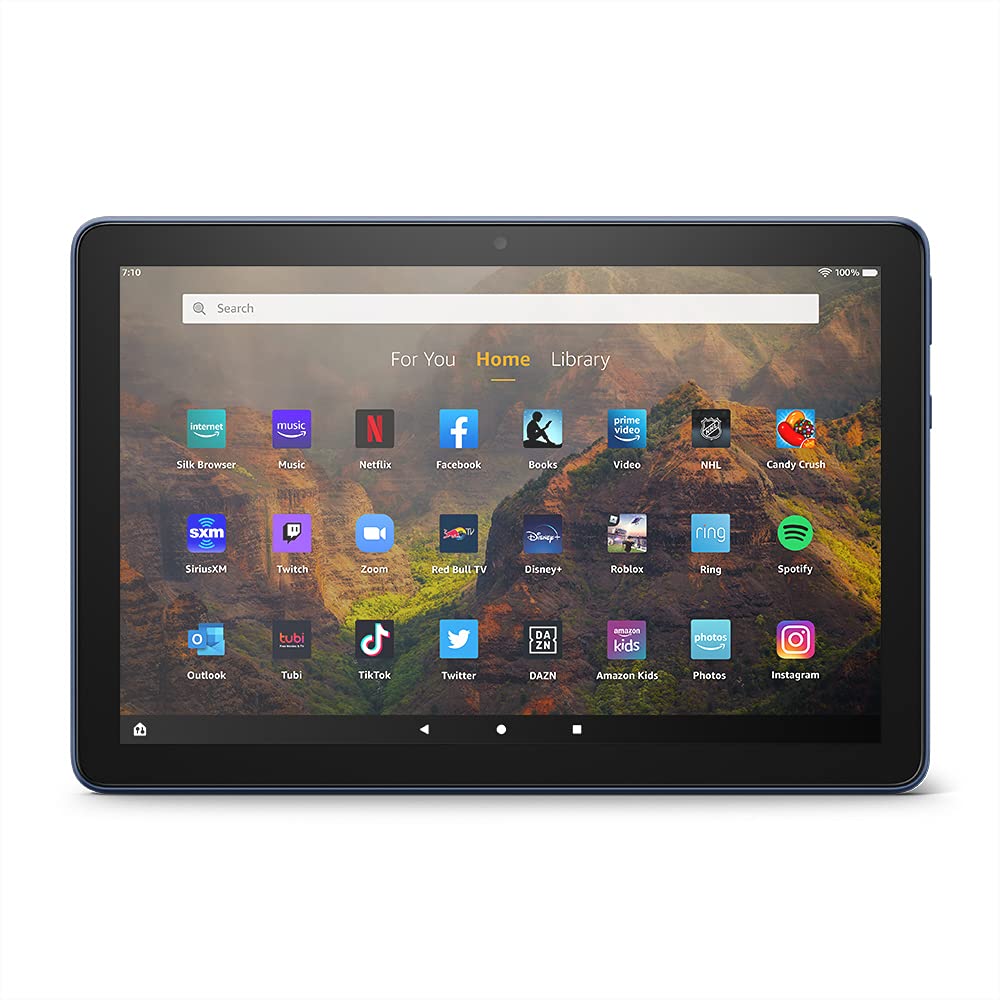
Image 3.1: The Amazon Fire HD 10 tablet's home screen, showcasing a grid of application icons including Silk Browser, Music, Netflix, Facebook, Books, Video, NHL, Candy Crush, SiriusXM, Twitch, Zoom, Red Bull TV, Disney+, Roblox, Ring, Spotify, Outlook, Tubi, TikTok, Twitter, DAZN, Amazon Kids, Photos, and Instagแกะ.
3.2 การใช้งานแอปพลิเคชัน
Applications can be downloaded from the Amazon Appstore. Google Play is not supported.
- Tap an app icon on the Home screen to launch it.
- To find new apps, open the 'Appstore' application.
- Some apps may require a subscription for full access.

Image 3.2: A collage of content available on the Amazon Fire HD 10 tablet, featuring book covers like 'The Silent Patient', Amazon Original series and movies such as 'The Wilds', 'Coming to America', 'The Expanse', 'Dune', 'Hanna', 'One Night in Miami', 'Sound of Metal', 'The Marvelous Mrs. Maisel', 'Upload', and 'The Boys', alongside social media app logos for TikTok, Facebook, and Twitter.
3.3 Split Screen Multitasking
The Fire HD 10 supports split screen functionality, allowing two compatible applications to run side-by-side.
- เปิดแอปพลิเคชันแรกที่คุณต้องการใช้
- Swipe up from the bottom of the screen to reveal the navigation bar.
- Long-press the icon of the first app in the recent apps view.
- Select 'Split Screen' from the options.
- Choose a second compatible app from your recent apps or app drawer to fill the other half of the screen.

Image 3.3: The Amazon Fire HD 10 tablet, shown with an optional Bluetooth keyboard case, demonstrating its split-screen capability. Two applications are open simultaneously: a calendar app on the left and a messaging app on the right, illustrating enhanced productivity.
3.4 การใช้งานกล้อง
The tablet is equipped with a 2 MP front-facing camera and a 5 MP rear-facing camera, both capable of 720p HD video recording.
- Open the 'Camera' app from your Home screen or app drawer.
- แตะปุ่มชัตเตอร์เพื่อถ่ายภาพ
- สลับระหว่างกล้องด้านหน้าและด้านหลังโดยใช้ไอคอนสลับกล้อง
- เลือกโหมดวิดีโอเพื่อบันทึกวิดีโอ
3.5 เสียงและบลูทูธ
The Fire HD 10 includes dual integrated speakers and a 3.5 mm stereo jack for headphones. It also supports Bluetooth 5.0 LE.
- Connect wired headphones or external speakers via the 3.5 mm jack.
- To pair Bluetooth devices (headphones, speakers, microphones, LE accessories):
- Go to 'Settings' > 'Connected Devices' > 'Bluetooth'.
- ตรวจสอบว่าบลูทู ธ เปิดอยู่
- เลือกอุปกรณ์ของคุณจากรายการอุปกรณ์ที่ใช้งานได้ และทำตามขั้นตอนการจับคู่
3.6 การจัดการการจัดเก็บข้อมูล
Your Fire HD 10 comes with either 32 GB or 64 GB of internal storage. You can expand this by up to 1 TB using a microSD card.
- To insert a microSD card: Locate the microSD slot on the side of the tablet, open the cover, and gently insert the card until it clicks into place.
- Manage storage by going to 'Settings' > 'Storage'. Here you can view usage and move compatible apps or media to the microSD card.
4. การบำรุงรักษา
4.1 การดูแลแบตเตอรี่
- Avoid exposing the tablet to extreme temperatures, as this can degrade battery performance.
- เพื่อให้แบตเตอรี่ใช้งานได้นานที่สุด ควรหลีกเลี่ยงการปล่อยให้แบตเตอรี่หมดเกลี้ยงบ่อยๆ หรือการปล่อยให้แบตเตอรี่ชาร์จเต็ม 100% เป็นเวลานานๆ
- Use only the provided 9W power adapter and USB-C cable for charging.
4.2 การทำความสะอาดเครื่อง
- ปิดแท็บเล็ตก่อนทำความสะอาด
- ใช้ผ้าเนื้อนุ่มที่ไม่เป็นขุยเช็ดหน้าจอและตัวเครื่องเบา ๆ
- สำหรับรอยเปื้อนฝังแน่น ให้เช็ดออกเล็กน้อยampชุบผ้าให้เปียกน้ำ หลีกเลี่ยงการใช้สารเคมีรุนแรง น้ำยาทำความสะอาดที่มีฤทธิ์กัดกร่อน หรือสเปรย์กระป๋อง
4.3 การอัปเดตซอฟต์แวร์
Amazon periodically releases software updates to improve performance and add new features. Ensure your device is connected to Wi-Fi to receive these updates.
- Updates are typically downloaded and installed automatically.
- You can manually check for updates by going to 'Settings' > 'Device Options' > 'System Updates'.
5 การแก้ไขปัญหา
5.1 อุปกรณ์ไม่ตอบสนอง
- If the device is frozen or unresponsive, press and hold the power button for approximately 20 seconds to force a restart.
- Ensure the device has sufficient battery charge. Connect it to the charger and try powering it on again.
5.2 ปัญหาการเชื่อมต่อ Wi-Fi
- Verify that Wi-Fi is enabled in Quick Settings or 'Settings' > 'Wireless'.
- Ensure you are within range of your Wi-Fi router.
- รีสตาร์ทเราเตอร์ Wi-Fi และโมเด็มของคุณ
- Forget the network in 'Settings' > 'Wireless' and reconnect, re-entering the password if necessary.
5.3 แอปขัดข้องหรือโหลดไม่ขึ้น
- ปิดและเปิดแอปใหม่อีกครั้ง
- Clear the app's cache: Go to 'Settings' > 'Apps & Games' > 'Manage All Applications', select the problematic app, and tap 'Clear Cache'.
- ตรวจสอบให้แน่ใจว่าซอฟต์แวร์ของแท็บเล็ตของคุณได้รับการอัปเดตแล้ว
- หากปัญหายังคงมีอยู่ โปรดพิจารณาถอนการติดตั้งและติดตั้งแอปใหม่อีกครั้ง
5.4 อายุการใช้งานแบตเตอรี่สั้น
- ลดความสว่างหน้าจอ
- ปิดแอปพลิเคชันที่ไม่ได้ใช้งานซึ่งทำงานอยู่เบื้องหลัง
- ปิด Wi-Fi หรือ Bluetooth เมื่อไม่ได้ใช้งาน
- จำกัดการใช้งานข้อมูลพื้นหลังสำหรับแอป
- Check 'Settings' > 'Battery' to identify apps consuming the most power.
6. ข้อมูลจำเพาะ
| คุณสมบัติ | รายละเอียด |
|---|---|
| รุ่น | รุ่นที่ 11 เปิดตัวปี 2021 |
| แสดง | จอแสดงผล 1080p ขนาด 10.1 นิ้ว คมชัดระดับ 1080p (1920 x 1200) พิกเซลกว่า 2 ล้านพิกเซล (224 ppi) เสริมความแข็งแกร่งหน้าจอด้วยกระจกอะลูมิโนซิลิเกต |
| ขนาด | 247mm x 166mm x 9.2 มม |
| น้ำหนัก | 465 grams (Actual size and weight may vary) |
| ซีพียู & แรม | Octa-core 2.0 GHz พร้อม RAM 3 GB |
| พื้นที่จัดเก็บ | 32 GB (24.2 GB available) or 64 GB (55.0 GB available) internal storage. Expandable up to 1 TB with microSD card. |
| อายุการใช้งานแบตเตอรี่ | Up to 12 hours of mixed usage (reading, web, video, music). Varies by settings and usage. |
| เวลาในการชาร์จ | Approx. 4 hours (0-100%) with provided 9W adapter in standby. |
| การเชื่อมต่อ WiFi | Supports 2.4 GHz and 5.0 GHz networks. Does not support ad-hoc networks. |
| พอร์ต | USB-C (2.0) for charging, microSD slot for external storage. |
| เสียง | 3.5 mm stereo jack, dual integrated speakers, external volume controls. |
| เซ็นเซอร์ | เซ็นเซอร์วัดความเร่ง, เซ็นเซอร์วัดแสงโดยรอบ |
| ข้อมูลจำเพาะของกล้อง | 2 MP front-facing, 5 MP rear-facing cameras with 720p HD video recording. |
| ไมโครโฟน | 2 built-in microphones. |
| บริการระบุตำแหน่ง | Location-based services via WiFi. |
| สีที่มีจำหน่าย | Black, Denim. |
| บลูทูธ | Built-in Bluetooth 5.0 LE with A2DP support for stereo headphones, speakers, microphone, and LE accessories. |
6.1 คุณสมบัติการเข้าถึง
The Fire HD 10 tablet includes various accessibility features to assist users. These can be accessed via 'Settings' > 'Accessibility'.
- เสียงView โปรแกรมอ่านหน้าจอ: Provides spoken feedback for users who are blind or visually impaired.
- แว่นขยายหน้าจอ: Allows users to zoom in/out and pan around the screen.
- การเข้าถึงสวิตช์: Enables interaction for users with motor impairments via compatible Bluetooth devices.
- Kindle อ่านออกเสียง: อเล็กซ่าสามารถอ่านหนังสือ Kindle ออกเสียงได้
- การตั้งค่าการแสดงผล: Includes options for Closed Captioning, Font Size, Display Size, High Contrast Text, Color Inversion, Color Correction, and Convert Stereo to Mono audio. (Note: Captions are not available for all content.)
7. การรับประกันและการสนับสนุน
7.1 ข้อมูลการรับประกัน
Your Amazon Fire HD 10 tablet comes with a 1-year limited warranty and service. Optional 1-year, 2-year, and 3-year extended warranties are available for purchase separately for customers in Canada.
Use of the Fire HD 10 tablet is subject to Amazon's Conditions of Use and associated terms.
7.2 รวมมาในกล่อง
The following items are included with your Fire HD 10 tablet:
- แท็บเล็ต Fire HD 10
- สาย USB-C (2.0)
- อะแดปเตอร์ไฟฟ้า 9W
- คู่มือเริ่มต้นอย่างรวดเร็ว
7.3 การสนับสนุนเพิ่มเติม
For additional assistance, please visit the Amazon Device Support website or contact Amazon Customer Service.


